Who is this article for?
If you sell products to your clients (massage oil, supplements, orthotics, books...) or bill fixed fees that are not appointments, the inventory lets you create them once and add them to your invoices in a few clicks. Colib also keeps track of your stock: every product sold on an invoice is automatically withdrawn from it.
This is the inventory side of the Inventory & Gift Certificates feature of Colib.
This article explains how to create a product, how to manage its stock, how to add it to an invoice, and what happens when you change or delete it.
Before you start: the products are managed in Settings > Inventory (www.colib.io/settings?show=inventory). You need access to the practice settings to create, modify or delete them.
1Open your inventory
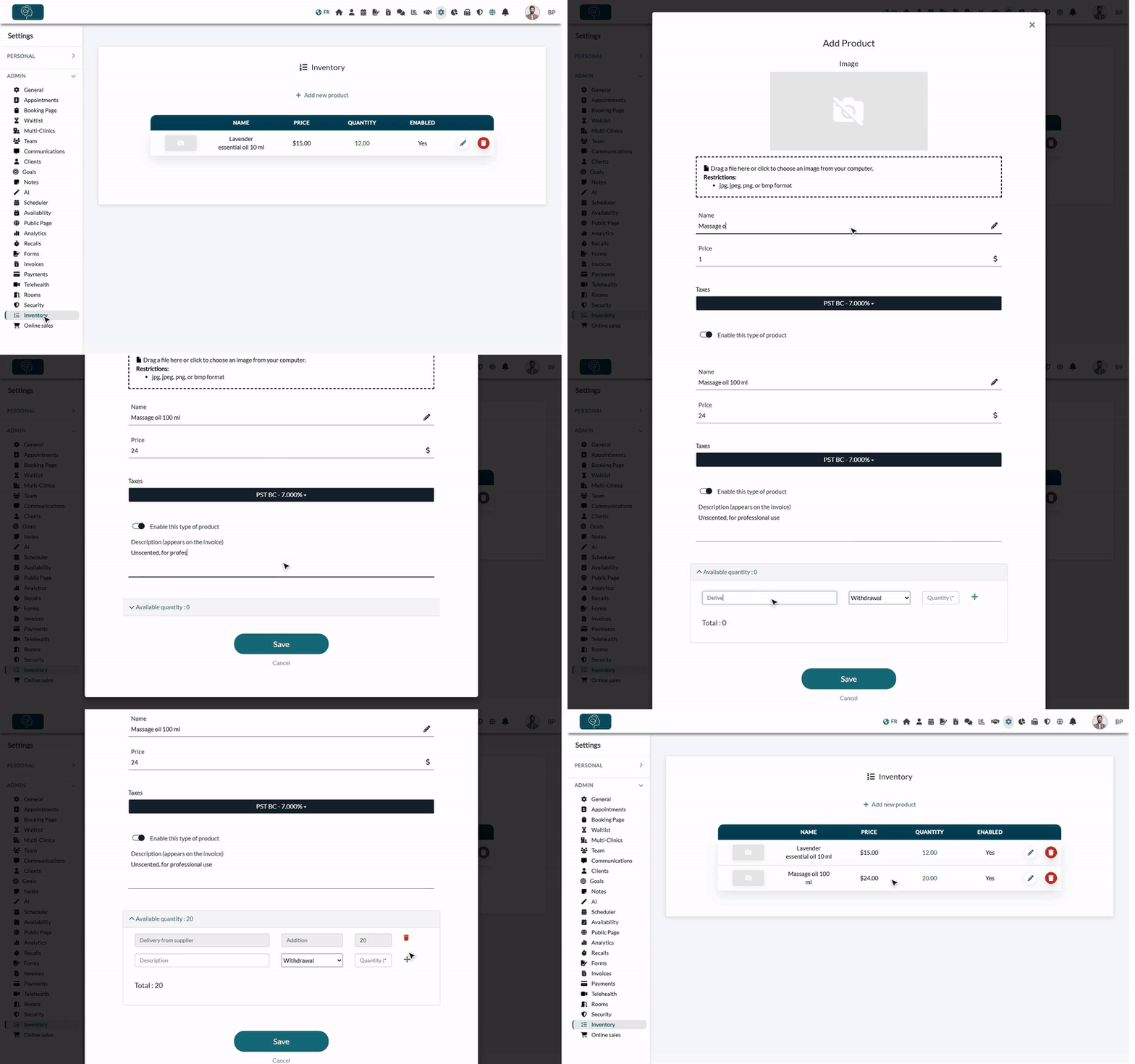
- Go to www.colib.io/settings?show=inventory. You can also click the Settings icon (gear) in the top bar, then Inventory in the Admin menu on the left.
- The list shows your products with their Name, Price, Quantity in stock and whether they are Enabled. A positive quantity is shown in green, a negative quantity in red.
2Create a product
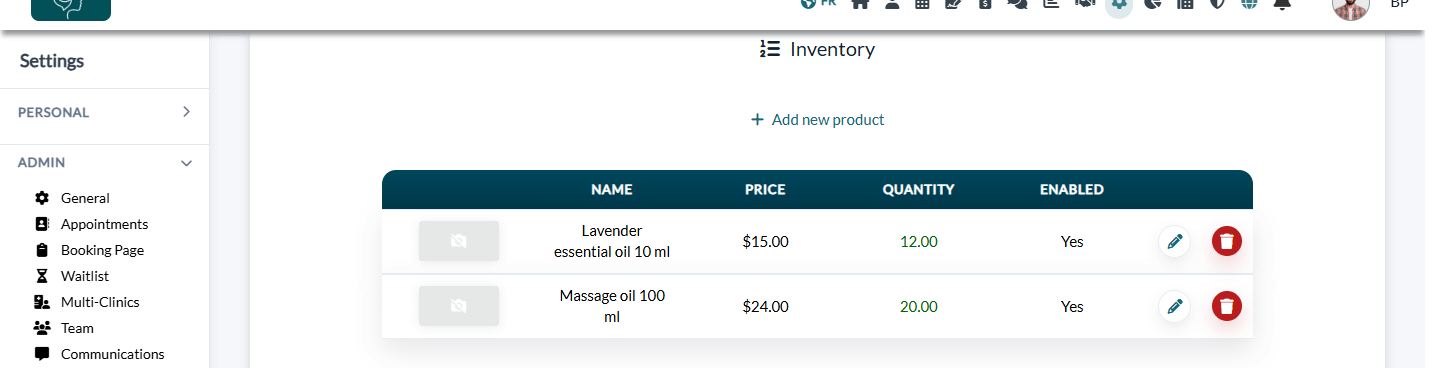
- Click Add new product. The Add Product window opens.
- Optionally, add an Image: drag a picture into the dotted box or click it to choose a file (jpg, jpeg, png or bmp), then crop it.
- Enter the Name of the product and its Price (before taxes).
- Check the Taxes that apply. Your practice's default taxes are selected for you.
- Leave Enable this type of product turned on so that the product can be added to invoices.
- Optionally, enter a Description (appears on the invoice): when it is filled in, this text is written on the invoice line instead of the name.
- Click Save. The product appears in the list.
3Manage the stock
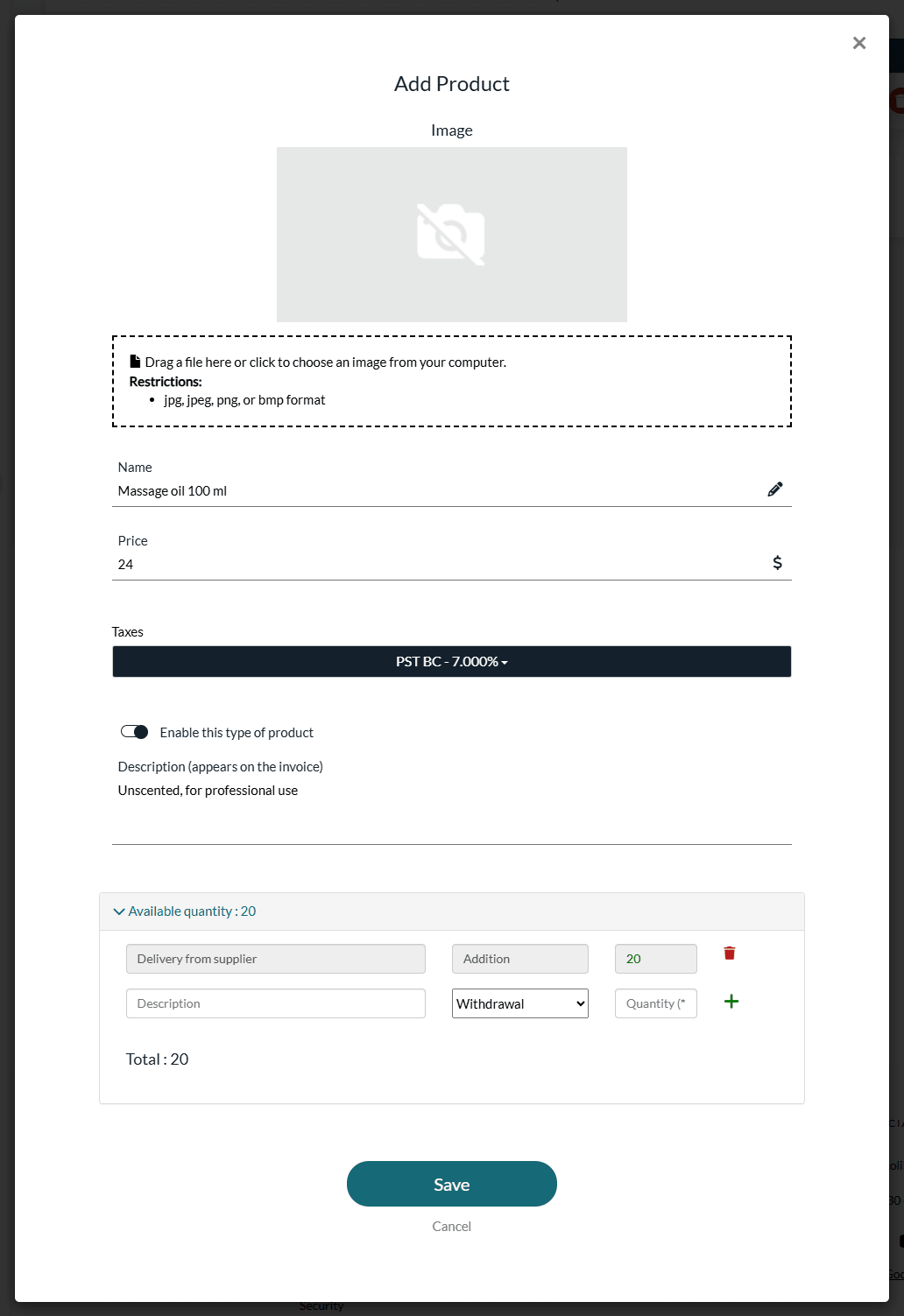
The stock of a product is the sum of its additions and withdrawals. You can enter them when you create the product, or later by clicking the pencil icon of the product in the list.
- At the bottom of the product window, open the Available quantity section.
- Enter a Description (for example, Delivery from supplier or Damaged bottle).
- Choose Addition to add units to the stock or Withdrawal to remove some.
- Enter the Quantity (a whole number), then click the green + button. The new Total is calculated right away.
- Click Save to keep the change.
To cancel an addition or a withdrawal entered by hand, click its trash icon, then Save.
Use these movements to record your deliveries, adjustments and recounts:
| What happened | What to enter |
|---|---|
| Delivery from your supplier | An Addition of the number of units received. |
| Adjustment: a product lost, broken, expired or used at the clinic | A Withdrawal of the number of units concerned, with the reason in the Description. |
| Recount: your physical count differs from the Total shown in Colib | The difference: an Addition if you counted more units than the Total, a Withdrawal if you counted fewer (for example, Recount, 3 units). |
There is no separate recount or recalculate button: the Total is always the sum of all the movements of the product, and Colib updates it automatically after each movement.
4Add a product to an invoice
Once your products are created, you can use them directly on your invoices.
- Open or create the invoice from www.colib.io/invoices or from the client's record.
- In the items of the invoice, choose Product as the type.
- Choose the product in the list. Its unit price and taxes are filled in automatically, based on the product's configuration.
- Enter the Quantity, then click the green + button to add the line.
- Save the invoice.

The Edit products link under the type opens your inventory in a new tab, for example to fix a price before you add the line. Only the enabled products are offered in the list.
5Follow the stock balance
Using a product on an invoice automatically creates a withdrawal in the stock of the product. To see the stock balance and its history:
- Go back to the product list (www.colib.io/settings?show=inventory).
- Click the pencil icon of the product, then open the Available quantity section.
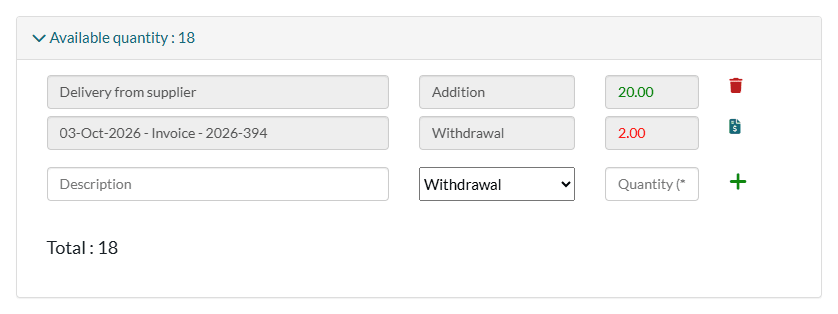
- Each withdrawal created by an invoice shows the date and the number of the invoice. Its invoice icon opens that invoice.
- These withdrawals follow the invoice: if you change the quantity on the invoice, remove the product from it or delete the invoice, the stock is updated accordingly. They cannot be deleted from the product window.
- Colib does not block a sale when the stock is empty: the quantity simply becomes negative (in red) until you enter an addition.
Good to know
- Change a product without creating it again — click the pencil icon of the product, change its name, price, taxes, image or description, then Save. The new values are used on the next invoices.
- Invoices already created are not changed — the lines already on your invoices keep the name, price and taxes they were created with.
- Stop selling a product — turn off Enable this type of product: the product stays in your inventory with its stock, but it is no longer offered on invoices.
- Delete a product — click its trash icon and confirm. It disappears from your inventory and from the list of products of the invoices. The invoices on which it was already sold are not changed.
- No low-stock alert — Colib does not warn you when a product runs low. Check the Quantity column of your product list (www.colib.io/settings?show=inventory): negative quantities are shown in red.
- Online store — products are sold on your invoices. Your online store only sells gift certificates: see How gift certificates work (gift cards, service vouchers and packages).
- Follow your shop sales in Analytics — the Analytics dashboard shows the number and the amount of the products sold. Please see the article titled "How to read the Analytics dashboard".
- Feature overview — for an overview of products, stock and gift certificates in Colib, see the Inventory & Gift Certificates page.
Still have a question?
Write to us at support@colib.io, we will be happy to help.
Was this article helpful?
That’s Great!
Thank you for your feedback
Sorry! We couldn't be helpful
Thank you for your feedback
Feedback sent
We appreciate your effort and will try to fix the article