Who is this article for?
With online sales, your clients can buy gift certificates on your own online store, for themselves or for someone else. Colib sends the code of the gift certificate by email, and the code is then used to pay for an appointment: on your booking page or from your scheduler.
This is the gift certificate side of the Inventory & Gift Certificates feature of Colib: three kinds of certificates (gift card, service voucher and package), a balance tracked to the cent, and an online shop.
This article explains how to turn on online sales, create your types of gift certificates (amount, service voucher or package), share your store, follow the certificates sold, enter certificates you sold outside Colib, and how the codes are used.
Before you start: online sales require online payments to be set up in Settings > Payments (www.colib.io/settings?show=payment), and every appointment type must have a price in Settings > Appointments (www.colib.io/settings?show=appointments). Until then, the Online sales tab shows a message telling you what is missing instead of the option.
1Turn on online sales
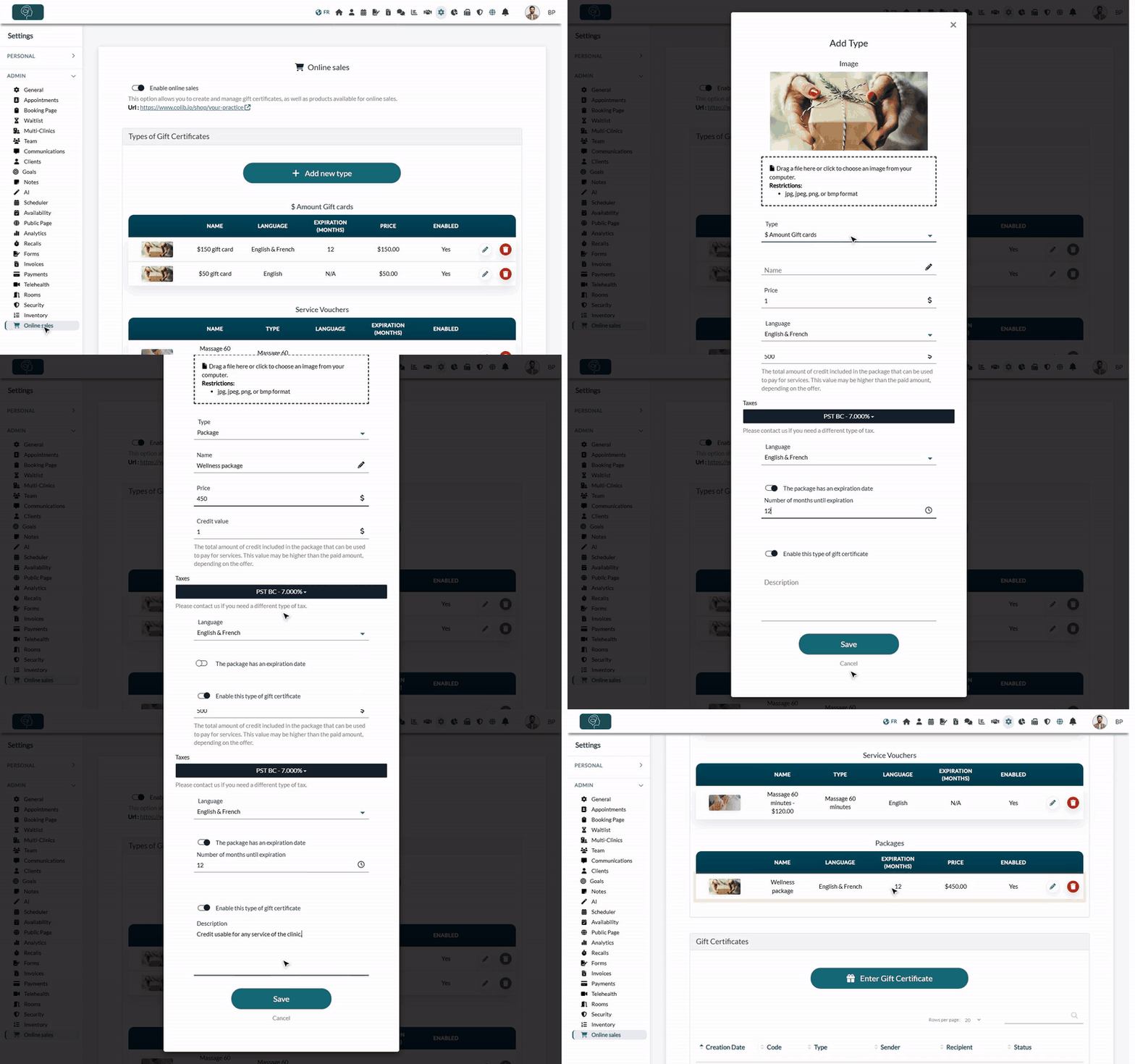
- Go to Settings > Online sales (www.colib.io/settings?show=onlinesales).
- Turn on Enable online sales. The change is saved right away.
- The Url of your online store appears under the option. This is the link to share with your clients (website, newsletter, social media).
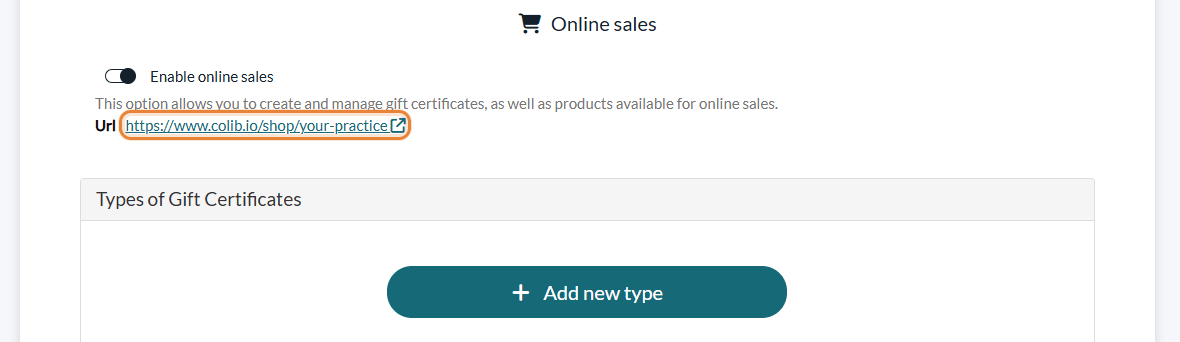
When online sales are turned on, an Online Store button is also shown on the public page of your practice.
2Create your types of gift certificates
A type is what your clients buy on your store (for example, a $100 gift card). Create one type for each offer.
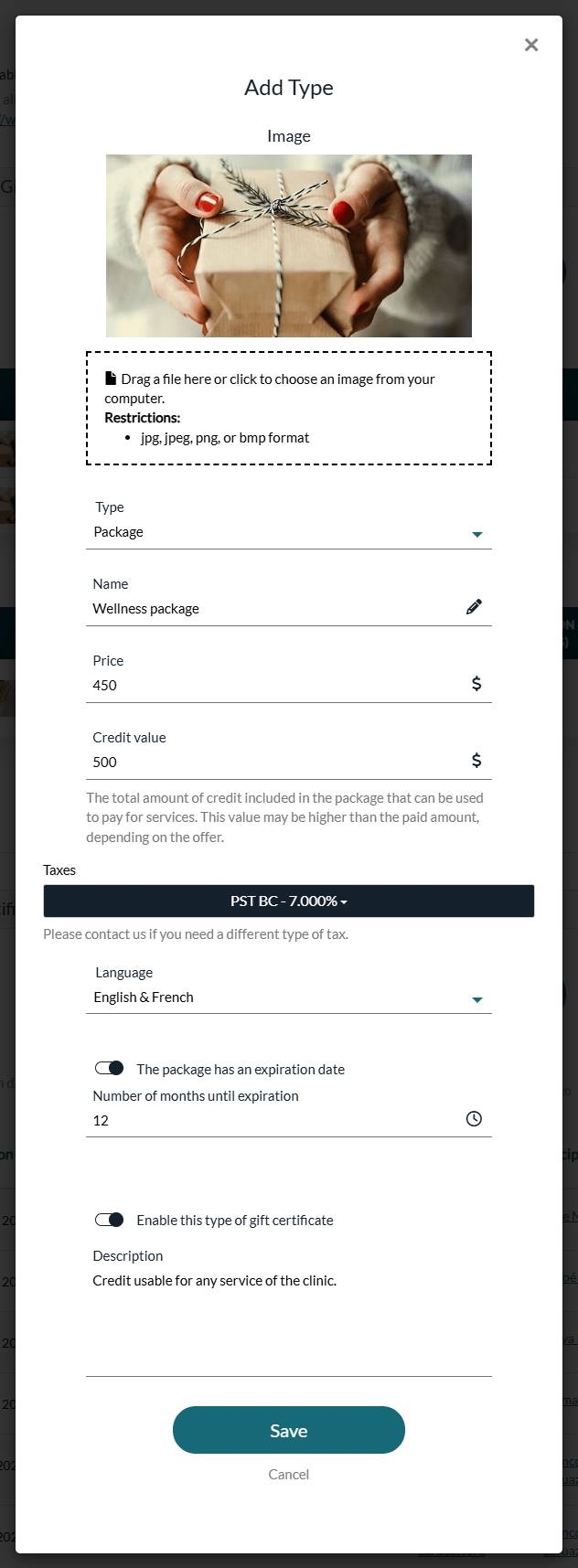
- In the Types of Gift Certificates section, click Add new type.
- Optionally, add an Image: it is shown on your store and in the email that contains the code.
- Choose the Type (see the table below) and fill in the fields that appear.
- Enter the Name shown to your clients.
- Choose the Language: your store only shows the types of the language of the page, or the types offered in English & French.
- To give the certificate a limited validity, turn on the expiration option and enter the Number of months until expiration, counted from the date the certificate is sent.
- Leave Enable this type of gift certificate turned on so that it is offered on your store, and optionally add a Description.
- Click Save.
| Type | How it works |
|---|---|
| $ Amount Gift cards | A gift card of a fixed amount: the Price paid is the value of the card. It can be used over several appointments until it is used up. No taxes are added when it is bought. |
| Service Voucher | A voucher for one appointment of a given Type of appointment. Its price is the price of that appointment type, which must have one. It covers one appointment. |
| Package | A prepaid credit. The client pays the Price and receives the Credit value, which can be higher than the price paid depending on your offer (for example, pay $450 and get $500 of services). The credit is used like a gift card, over several appointments. |
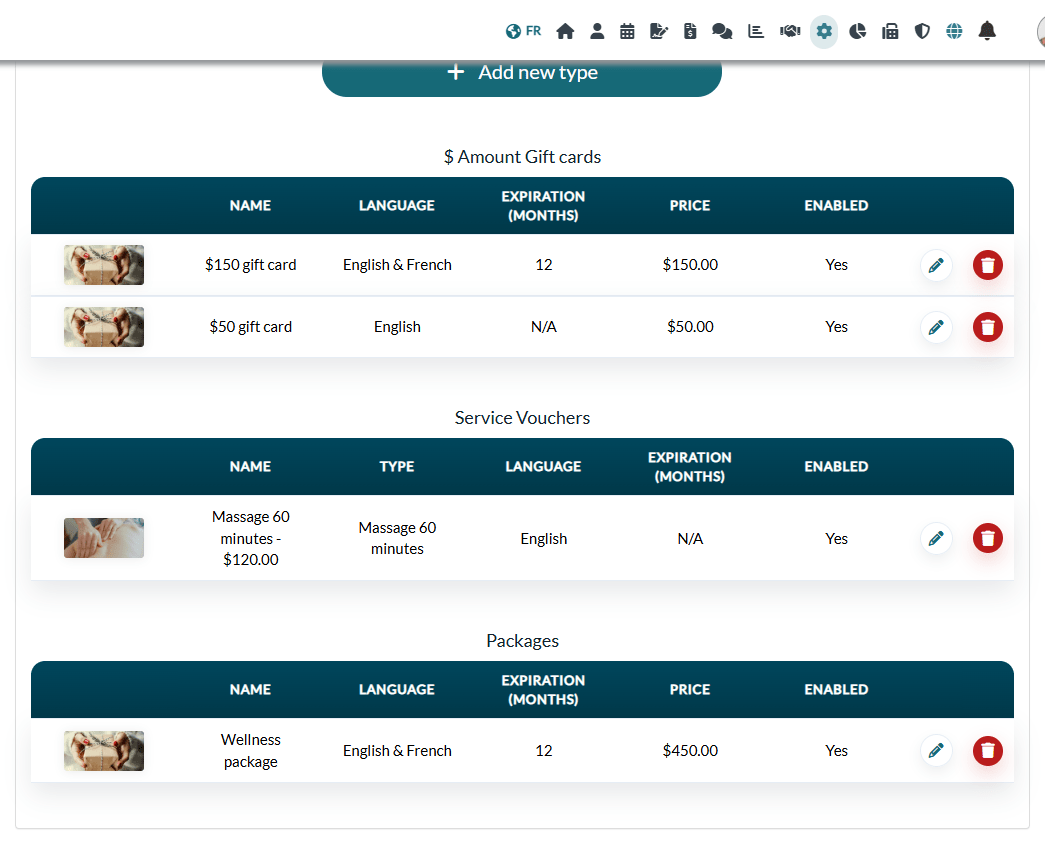
The types are listed by kind, with their language, expiration, price and status. Use the pencil icon to change a type and the trash icon to delete it.
Note: once at least one gift certificate uses a type, its kind and its appointment type can no longer be changed. To stop selling a type, turn off Enable this type of gift certificate.
3What your clients see on your online store
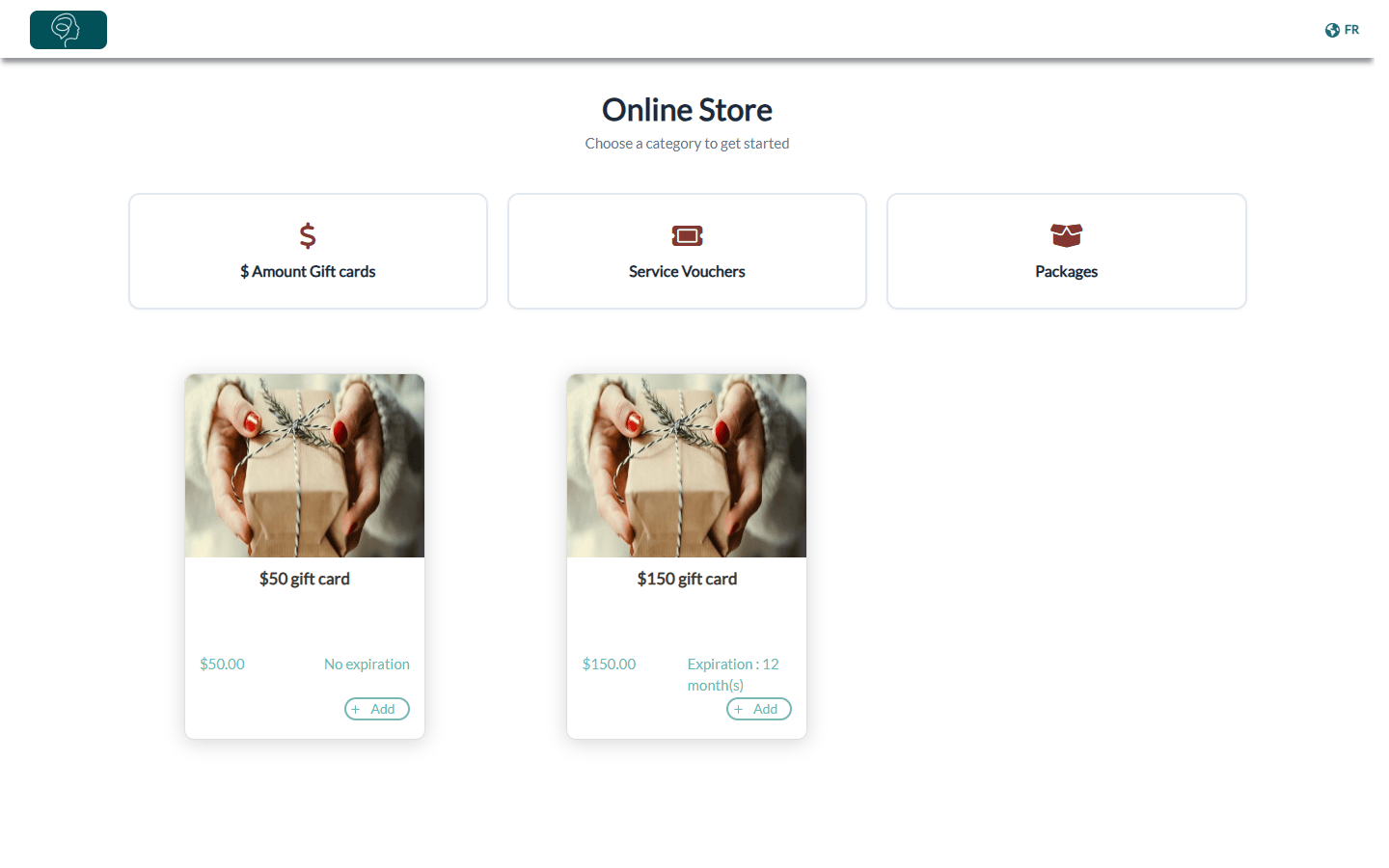
Via the URL of your store, your clients can buy gift certificates for themselves or for someone else:
- They choose a category ($ Amount Gift cards, Service Vouchers or Packages) and add certificates to their cart.
- At checkout, they enter their name and email address. For each certificate, they can check Send as gift? and enter the recipient's name and email address, the date on which the certificate must be sent and a personal message.
- They pay by credit card. The payment is made securely through our payment provider, Stripe.
After the payment:
- The buyer receives their receipt by email, and the codes are shown on the confirmation page.
- The recipient (or the buyer, if the certificate is for themselves) receives an email with the code of the gift certificate on the chosen date, with the message and the expiration date. When your clients can book online, the email has a button to book an appointment directly.
- You receive an email about the new purchase. A paid invoice is created for the buyer, and the buyer and the recipient are added to your clients if they were not already.
4Follow the gift certificates sold
The list of the gift certificates purchased by your clients is at the bottom of the Online sales tab, in the Gift Certificates section. For each one, you see the Creation Date, the Code, the Type, the Sender, the Recipient and the Status: Active, or Used once nothing is left on it. Use the search field to find a code or a client, and the pencil icon to see the remaining value, the expiration date, and the appointments and invoices on which the certificate was used.
The certificates received by a client are also shown in their record: Billing tab, Gift Certificates section, with the remaining value, the status and the expiration date.
5Enter an existing gift certificate
You can also manually enter pre-existing gift certificates, for example the ones you sold at the front desk or before using Colib.
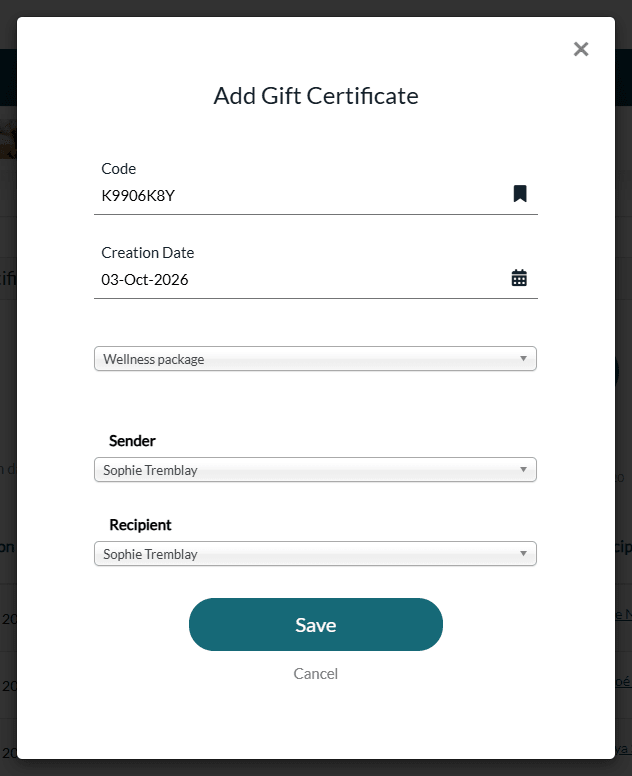
- In the Gift Certificates section, click Enter Gift Certificate.
- A Code is suggested: keep it or type the code written on the certificate.
- Enter the Creation Date, then choose the Type of gift certificate, the Sender and the Recipient among your clients.
- Click Save. The value and the expiration date come from the type.
No payment and no invoice are created for a certificate entered this way: it only records a certificate that was already paid.
6How to use the code
On your booking page — your clients can use the code attached to the gift certificate directly when they book online. A Gift Code field is shown on the first step of the booking page when online sales are turned on.

- If the code does not exist, has expired or is used up, the client sees a message and can correct it.
- The client is told that the gift certificate will be used if it is still valid on the day of the appointment. When it covers the price of the appointment, no card is requested.
From your scheduler — you can also enter the gift certificate through the appointment window of your scheduler. A dedicated Gift certificate field appears once online sales are turned on: it lists the active gift certificates received by the client of the appointment.
On the invoice — when the appointment is invoiced, the amount is deducted automatically, up to the value left on the certificate. If the certificate covers the whole invoice, the invoice is marked as paid with the Gift certificate payment method. Otherwise, the client pays the rest, and what is left on a gift card or a package stays available for their next appointments.
A certificate is always applied through an appointment. It is chosen in the appointment window (Gift certificate field) or entered by the client at booking (Gift Code), then deducted on the invoice of that appointment. An invoice that is not linked to an appointment (for example, an invoice with products only) cannot use the value of a certificate. Choosing Gift Certificate as the Payment method when you mark an invoice as paid only records how the invoice was paid: it does not take anything off a certificate.
Follow the remaining balance
Colib tracks the balance of each certificate to the cent. Every time the certificate is used, the amount used on that invoice is taken off its value, invoice after invoice, until nothing is left. The remaining value is shown in three places:
- Online sales tab (www.colib.io/settings?show=onlinesales) — in the Gift Certificates list, click the pencil icon of the certificate: the window shows the Remaining value, and the Invoices section lists each invoice with the Amount Used.
- Client record — Billing tab, Gift Certificates section, Remaining Value column.
- Client portal — your clients see their certificates, with the remaining value and the expiration date, in the Gift Certificates tab of their portal.
When the remaining value reaches zero, the status of the certificate becomes Used. A service voucher covers one appointment.
To know the total of the balances you still owe to your clients (what the feature page calls the liabilities report), open the Deferred revenue report in the Reports section (www.colib.io/reports?show=liabilities). It lists the gift certificates that still have a remaining value. Please see the article titled "How to read the Deferred revenue report".
Good to know
- Expired certificates — an expired gift certificate can no longer be used for a new appointment.
- Expiry date: check your province's rules — an expiry date is optional: a type has one only if you turn on the expiration option. Several provinces restrict expiry dates on gift cards, so check the rules of your province before setting one.
- Delete a gift certificate — use the trash icon of its row. It is only possible while the certificate has not been used on an invoice (cancelled invoices excepted).
- Balances still owed — the Deferred revenue report in the Reports section (www.colib.io/reports?show=liabilities) lists the gift certificates that still have a remaining value (see Follow the remaining balance above). The report appears in the Reports section once online sales are turned on.
- Products — the products of your inventory are sold on your invoices, not on your online store. See How does the inventory work?
- Follow your shop sales in Analytics — the Analytics dashboard shows the number and the amount of the gift certificates sold. Please see the article titled "How to read the Analytics dashboard".
- Feature overview — for an overview of gift certificates, products and stock in Colib, see the Inventory & Gift Certificates page.
Still have a question?
Write to us at support@colib.io, we will be happy to help.
Was this article helpful?
That’s Great!
Thank you for your feedback
Sorry! We couldn't be helpful
Thank you for your feedback
Feedback sent
We appreciate your effort and will try to fix the article