Who is this article for?
Your waitlist page is the form your clients fill in to join your waitlist. Its address looks like https://portal.colib.io/waitlist/your-own-brand: the end of the address is the same as the address of your booking page. You find it in Settings > Waitlist, under Enable Waitlist, and on the Waitlist page with the Access my waitlist page button.
Some items can be edited or configured on your waitlist page: the practitioners offered, the types of appointment, the days listed in the preferences and an additional text. This article explains where to change each of them.
Before you start: the waitlist must be turned on (see How to activate the waitlist). You need access to the practice settings to change these items.
What your clients see
At the top of the page, your logo, the name of your practice and your additional text. Then the form:
- first name, last name, email and phone number;
- the clinic, for practices with several clinics;
- the Desired practitioner (or Any practitioner);
- the Day & time preference: for each day, the client checks the moments that suit them (morning, lunch, afternoon, evening), in the time zone of your practice;
- the Desired Appointment Types, grouped by category;
- a comment field, then the Continue button.
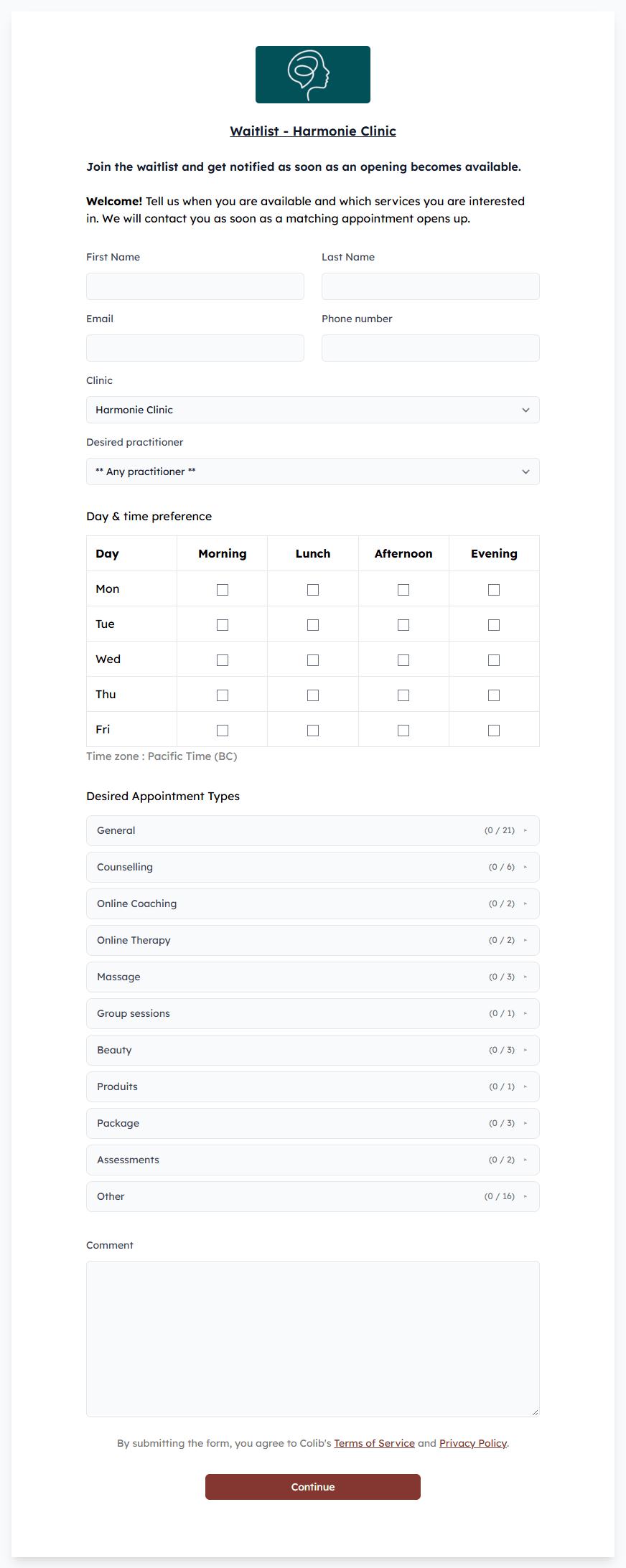
The client must check at least one availability and one type of appointment. The page is available in English and French: the client switches language with the link at the top right.
1Practitioners list
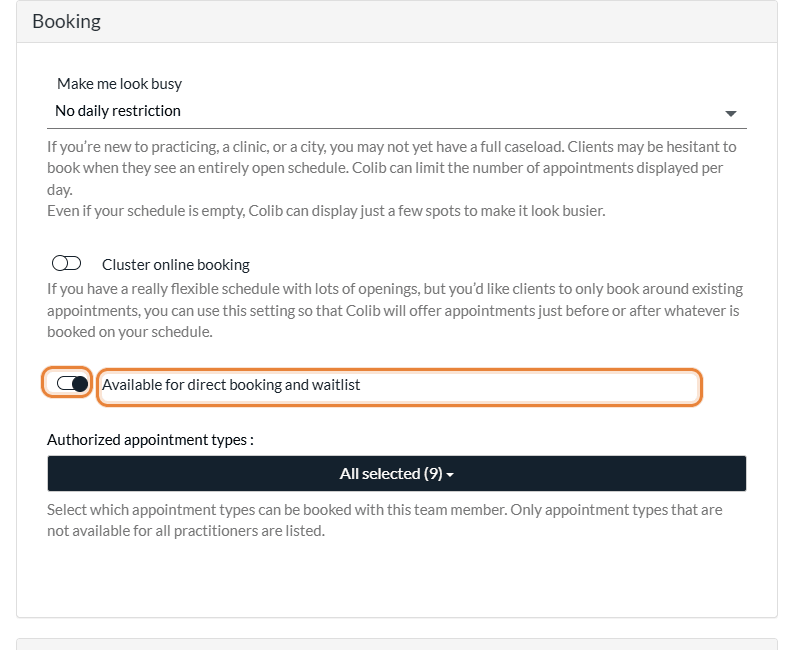
All practitioners with the setting Available for direct booking and waitlist enabled appear in the list.
- Go to Settings > Team (www.colib.io/settings?show=team) to manage your practitioners.
- Click the pencil icon (Edit team member) of the practitioner.
- In the Booking section, turn Available for direct booking and waitlist on or off, then save.
You can also limit the waitlist to some practitioners only: in Settings > Waitlist (www.colib.io/settings?show=waitlist), turn off Available for any practitioner and choose them in Applicable practitioners. For practices with several clinics, the list only shows the practitioners of the clinic chosen by the client.
2Types of appointment list
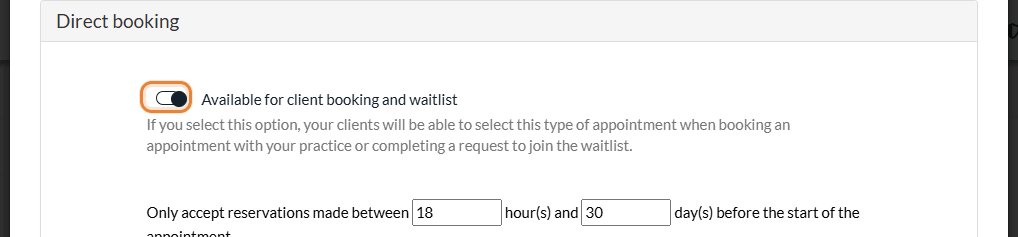
All appointment types with the setting Available for client booking and waitlist enabled appear in the list.
- Go to Settings > Appointments (www.colib.io/settings?show=appointments) to manage your appointment types.
- Click the pencil icon (Edit) next to the type of appointment.
- In the Direct booking section, turn Available for client booking and waitlist on or off, then save.
A type of appointment only appears if it is offered by all practitioners or by at least one of the practitioners of the waitlist. The types are grouped by appointment category, in the order of your settings. For practices with several clinics, the list only shows the types offered in the clinic chosen by the client.
3Days listed in preferences
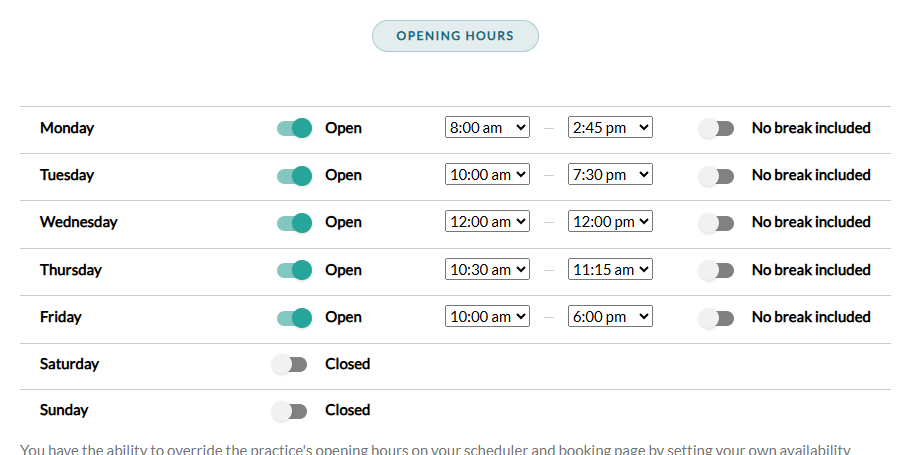
Any day marked as open in the opening hours of your practice appears in the Day & time preference table of your waitlist page. A closed day is not offered.
- Go to Settings > General (www.colib.io/settings?show=general) to manage your opening hours.
- In the Opening Hours section, mark each day as open or closed, then save.
4Additional text
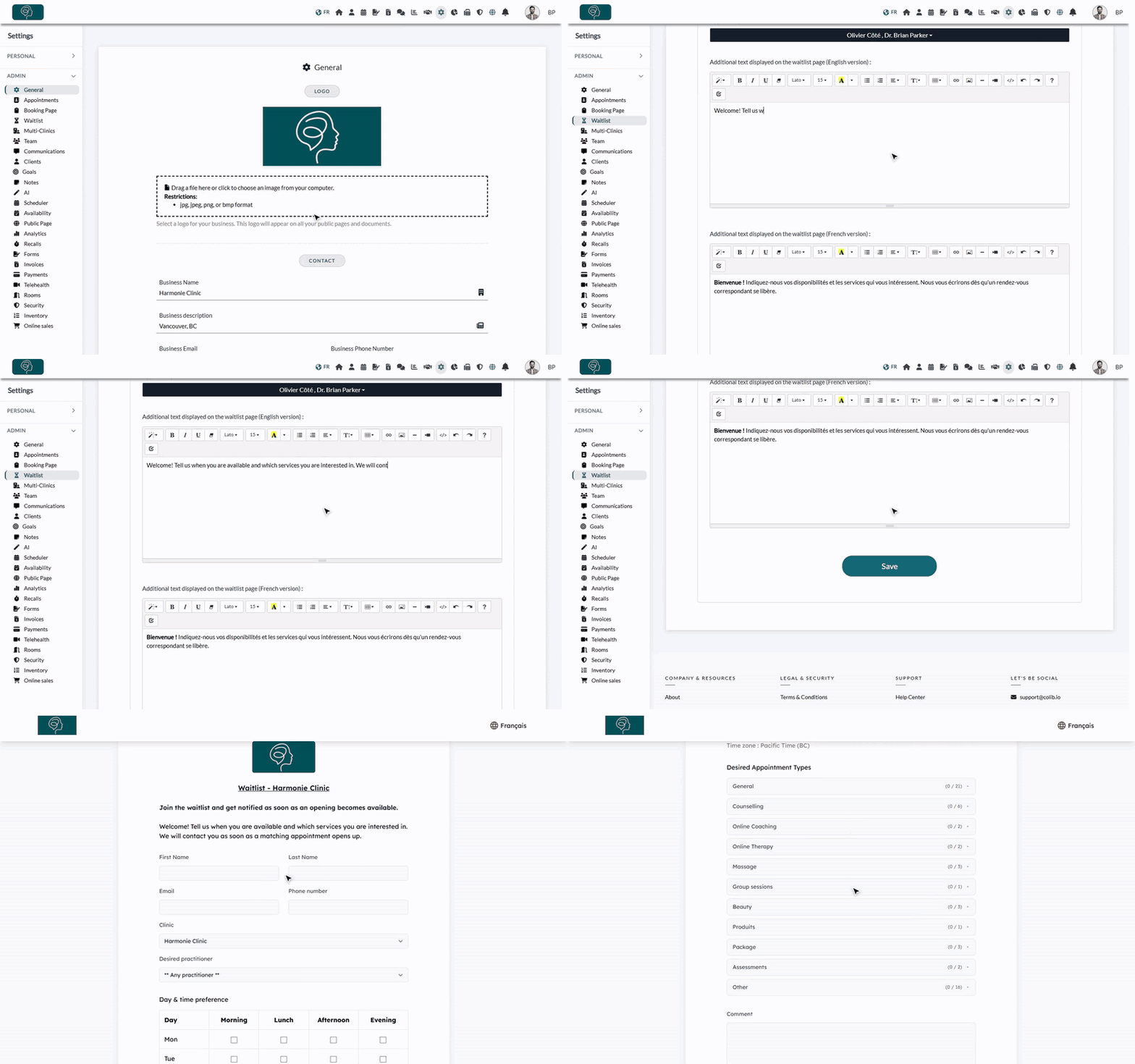
You can add extra text in both English and French in your waitlist settings, for example to explain how you contact the clients on the waitlist.
- Go to Settings > Waitlist (www.colib.io/settings?show=waitlist) to edit the additional text.
- Type your message in Additional text displayed on the waitlist page (English version) and in Additional text displayed on the waitlist page (French version). The editor lets you format the text (bold, lists, links...).
- Click Save.
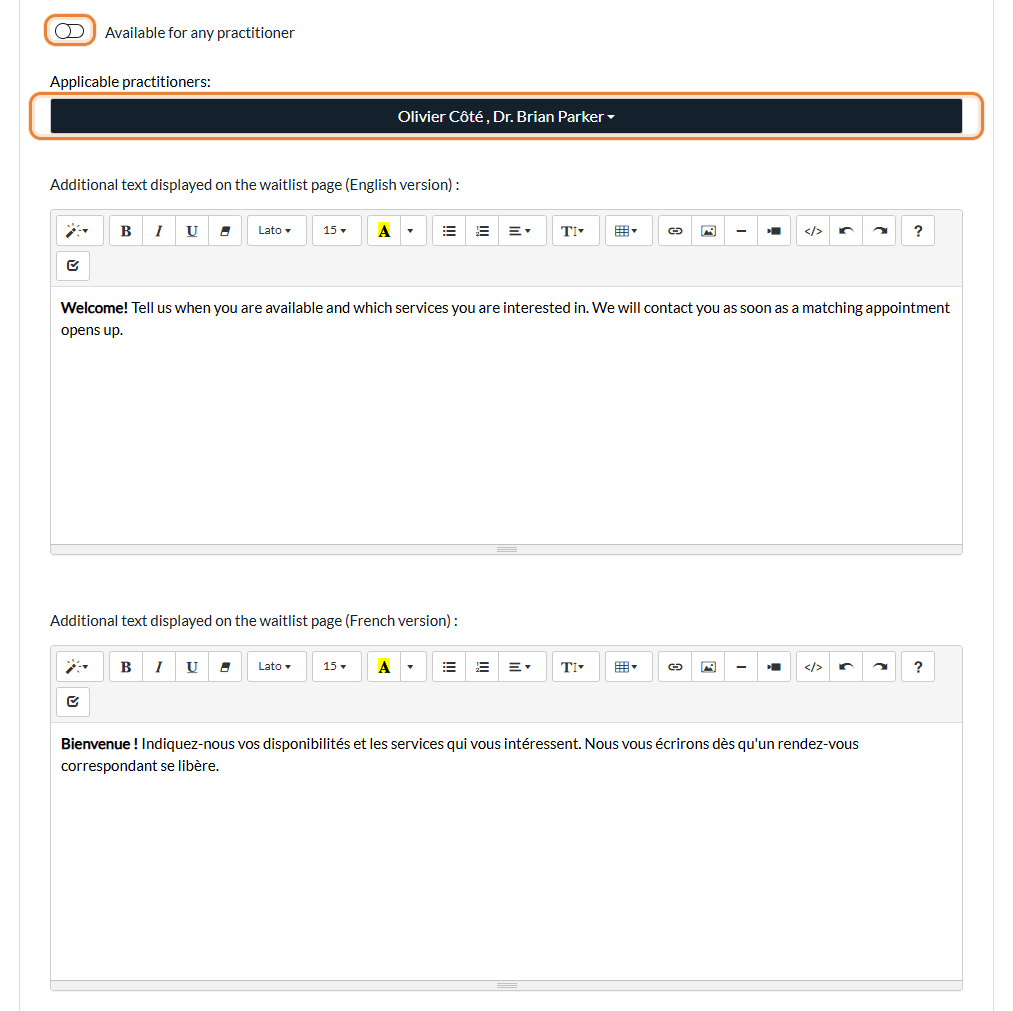
The text is shown at the top of the page, in the language of the visitor. If you fill in only one version, it is shown in both languages.
Good to know
- Phone number — to make it mandatory, turn on Make the phone number required to submit the request in Settings > Waitlist.
- Coming from the booking page — when a client opens the waitlist from your booking page, the form is already filled in with what they entered there (name, email, phone number, practitioner and type of appointment).
- Check the result — click Access my waitlist page on the www.colib.io/waitlist page to see your page as your clients see it.
Still have a question?
Write to us at support@colib.io, we will be happy to help.
Was this article helpful?
That’s Great!
Thank you for your feedback
Sorry! We couldn't be helpful
Thank you for your feedback
Feedback sent
We appreciate your effort and will try to fix the article