Who is this article for?
This article is for practices that use the Interac payment automation of Colib and receive their Interac notifications in Gmail or Google Workspace. Follow these steps to automatically forward all emails from notify@payments.interac.ca to interac@colib.io, so that Colib can match your e-Transfers with your invoices.
Before you start: turn on the automation and enter your Gmail address in Settings > Payments > Interac payments (www.colib.io/settings?show=payment). See How to set up Interac payment automation?
Important: during setup, Gmail sends a confirmation email to interac@colib.io. Our team completes the verification on our side once you let us know (step 2): you do not need to open or confirm the verification email yourself.
1Add the forwarding address in Gmail
- Open Gmail on your computer.
- Click the gear icon in the top-right corner.
- Select See all settings.
- Open the Forwarding and POP/IMAP tab.
- In the Forwarding section, click Add a forwarding address.
- Enter interac@colib.io.
- Click Next, then Proceed, then OK.
Gmail now sends a forwarding confirmation email to interac@colib.io.
If the Add a forwarding address button is missing or greyed out, or Gmail says that forwarding has been disabled by your administrator, see step 4.
2Let us know and wait for the verification
- Send an email to support@colib.io to let us know that you have set up the automatic forward, with the date of the setup.
- Our team confirms the forwarding request from the interac@colib.io mailbox.
Until the address is verified, Gmail does not let you choose it as a forwarding address (the option of step 3 stays greyed out).
3Create a filter for Interac emails
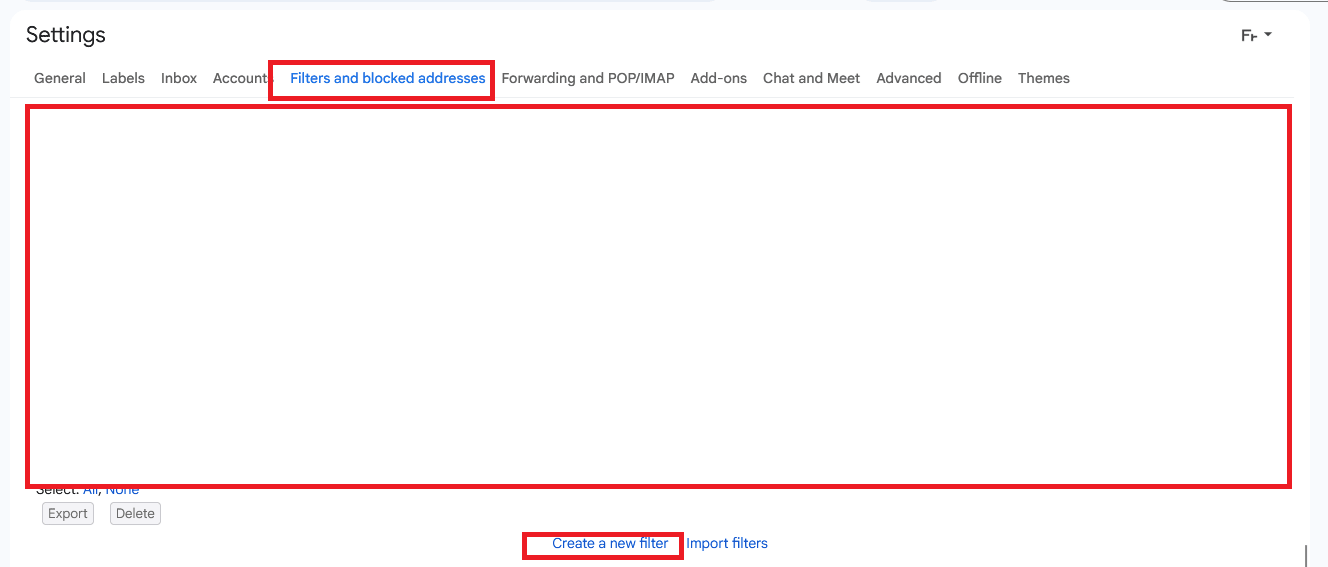
- Go back to your Gmail inbox. You can also open Filters and blocked addresses in the settings and click Create a new filter.
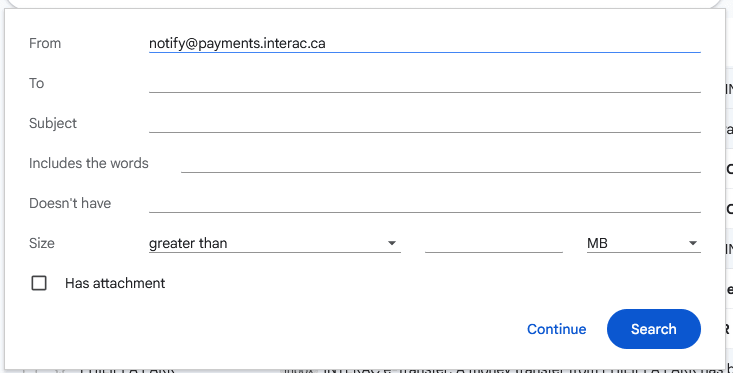
- In the top search bar, click the Show search options icon.
- In the From field, enter notify@payments.interac.ca.
- Click Create filter.
- Check Forward it to and select interac@colib.io.
- Click Create filter.
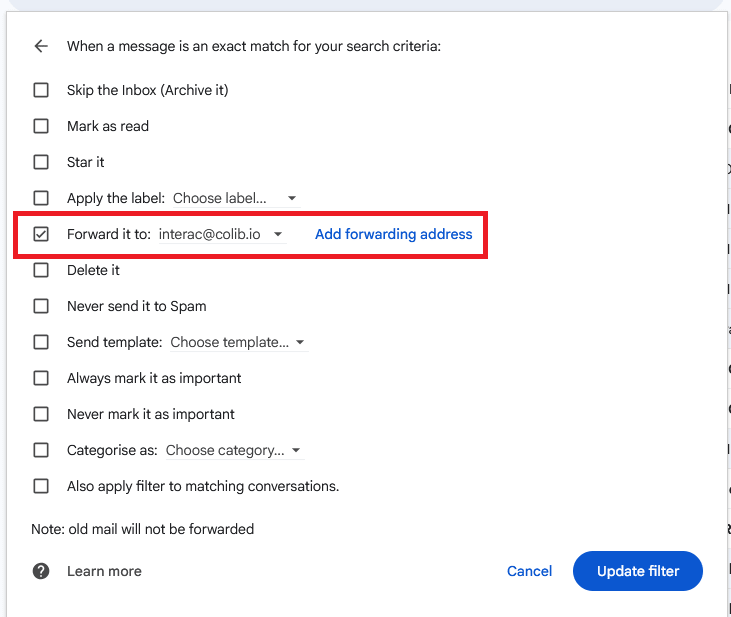
This ensures that only Interac notification emails are forwarded.
Once the address is verified, this filter automatically forwards all new emails from notify@payments.interac.ca to our system. Gmail only forwards new incoming emails after verification is complete, and a copy of each Interac notification stays in your mailbox.
The filter is all you need: do not turn on Forward a copy of incoming mail in the Forwarding and POP/IMAP tab, which would forward all your emails.
4Google Workspace: make sure your organization allows forwarding
Who needs this step: only practices whose email uses their own domain through Google Workspace (for example, info@yourclinic.com). If your address ends in @gmail.com, skip this step.
A Google Workspace administrator can turn off automatic forwarding for the whole organization. In that case, the Add a forwarding address button of step 1 is missing or greyed out, or Gmail shows a message saying that forwarding has been disabled by your administrator. To allow forwarding:
- Sign in to the Google Admin console with an administrator account of your Google Workspace. If you manage your Google Workspace yourself, it is usually the account you use for your email.
- Go to Apps > Google Workspace > Gmail > End User Access.
- Open the Automatic forwarding setting.
- Check Allow users to automatically forward incoming email to another address.
- Click Save.
Changes can take up to 24 hours to apply, but usually take effect much sooner. Then go back to step 1. If your organization is divided into organizational units, you can allow forwarding only for the unit that contains the mailbox receiving the Interac notifications.
If forwarding is allowed but the forwarded notifications come back as delivery failure notices, a compliance rule may restrict email sent outside your organization. In the same Gmail settings, check the Compliance section (for example, Restrict delivery) and allow interac@colib.io.
Important: if you do not have access to the Google Admin console, the person or company that manages your Google Workspace must make this change.
Troubleshooting
| Symptom | What to check |
|---|---|
| The Forward it to option is greyed out | Gmail has not finished verifying the forwarding address yet. Wait for our team to confirm the verification email, then refresh Gmail and try again. |
| The address does not appear in the list | Refresh Gmail after a few minutes and check again in Settings > Forwarding and POP/IMAP. |
| No payment appears in Colib | Check that the Interac emails do not land in Spam, that the filter is still there, and that the Gmail address is the one entered in Colib. |
| Older Interac emails were not processed | Only new emails are forwarded. Record those payments on the invoices by hand. |
| The Add a forwarding address button is missing or greyed out, or Gmail says forwarding is disabled by your administrator | Your Google Workspace organization does not allow automatic forwarding. See step 4. |
| The forwarded notifications come back as delivery failure notices | A Google Workspace compliance rule restricts email sent outside your organization. See the end of step 4. |
Good to know
- Only Interac notifications are processed — Colib only reads the Interac notifications of received transfers; any other email reaching interac@colib.io is ignored.
- Outlook or Microsoft 365? — see How to automatically forward Interac notification emails in Outlook / Microsoft 365?
- Follow your payments — the payments received appear in Invoices > Interac Payments (www.colib.io/invoices?show=interac).
Still have a question?
Write to us at support@colib.io, we will help you finish the setup.
Was this article helpful?
That’s Great!
Thank you for your feedback
Sorry! We couldn't be helpful
Thank you for your feedback
Feedback sent
We appreciate your effort and will try to fix the article