Who is this article for?
This article explains how to follow the Interac e-Transfers received by Colib, read their status, and match by hand the payments that could not be matched automatically.
1Open the list of Interac payments
- Go to www.colib.io/invoices?show=interac (or Invoices, then Interac Payments in the menu on the left). This menu appears once the automation is turned on.
- The list shows the payments received with their Date, Status, Sender, Amount, Client, Invoice and Details. By default it starts about five weeks back: change From, To or Status to see other payments.
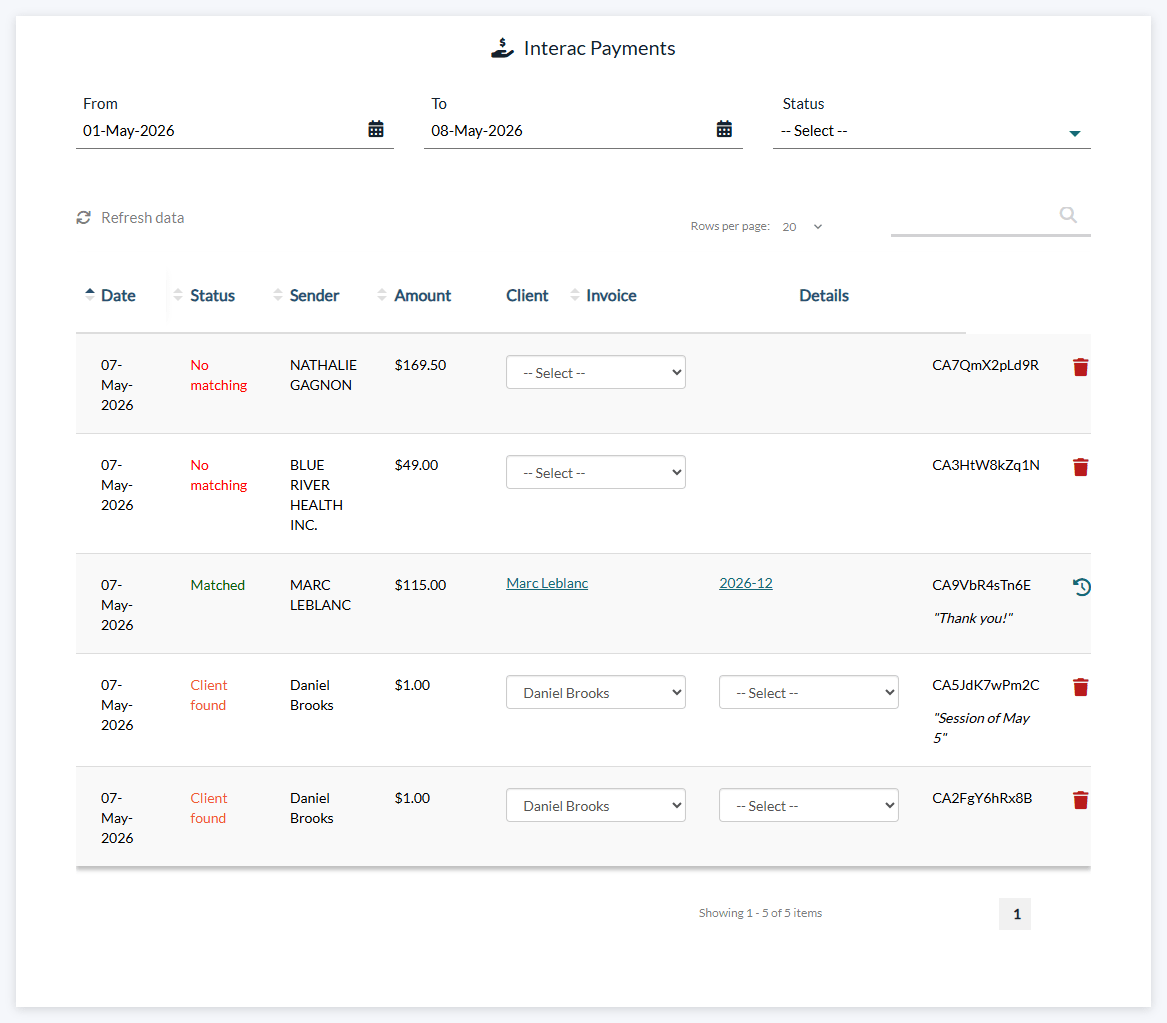
The statuses
| Status | Meaning and what you can do |
|---|---|
| Matched | The client and the invoice are identified. The revoke icon (Revoke matching) cancels the match: the invoice goes back to Partially paid or unpaid, and the remembered Interac name of the client is forgotten. |
| Client found | The client is identified but no invoice fits yet. The payment waits for an invoice for 30 days (please see the article titled "What happens when an Interac payment arrives before the invoice or the client is created?"), or choose the invoice in the Invoice column. |
| No matching | No client could be identified. Colib compares the sender again with your new clients for 10 days; you can also choose the client, then the invoice. |
| Ignored | The trash icon (Ignore) sets aside a payment that does not concern your clients (a personal transfer, for example). |
| Analyzed - error | The email could not be read. Record the payment on the invoice by hand and contact us if it happens often. |
2Match a payment by hand
To manually reconcile a payment, select the client, then the invoice associated with the payment. The change is saved as soon as you choose; only the unpaid invoices of the client in CAD are offered, and an invoice whose balance is lower than the payment is refused.

Our platform keeps a record of the client matching you create between an Interac sender and a client. The next time a payment is made by this client, Colib automatically recognizes which client it belongs to, even if the name used for Interac is different from the name in the client record. Step by step, your payment flow will become fully automated.
Good to know
- Modify at any time — each reconciliation can be modified or deleted at any time. A payment you matched, revoked or ignored by hand is never changed by the automatic matching.
- Rights — matching, revoking and ignoring payments require the Create-Edit-Delete level for the client's financial information; the list only shows the clients whose financial information you can see.
- Currency — a manual match is only possible with an invoice in CAD.
- Other manual payments — for cash or cheque, see How can I record an offline or manual payment on an invoice?
Related articles
- How to set up Interac payment automation
- Please see the article titled "How are Interac payments matched with invoices?"
- Please see the article titled "What happens when an Interac payment arrives before the invoice or the client is created?"
- Please see the article titled "What happens after an Interac payment is matched?"
- Gmail / Google Workspace: How to automatically forward Interac notification emails in Gmail?
- Outlook / Microsoft 365: How to automatically forward Interac notification emails in Outlook / Microsoft 365?
Still have a question?
Write to us at support@colib.io, we will be happy to help.
Was this article helpful?
That’s Great!
Thank you for your feedback
Sorry! We couldn't be helpful
Thank you for your feedback
Feedback sent
We appreciate your effort and will try to fix the article