Who is this article for?
Colib matched an Interac e-Transfer with the wrong invoice, or with the wrong client, for example two clients with the same name, or a transfer meant for another invoice. Revoke matching undoes this link: the transfer is detached from the invoice and the invoice is reopened. You can then match the transfer with the right invoice.
Who can do it: users with full access to the financial information of the clinic (edit rights). A practitioner who only sees their own clients' finances only sees, and can only revoke, the transfers of their clients.
1Revoke the matching
- Go to Invoicing > Interac Payments (www.colib.io/Invoices?show=interac).
- Find the transfer: its status is Matched, with the client and the invoice it was matched with.
- Click the history icon at the end of its row (Revoke matching).
- Check the sender and the amount in the confirmation message, then click Confirm.
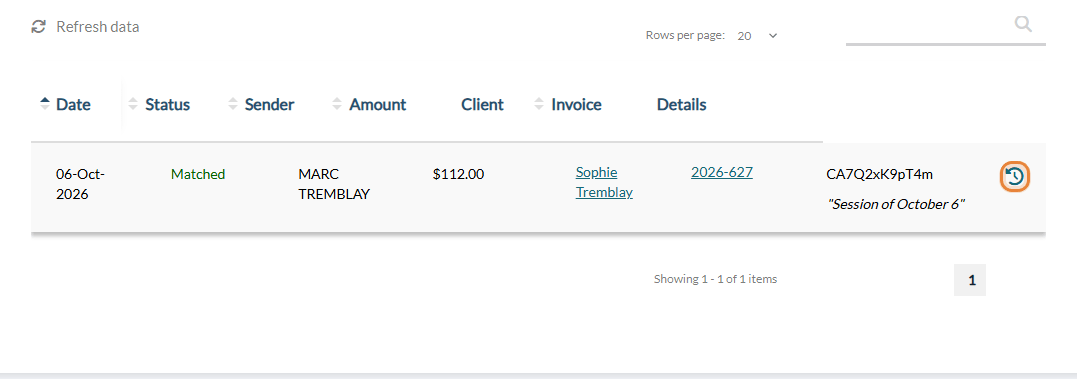
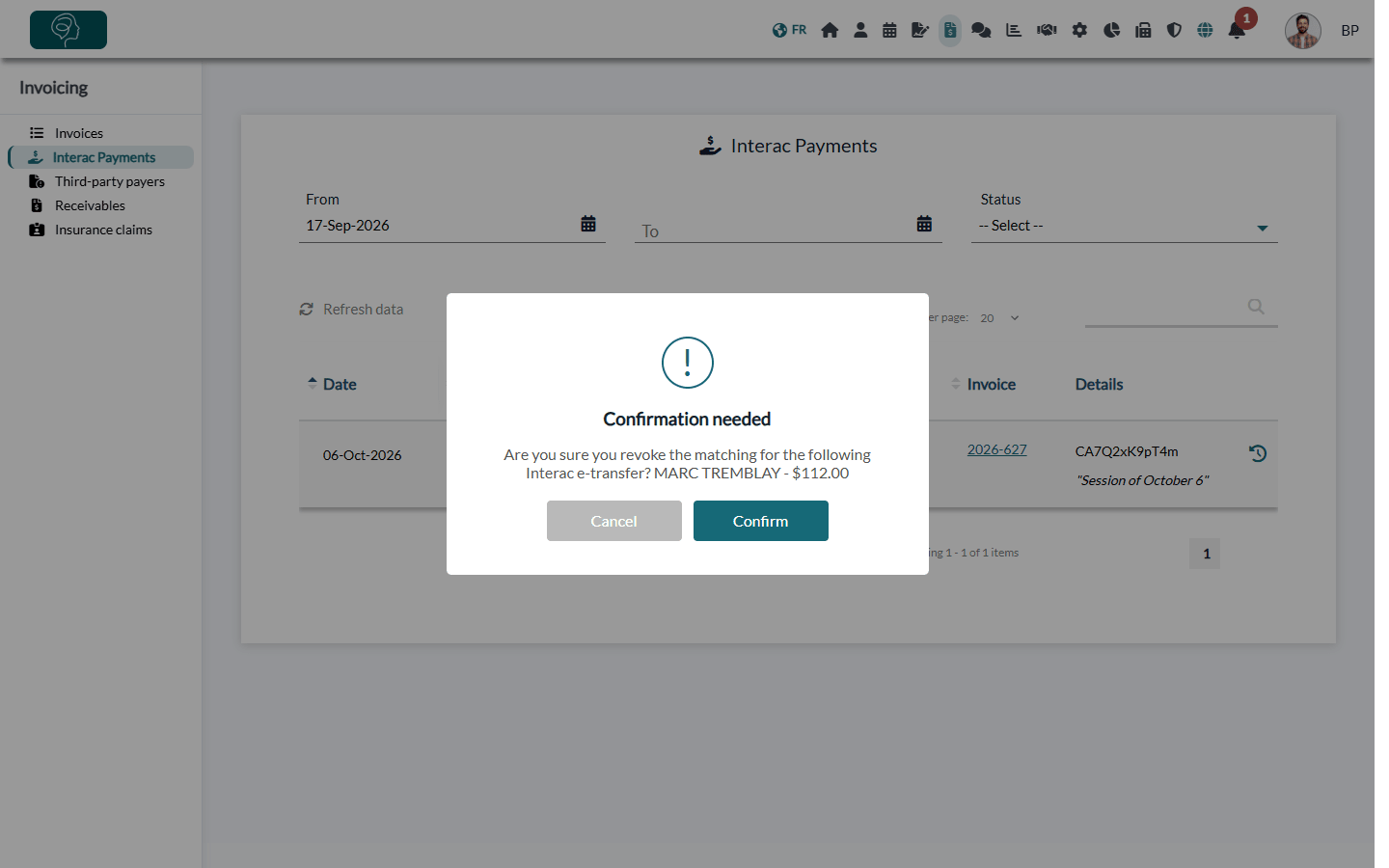
The message Action completed successfully. confirms it. The icon is only shown on transfers with the status Matched, whether they were matched automatically or by hand.
2What changes
| After the revocation | |
|---|---|
| The transfer | Its status becomes No matching. It is no longer linked to any client or invoice. The sender name that Colib had learned for this client is forgotten, so that the next transfers of this sender are not matched with the same client by mistake. |
| The invoice | The amount of the transfer is removed from the amount already paid. The invoice goes back to Unpaid, or to Partially paid if other payments remain. The payment method and the payment date are removed, the transfer no longer appears in the payments of the invoice, and the PDF of the invoice is updated. |
| The client | Colib sends nothing: no email, no notification. If a receipt was already sent when the transfer was matched, it is not withdrawn: tell the client if needed. However, the client will automatically receive a reminder if you have enabled the unpaid invoice reminder automation. |
| Your team | No notification is sent. The revocation is recorded in the audit log of the clinic, with the invoice and the amount. |
Check the invoice: if the invoice had also been paid in another way (for example a partial payment, or a card payment), open it after the revocation and check its status and the amount already paid.
3Match the transfer with the right invoice
- In Interac Payments, the transfer now has the status No matching.
- Choose the right client, then the right invoice in its row, and save: please see the article titled "How to follow and match Interac payments by hand".
- If the transfer does not concern any of your invoices, click the trash icon (Ignore): it is no longer offered.
No new automatic matching: once revoked, the transfer is no longer matched automatically by Colib, so that it does not go back to the same invoice. Match it by hand with the right invoice, or ignore it. For the matching rules, please see the article titled "How are Interac payments matched with invoices?".
Good to know
- Matching rules — to understand why a transfer was matched with an invoice, please see the article titled "How are Interac payments matched with invoices?".
- After a matching — what Colib does when a transfer is matched (receipt, notification): please see the article titled "What happens after an Interac payment is matched?".
- Deleted invoice — when an invoice is deleted, its transfers are detached automatically: there is nothing to revoke.
Related articles
- Please see the article titled "How to follow and match Interac payments by hand".
- Please see the article titled "How are Interac payments matched with invoices?".
- Please see the article titled "What happens after an Interac payment is matched?".
- Please see the article titled "What happens when an Interac payment arrives before the invoice or the client is created?".
Still have a question?
Write to us at support@colib.io, we will be happy to help.
Was this article helpful?
That’s Great!
Thank you for your feedback
Sorry! We couldn't be helpful
Thank you for your feedback
Feedback sent
We appreciate your effort and will try to fix the article