Who is this article for?
If your clients pay you by Interac e-Transfer, Colib offers a way to automatically reconcile the Interac payments you receive with the invoices created on Colib. Each time you receive a transfer, Colib reads the Interac notification email, finds the client and the invoice, and marks the invoice as paid.
This article explains how to turn the automation on and connect your mailbox. The use of the automation (matching rules, payments received before the invoice, manual matching, what happens on the invoice) is explained in separate articles listed at the end.
Before you start: two steps are required: enter in Colib the email address that receives your Interac notifications, then set up an automatic forwarding rule in that mailbox. You need access to the practice settings, and access to your mailbox settings (Gmail, Outlook, etc.).
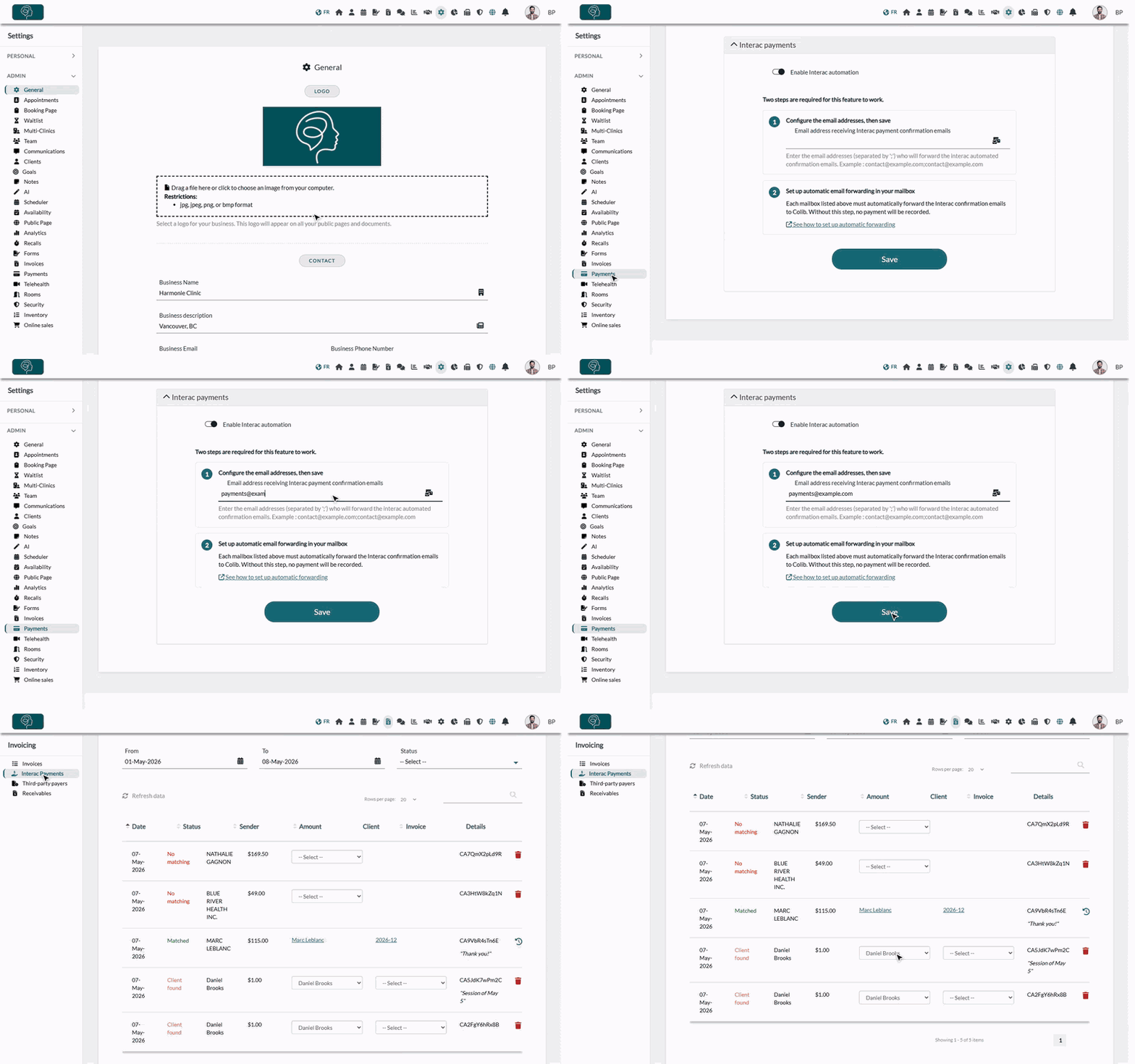
1Turn on the automation in Colib
- Go to Settings > Payments (www.colib.io/settings?show=payment).
- Scroll to the Interac payments section.
- Turn on Enable Interac automation.
- In Email address receiving Interac payment confirmation emails, enter the email address that receives the notification every time your company receives an Interac payment. If you receive them at several addresses, separate them with a semicolon, for example payments@example.com;billing@example.com.
- Click Save.
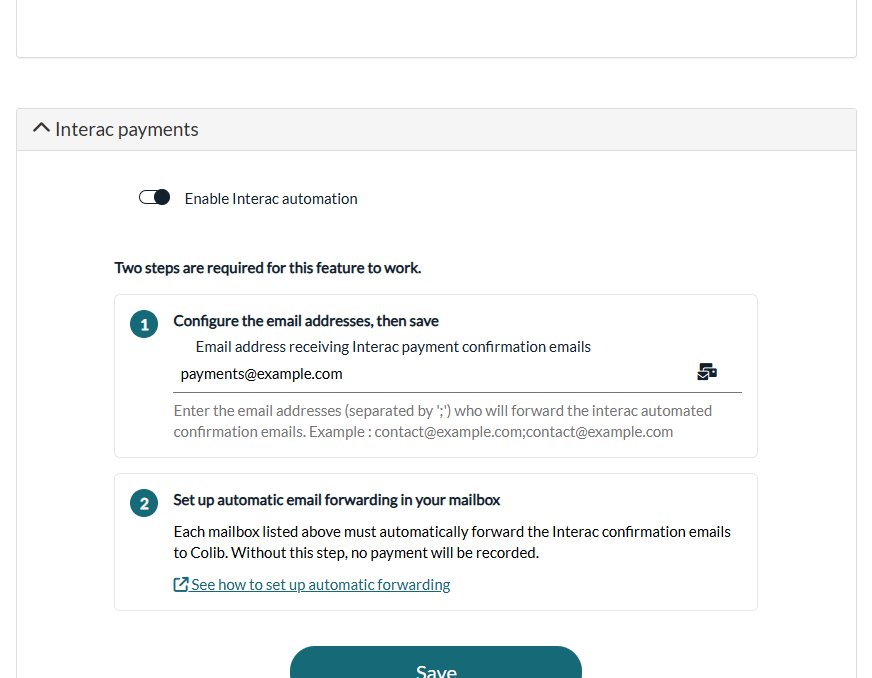
Colib refuses an address that is not valid, an address ending with @payments.interac.ca (enter your own address, not Interac's), and an address already configured for another clinic: each address can only be used by one Colib account.
2Forward the Interac emails to Colib
Each mailbox entered in step 1 must automatically forward the Interac confirmation emails to Colib. Without this step, no payment will be recorded.
- Go to your email provider and set up an automatic email forwarding rule for all emails received from notify@payments.interac.ca.
- Forward them to interac@colib.io.
Step-by-step guides:
- Gmail / Google Workspace: How to automatically forward Interac notification emails in Gmail?
- Outlook / Microsoft 365: How to automatically forward Interac notification emails in Outlook / Microsoft 365?
If you are using Google as your mail provider: Gmail sends a confirmation request to interac@colib.io that our team must approve. Send an email to support@colib.io to let us know that you have set up the automatic forward, and indicate the date of the set up as well.
Colib analyzes these emails to extract information about Interac payments. We guarantee the security of this email address: it is used only by our program to retrieve the emails, and the emails received are not viewed by anyone. After being processed, emails received in interac@colib.io are automatically deleted. Do not hesitate to contact us if you have technical difficulties: support@colib.io.
3Check that it works
- The Interac Payments menu — once the automation is turned on, Interac Payments appears in the menu on the left of Invoices (www.colib.io/invoices?show=interac). Each transfer you receive after the set up is listed there after the next reconciliation (several times per day).
- Only received transfers count — notifications about money you sent, or reminders that funds are about to expire, are ignored.
- Nothing happens? — check that the forwarding rule is turned on, that Interac emails do not land in your spam or junk folder, and that the address entered in Colib is the one that receives the Interac notifications. With Gmail, check that you told us about the forward (see above).
Turning the automation off
Turn off Enable Interac automation and save: the addresses are removed and the Interac Payments menu disappears. Remember to remove the forwarding rule from your mailbox too.
Using the automation
Once the automation is set up, these articles explain how to use it:
- Matching rules — how Colib finds the client and the invoice of each transfer: please see the article titled "How are Interac payments matched with invoices?"
- Payment received before the invoice or the client — how Colib matches it later: please see the article titled "What happens when an Interac payment arrives before the invoice or the client is created?"
- Follow and correct — the list of Interac payments, the statuses and the manual matching: please see the article titled "How to follow and match Interac payments by hand".
- On the invoice — the payment, the receipt and the notifications: please see the article titled "What happens after an Interac payment is matched?"
Still have a question?
Write to us at support@colib.io, we will be happy to help.
Was this article helpful?
That’s Great!
Thank you for your feedback
Sorry! We couldn't be helpful
Thank you for your feedback
Feedback sent
We appreciate your effort and will try to fix the article