Who is this article for?
This article is for clinic administrators. Some clinics, or their insurers and certification bodies, require that the clinic's information can only be consulted from the clinic's premises. With the IP restriction, you choose which team members can use Colib only from the internet connections you authorize, for example the connection of your office.
Before you start: the IP restriction is included from the Practice Pro plan. It is set in Settings > Security (www.colib.io/settings?show=security), in the Admin section of the settings, which only administrators can open. You need the public IPv4 address of each authorized internet connection: ask your internet provider or your IT technician, and make sure it is a fixed address (an address that changes from time to time would block your team).
1Add the authorized IP addresses
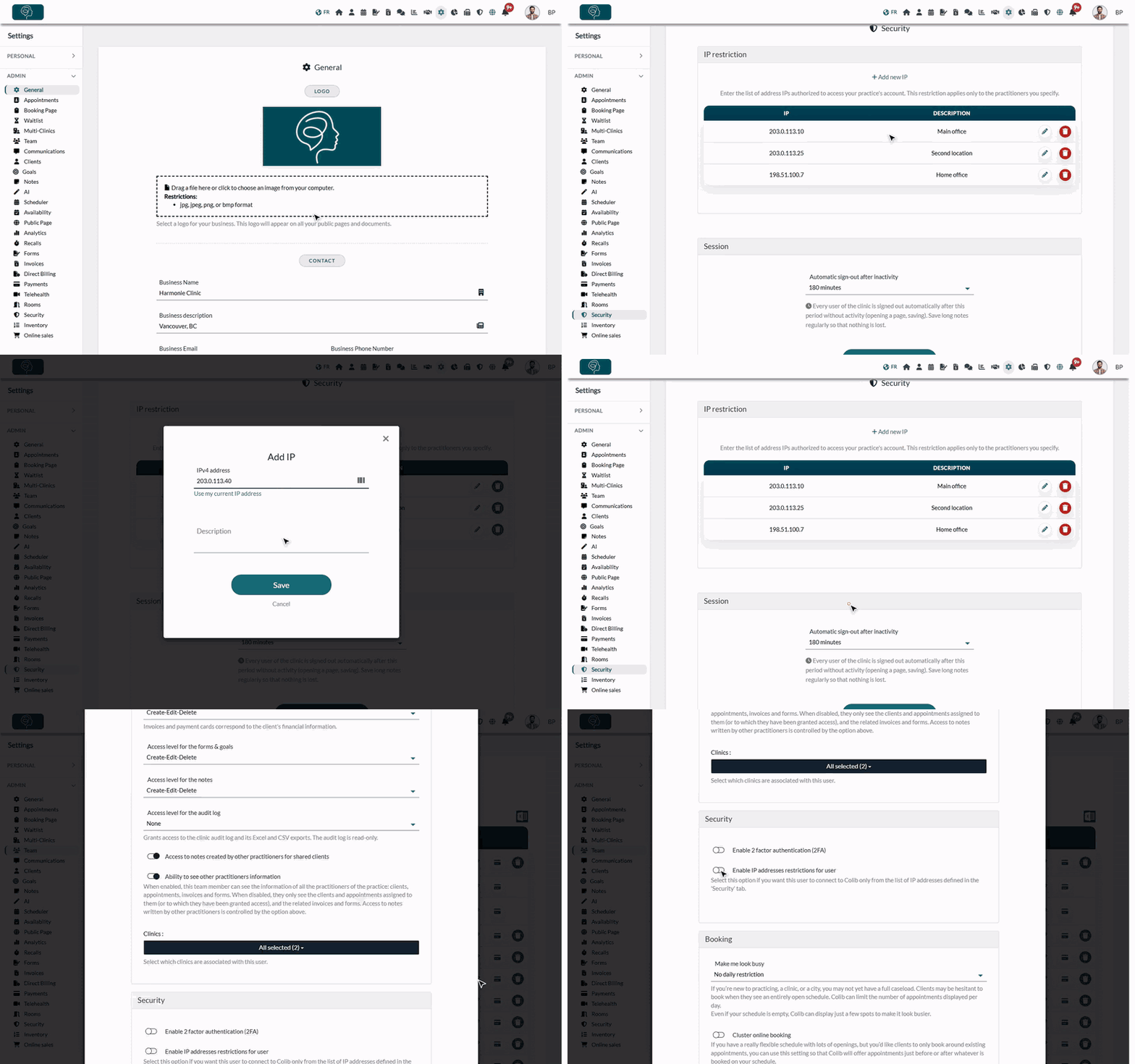
- Go to www.colib.io/settings?show=security: click the gear icon in the top bar, then Security in the Admin menu on the left.
- In the IP restriction section, click Add new IP.
- Enter the address in IPv4 address (four numbers separated by dots, for example 203.0.113.10). If you are connected from the place to authorize, click Use my current IP address to fill it in automatically.
- Optionally, add a Description (for example Main office) to recognize the address later.
- Click Save. Repeat for each location or connection to authorize.
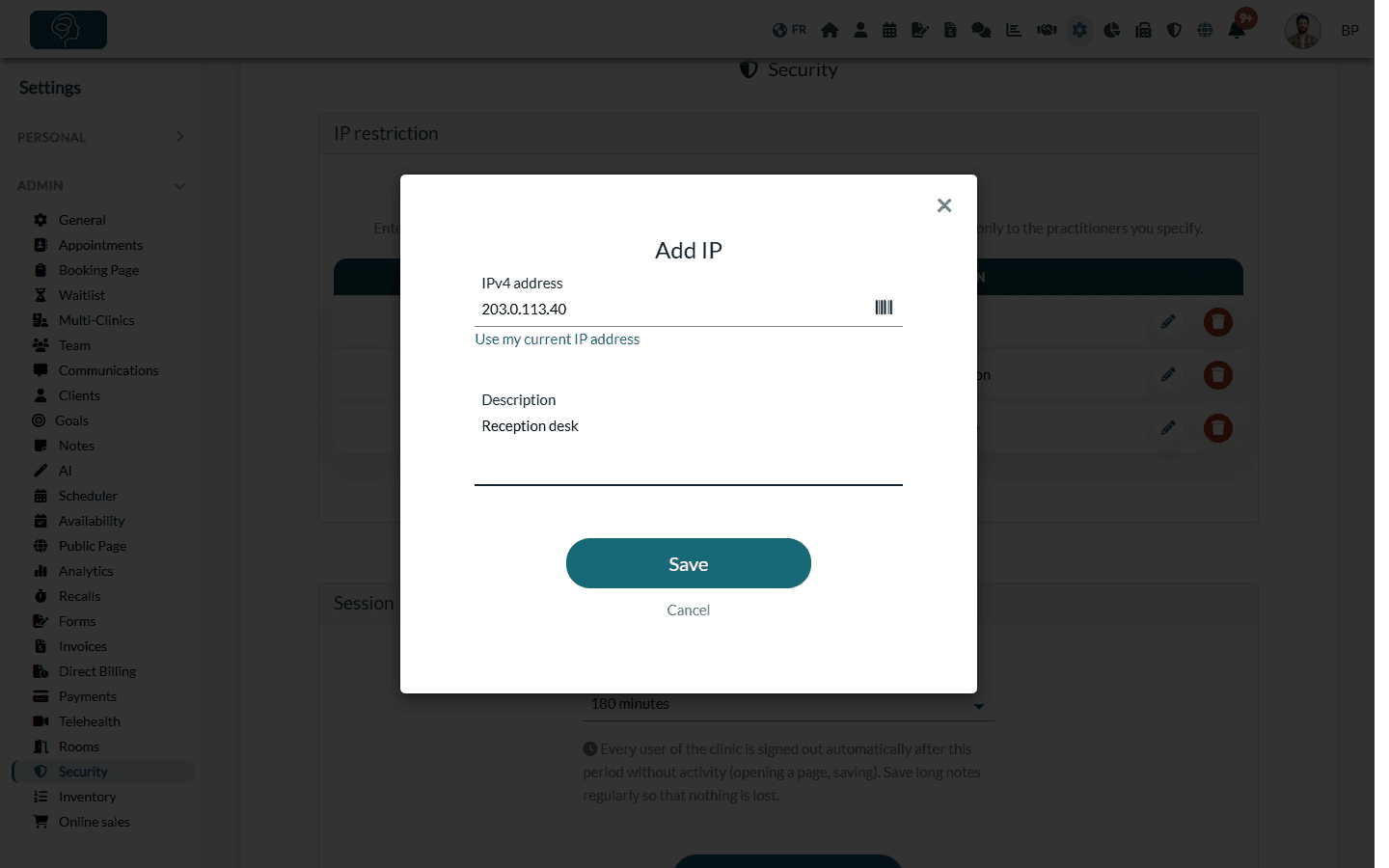
The list shows every authorized address with its description. Use the pencil icon to modify an address and the trash icon to delete it.
2Choose the team members concerned
The list of addresses applies only to the members for whom you turn the restriction on. The others can still use Colib from anywhere.
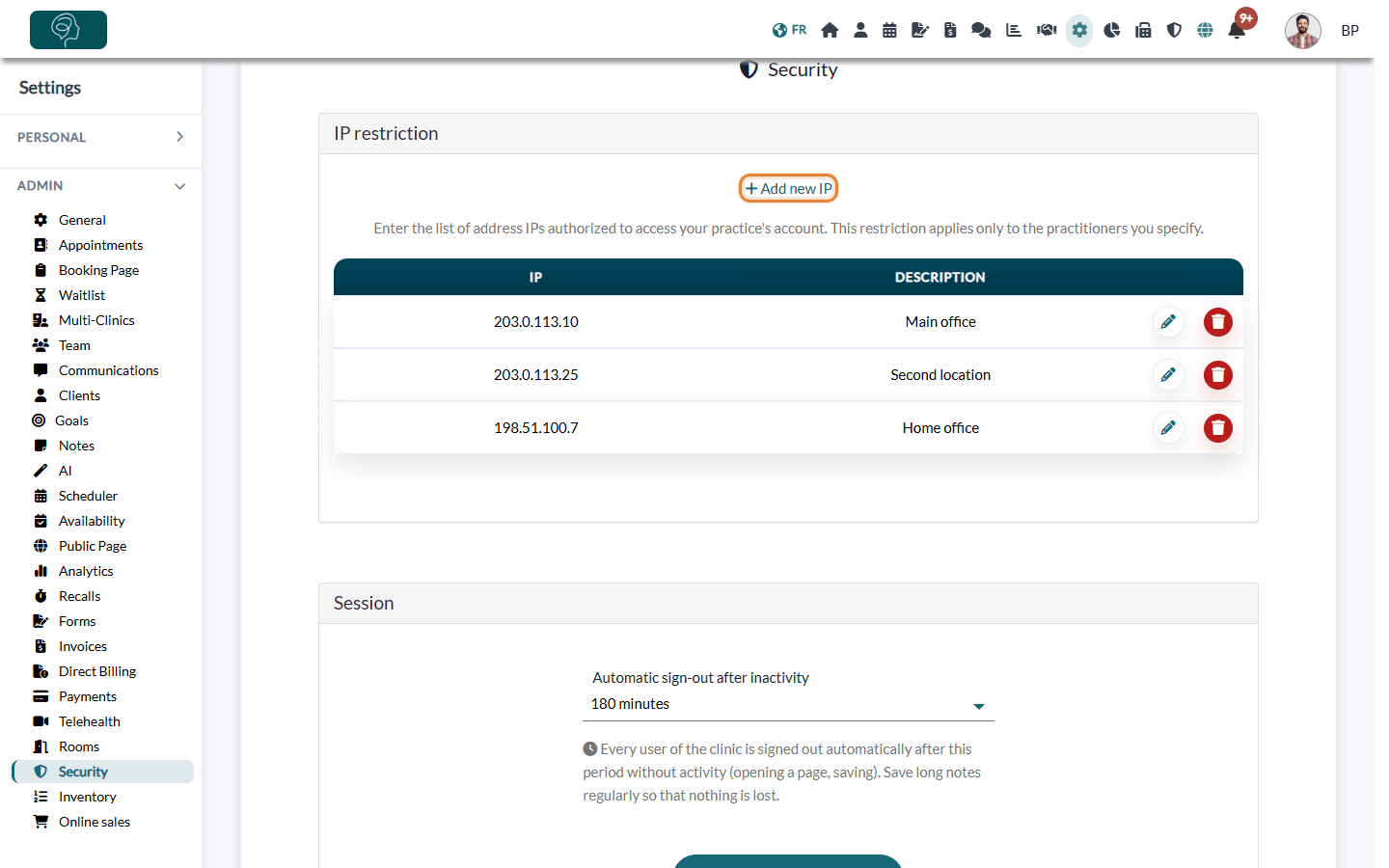
- Go to Settings > Team (www.colib.io/settings?show=team).
- Click the pencil icon of the member to open the Team Member Edition window.
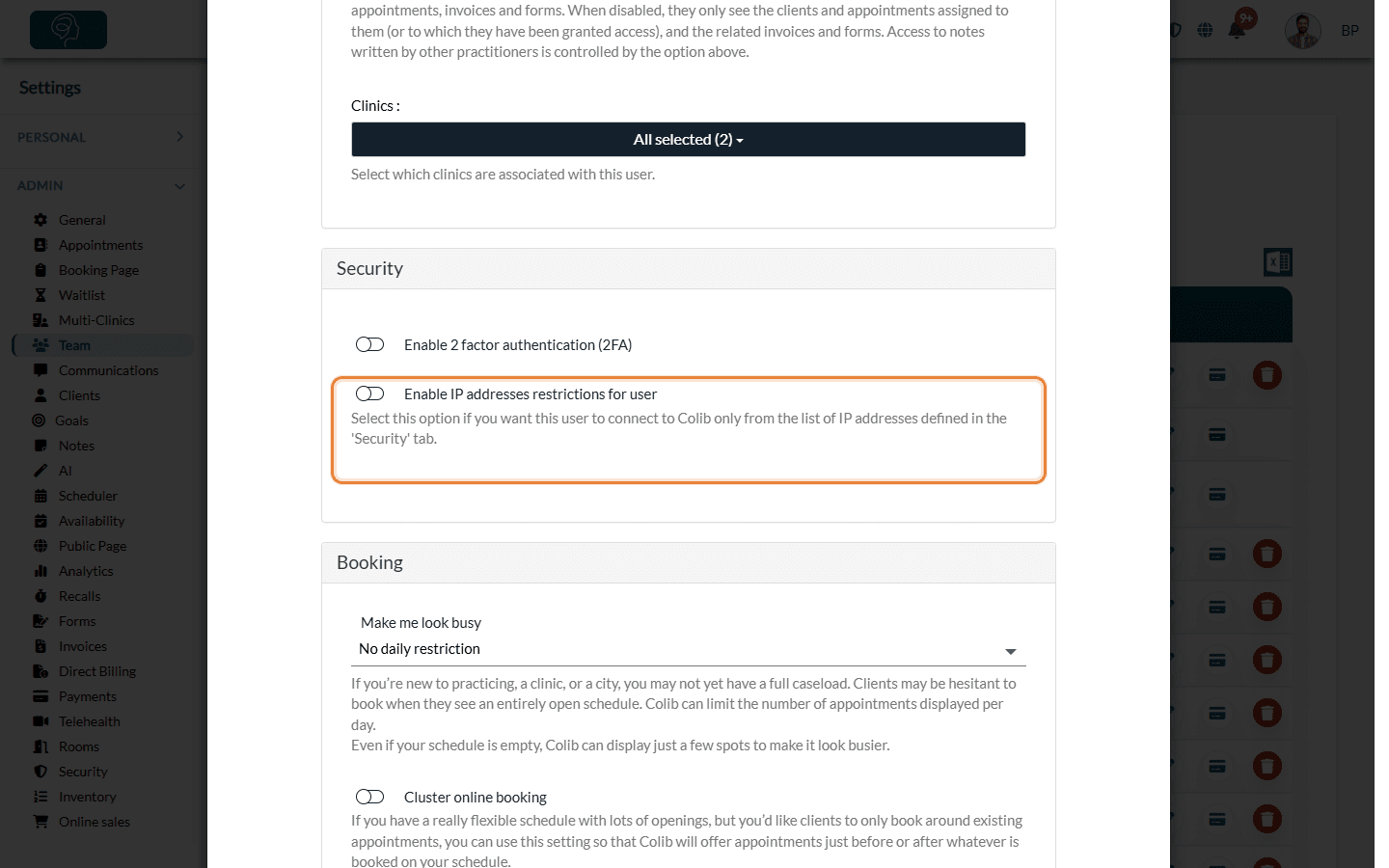
- In the Security section, turn on Enable IP addresses restrictions for user.
- Click Save at the bottom of the window. Repeat for each member concerned.
Important: if you turn the restriction on for your own account, first add the address of the connection you are using (Use my current IP address). Otherwise, you could lose access to Colib yourself as soon as the restriction applies.
What does a restricted member see?
When a restricted member opens Colib from an address that is not in the list (at home, on a phone's data connection, in a café...), Colib shows the message Your IP address is not authorized to perform this action. Please contact your administrator or change your internet connexion. and the pages of the practice remain inaccessible. From an authorized connection, everything works normally.
Good to know
- When does it apply? — a change (new address, restriction turned on or off) applies to the member at their next sign-in, or within a few minutes if they are already signed in.
- Exact addresses only — each line authorizes one IPv4 address. Ranges of addresses and IPv6 addresses are not accepted. The same address cannot be added twice.
- Empty list — as long as the list contains no address, the restriction has no effect, even for the members for whom it is turned on.
- Your clients are not affected — the restriction only concerns the members of your team. Your clients still book, fill out forms and use their client portal from anywhere.
- Combine it with two-factor authentication — the Security section of each member also lets you turn on two-factor authentication. See How to configure the 2-factor authentication (2FA) and What are the different levels of rights/options for the members of my practice?.
Still have a question?
Write to us at support@colib.io, we will be happy to help.
Was this article helpful?
That’s Great!
Thank you for your feedback
Sorry! We couldn't be helpful
Thank you for your feedback
Feedback sent
We appreciate your effort and will try to fix the article