Who is this article for?
Your client paid only part of an invoice: a deposit, a first instalment, or the share covered by their insurance, for example. You record this amount as a partial payment: Colib then shows the amount already paid and the balance still due, on the invoice and in your list of invoices.
Before you start: partial payments are entered from the list of invoices (www.colib.io/invoices). You need permission to edit financial information; with read-only access, the status of an invoice cannot be changed.
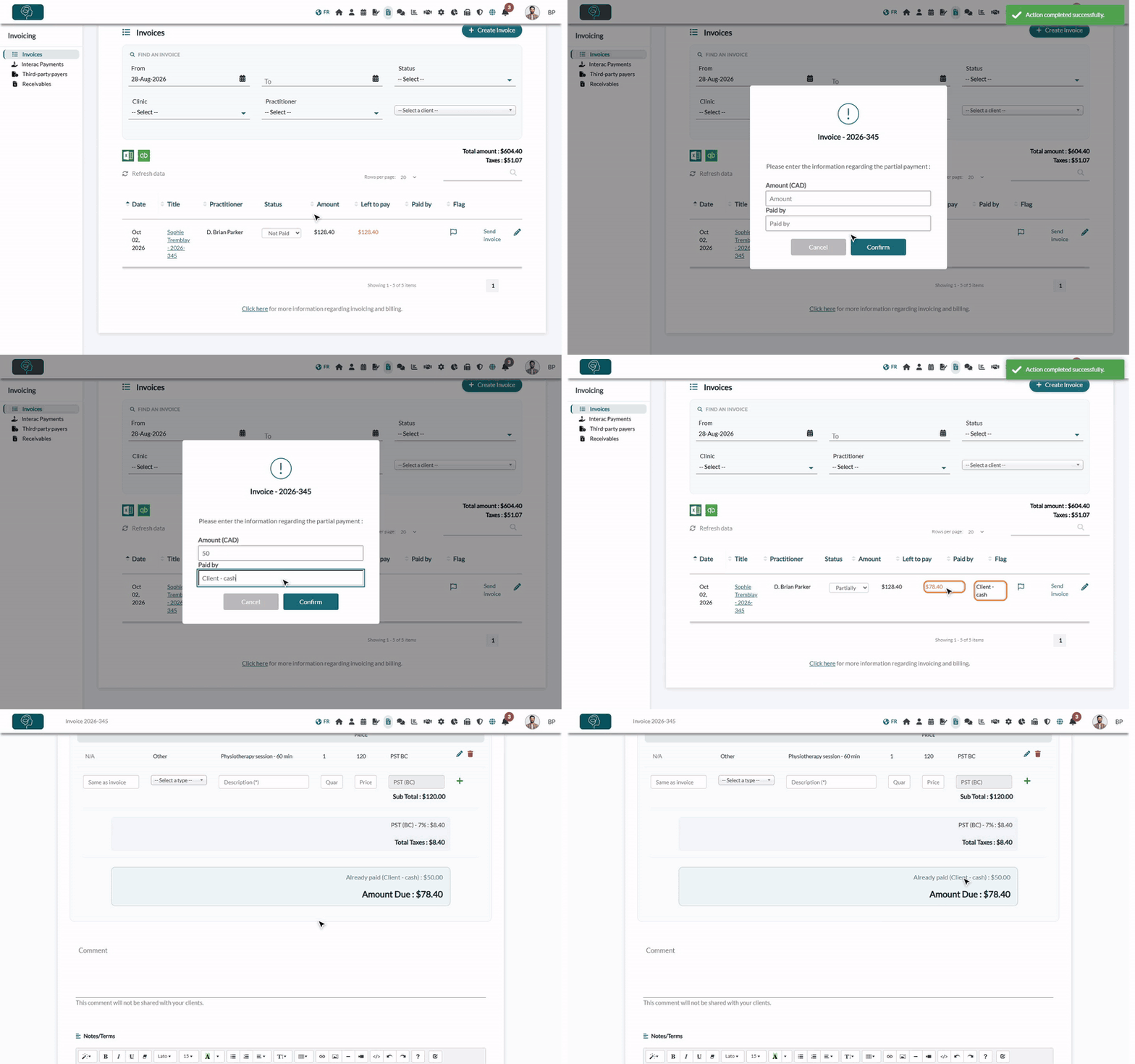
1Find the invoice
- Go to www.colib.io/invoices. You can also click the Invoices icon in the top bar.
- Find the invoice in the list. If needed, narrow the list with the From and To dates, the Status, the Practitioner or the client.
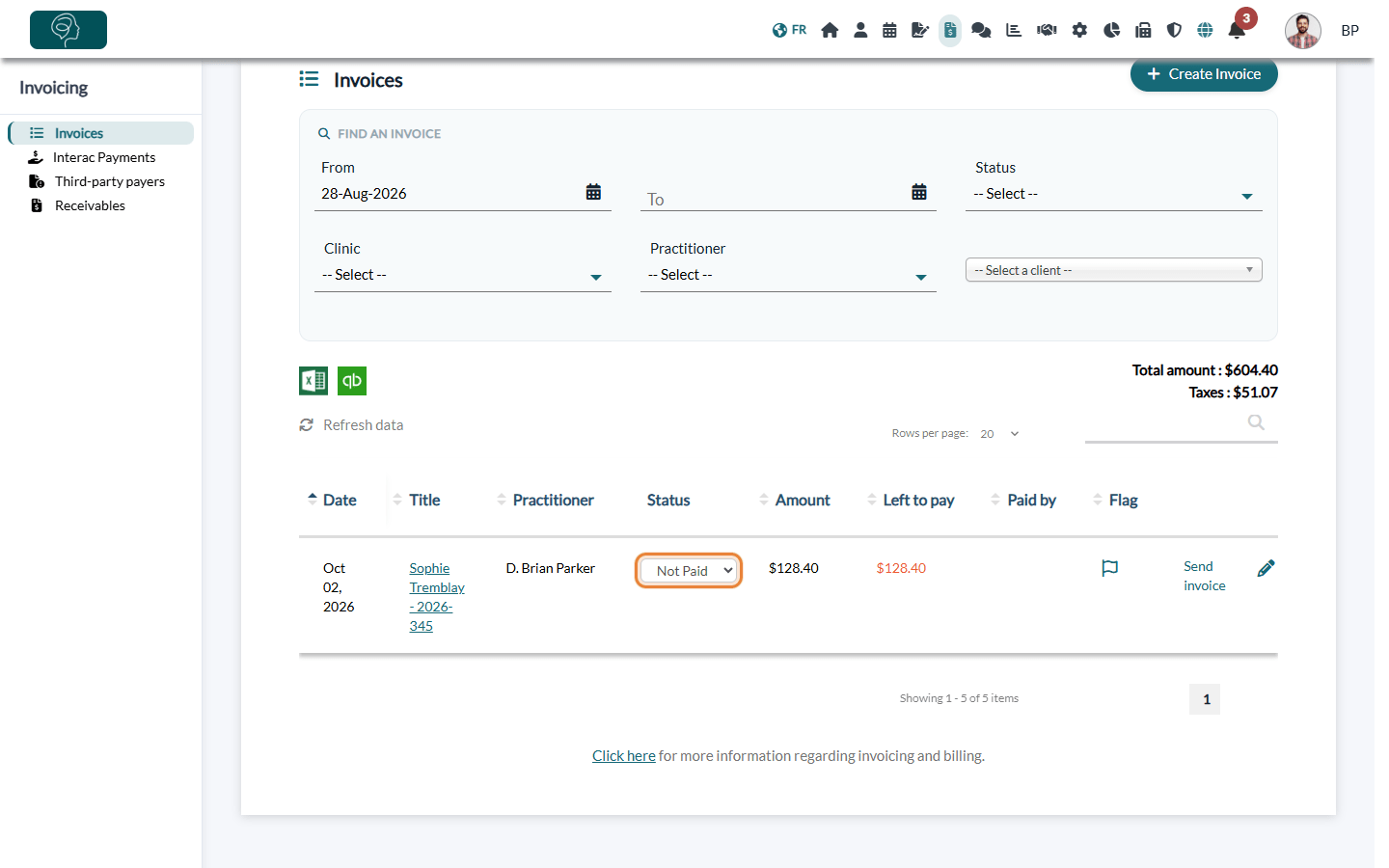
2Change the status to Partially paid
- In the Status column of the invoice, open the list and choose Partially paid.
- A window opens to enter the details of the payment.
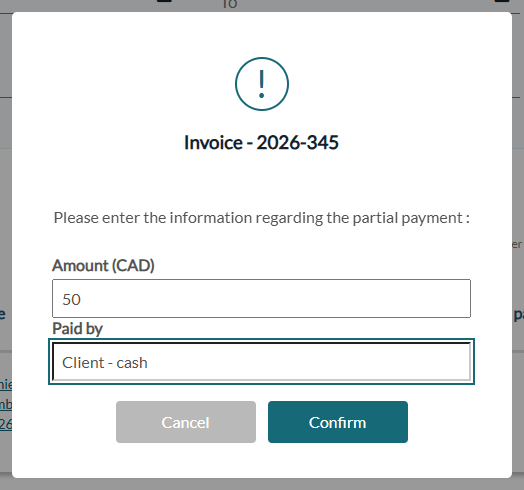
3Enter the amount received
- In Amount (CAD), enter the amount the client has paid so far, taxes included (for example, 50).
- In Paid by, note who paid or how (for example, Client - cash or the name of the insurer). This note appears next to the amount.
- Click Confirm.
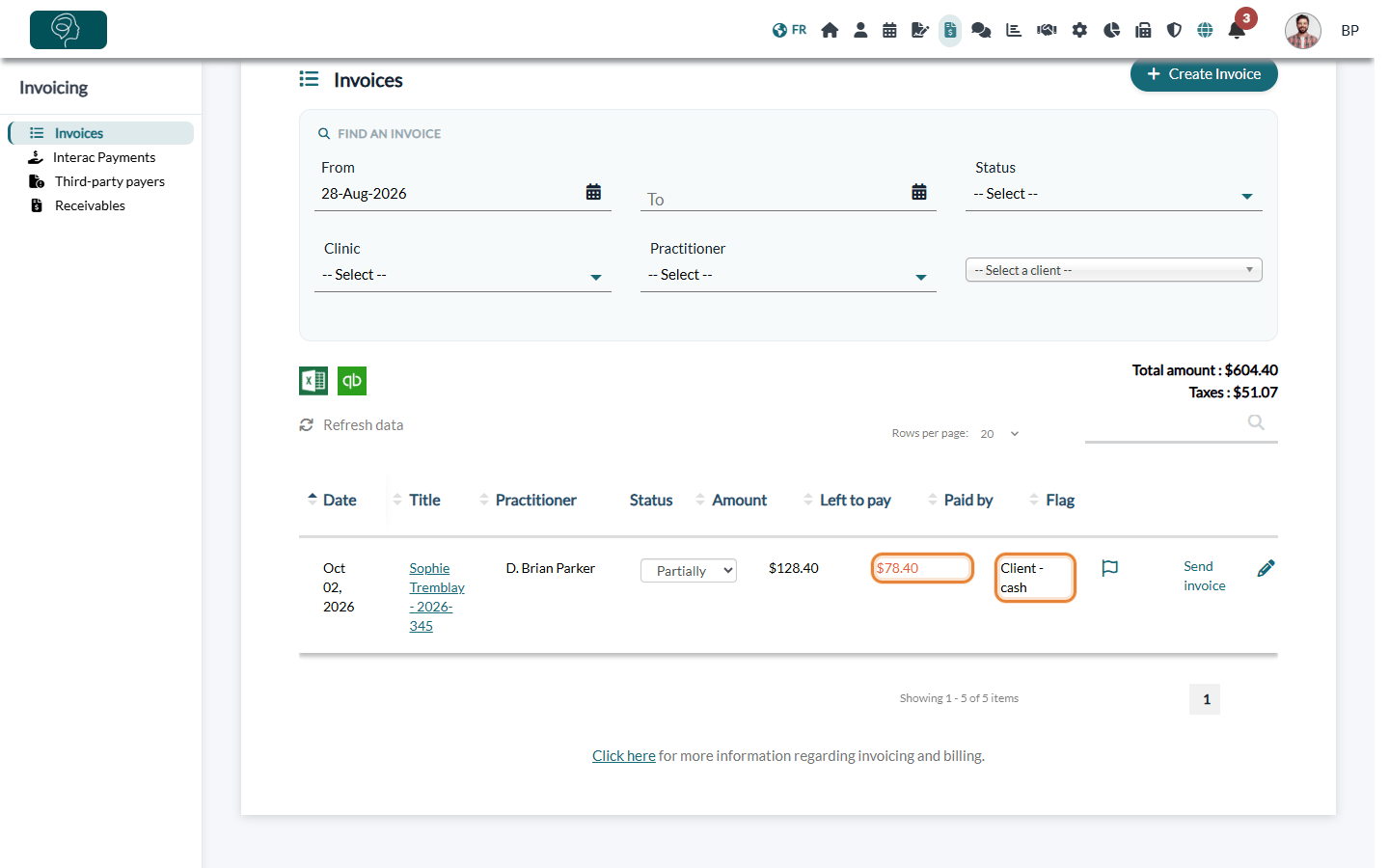
4Check the balance
The list is updated right away: the Left to pay column shows the remaining balance and the Paid by column shows your note.
Open the invoice: the line Already paid shows the amount received, and the Amount Due is reduced accordingly.
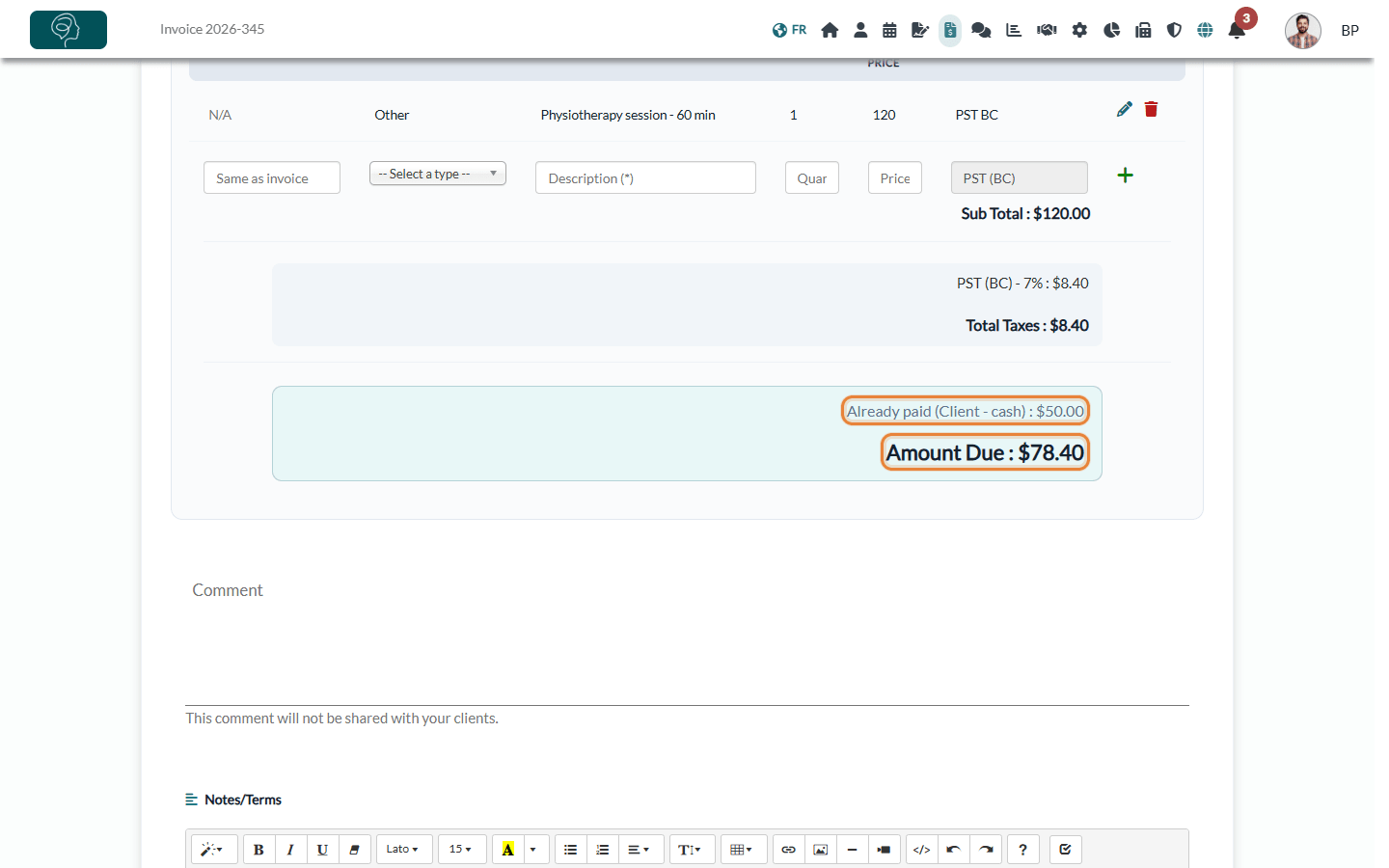
The PDF of the invoice is updated too: it shows a line Amount already paid and the balance due. When you send the invoice to your client, the email shows the balance due, and if your client pays online, only the balance is charged.
5When the balance is paid
Once your client has paid the rest, change the status of the invoice to Paid. The invoice then becomes a receipt. See How to record an offline or manual payment on an invoice.
Good to know
- One partial amount per invoice — the amount you enter replaces the previous one; it does not add up. If your client pays in several instalments, enter the total received so far (for example, 50, then 80 after a second payment of 30). To open the window again, change the status to Not Paid, then back to Partially paid.
- Allowed amounts — the amount must be lower than the total of the invoice. If the client paid everything, use the Paid status instead.
- Remove a partial payment — open the window again and enter 0.
- From the list only — the Status field on the invoice page does not ask for an amount: always enter partial payments from the list of invoices.
- Do not add a negative line to the invoice to record a payment (an item of type Other with a description and a negative amount, as was suggested before the partial payment window existed): it changes the total of the invoice and its taxes instead of recording a payment, and the invoice still waits for another payment from the client. Use the partial payment instead.
Related articles: How to change the status of an invoice and How to create and send an invoice or a receipt.
Still have a question?
Write to us at support@colib.io, we will be happy to help.
Was this article helpful?
That’s Great!
Thank you for your feedback
Sorry! We couldn't be helpful
Thank you for your feedback
Feedback sent
We appreciate your effort and will try to fix the article