Who is this article for?
Some services are paid by someone other than your client: an insurer, an employer, a government program or an employee assistance program. In that case, you want the invoice to show the payer's name and to reach the payer's email address, not only your client's.
Colib offers two ways to do this. This article helps you choose and explains both.
Good to know: Colib does not submit claims to insurers for you. You create the invoice in Colib and send it to the payer by email from Colib. We used to recommend creating a separate client profile for each payer: it still works (see below), but it is no longer necessary, and keeping the invoices in your client's record gives you a complete history.
Which method should you choose?
| Method | Best for |
|---|---|
| Third-Party Billing feature (all plans except the Practitioner plan) | Payers you bill regularly, with an authorization or a funding limit to follow: payers saved once, funding policies per client, alerts when the funding runs low, invoices addressed and emailed to the payer. |
| Simple method (all plans) | An occasional invoice for a payer: you change the name displayed on the invoice and send a copy to the payer's email address. |
1Use the Third-Party Billing feature
- Go to Settings > Direct Billing (www.colib.io/settings?show=directbilling), open the Third Party Billing panel and turn on Enable Third-Party Billing. Set your hourly rates and your alerts, then save. Details: How to enable and configure the feature.
- In the same panel, click Add a payer for each insurer, employer or program you bill: name, type, billing email and billing address. Details: How to create payers.
- In your client's record, open the Third-party payers section and click Add a funding policy to link the client to the payer (policy or authorization number, dates, authorized hours or amount). Details: How to attach a funding policy to a client.
- Create the invoice from the client's appointments or billable time and choose the payer as the recipient. The invoice shows the payer's name and billing address, a Billed to third-party payer banner appears on it, and when you send it, it goes to the payer's billing email. Details: How to create an invoice from billable time, tasks or appointments.
- Follow your payers' balances from Invoices (www.colib.io/invoices), in the Third-party payers and Receivables menus. Colib warns you when a client's funding is running low: How do funding alerts work?.
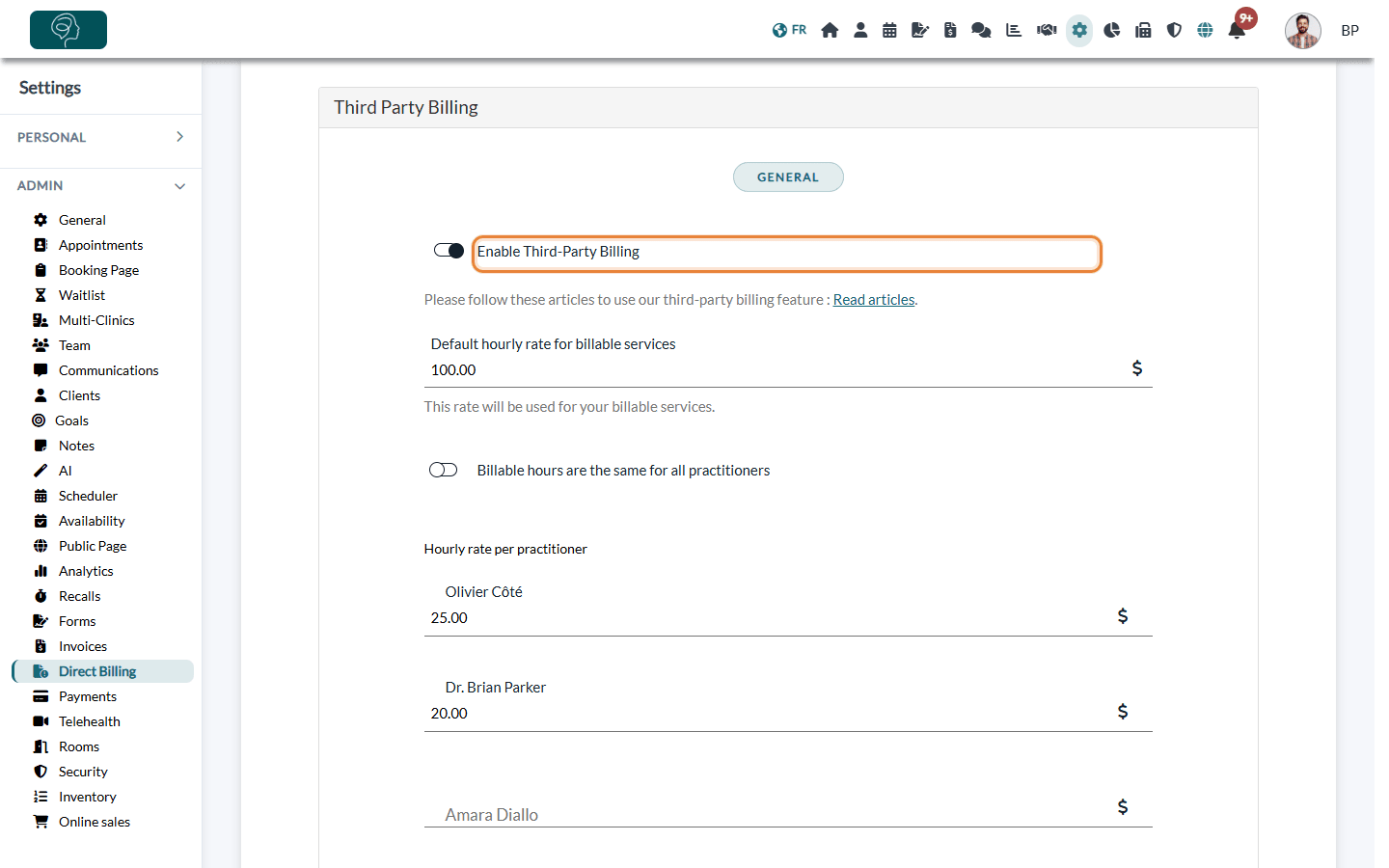
If your plan does not include this feature, the Direct Billing tab tells you so and invites you to change plans.
2Or use the simple method
- Open the invoice of your client (from www.colib.io/invoices, click its title).
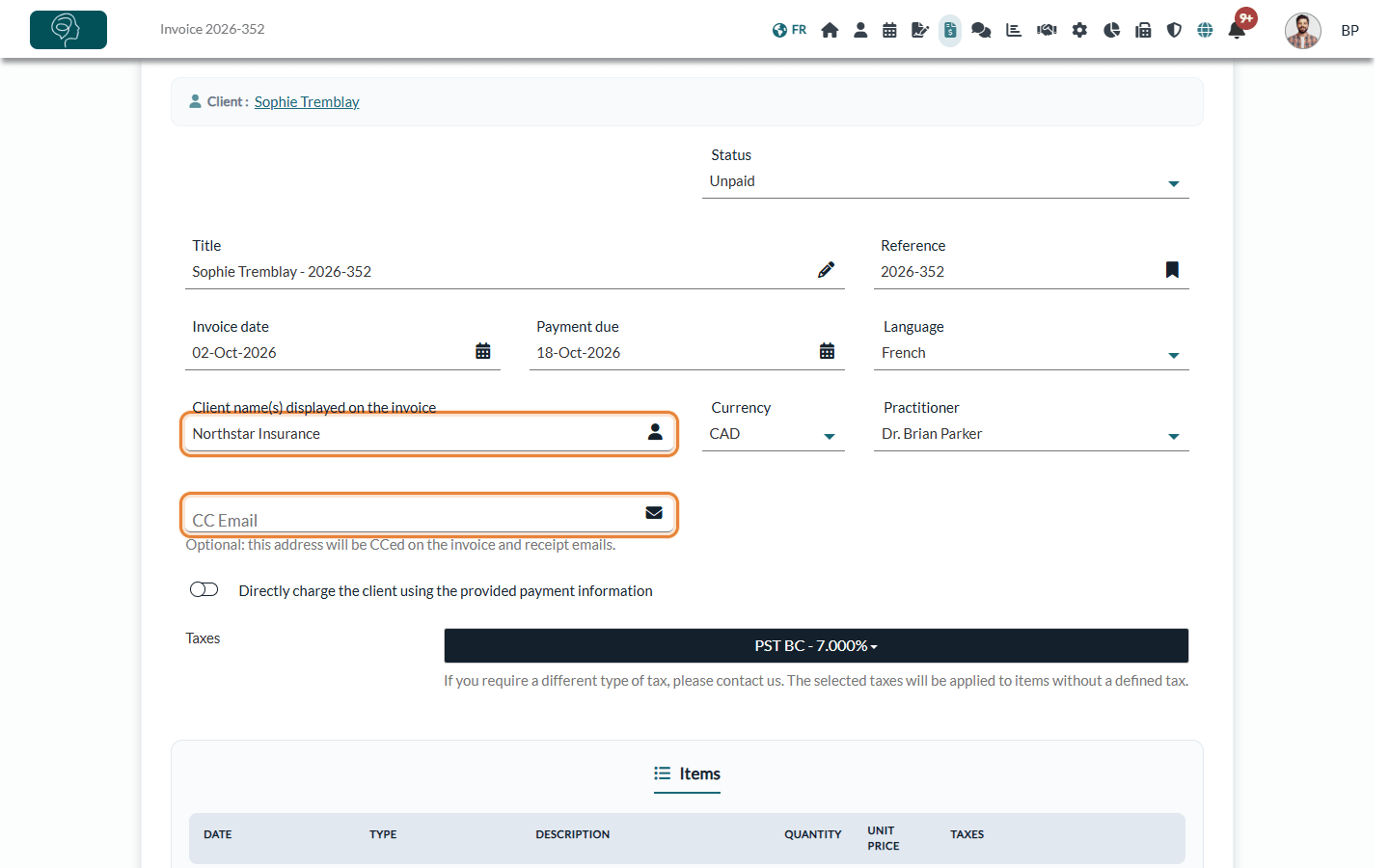
- In Client name(s) displayed on the invoice, enter the payer's name. This is the name printed on the invoice; the invoice stays in your client's record.
- In CC Email, enter the payer's email address. Colib sends a copy of the invoice and receipt emails to this address (your client receives them too).
- Click Save, then Send at the top of the invoice.
When the payer pays you, mark the invoice as paid: from the list of invoices, choose the payment method Third party and untick Send receipt to client if needed. See How to record an offline or manual payment on an invoice. If the payer covers only part of the amount, see How to record a partial payment on an invoice.
Another option: a client profile for each payer
This was our former recommendation, and it still works on every plan if you prefer it: the payer is set up as a client of its own, and its invoices are created from that profile.
- Create a dedicated client profile for each third-party payer (for example, an insurer) from www.colib.io/clients.
- Enter the payer's official contact details: name, address and email.
- Create and send the invoices directly from this third-party payer client profile.
This ensures that:
- the invoice displays the correct payer information;
- the invoice is sent to the right email address;
- your billing records remain clear and compliant.
Best practice: think of third-party payers as billing entities, not just linked contacts. Whether you use the Third-Party Billing feature or a dedicated client profile, handling each payer as its own entity gives you full control over the invoice recipient, the contact information, and the billing history and records. Keep in mind that with a dedicated client profile, these invoices are not in your client's record: the Third-Party Billing feature and the simple method keep them there.
Good to know
- Invoices linked to a payer are marked with an icon in the list of invoices, so you can spot them quickly.
- Keep the payer's details up to date (billing email and address): with the Third-Party Billing feature, they decide where and how the invoices are sent.
- Who can set it up — enabling the feature and creating payers requires access to the practice settings.
Still have a question?
Write to us at support@colib.io, we will be happy to help.
Was this article helpful?
That’s Great!
Thank you for your feedback
Sorry! We couldn't be helpful
Thank you for your feedback
Feedback sent
We appreciate your effort and will try to fix the article