Who is this article for?
A payer is the third party you bill instead of the client, or in addition to the client: an insurer, an employer, a government program, etc. You create your payers once for the whole practice, then attach them to your clients through funding policies.
This article explains how to create a payer, what each field is used for, and how to edit, archive or delete a payer.
Before you start: Third-Party Billing must be enabled for your practice, and you need access to the practice settings. See Third-Party Billing: how to enable and configure the feature.
1Open the Payers section
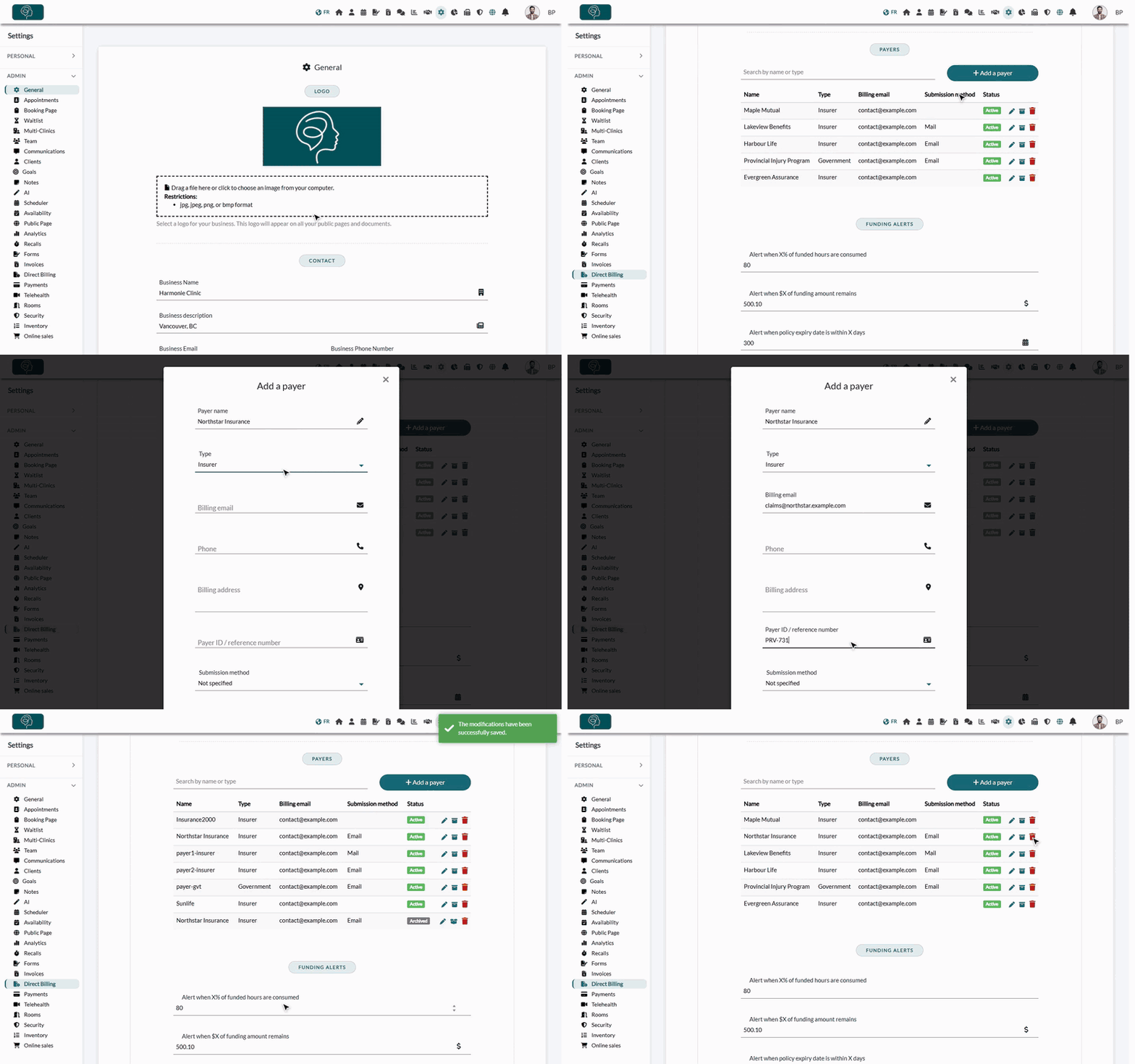
- Go to Settings > Direct Billing (www.colib.io/settings?show=directbilling).
- In the Third Party Billing panel, scroll to the Payers section. You will find a search box (by name or type) and the list of payers already created.
2Add a payer and fill in its details
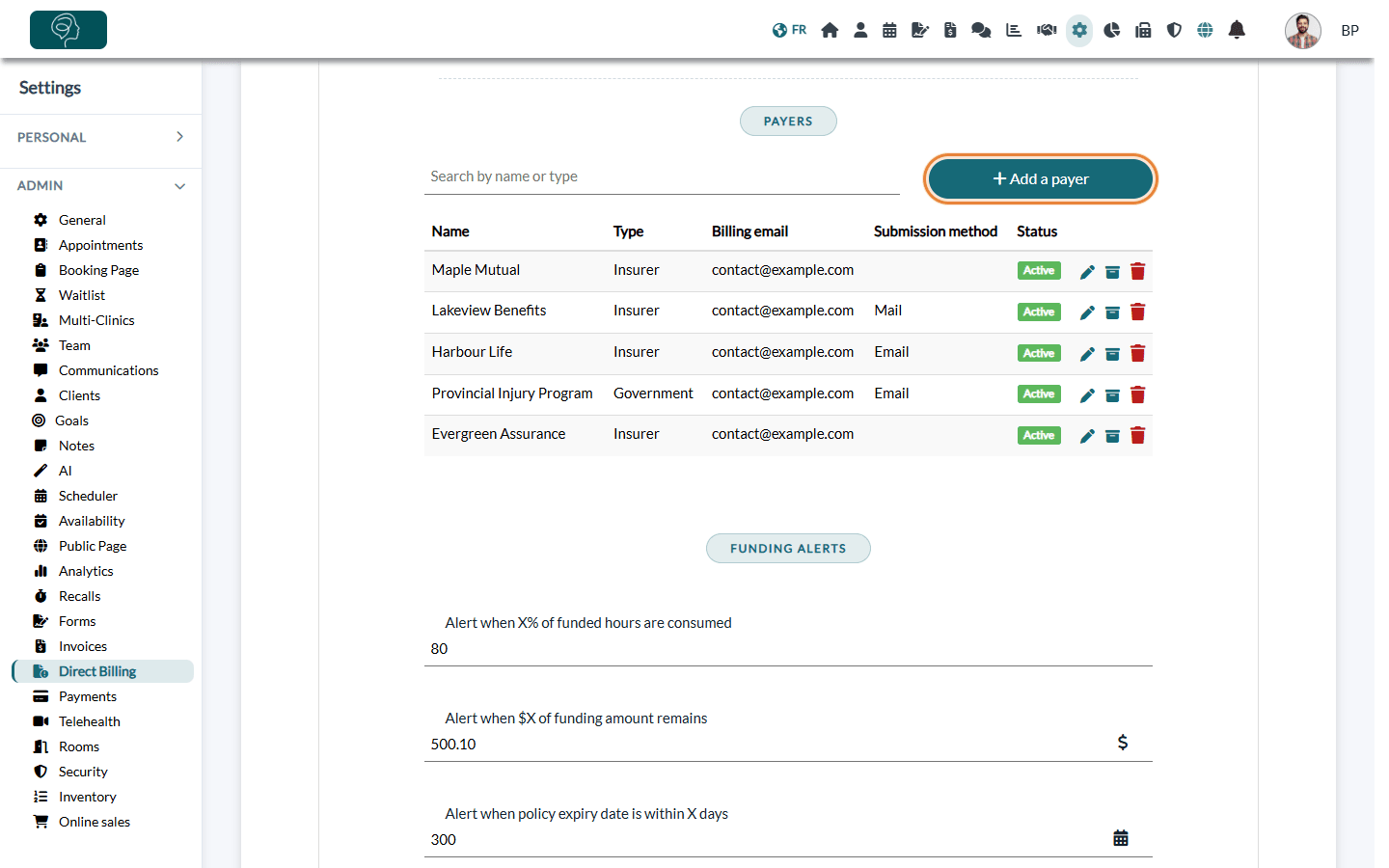
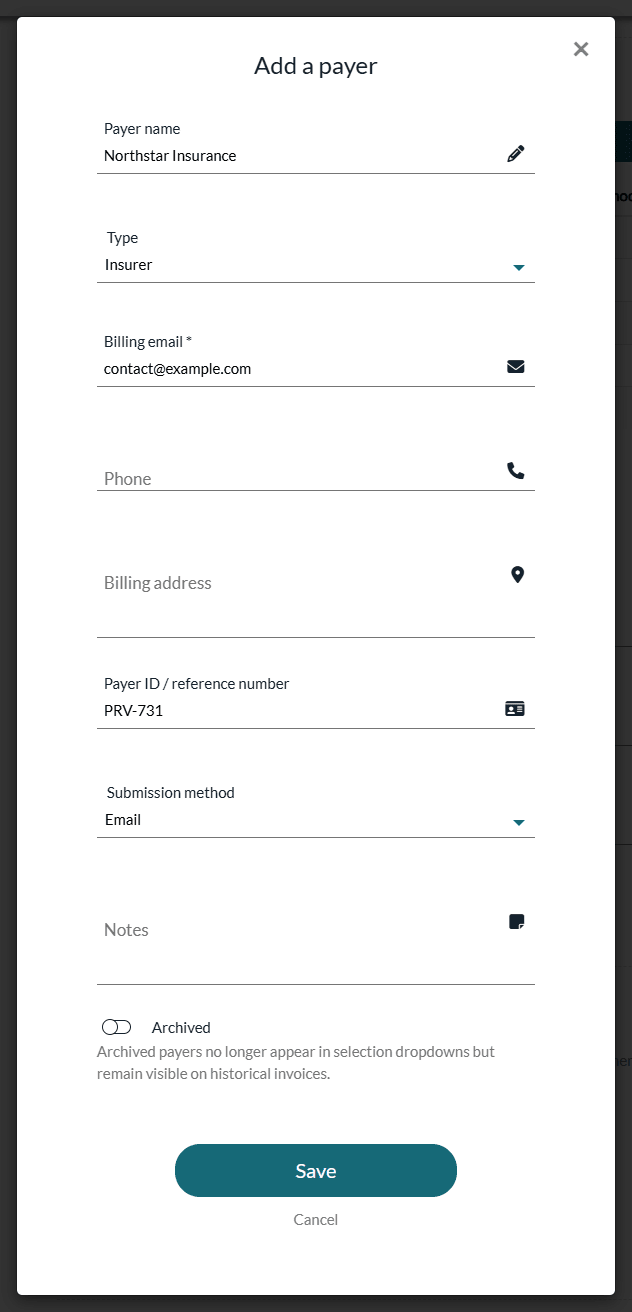
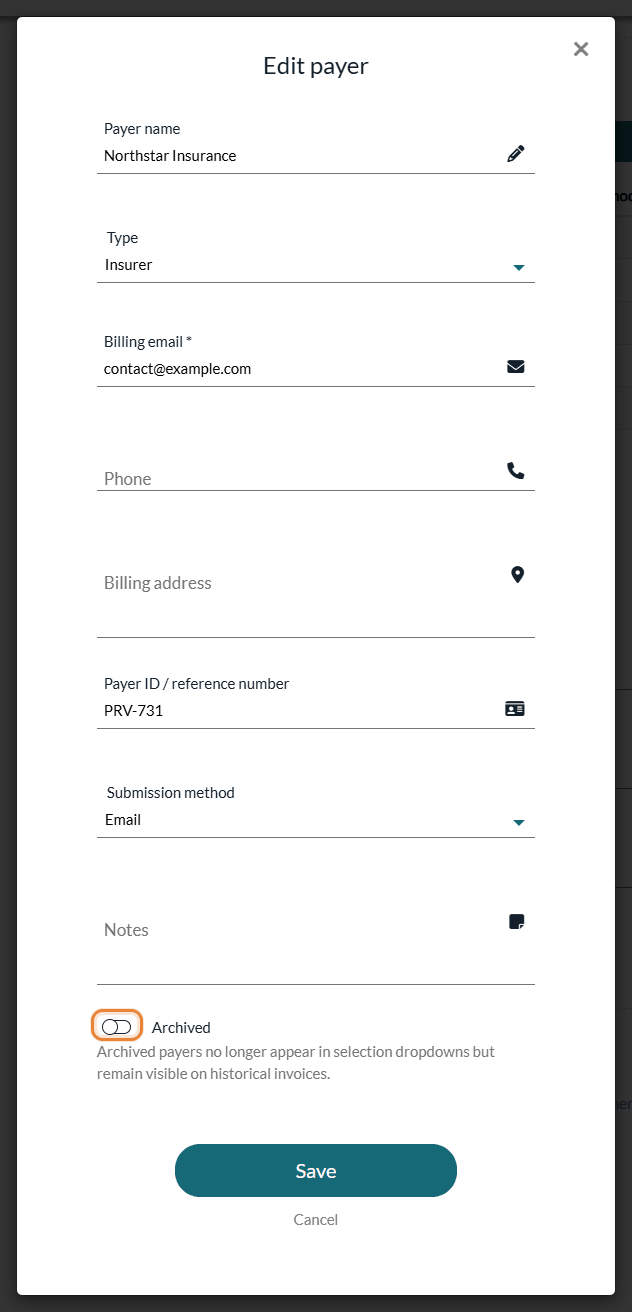
Click Add a payer. A window opens where you fill in the payer's details:
| Field | What to enter |
|---|---|
| Payer name (required) | The name that appears on the invoices addressed to this payer (for example, the insurer's name). |
| Type (required) | Insurer, Employer, Government or Other. |
| Billing email (required) | The address invoices and receipts are sent to when you send them to the payer. This email is used instead of the client's email. |
| Phone (optional) | Shown in the payer block of the invoices addressed to this payer. |
| Billing address (optional) | Shown on the invoices addressed to this payer. |
| Payer ID / reference number (optional) | Your account or provider reference with this payer. It appears as the reference on the invoices addressed to this payer. |
| Submission method (optional) | How you submit your claims to this payer: Email, Portal, Mail, or Not specified. It is a reminder for your team: Colib does not submit claims for you. |
| Notes (optional) | Internal notes, never shown to the payer. |
Conditional rules: the billing email is required whatever the submission method, including Email. If the submission method is Mail, a billing address is also required. The required field is marked with an asterisk (*) as soon as you choose the method.
3Save
Click Save. The payer appears in the list with the Active status and can now be selected when you attach a funding policy to a client. The payer is saved right away: you do not need to click the Save button of the settings panel.
Manage existing payers
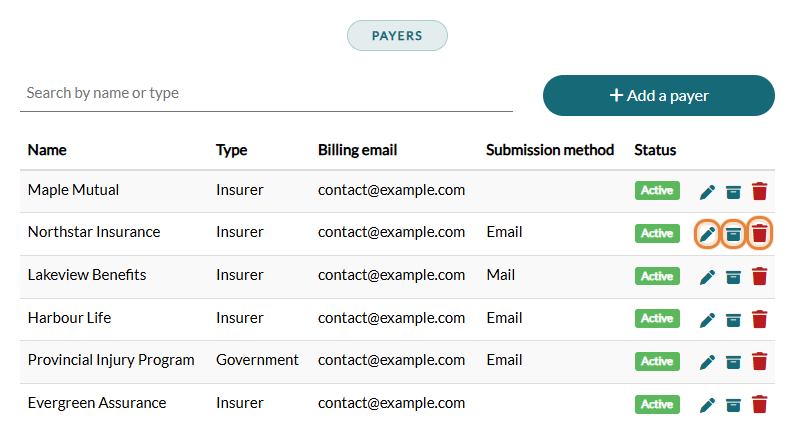
Each row of the list shows the Name, Type, Billing email, Submission method and Status of the payer, with three actions:
- Edit (pencil) — update the payer's details.
- Archive / Unarchive (box) — an archived payer no longer appears in the selection lists, but stays visible on past invoices. Use it to retire a payer you no longer work with. You can also use the Archived toggle at the bottom of the payer window.
- Delete (trash) — permanently removes the payer, after a confirmation.
Archive or delete? A payer that is linked to at least one client (through a funding policy) cannot be deleted: Colib shows a message and suggests archiving it instead. Archiving keeps your history intact.
Where to find the payer's details
- Billing email — ask the payer for it: it usually appears on the authorization or approval letter, in the payer's provider portal, or from the case manager or adjuster handling your client's file. Do not rely on an address found in a web search: an invoice contains your client's personal information, and an invoice sent to the wrong address may not be paid. Colib does not provide a directory of payers.
- Payer ID / reference number — the number that identifies you with this payer (the provider, vendor or account number it gave you). If the payer did not give you one and identifies providers by their professional registration, enter your registration number (for example, your RCC number). When in doubt, ask the payer which number it expects on your invoices.
How you get paid: the payer pays you directly, by its own means and on its own timelines; the money does not go through Colib or Stripe. When the payment arrives, mark the invoice as Paid with the payment method Third party. See the questions answered in Third-Party Billing: how to enable and configure the feature.
Good to know
- Insurers added by your clients — if you ask for insurance information on your booking page (Settings > Booking Page, option Ask clients for their insurance information during the booking process), a client who does not find their insurer in the list can add it with its name and billing address. Colib creates the payer and links it to the client. In the client's Third-party payers list, this payer shows an Added via booking badge: open the payer in Settings > Direct Billing, check or correct its details (in particular the billing email, which the client does not enter) and save.
- No billing email, no sending — an invoice addressed to a payer that has no billing email cannot be sent by email: Colib asks you to add an email address to the payer first.
- Keep the details up to date — the billing email and billing address of the payer determine where and how third-party invoices are sent. See Third-Party Billing: how to create an invoice from billable time, tasks or appointments.
Still have a question?
Write to us at support@colib.io, we will be happy to help.
Was this article helpful?
That’s Great!
Thank you for your feedback
Sorry! We couldn't be helpful
Thank you for your feedback
Feedback sent
We appreciate your effort and will try to fix the article