Who is this article for?
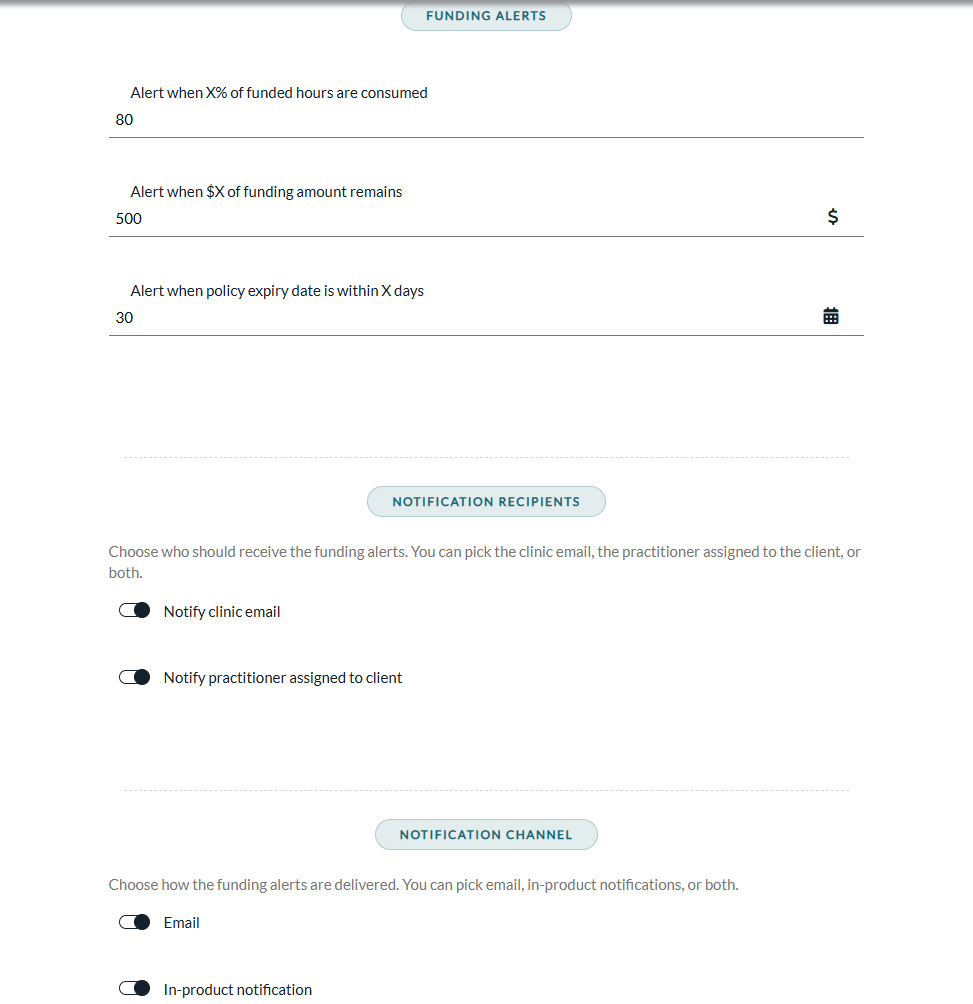
Funding alerts warn you before a client's coverage runs out, either because the authorized hours or amount are nearly used up, or because the funding policy is about to expire. You set the thresholds once in your practice settings; Colib then watches every open policy for you.
This article explains when alerts are sent, who receives them, what they contain, and how to read the status of a policy at a glance.
Where to set them: thresholds, recipients and channels are configured in Settings > Direct Billing (www.colib.io/settings?show=directbilling), Third Party Billing panel, Funding Alerts section. See Third-Party Billing: how to enable and configure the feature.
The two kinds of alerts
1. Consumption alerts (hours and amount)
They are checked whenever the funding of a policy changes:
- when you save a billable time entry (new or edited);
- when you change the authorized hours, the total funded amount or the exhaustion basis of an open policy;
- when you save an invoice addressed to the payer or change its status (except when you cancel it).
Colib then checks:
- Hours threshold — if the policy tracks hours and the hours used reach the configured percentage of the authorized hours (for example 80%), an alert is sent.
- Amount threshold — if the policy tracks an amount and the remaining amount drops to the configured value or below (for example $500), an alert is sent.
| "Funding exhausted based on" of the policy | Check applied |
|---|---|
| Number of hours | Hours threshold only. |
| Amount | Amount threshold only. |
| Hours or amount | Both thresholds. |
| None | No consumption alert. |
As long as a policy remains past a threshold, a new alert is sent each time its funding changes again (for example, each new billable time entry), so you are reminded until you act.
2. Expiry alerts (end date)
Once a day, Colib checks all open policies and sends a single alert on the day a policy reaches the configured mark, for example exactly 30 days before its end date. It is sent only once: you do not get a reminder every day until the policy expires.
When alerts are not sent
- An amount or number of days set to 0 turns off that alert (the hours percentage cannot be turned off: it must stay between 1 and 100).
- Closed policies never generate alerts.
- Consumption alerts are only sent when the policy actually tracks the matching limit (hours and/or amount).
- Deleting a billable time entry lowers the usage: it does not send an alert.
Who receives the alert
Alerts go to the recipients selected in the settings:
- the practice's contact email (Notify clinic email) and/or the practitioner assigned to the client (Notify practitioner assigned to client);
- by Email and/or as an In-product notification (bell icon of the top bar), according to your Notification channel settings.
Safety net: when alerts are sent by email and no email could reach a practitioner (option turned off, or no practitioner assigned to the client), Colib also sends the alert to the practice's contact email, so the alert is never lost.
What the alert contains
Each alert identifies the client and the payer, and summarizes what was triggered, for example:
- Hours used: 16 / 20 (80%)
- Remaining amount: $450.00 out of $2,000.00
- Expires in 30 day(s) (2026-07-05)
To protect privacy, the alert email shows the client's initials only. It includes a button that opens the client's file directly, so you can act: renew the authorization, contact the payer or close the policy. The in-product notification shows the client's name and a View client link.

All your notifications are listed in the Notification Center (www.colib.io/notifications).
Read the status at a glance
In the Third-party payers list of the Invoicing page (www.colib.io/invoices), every policy shows a status badge, and you can filter the list by status:
- Active — within limits and not expiring soon.
- Expiring soon — end date within 30 days.
- Expired — past its end date.
- Exhausted — hours and/or amount fully used, or the policy was closed.
In the client record (Billing tab > Third-party payers), each policy shows Active or Closed, with progress bars for the hours and amount used: green, amber from 80%, red at 100%. See Third-Party Billing: how to attach a funding policy to a client.
Still have a question?
Write to us at support@colib.io, we will be happy to help.
Was this article helpful?
That’s Great!
Thank you for your feedback
Sorry! We couldn't be helpful
Thank you for your feedback
Feedback sent
We appreciate your effort and will try to fix the article