Who is this article for?
A payer rarely covers everything: it pays up to an hourly rate, up to a number of hours or a dollar amount, and only during the period of the authorization. When you bill appointments to a payer and the funding policy does not cover all of it, Colib calculates the part covered by the payer and the part left to the client, and offers to split the invoice: one invoice to the payer for the covered part, and a second invoice to the client for the rest.
Before you start: third-party billing must be enabled for your clinic, and the client needs a funding policy with the payer (see Third-Party Billing: how to attach a funding policy to a client). You also need the right to edit financial information.
1Bill the appointments to the payer
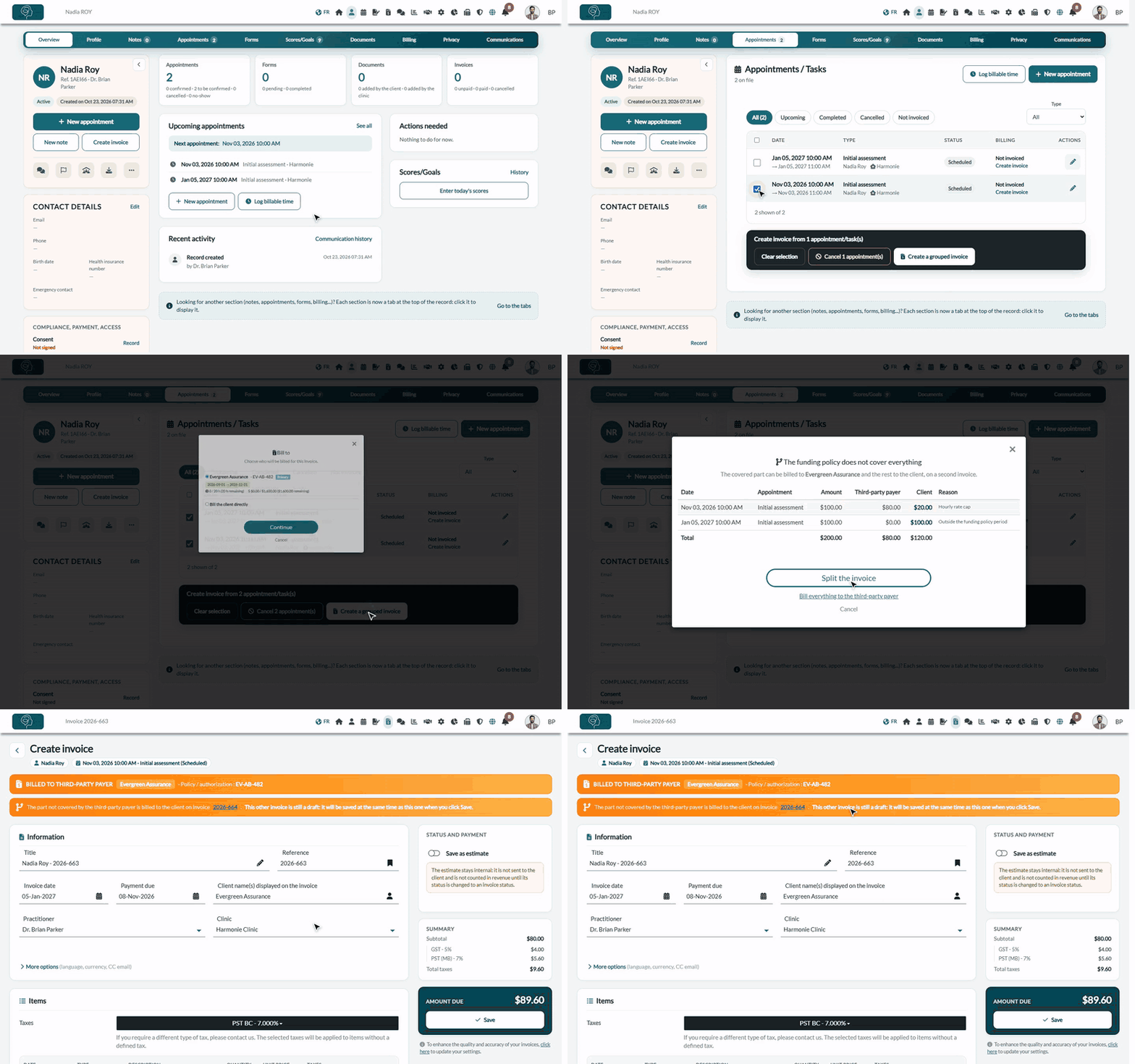
- Open the client's record from your client list (www.colib.io/clients) and click the Appointments tab.
- Tick the appointments to invoice, then click Create a grouped invoice in the bar at the bottom of the list.
- In the Bill to window, choose the client's funding policy and click Continue.
If the policy covers all the selected appointments, the invoice to the payer opens directly, as usual (see Third-Party Billing: how to create an invoice from billable time, tasks or appointments). Otherwise, the split preview opens.
2Read the split preview
The window The funding policy does not cover everything shows, for each appointment, its amount, the part paid by the payer, the part left to the client and the reason, with the totals at the bottom.
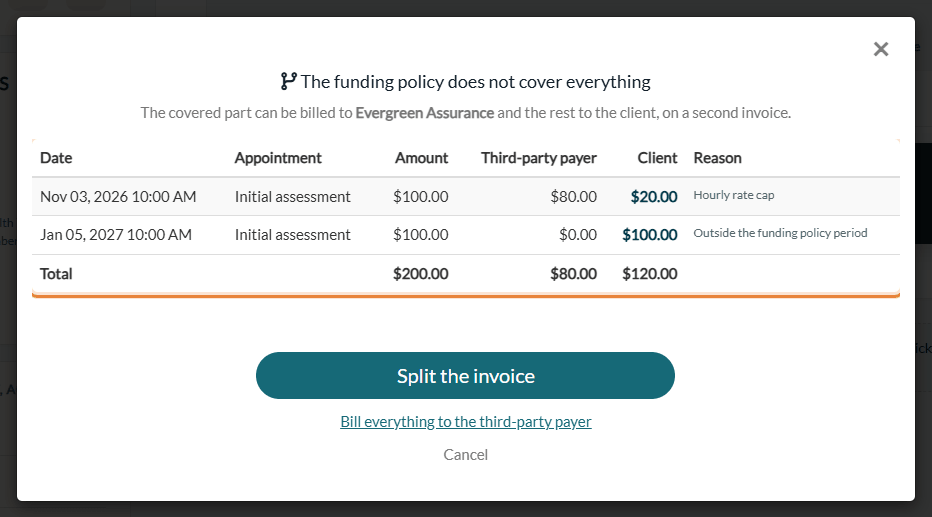
In this example, the policy covers up to $80 per hour, from September 1 to December 31, 2026, and each one-hour appointment costs $100:
- November 3, 2026: the payer pays $80 and the client $20 (Hourly rate cap);
- January 5, 2027: the appointment is after the end of the policy, so the client pays the full $100 (Outside the funding policy period).
Three choices:
| Choice | What happens |
|---|---|
| Split the invoice | Colib creates two linked invoices: the covered part goes to the payer, the rest goes to the client. |
| Bill everything to the third-party payer | A single invoice to the payer, with the full amounts, like a standard third-party invoice. Use it if the payer agreed to pay more than what the policy shows. |
| Cancel | Nothing is created. You can change the selection or the policy first. |
If the policy covers nothing at all (closed policy, or all the appointments outside its period), the button becomes Bill the client: only an invoice to the client is created.
3How Colib calculates the part of each one
The appointments are handled from the oldest to the most recent, so the remaining funding goes to the earliest appointments first. For each appointment, Colib starts from its price as it will appear on the invoice (no-show or late cancellation fee and client discount included), then applies the limits of the policy:
| Reason shown | Rule |
|---|---|
| Funding policy closed | A closed policy covers nothing: the whole appointment goes to the client. |
| Outside the funding policy period | An appointment before the start date or after the end date of the policy is not covered. |
| Authorized hours exhausted | When the remaining hours are not enough, only the remaining minutes are covered, in proportion to the price. For example, with 30 minutes left, the payer pays half of a one-hour appointment. |
| Hourly rate cap | The payer never pays more than the hourly rate cap × the covered hours. Example: $80 cap, one-hour appointment at $100: $80 for the payer, $20 for the client. |
| Funded amount exhausted | The payer pays at most the remaining balance of the funded amount. |
Which limits apply: the closed policy, the period and the hourly rate cap always apply. The authorized hours and the funded amount only limit the payer's part according to the Funding exhausted based on field of the policy: Number of hours, Amount, or both with Hours or amount. With None, they do not limit anything: Colib only warns you if the invoice goes over them, and you can create it anyway.
The remaining funding takes into account the invoices already saved and the draft invoices of this policy not saved yet. When drafts are deducted, the window says so, with their amount and hours.
4The two invoices
After Split the invoice, Colib creates two draft invoices with consecutive numbers and opens the invoice to the payer. A banner at the top shows the other invoice, with a link to open it.
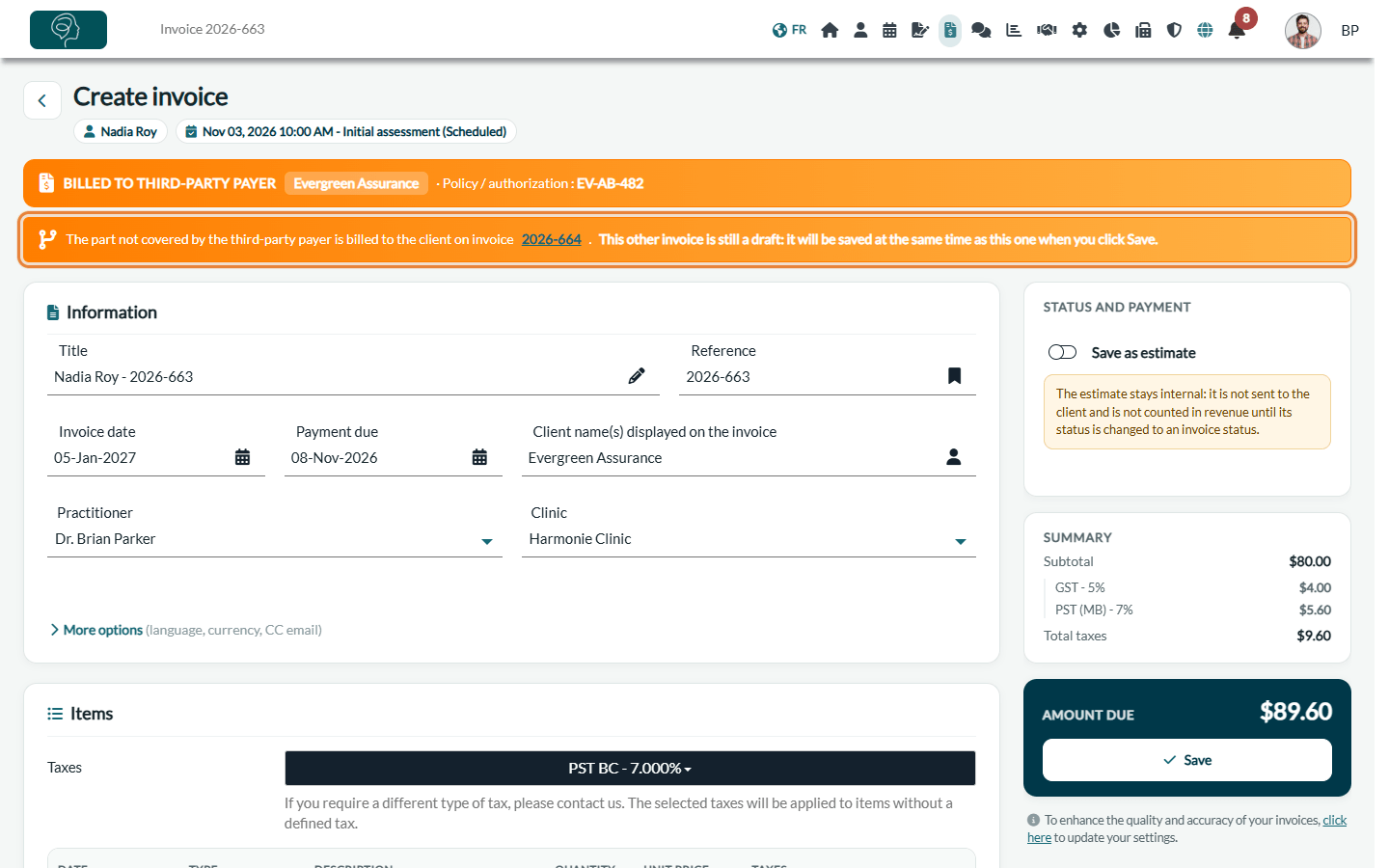
- Invoice to the payer: it contains the covered part of each appointment, and is addressed to the payer like any third-party invoice. Billable time entries selected with the appointments always stay entirely on this invoice: they are already counted in the policy when you log them.
- Invoice to the client: it contains the rest of each appointment, on lines starting with Balance due - (Reste à charge - for a French-speaking client). It is a standard invoice addressed to the client, which you can send and get paid as usual.
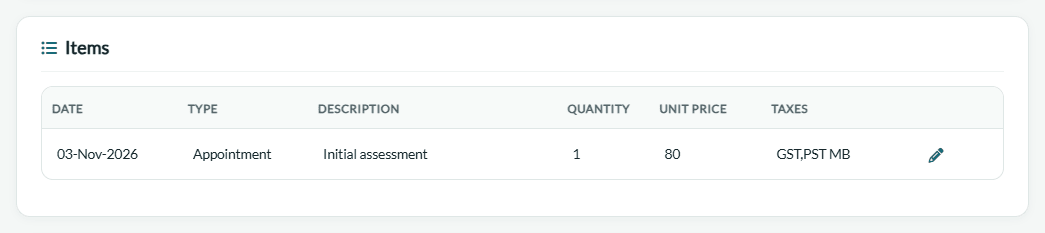
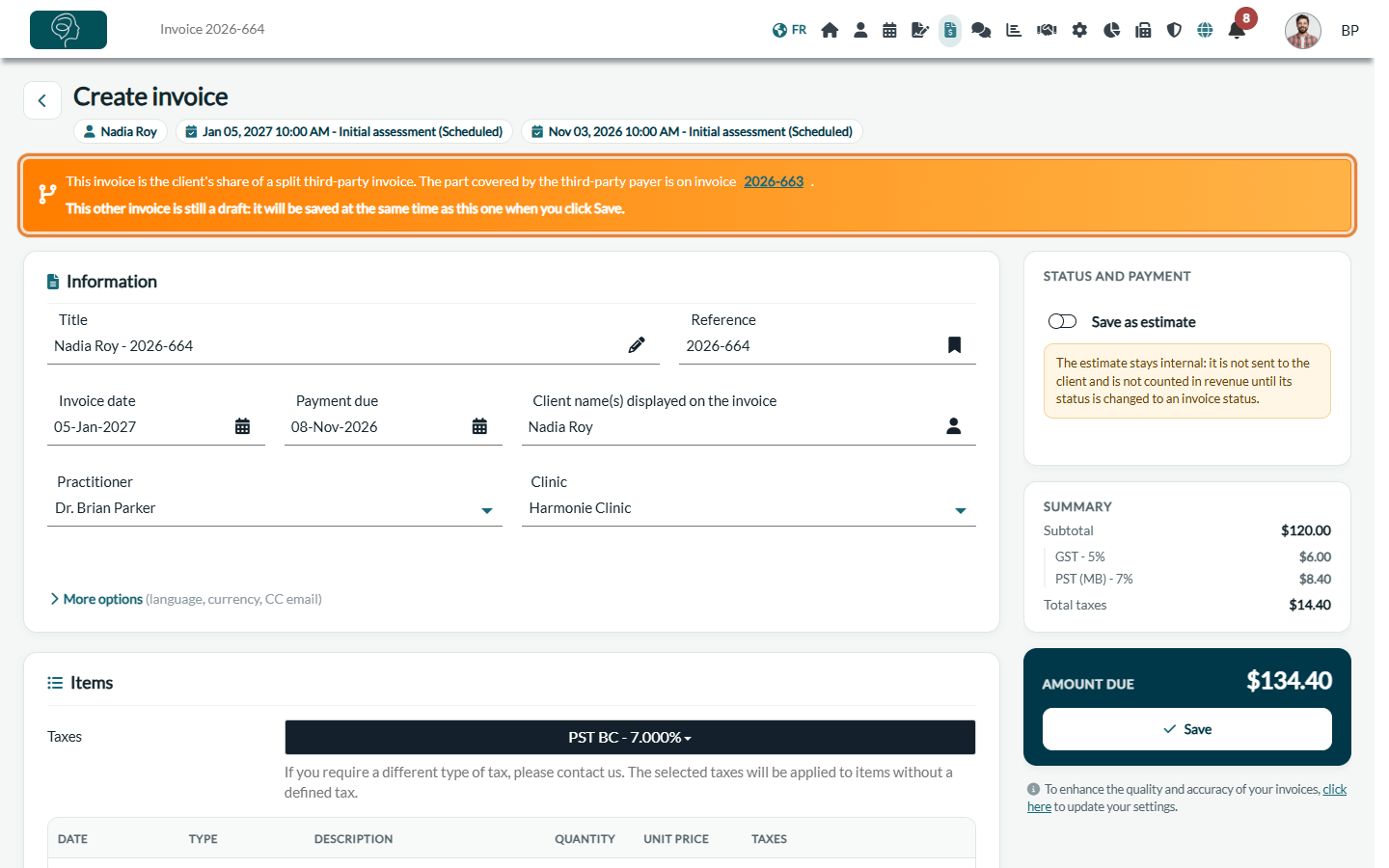
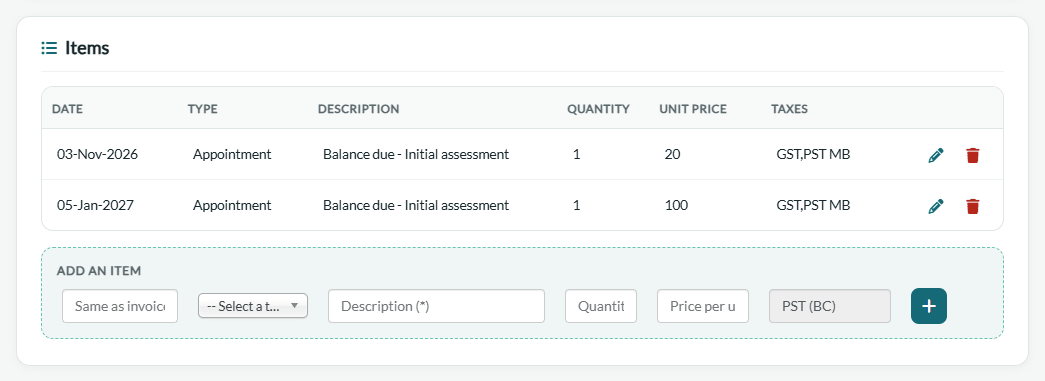
Each invoice applies its own taxes. Only the part covered by the payer counts on the funding policy: hours and amount used, remaining balance and funding alerts (see Third-Party Billing: how do funding alerts work?).
5Save the invoices
Check the invoice and click Save. If the other invoice of the split is still a draft, it is saved at the same time, so it does not stay forgotten: the banner reminds you of it. If you save as an estimate, the other invoice is also saved as an estimate.
Important: a draft invoice that is never saved is deleted after 6 days. Save at least one of the two invoices.
Saving the other invoice follows the automatic sending rules of your clinic, exactly as if you had saved it yourself. Then send each invoice when you are ready: the invoice to the payer goes to the payer's billing email, the invoice to the client to the client.
6Find the invoices of a split
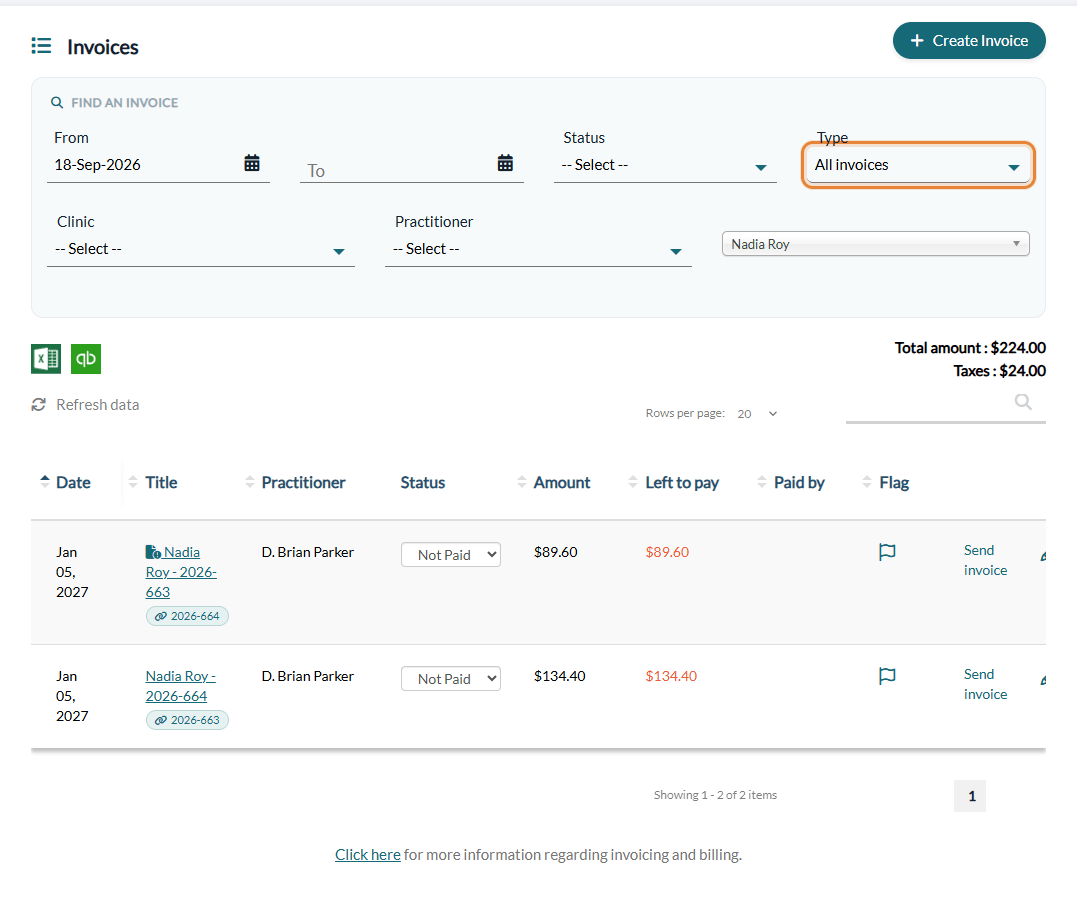
On the Invoicing page (www.colib.io/invoices), each invoice of a split shows, under its title, a link with the number of the other invoice: click it to open the other invoice.
When third-party billing is enabled, the Type filter shows All invoices, only the Third-party payer invoices, or only the Not third-party payer invoices (the client invoices of a split included). The Excel and QuickBooks exports follow this filter.
Good to know
- Draft invoices are not listed — the invoice list never shows drafts. As long as the invoices of a split are not saved, open them from the banner of the other invoice.
- No automatic recalculation — if you change one of the two invoices after its creation, the other one is not changed. Adjust it by hand if needed.
- Policy changed in the meantime — the split is calculated again when you click Split the invoice: if the policy changed after the preview opened, the new figures apply.
- Appointments and tasks only — the split applies to the appointments and tasks of the selection, from the client's record. An invoice of billable time only is never split.
- One payer per invoice — the covered part goes to the payer of the chosen policy. Splitting an appointment between several payers is not available at this time.
Related articles
- Third-Party Billing: how to attach a funding policy to a client
- Third-Party Billing: how to create an invoice from billable time, tasks or appointments
- Third-Party Billing: how do funding alerts work?
Still have a question?
Write to us at support@colib.io, we will be happy to help.
Was this article helpful?
That’s Great!
Thank you for your feedback
Sorry! We couldn't be helpful
Thank you for your feedback
Feedback sent
We appreciate your effort and will try to fix the article