Who is this article for?
To charge a client automatically (after an appointment, for a no-show, or when you send an invoice), Colib needs a payment card on file. Rather than asking for card numbers by phone, you can send the client an email with a secure link where they enter their card themselves. This article explains how to send that request and what your client sees.
Before you start: card payments must be set up for your practice in Settings > Payments (www.colib.io/settings?show=payment), and the client must have an email address in their record. You also need access to the client's financial information.
1Send the request from the client's record
- Open the client's record from your client list (www.colib.io/clients).
- Click the Billing tab, then Payment Cards.
- Click Request payment info.
- Confirm in the window that opens. It also shows the link that will be sent to the client.

If the client has no email address, Colib asks you to add one first.
2The client enters their card
The client receives an email, in their language, with a link to enter their payment information. Upon clicking the link, they are redirected to a secure page where they enter their card number, expiration date, CVV number and card holder name, then click Continue. The page tells them that they will not be charged today and that a receipt will be sent by email for every payment.
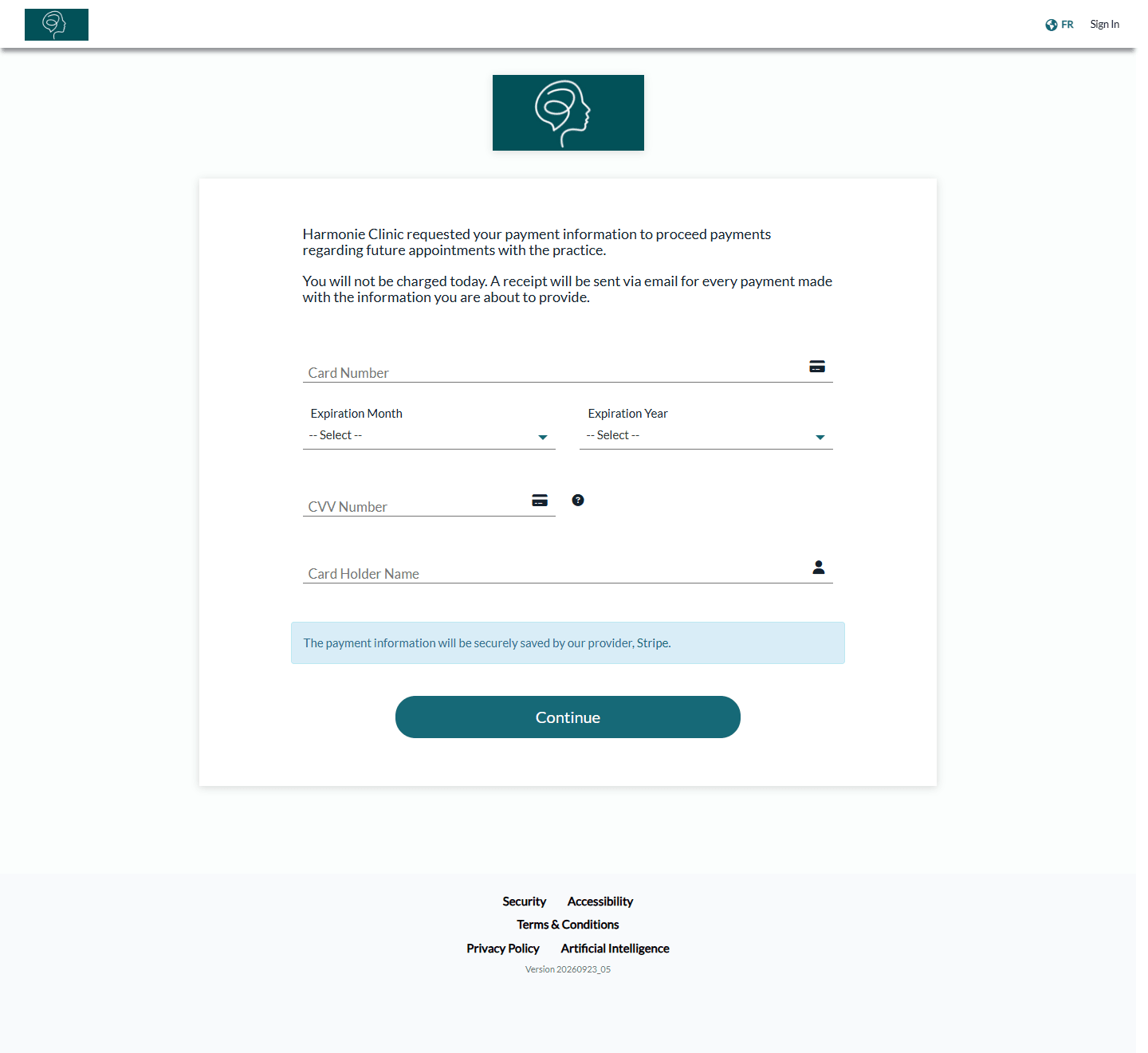
Your logo and business name appear in the email and on the payment page (here, the example clinic Harmonie Clinic). The client does not need a Colib account. The card is saved securely by our payment provider, Stripe: Colib never shows the full card number.
3You are notified
The practitioner assigned to the client receives a notification in Colib (bell icon in the top bar) once the client has entered their payment information. The card then appears in the Payment Cards section of the client's record, and you can charge it (see How to charge a client's saved credit card).
Good to know
- Other ways to collect a card — you can enter a card yourself with Add payment card; clients can also enter one when they book online, and you can add a payment link to the appointment reminders of an appointment type (Send a payment information request option, in the Invoicing section of the appointment type). See also How to ask a client for their payment information
- Copies — the email is also sent to the additional email addresses of the client, and to the person responsible for their group if that person receives the billing notifications.
- Several cards — a client can have more than one card on file. You can send the request again at any time.
- Automatic charges — once a card is on file, Colib can charge it when an appointment is completed or for a no-show (see How to charge no-shows and late cancellation appointments).
Still have a question?
Write to us at support@colib.io, we will be happy to help.
Was this article helpful?
That’s Great!
Thank you for your feedback
Sorry! We couldn't be helpful
Thank you for your feedback
Feedback sent
We appreciate your effort and will try to fix the article