Who is this article for?
If some of your clients pay in another currency than Canadian dollars (for example, clients living in the United States or in Europe), you can define a currency for each type of appointment. The invoices, the online payments and the price shown on your booking page then use that currency.
You can have multiple currencies defined for your practice as long as you offer different types of appointments: for example, a Video session (USD) type next to your usual Video session in CAD.
Before you start: the currency is set in the appointment types, in Settings > Appointments (www.colib.io/settings?show=appointments). By default, the currency is set to CAD.
1Open the appointment type
- Go to www.colib.io/settings?show=appointments. You can also click the Settings icon (gear) in the top bar, then Appointments in the Admin menu on the left.
- Click the edit icon (pencil) of the appointment type, or create a new type in its category.
More about the appointment types: How can I view my appointment types and manage/edit them as needed?
2Choose the currency in the Invoicing section
- In the editing window of the type, open the Invoicing section.
- Choose the Currency of this type of appointment.
- Check the Price: it is expressed in the currency you just chose.
- Click Save at the bottom of the window.
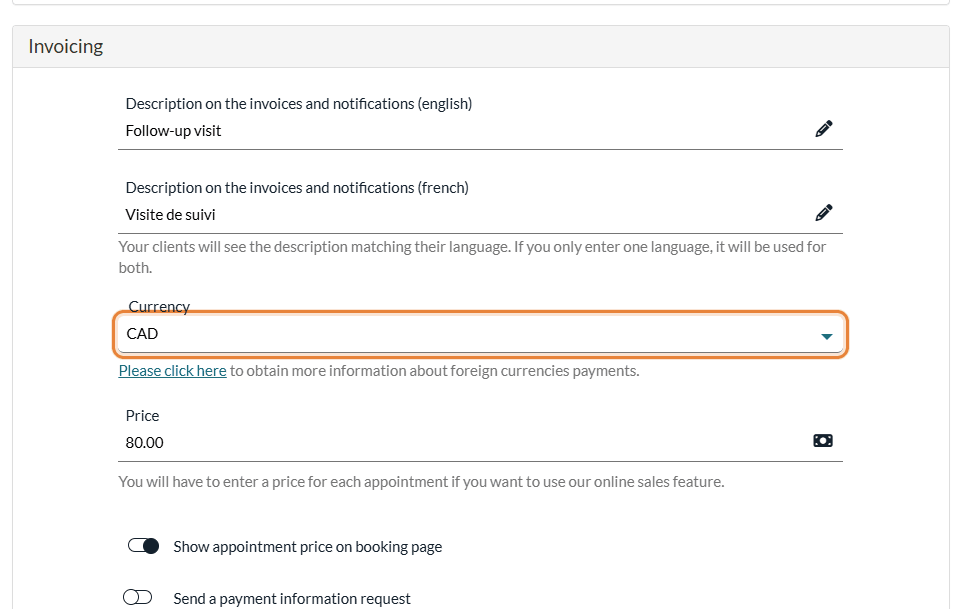
The available currencies are: AED (UAE dirham), BRL (Brazilian real), CAD (Canadian dollar), CNY (Chinese yuan), EUR (euro), GBP (pound sterling), INR (Indian rupee), KYD (Cayman Islands dollar), QAR (Qatari riyal), SAR (Saudi riyal) and USD (US dollar). The Please click here link under the field gives more information about payments in foreign currencies.
Where the currency is used
- Invoices — when Colib creates the invoice of an appointment, it uses the currency of its appointment type. The amounts of the invoice and of the receipt are shown in that currency.
- Online payments — when a client pays an invoice for an appointment, the currency defined for that appointment is used: the client's card is charged in that currency.
- Booking page — if Show appointment price on booking page is turned on for the type, the price is displayed in its currency.
Change the currency of a single invoice
An invoice also has its own Currency field: in the Information card of the invoice, click More options to display it. Use it for an invoice created by hand, or to correct the currency of one invoice without changing the appointment type. Choose the currency, then click Save in the panel on the right, under Amount due (on a narrower screen, in the bar at the bottom of the screen).

Once an invoice is paid by card through Colib (a completed online payment), its currency can no longer be changed.
Good to know
- One currency per type — to offer the same service in two currencies, create two appointment types (you can duplicate the existing one) and set a different currency on each.
- Existing invoices do not change — changing the currency of a type only applies to the invoices created afterwards.
- Interac e-Transfers are in CAD — Interac payments can only be matched with invoices in CAD. See How to set up Interac payment automation? and the article titled "How are Interac payments matched with invoices?"
- Reports — the reports of the Reports section (www.colib.io/reports) never add up different currencies: when you are paid in several currencies, each currency has its own lines and its own totals.
- Online payments — to accept card payments, see How do I activate the online payment system on Colib? and, for the fees, What payment methods are accepted on Colib? What are the fees?
Still have a question?
Write to us at support@colib.io, we will be happy to help.
Was this article helpful?
That’s Great!
Thank you for your feedback
Sorry! We couldn't be helpful
Thank you for your feedback
Feedback sent
We appreciate your effort and will try to fix the article