Who is this article for?
You use Apple Calendar on your iPhone, iPad or Mac? Colib does not connect directly to Apple Calendar, but it syncs both ways with Google Calendar, and Apple Calendar can display and edit a Google calendar. By putting the two together, you get a two-way bridge: Colib ↔ Google ↔ Apple Calendar.
- your Colib appointments appear in Apple Calendar;
- the events you create in Apple Calendar, on your Google calendar, block your time in Colib (and on your online booking page).
Before you start: you need a Google account (a free gmail.com account is enough) and access to Calendar on your Apple devices. Use the same Google account everywhere. Allow the Calendar permissions when your Apple devices ask for them, and if your Google account uses 2-Step Verification, be ready to confirm the sign-in (or to create an app password if needed).
1Connect Google Calendar to Colib
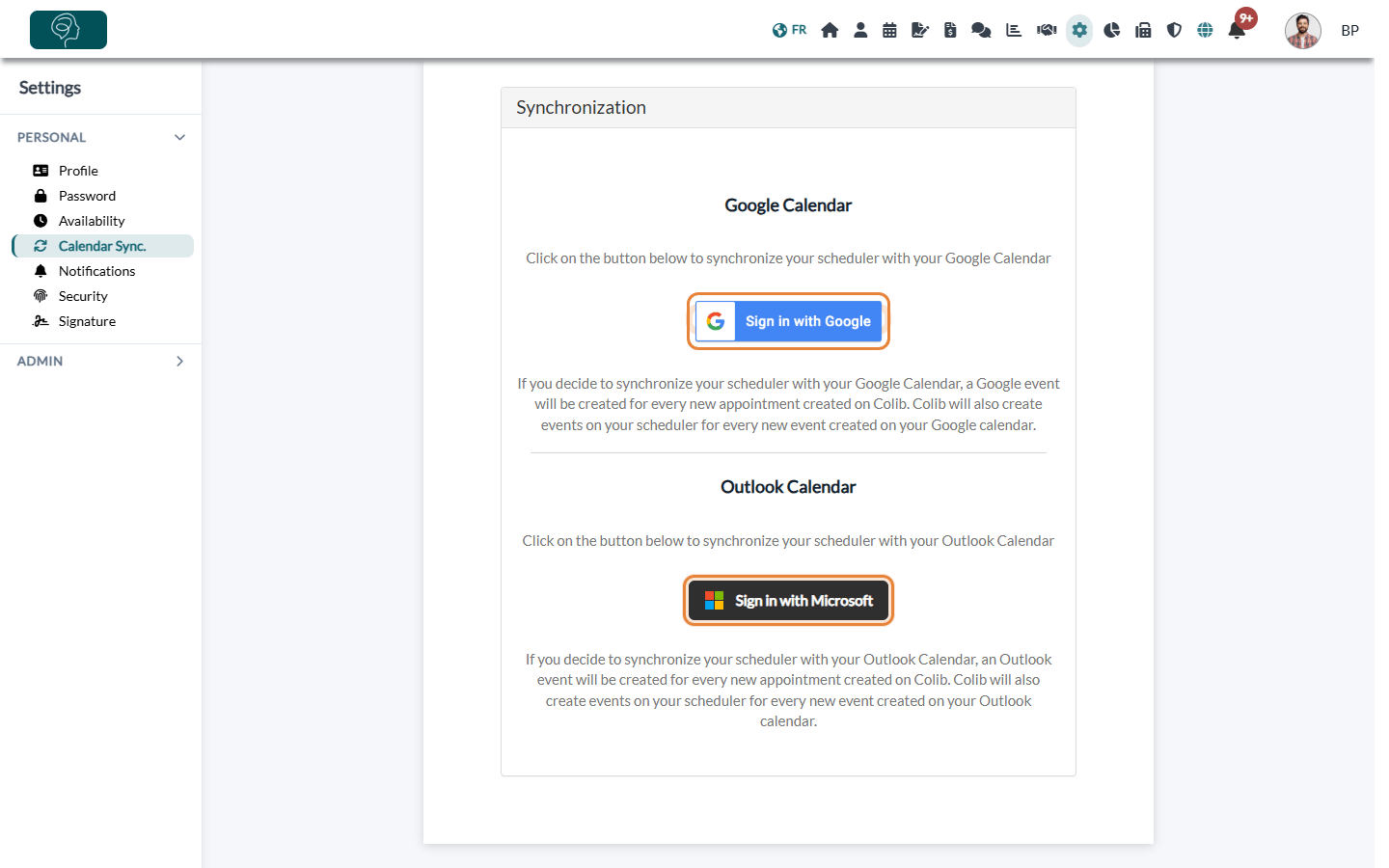
Go to Settings > Personal > Calendar Sync. (www.colib.io/settings?show=calendarsynchro), choose your preferences, then click Sign in with Google. All the details are in How to sync your Colib scheduler with Google Calendar or Outlook.
Already connected? Check that the tab shows Your scheduler is synchronized with your Google Calendar, with the Google account you will add to your Apple devices.
2Add your Google account on your Mac
- Open the Calendar app.
- Choose Calendar > Add Account in the menu bar (on recent macOS versions: Calendar > Settings > Accounts, then +).
- Select Google, then sign in with the Google account connected to Colib. Complete the 2-Step Verification if Google asks for it.
- Turn on Calendars for this account (you can also turn on Mail or Contacts if you want) and confirm.
- In the Calendar sidebar, check that your Google calendars are ticked. Tick or untick a calendar to choose what Apple Calendar shows: the events stay in Google either way.
3Add your Google account on your iPhone or iPad
- Open Settings > Calendar > Accounts > Add Account (on recent iOS versions: Settings > Apps > Calendar > Calendar Accounts).
- Tap Google and sign in with the Google account connected to Colib. Complete the verification if Google asks for it.
- Turn on Calendars and save.
- In the Calendar app, tap Calendars at the bottom of the screen and check that your Google calendars are shown.
Google also explains this setup in its own help: Sync Google Calendar with your iPhone or iPad.
4Create your events in the right calendar
Colib only syncs your primary Google calendar (the one that has the name of your Google account). In Apple Calendar, create your personal events in that calendar, not in an iCloud calendar or another Google calendar.
To avoid mistakes, make it your default calendar: in the Calendar settings of your iPhone, iPad or Mac, set Default Calendar to your primary Google calendar.
5Check that everything works
- Create a test event in Apple Calendar, in your primary Google calendar: after a few minutes, it appears in Google Calendar, then as a busy block in your Colib schedule.
- Create a test appointment in Colib: it appears in Google Calendar, then in Apple Calendar.
- Edit the event in Apple Calendar: the change appears in Google Calendar and in Colib.
- Delete the test event and the test appointment.
If an event does not show up right away, wait 5 to 10 minutes, then refresh or reopen the apps: Apple Calendar fetches the changes of your Google account at regular intervals.
Want to see the whole setup in action? Watch the video demonstration.
Good to know
- iCloud calendars are not synced — only events in your primary Google calendar reach Colib.
- One-way synchronization — if this option is on in Colib, the events you create in Apple Calendar no longer reach Colib (your Colib appointments still appear in Apple Calendar).
- Privacy — with Hide details of events coming from your external calendar, your personal events appear in Colib as a simple « Busy » block.
- Disconnecting — to stop the sync, revoke the Google synchronization in Colib. Removing the Google account from your Apple devices only stops the display in Apple Calendar.
Still have a question?
Write to us at support@colib.io, we will be happy to help.
Was this article helpful?
That’s Great!
Thank you for your feedback
Sorry! We couldn't be helpful
Thank you for your feedback
Feedback sent
We appreciate your effort and will try to fix the article