Who is this article for?
Private messaging lets your practitioners and your clients exchange secure messages, with attachments, directly in Colib and in the client portal, instead of using regular email. It is the Secure Messaging feature of Colib.
This article explains how to turn the feature on for your practice, where your team finds it, how to turn it off for a single clinic if your practice has several, who sees a conversation and what happens to it when a practitioner leaves the clinic.
Before you start: the setting is in Settings > Communications (www.colib.io/settings?show=communications). You need access to the practice settings to change it.
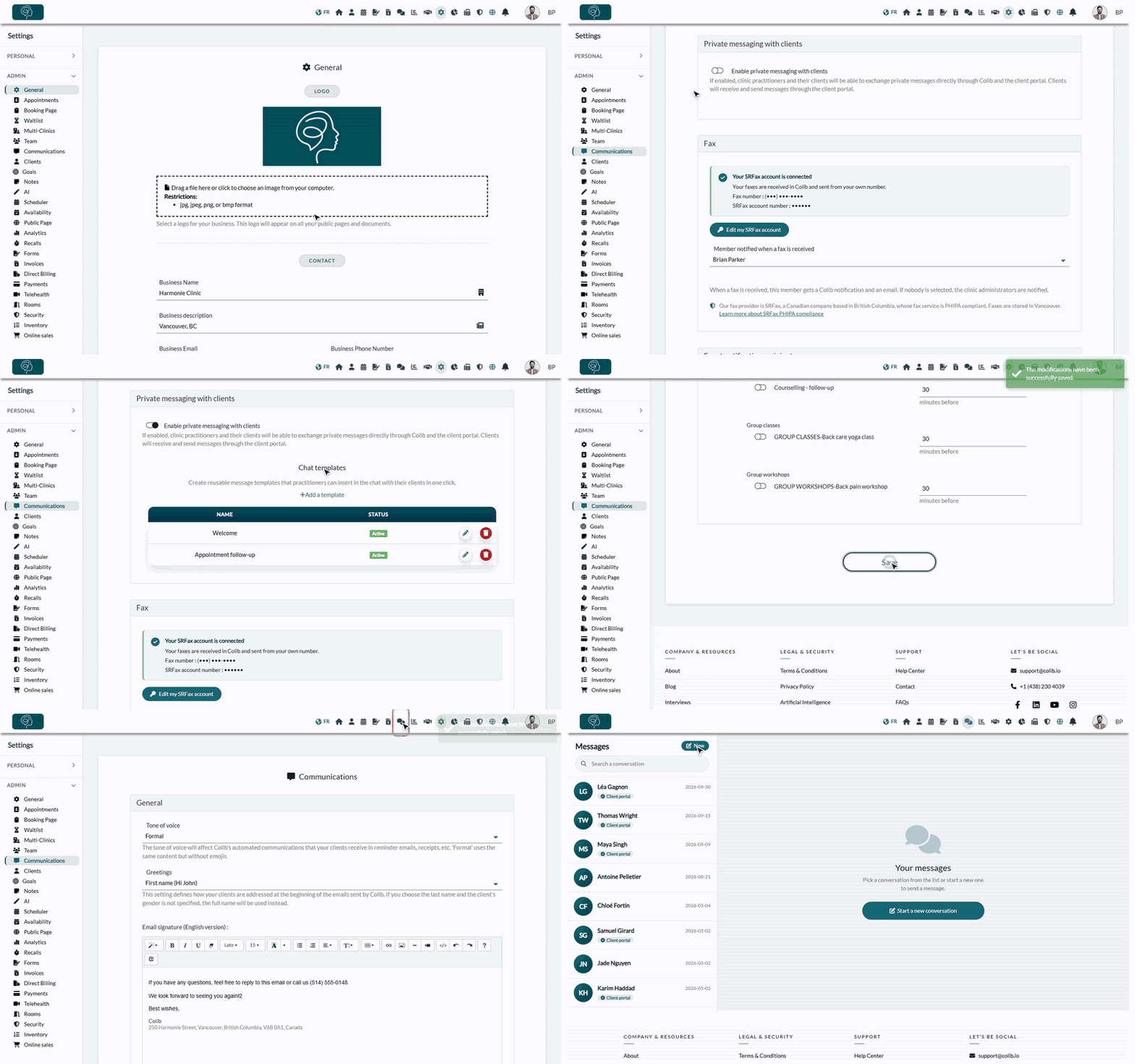
1Turn on private messaging
- Go to www.colib.io/settings?show=communications. You can also click the Settings icon (gear) in the top bar, then Communications in the Admin menu on the left.
- In the Private messaging with clients section, turn on Enable private messaging with clients.
- Scroll to the bottom of the page and click Save.
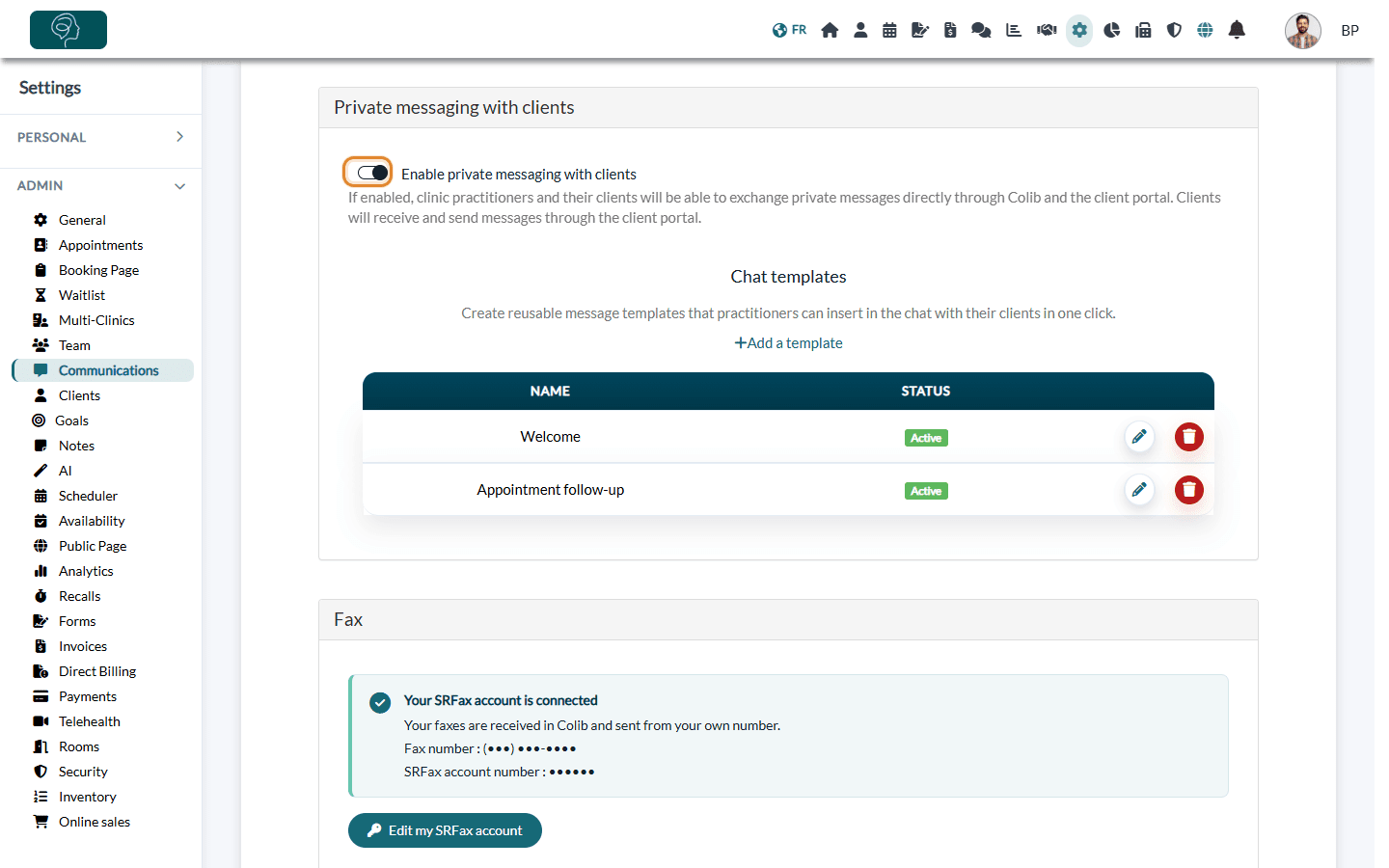
As soon as the option is on, the Chat templates area appears just below it. Templates are optional: see How to create and manage your chat templates.
2Find the Messaging page
- Refresh the page in your browser.
- A new Messaging icon (two speech bubbles) appears in the top bar. Click it (www.colib.io/messaging) to see your conversations and write to a client.
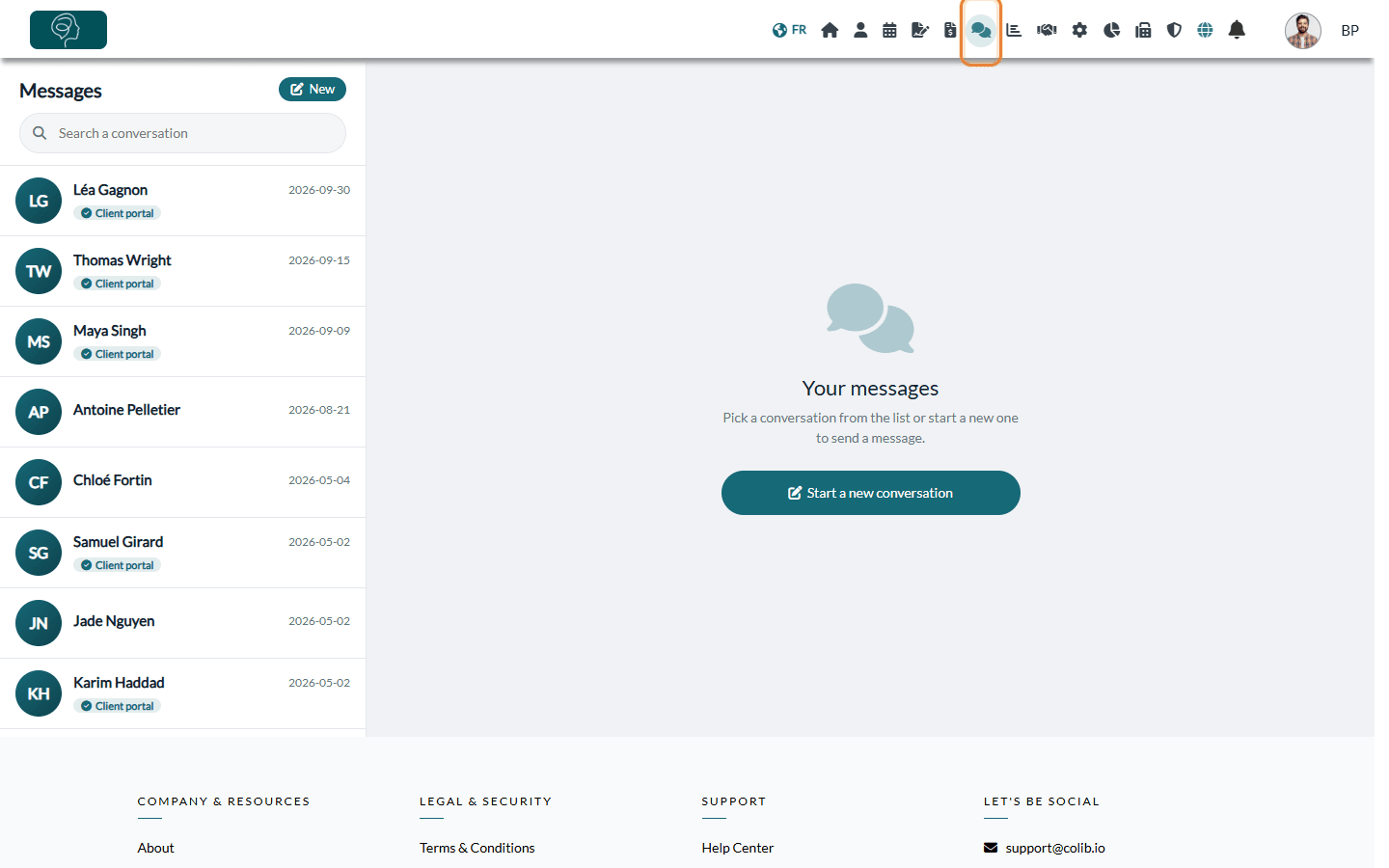
To write your first message, see How to send a private message to a client.
3Turn off messaging for one clinic (optional)
If your practice has several clinics, you can keep messaging for the practice but remove it from the practitioners of a given clinic.
- Go to Settings > Multi-Clinics (www.colib.io/settings?show=clinics).
- Click the pencil icon (Edit clinic) on the row of the clinic.
- Open the Messaging section and turn on Disable messaging for this clinic.
- Save the clinic.
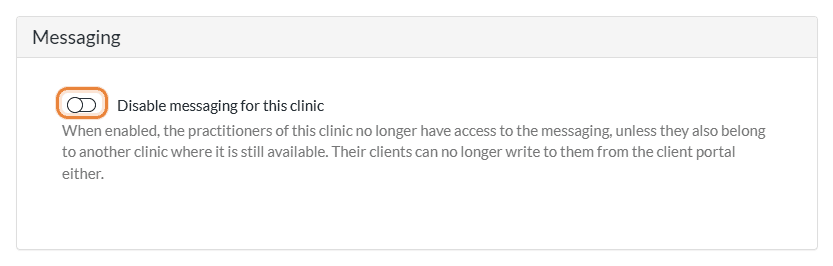
The practitioners of this clinic no longer see the Messaging page, unless they also belong to another clinic where messaging is still available. Their clients can no longer write to them from the client portal, but they can still read their previous exchanges.
The Messaging section of a clinic only appears when private messaging is turned on for the practice.
What changes for your clients
Your clients read your messages and write to their practitioners in the Messages section of the client portal. Each time a practitioner writes to them, they receive an email inviting them to log in. The details are in How can a client send a message to a practitioner and how are they notified?.
Who sees a conversation, and what happens when a practitioner leaves
One conversation = one practitioner and one client. Each conversation belongs to the practitioner who has it with the client. Only that practitioner sees it on their Messaging page (www.colib.io/messaging): colleagues, administrators included, cannot read it in Colib, even if they have access to the client's record. If two practitioners write to the same client, each one has their own conversation.
What the client sees of your contact details. In the client portal, the client sees your name and your profile picture, never your phone number. The email that tells the client about a new message is sent by Colib in the name of your practice and contains no content, but its reply address is the practitioner's email address: if the client replies to that email instead of using the portal, the reply goes to the practitioner's mailbox, outside Colib, and the client sees that address.
When a practitioner leaves or loses access to a client:
| Situation | In Colib | In the client portal |
|---|---|---|
| The practitioner is removed from the team (Settings > Team, trash icon Delete team member) | The conversations are kept in Colib, but nobody can read them any more: the removed person no longer has access to the practice, and the other members never see a colleague's conversations. They cannot be exported anymore either. | The conversations with that practitioner no longer appear in the client's Messages, and they are not included in the Download all my data file of the client. |
| The practitioner is no longer the main practitioner or an additional practitioner of the client (client record, Profile tab) | The conversation stays in the practitioner's list. If the practitioner can no longer see the client's record (for example, because they only see their own clients), they can no longer open it, export it or write in it. | The client can still read the conversation but can no longer write in it: the portal shows This practitioner can no longer receive messages. You can still view your previous exchanges. |
| Messaging is turned off for the practitioner's clinics, or for the whole practice | See step 3 and Turning the feature off below. | See step 3 and Turning the feature off below. |
Important: the messages are not part of the Download file of the client record. Before you remove a practitioner, ask them to export the conversations that must be kept: in their Messaging page, the archive icon Export the conversation (PDF and attachments) downloads a ZIP file with the conversation in PDF and its attachments. You can then add the PDF to the client's record, as a document. Please see the article titled "How to add a document to a client".
For the other steps of a departure (clients, appointments, access), please see the article titled "How do I remove a team member or resend their invitation?". To choose the practitioners of a client, see Assigning practitioners and configuring client visibility.
Good to know
- Secure by design — messages are stored encrypted in Colib, and the email notifications never contain the content of the message: the client must log in to the client portal to read it.
- Turning the feature off — in Settings > Communications (www.colib.io/settings?show=communications), turn off Enable private messaging with clients and save. The Messaging page disappears for your team and clients can no longer write to you. Existing conversations are not deleted: they come back if you turn the feature on again.
- Who sees what — each practitioner only sees their own conversations with their clients (see Who sees a conversation, and what happens when a practitioner leaves above).
- Feature overview — for an overview of what messaging offers to your clients and your team, see the Secure Messaging page.
Still have a question?
Write to us at support@colib.io, we will be happy to help.
Was this article helpful?
That’s Great!
Thank you for your feedback
Sorry! We couldn't be helpful
Thank you for your feedback
Feedback sent
We appreciate your effort and will try to fix the article