Who is this article for?
This article is for practitioners who want to write to a client securely: to send an exercise sheet, answer a question or share a document. The client reads your message in the client portal and is notified by email.
Before you start: private messaging must be turned on for your practice (How to activate the private secure messaging feature). You can only write to clients you have access to and who have an email address in their record.
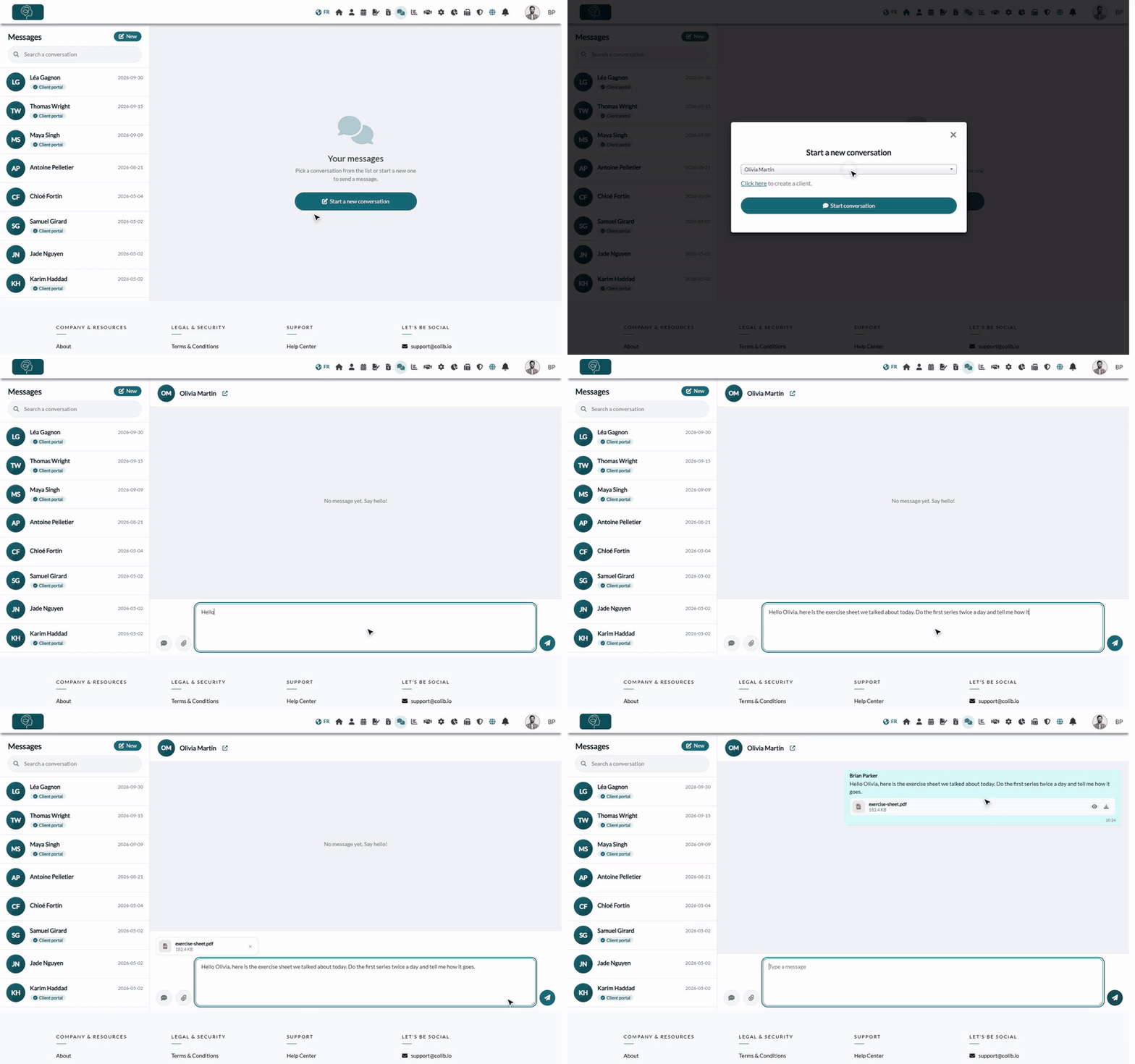
1Open Messaging
- Click the Messaging icon (two speech bubbles) in the top bar, or go to www.colib.io/messaging.
- Your conversations are listed on the left, the most recent first. The Client portal badge shows the clients who already have a client portal account. Use Search a conversation to find a client.
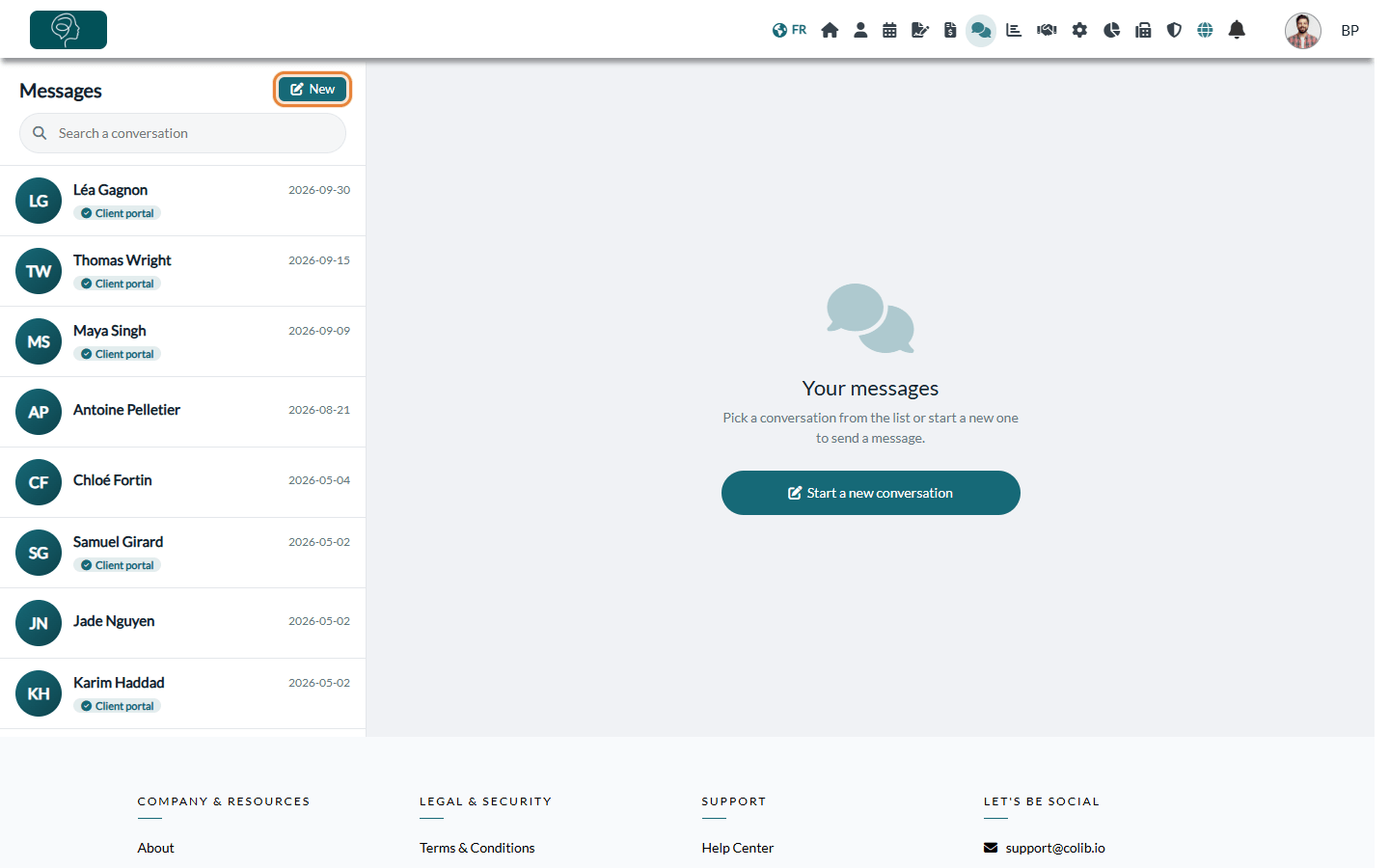
2Start a conversation
- Click New (or Start a new conversation in the middle of the page).
- Choose the client in the -- Select a client -- list.
- Click Start conversation. If you already have a conversation with this client, it simply opens.
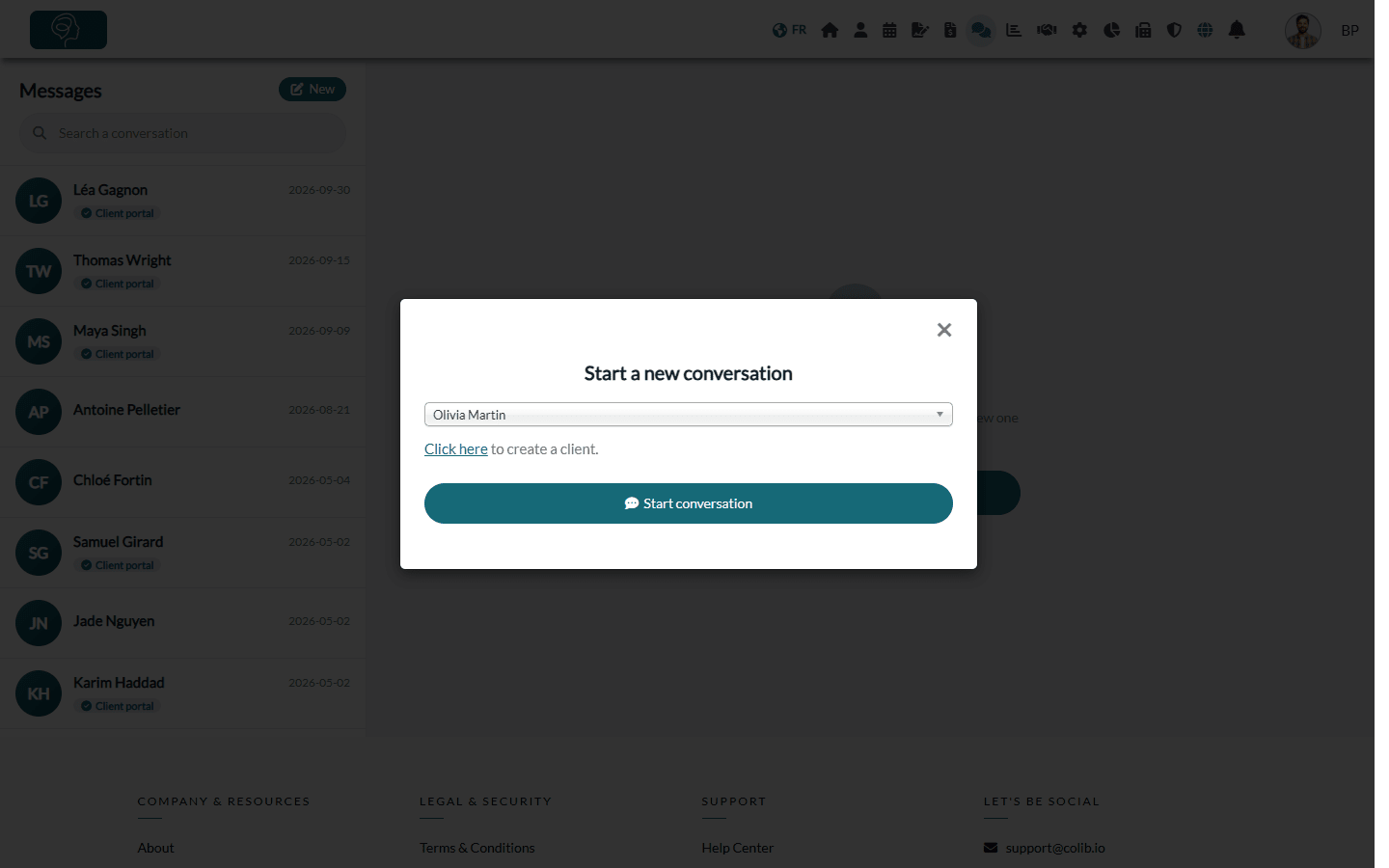
Shortcut: from a client record (open it from your client list, www.colib.io/clients), click the messaging icon (Send a private message to this client) to open your conversation with this client directly.
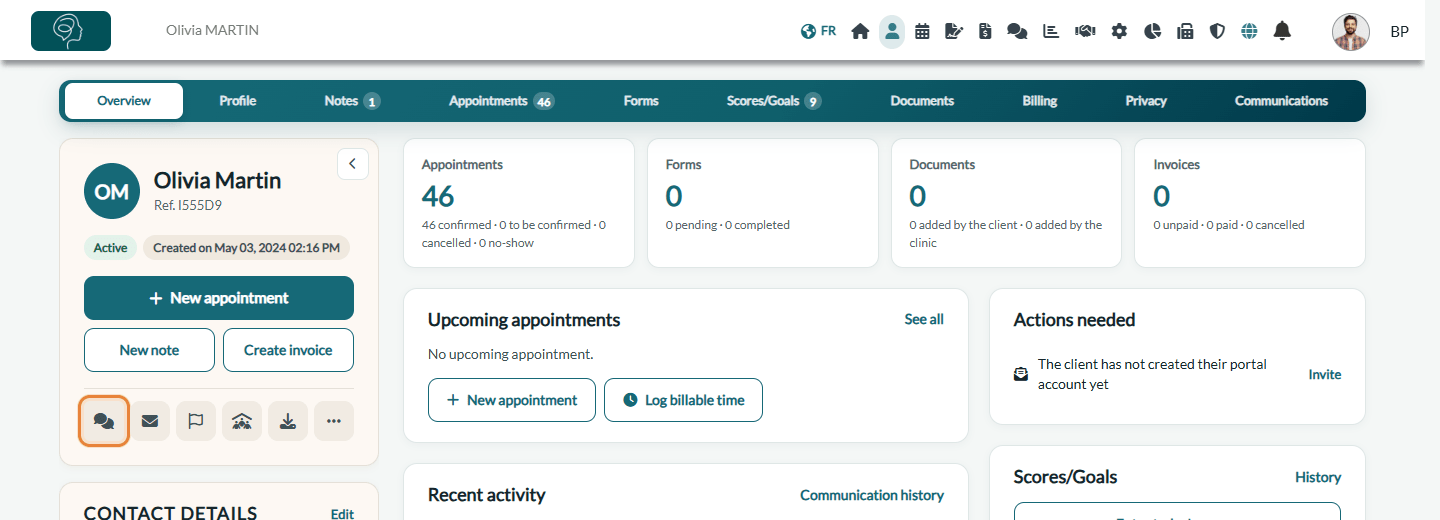
3Write and send your message
- Type your message in the Type a message box (up to 800 characters).
- To add documents, click the paperclip (Attach files) and choose one or more files (30 MB maximum per file).
- To reuse a frequent message, click the templates button (speech bubble icon) if your practice has created chat templates.
- Click Send (paper plane icon). Your message appears in the conversation.
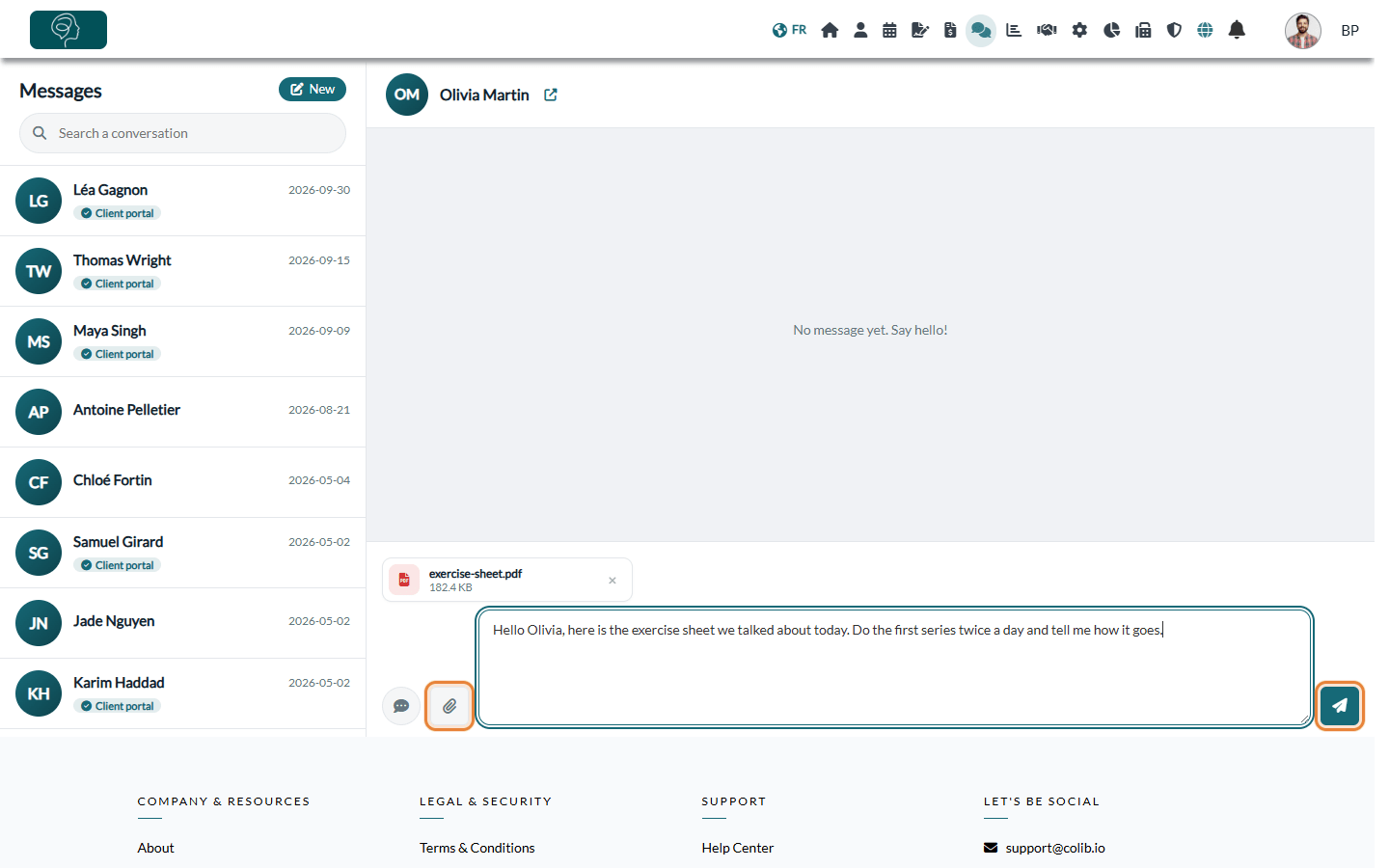
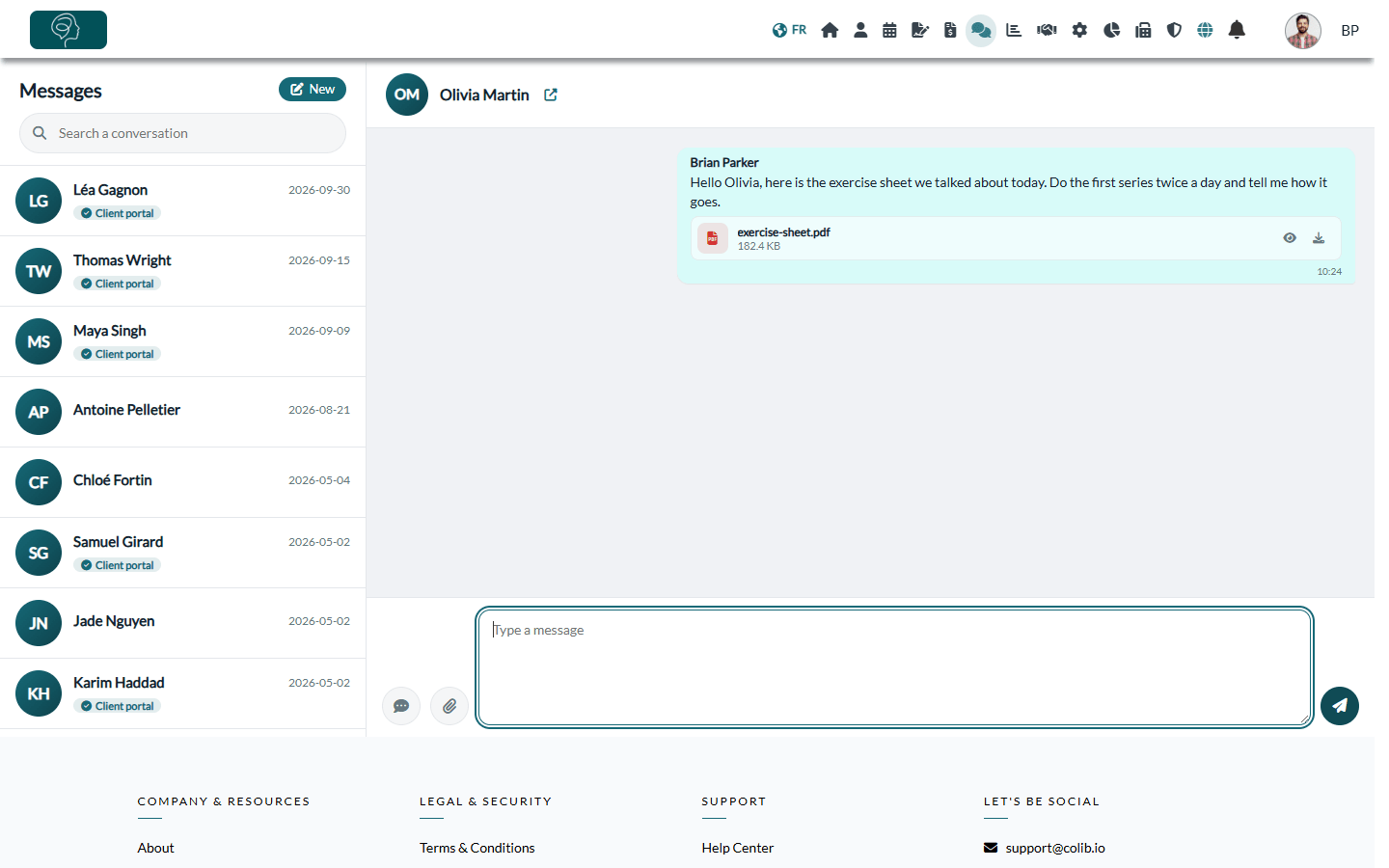
Note: a message must contain text. To send a document, add a short sentence with it.
| Accepted attachments | Formats |
|---|---|
| Documents | PDF, Word (.doc, .docx), Excel (.xls, .xlsx), PowerPoint (.ppt, .pptx), text (.txt), ZIP |
| Images | JPG, PNG, GIF, BMP |
| Audio and video | MP3, WAV, AIFF, MP4, MOV |
What happens next
- Email notification — the client receives an email from your practice a few minutes after your message, inviting them to read it in the client portal. The email does not contain the message itself. These emails are only sent between 7 a.m. and 7 p.m. (your time zone): a message sent in the evening is notified the next morning.
- One email for several messages — if you send several messages in a row, the client receives a single email.
- Reminder — if the client still has not read your message a little while later, they receive a single reminder by email and, when a phone number is in the record, by text message.
- Client portal account — a client who does not have an account yet is invited, in the email, to create one to read your messages. The full client side is explained in How can a client send a message to a practitioner and how are they notified?.
Good to know
- Export a conversation — the archive icon next to the client's name (Export the conversation (PDF and attachments)) downloads a ZIP file with the conversation in PDF and all its attachments.
- Open the client record — the arrow icon next to the client's name opens their record in a new tab.
- Attachments received — use the eye icon to view a document and the download icon to save it.
- Replies by email — the notification email is sent with your email address as the reply address. If a client answers the email instead of using the portal, the answer goes to your mailbox, outside Colib.
- Clients managed by a responsible person — for a client who belongs to a group with a responsible person (for example, a child and their parent), the notification goes to the responsible person's email address.
- Additional addresses — if the client record has Additional emails for email communications, these addresses also receive the notification email.
Still have a question?
Write to us at support@colib.io, we will be happy to help.
Was this article helpful?
That’s Great!
Thank you for your feedback
Sorry! We couldn't be helpful
Thank you for your feedback
Feedback sent
We appreciate your effort and will try to fix the article