Who is this article for?
This article is for practice owners and administrators who accept online card payments with Colib. Online payments are processed by our payment provider, Stripe. To comply with financial regulations, Stripe sometimes asks for more information about your business or about you: an identity document, a date of birth, an address, the details of a director, and so on. This can happen at any time, even long after your online payments were activated.
This article explains where you see the request, how to answer it, and the same procedure for the bank account of a practitioner.
Important: answer the request quickly. As long as the information is missing, the payment provider may hold your payouts, and it may eventually stop online payments, until the information is provided.
1How do I know information is missing?
- In Colib — in Settings > Payments (www.colib.io/settings?show=payment), a red message appears in the Online payments section and in the Payouts section: Please click here to complete the missing compliance information requested by our payment provider to continue using our payment system. A warning icon also replaces the green check mark in the header of the Online payments section (tooltip: Your information needs to be validated.).
- By email — the practice account receives reminders titled Action required - Information required to continue using our payment system, with a link to the payment settings. The reminders keep coming as long as the information is missing.
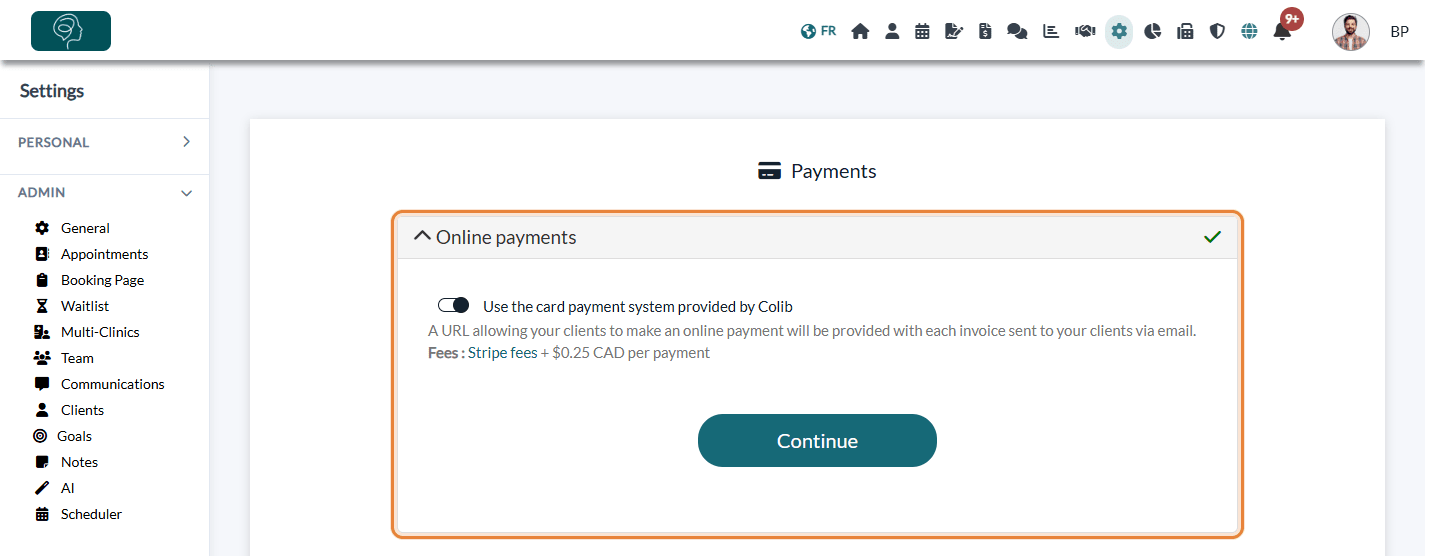
When everything is in order, the header of the Online payments section shows a green check mark and no red message is displayed.
2Provide the missing information
- Go to Settings > Payments (www.colib.io/settings?show=payment).
- In the red message, click here. You are taken to a secure page of Stripe, our payment partner.
- Stripe lists what it needs. Fill in each item and, if asked, upload the requested document (for example, a photo ID of the account representative or of a director).
- Submit the form on the Stripe page. You are then brought back to Settings > Payments in Colib.
- Check the page: if nothing else is required, the red message is gone and the green check mark is back.
The red message is still there? Stripe may still be verifying what you sent, or it may need one more item. Click here again: the Stripe page shows whether something is still missing. Information is only sent to Stripe, on its own page: Colib never asks you to send your documents by email.
If the link has expired by the time you use it (for example, you left the page open for a long time), Colib automatically creates a new one and sends you to Stripe.
3The bank account of a practitioner
If your practice splits online payments between the practice and its practitioners, each practitioner has their own bank account with Stripe (How to split online payments between a practitioner and the practice). Stripe can also ask for missing information about these accounts.
- Go to Settings > Team (www.colib.io/settings?show=team).
- Look at the credit card icon on the row of each practitioner. A green icon means the bank account has been validated. An orange icon with a warning sign means the payment provider is waiting for information: The payments are shared as configured, but the payouts may be held until the missing information is provided.
- Click the orange icon. The Bank account window opens.
- Click here in the red message and complete the information on the Stripe page. As it concerns the practitioner's own account, do it with the practitioner, who has the requested information and documents.
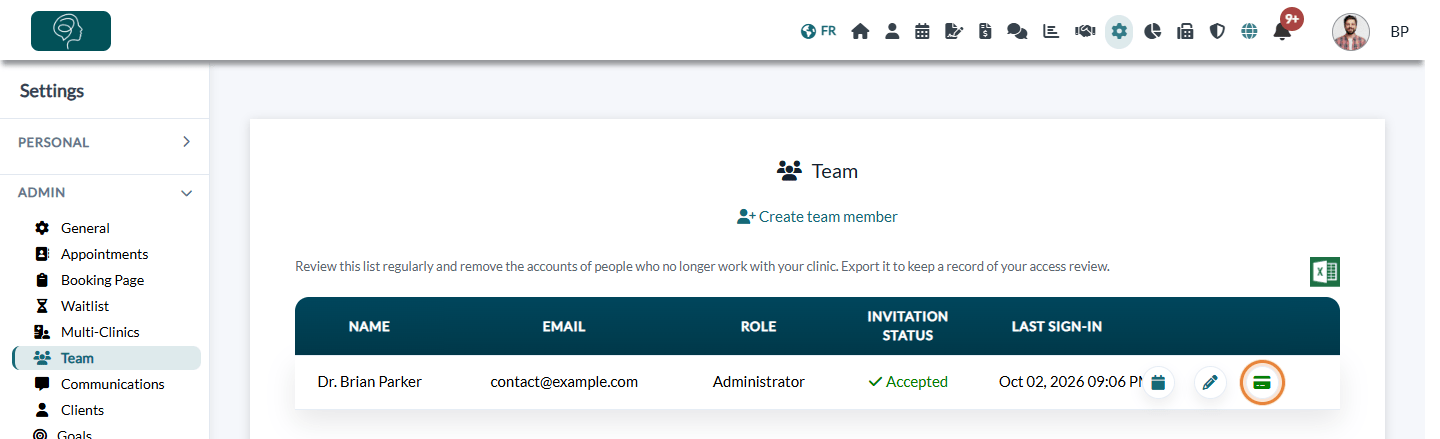
While the information is missing, the practice administrator receives email reminders titled Action required - Information required to validate the bank account of followed by the practitioner's name, with the practitioner in copy. The icon turns green once the payment provider has validated the account.
Good to know
- Why now? — the payment provider reviews accounts regularly and its requirements change over time. A request does not mean that something is wrong with your account.
- Changing your bank account — when you update your banking information in Settings > Payments, you are sent to Stripe to confirm the information, the same way.
- Validation by Colib — when you first activate online payments, the message For security reasons, we need to validate your information before you can use our online payment system. means that Colib is reviewing your information. It is a different step that takes a couple of days and requires nothing from you.
- Activating online payments — see How do I activate the online payment system on Colib? and Why is a photo ID required to activate the online payment system?
- Following your payouts — see Where can I view the payouts to my practice and the associated payment fees?
Still have a question?
Write to us at support@colib.io, we will be happy to help.
Was this article helpful?
That’s Great!
Thank you for your feedback
Sorry! We couldn't be helpful
Thank you for your feedback
Feedback sent
We appreciate your effort and will try to fix the article