Who is this article for?
By default, every online payment your clients make lands in the practice's bank account. With split payments, you give a practitioner their own bank account and Colib sends them their share automatically, at the moment the payment is taken. No monthly reconciliation, no manual transfer.
This article is for practice owners and administrators. It explains how to set it up, how the split is calculated, which practitioner Colib uses to decide where the money goes, and how to follow the payouts of each practitioner.
Before you start
- Split payments are available on the Practice Pro plan and on custom plans (and during your free trial). On another plan, the Bank account window invites you to change plan.
- Online payments must already be enabled for your practice, and the practice's payment information must have been validated by Colib. If they are not, set up the practice's own bank account first in Settings > Payments (www.colib.io/settings?show=payment). See How do I activate the online payment system on Colib?
- Each practitioner needs their own bank account details and personal information. Our payment provider (Stripe) verifies them directly: no document has to be sent to Colib.
- Adding a bank account to a practitioner is optional. Practitioners without one keep working exactly as before: their payments go entirely to the practice.
1Open the bank account of a practitioner
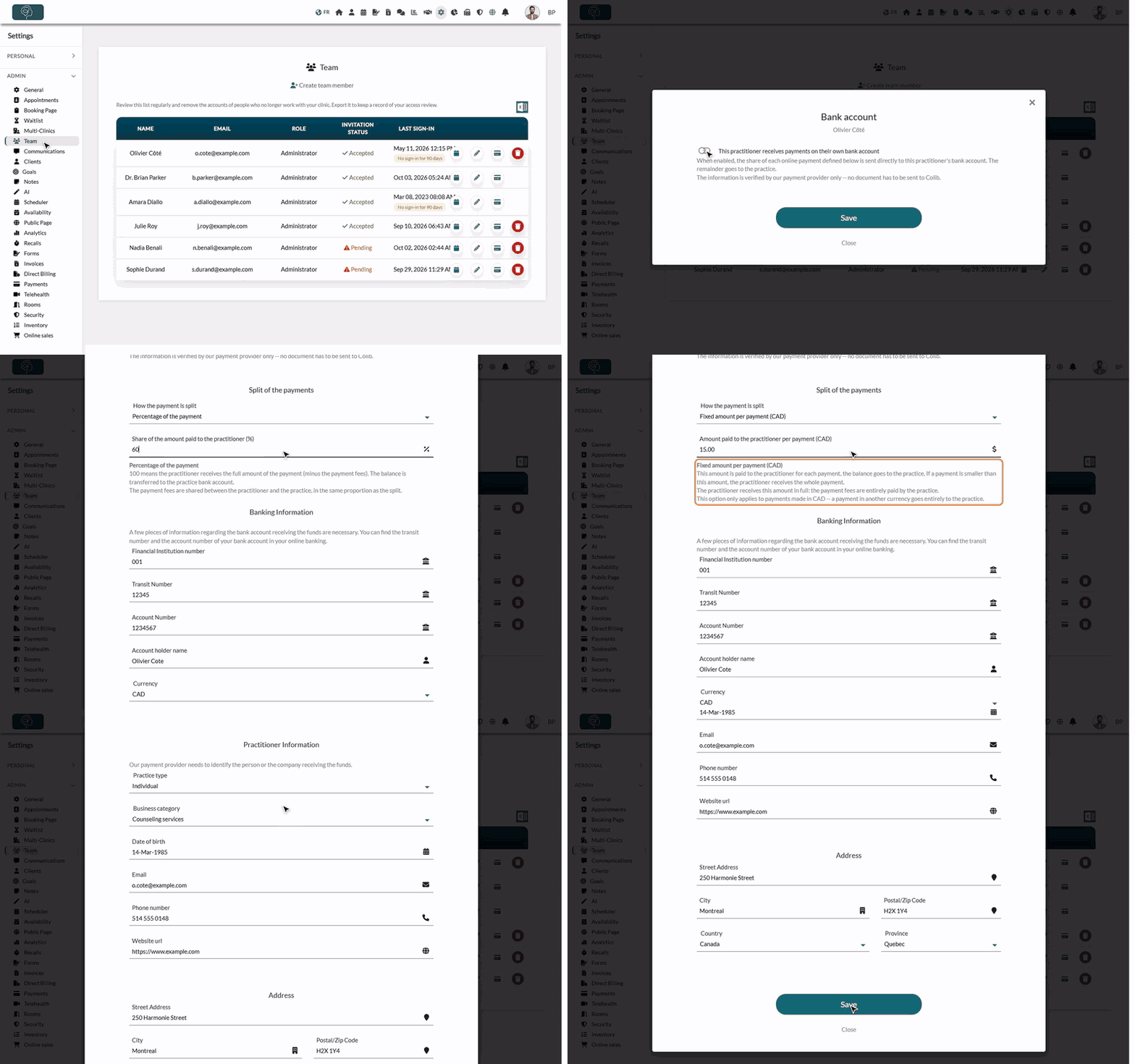
- Go to Settings > Team (www.colib.io/settings?show=team). You need administrator rights.
- In the list of team members, click the credit card icon next to the pencil, on the practitioner's row. The Bank account window opens, with the practitioner's name under the title.
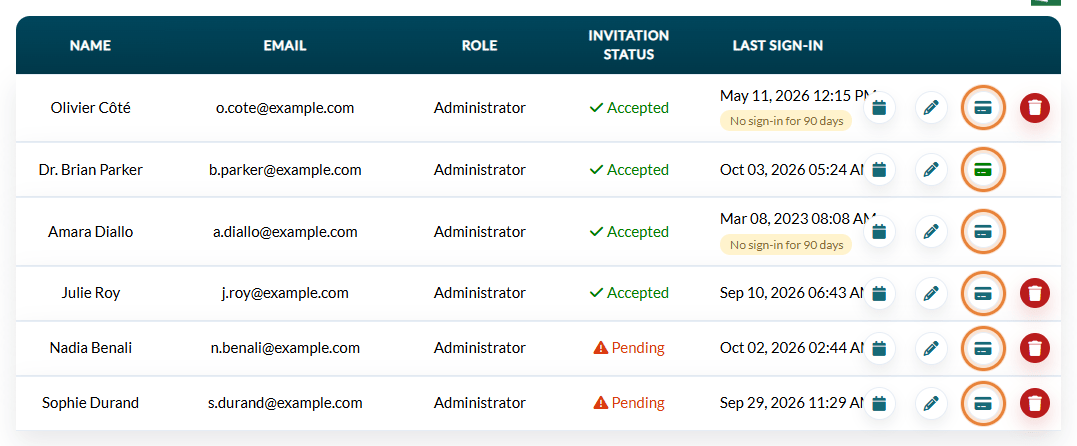
The colour of the icon tells you the state of that practitioner's bank account at a glance:
| Icon | Meaning |
|---|---|
| Standard colour | No separate bank account, or the account is turned off. Payments go entirely to the practice. |
| Green | Bank account validated by our payment provider. Everything is running normally. |
| Orange, with a warning sign | The account exists but the verification is not finished. Payments are still split as configured, but the payout to that bank account may be held until the missing information is provided. Click the icon to reopen the secure form. |
2Turn on the bank account and choose the split
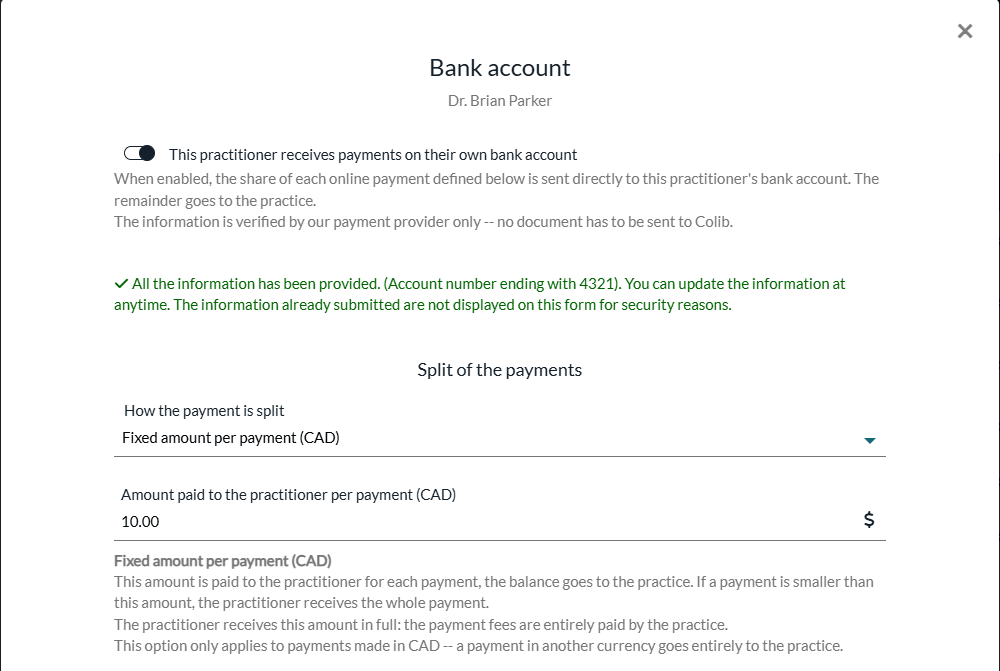
- Turn on This practitioner receives payments on their own bank account. The rest of the form appears.
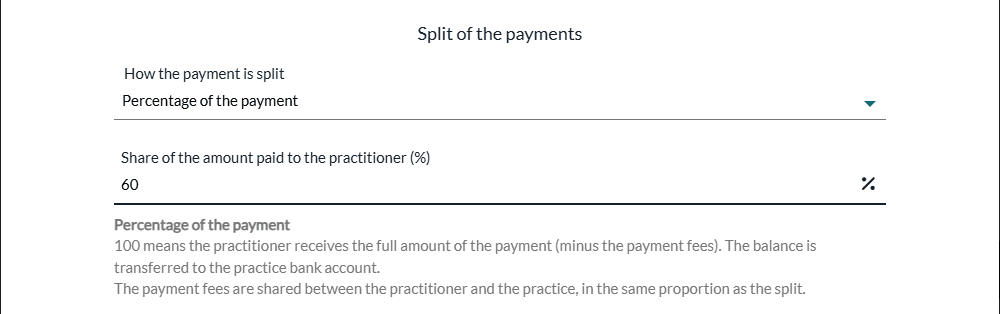
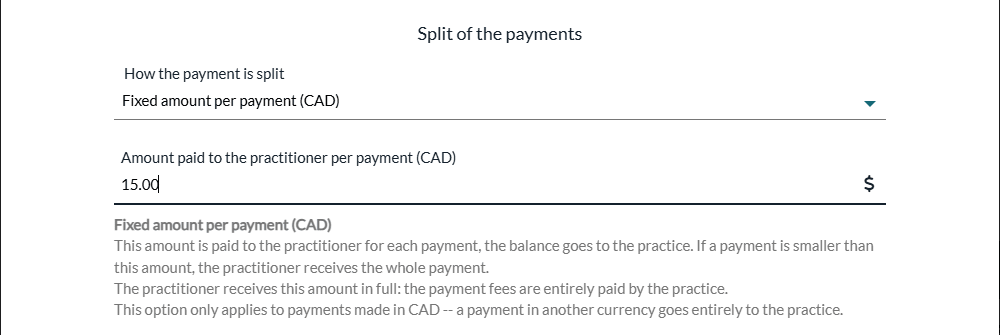
- In Split of the payments, choose How the payment is split: Percentage of the payment or Fixed amount per payment (CAD) (see the table below).
- Enter the Share of the amount paid to the practitioner (%) (between 0 and 100, 100 by default) or the Amount paid to the practitioner per payment (CAD).
| Option | How it works | Processing fees |
|---|---|---|
| Percentage of the payment | The practitioner receives a percentage of each payment, the practice keeps the rest. For example, at 60%, a $100 payment sends 60% to the practitioner and 40% to the practice, once the fees are deducted. At 100, the practitioner receives the whole payment minus the fees. Works in every currency. | Shared in the same proportion as the split: at 60/40, the practitioner absorbs 60% of the fees and the practice 40%. |
| Fixed amount per payment (CAD) | The practitioner receives a fixed amount in Canadian dollars on each payment, the practice keeps the rest. For example, at $15, a $100 payment sends $15 to the practitioner and the rest, minus the fees, to the practice. Payments in CAD only. | Paid entirely by the practice: the practitioner receives the fixed amount in full. |
3Enter the bank details and the practitioner's information
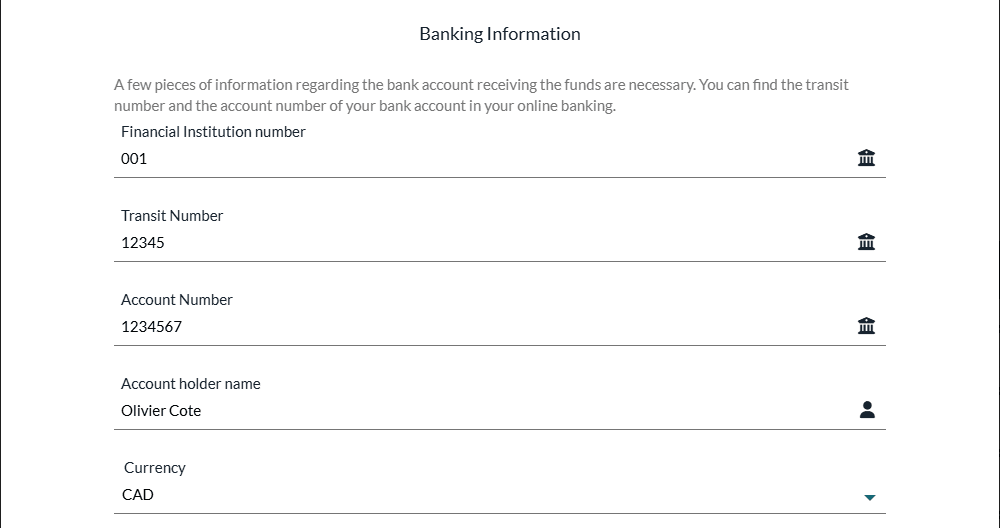
- In Banking Information, fill in the Financial Institution number (3 digits), the Transit Number (5 digits), the Account Number, the Account holder name and the Currency of the account (CAD or USD). The practitioner finds these numbers in their online banking.
- In Practitioner Information, choose the Practice type and the Business category, then fill in the Date of birth, Email, Phone number (a valid Canadian number) and, optionally, the Website url. Colib pre-fills what it already knows about the practitioner.
- In Address, start typing the practitioner's address and select it in the suggestions, so that it is recognized.
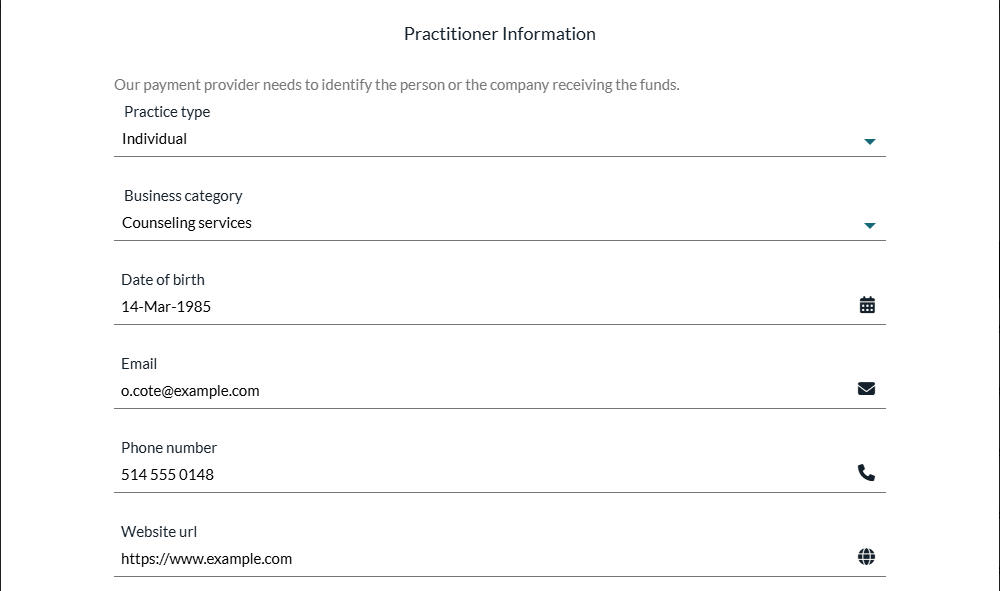
Individual or incorporated. If the practitioner practises under their own name, leave the Practice type on Individual. If they practise through a company, choose Company, then fill in the Business name, the Business number (BN) or NEQ (required) and the Account holder type.
4Save and complete the verification
- Click Save. You are redirected to a secure form hosted by our payment provider.
- Complete the form with the practitioner, who has the requested information and documents. You are then brought back to Colib.
- The credit card icon of the practitioner turns green once the payment provider has validated the account. While it is orange, please see the article titled "Our payment provider is asking for missing information: what should I do?".
When you reopen the window later, a green message confirms that all the information has been provided, with the last digits of the account number. For security reasons, the banking information already submitted is not displayed again.
The rules of the split
These are the rules Colib applies. They matter: a split that behaves differently from what you expect is almost always explained by one of them.
1. The practitioner on the invoice decides where the money goes
Colib looks at the practitioner assigned to the invoice, and nobody else. In particular:
- It is not the person who took the payment or who is logged in.
- It is not the practitioner who saw the client for another appointment.
- It is not the practitioner who originally added the client's credit card.
So if an invoice is assigned to the wrong practitioner, the money goes to the wrong bank account. Check the practitioner on the invoice before taking the payment.
2. Where the card was entered makes no difference
Client credit cards are stored on Colib and are not tied to a practitioner. The same saved card can pay any invoice of your practice. The beneficiary is decided at the moment the payment is taken, from the invoice, not when the card was saved. This also means the split applies wherever the invoice is paid: from Colib, or from the client portal.
3. Without an active bank account, everything goes to the practice
The whole payment goes to the practice when:
- the invoice has no practitioner assigned;
- the practitioner has no bank account set up;
- the practitioner's bank account has been turned off.
4. The fees are taken first, then the payment is split
Card processing fees are taken once, on the payment. What is left is what gets split:
- With a percentage, both parties share the fees in the same proportion as the payment: on a 60/40 split, the practitioner absorbs 60% of the fees and the practice 40%. Rounding to the cent goes to the practice, so the two shares always add up exactly to the amount received.
- With a fixed amount, the practitioner receives the amount in full and the fees come out of the practice's share. For example, at $15 on a $100 payment, the practitioner receives $15 and the practice receives $85 minus all the fees.
5. Fixed amounts only work in Canadian dollars
- If the payment is smaller than the fixed amount, the practitioner receives the whole payment (minus the fees) and the practice receives nothing.
- If the payment is in another currency, the fixed amount cannot be converted reliably, so the whole payment goes to the practice.
- A percentage split has neither limitation and works in every currency.
6. Changing the split only affects future payments
Payments already taken are never recalculated. If you change a percentage or a fixed amount, the new setting applies from the next payment on. To change it, open the practitioner's Bank account window, change the split, enter the banking information again (it is not displayed for security reasons) and click Save: the payment provider checks the information again.
7. Refunds give back both shares
When you refund a payment that was split, Colib automatically pulls back what was sent to the practitioner as well as what was sent to the practice, then refunds the client. You have nothing to do manually, and there is never a partially refunded payment. See How to refund a payment
Finding the payouts of each practitioner
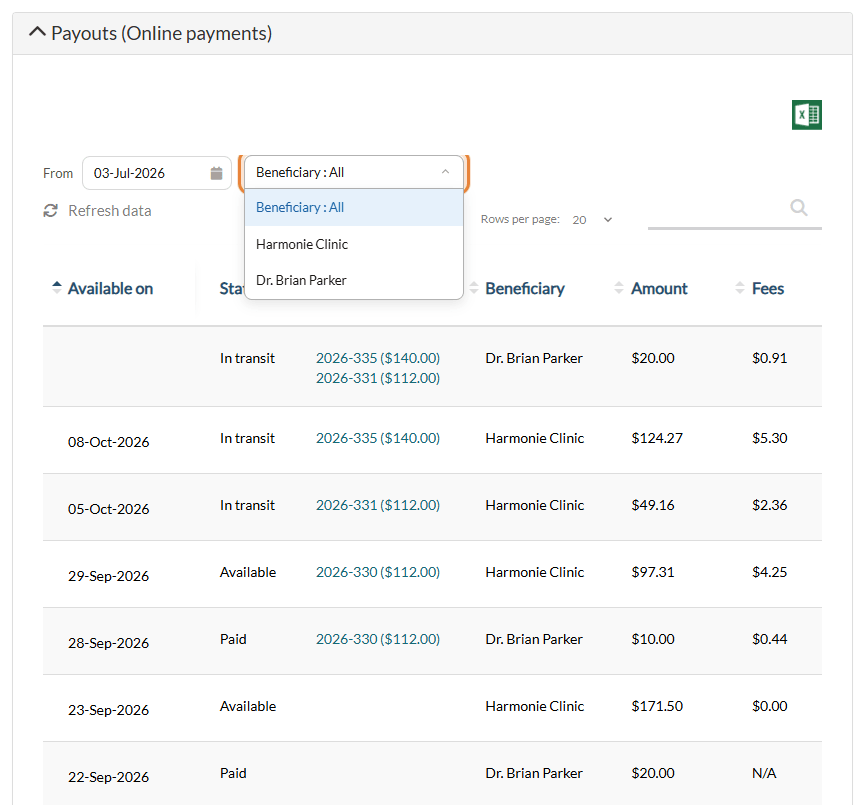
Go to Settings > Payments (www.colib.io/settings?show=payment) and open the Payouts (Online payments) section. Every line is money sent to one bank account, yours or a practitioner's, with a Beneficiary column telling you which.
Showing only one practitioner
Two filters sit above the list:
- Beneficiary: leave it on All to see everyone, or pick your practice or a single practitioner. Only practitioners with their own bank account appear in this list.
- From: the start of the period shown, three months ago by default. Pick an earlier date to go further back.
Selecting a practitioner is also the fastest way to answer "how much has this person been paid so far": filter on them, set the date, and the list holds every transfer that went to their account, including those made while their account was turned off.
Reading a line
| Column | What it tells you |
|---|---|
| Available on | The date the money reaches the bank account. Empty when the payout has not been scheduled yet. |
| Status | In transit, Available or Paid. See below. |
| Invoices | The invoices that make up the line, with the amount of each invoice. Click one to open it. |
| Beneficiary | The practice, or the practitioner receiving that share. |
| Amount | What actually lands in the bank account, once the share has been calculated and the fees deducted. |
| Fees | The processing fees of the payments on that line. On a split payment, the fees are shown on each line in proportion to the amount of that share. |
The same invoice can therefore appear on two lines, once for the practitioner and once for the practice, each with its own share of the amount and of the fees. That is exactly what a split payment looks like.
What is on its way, and what has already been sent
- A line with no date, marked In transit: money already collected from the client but not yet scheduled for a payout. This is what is about to be sent to that bank account, and the line to look at to know what a practitioner is going to receive next.
- A line with a date, marked In transit: the payout is on its way and will arrive on that date.
- Available or Paid: the money has been released to the bank account.
Payments usually take 4 to 7 calendar days to reach a bank account, so a recent payment normally shows up without a date for a few days before a payout date appears. The Refresh data link reloads the list.
Exporting
The Excel icon (Export to Excel) exports the list with the Beneficiary column, and follows both filters: you export exactly what you see on screen. It is the simplest way to hand a practitioner a statement of what they were paid over a period. For more details on payouts, see Where can I view the payouts to my practice and the associated payment fees?
Turning a bank account off
Open the practitioner's Bank account window, turn off This practitioner receives payments on their own bank account and click Save. From then on, their payments go entirely to the practice.
The account itself is kept, never deleted, so past payouts stay visible in your history and the practitioner's details are still there if you turn it back on later.
Troubleshooting
The money went to the practice instead of the practitioner
In almost every case, the invoice was assigned to no practitioner or to a different one. Open the invoice and check the practitioner. Rules 1, 3 and 5 above cover the other possibilities (turned-off account, fixed amount on a payment in another currency).
The practitioner has not received their payout
Check the icon in the team list. If it is orange, our payment provider is still waiting for information and holds the payout until it gets it. Click the icon, then click here in the red message to reopen the form and complete it. Also remember that a payout takes 4 to 7 calendar days.
A message asks me to contact you when I open the window
Some of your clients' payment information has not been migrated to the new payment system yet: the window shows how many clients are concerned. Split payments cannot be enabled until the migration is done. Contact us and we will take care of it.
The window says online payments are not enabled
Activate online payments for the practice first, in Settings > Payments. If they are activated but still being validated by Colib, saving a practitioner's bank account is refused until the validation is complete.
The option is not available on my plan
Split payments require the Practice Pro plan or a custom plan. You can change plan from the Plan menu (www.colib.io/planandpayments).
Good to know
- Fees and taxes report — to export the payment provider fees, see How to export a report of payment provider fees and payment taxes
- Payment methods and fees — see What payment methods are accepted on Colib? What are the fees?
- Only online card payments are split — payments you record by hand (cash, cheque, Interac e-Transfer) do not go through the payment provider and are not split.
Still have a question?
Write to us at support@colib.io, we will be happy to help.
Was this article helpful?
That’s Great!
Thank you for your feedback
Sorry! We couldn't be helpful
Thank you for your feedback
Feedback sent
We appreciate your effort and will try to fix the article