Who is this article for?
You want your clients to pay their invoices online by card, or you want to save their card to charge it later. To do so, you first activate the online payment system provided by Colib. Payments are processed by our payment partner, Stripe, and the money is transferred to your bank account.
This article explains how to activate it, what information you need, what happens next and how to add a Pay button to your invoices.
Before you start: your email address must be confirmed, and the address of your practice (with a valid postal code) must be entered in Settings > General (www.colib.io/settings?show=general). Have your bank account details, a Canadian phone number and a photo ID of the director or owner of the practice ready. For the fees, see What payment methods are accepted on Colib? What are the fees?
1Turn on online payments
- Go to www.colib.io/settings?show=payment. You can also click the Settings icon (gear) in the top bar, then Payments in the Admin menu on the left.
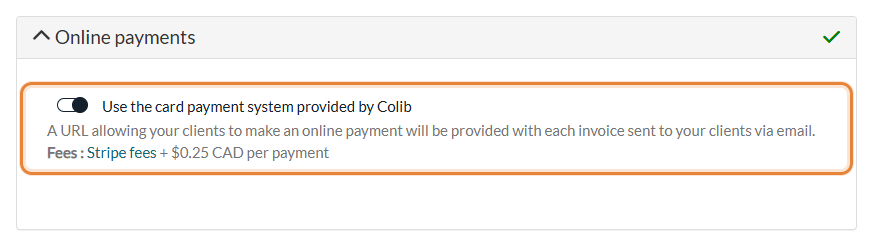
- In the Online payments section, turn on Use the card payment system provided by Colib. The fees are shown under the switch: Stripe fees + $0.25 CAD per payment.
2Fill in the form
When the switch is on, a form appears under it. Fill in each part:
| Part | What to enter |
|---|---|
| Banking Information | The bank account that will receive the money: Financial Institution number (3 digits), Transit Number (5 digits), Account Number, Account holder name, Account holder type (Company or Individual) and Currency. You can find the transit number and the account number in your online banking. To use several bank accounts in different currencies, contact us. |
| Practice Information | Practice type (Company or Individual), Business category, Business number (BN) or NEQ (asked for a company only, digits only), Website url and Phone number (a valid Canadian number). |
| Practice Director | The first name, last name, date of birth and address of a director or owner of the practice, as required by our payment provider. Choose the address in the suggestions that appear as you type. |
| Director ID | Drag an image of the director's ID (passport or official ID only, jpg, jpeg or png) or click the area to choose it. See Why is a photo ID required to activate the online payment system? |
Then click Save at the bottom of the section. On some accounts already connected to the payment provider, the form is not displayed and the button is called Continue.
Important: the business category cannot be changed once your account has been created with the payment provider. Choose it carefully.
3Complete your information on Stripe
- After you save, you are redirected to a secure page of Stripe, our payment partner.
- Provide the information Stripe still needs (and, if asked, the director's ID) and submit the form on their page.
- You are then brought back to Settings > Payments in Colib.
You will also be able to create an account on Stripe's dashboard to follow your payments.
4Wait for the validation
To prevent fraud, our team reviews your ID and the information you provided. While the review is in progress:
- the message For security reasons, we need to validate your information before you can use our online payment system. is displayed in the Online payments section;
- a warning icon replaces the green check mark in the header of the section (Your information needs to be validated.).
This last step is usually fast (allow a couple of days). Once your information is verified, you receive an email confirming that your profile has been validated, a green check mark appears next to Online payments, and you can use the online payment system.
A red message asks you to click here? Our payment provider needs more information. Click the link and complete the information on the Stripe page. For more details, please see the article titled "Our payment provider is asking for missing information: what should I do?".
5Add a "Pay" button to your invoices
You choose whether a Pay button is added automatically to the emails that send your invoices and to the Invoices tab of the client portal. This button takes your clients to a secure page where they enter their card to pay that invoice.
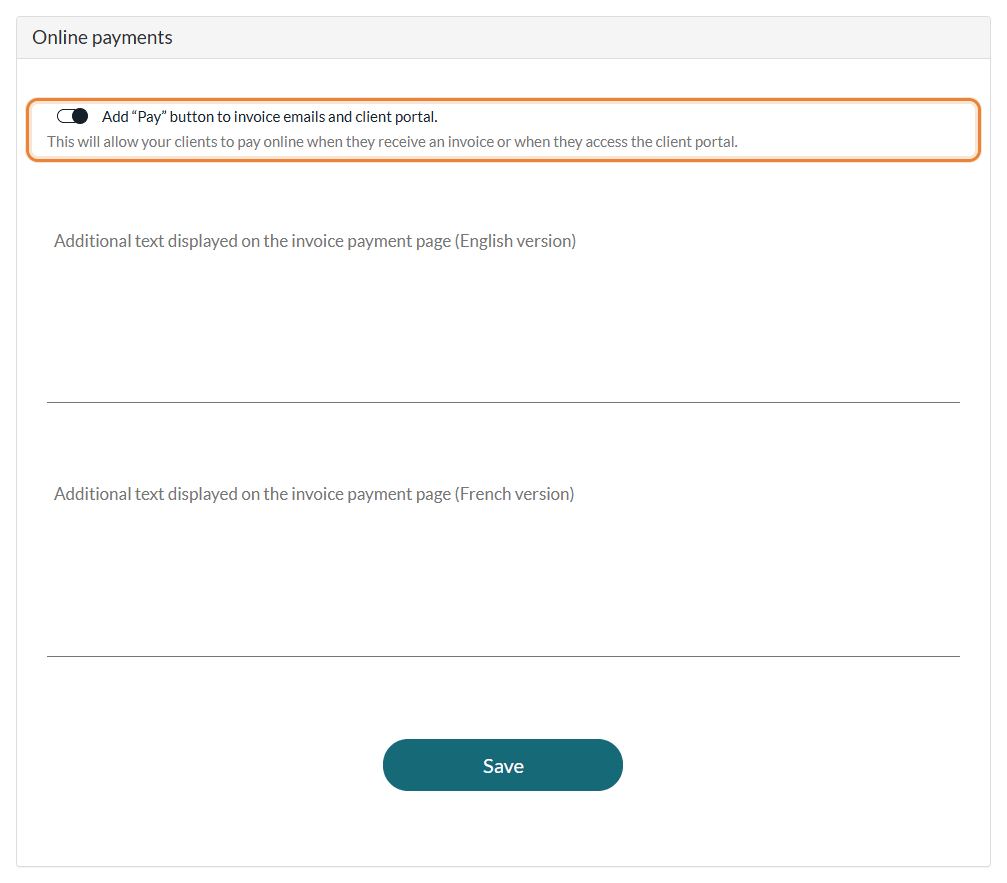
- Go to Settings > Invoices (www.colib.io/settings?show=invoices) and open the Online payments section. It appears once online payments are turned on.
- Turn on Add "Pay" button to invoice emails and client portal.
- Optionally, write an Additional text displayed on the invoice payment page, in English and in French.
- Click Save.
The button only appears once your information has been validated, on invoices that are not cancelled, with an amount due of at least $1, and that are not billed to a third-party payer.
Good to know
- Change your bank account — update the Banking Information in the same section and save: you are sent to Stripe to confirm the change. For security reasons, the information already submitted is not displayed again; only the last 4 digits of the account number are shown.
- Turning online payments off — if you turn the switch off and save, your payment account is disconnected from Colib. To use online payments again, you will have to go through these steps again, and the cards saved in your client records may need to be entered again.
- Collect your clients' cards — please see the article titled "What are the ways to collect a client's credit card?".
- Be notified of payments — please see the article titled "How to get an email when a client makes a payment".
- Follow your payouts — see Where can I view the payouts to my practice and the associated payment fees?
- Pay practitioners directly — see How to split online payments between a practitioner and the practice.
Still have a question?
Write to us at support@colib.io, we will be happy to help.
Was this article helpful?
That’s Great!
Thank you for your feedback
Sorry! We couldn't be helpful
Thank you for your feedback
Feedback sent
We appreciate your effort and will try to fix the article