Who is this article for?
Many practices offer a sliding scale: a reduced rate for students, seniors or clients with a lower income, or a special flat rate for some clients. In Colib, this is done with fee modifications: you create your rates once, assign one to each client concerned, and Colib applies it automatically to the appointments on their invoices.
Before you start: fee modifications are managed in Settings > Invoices (www.colib.io/settings?show=invoices). They change the price of your appointment types, so make sure each appointment type has a price (Settings > Appointments, Invoicing section).
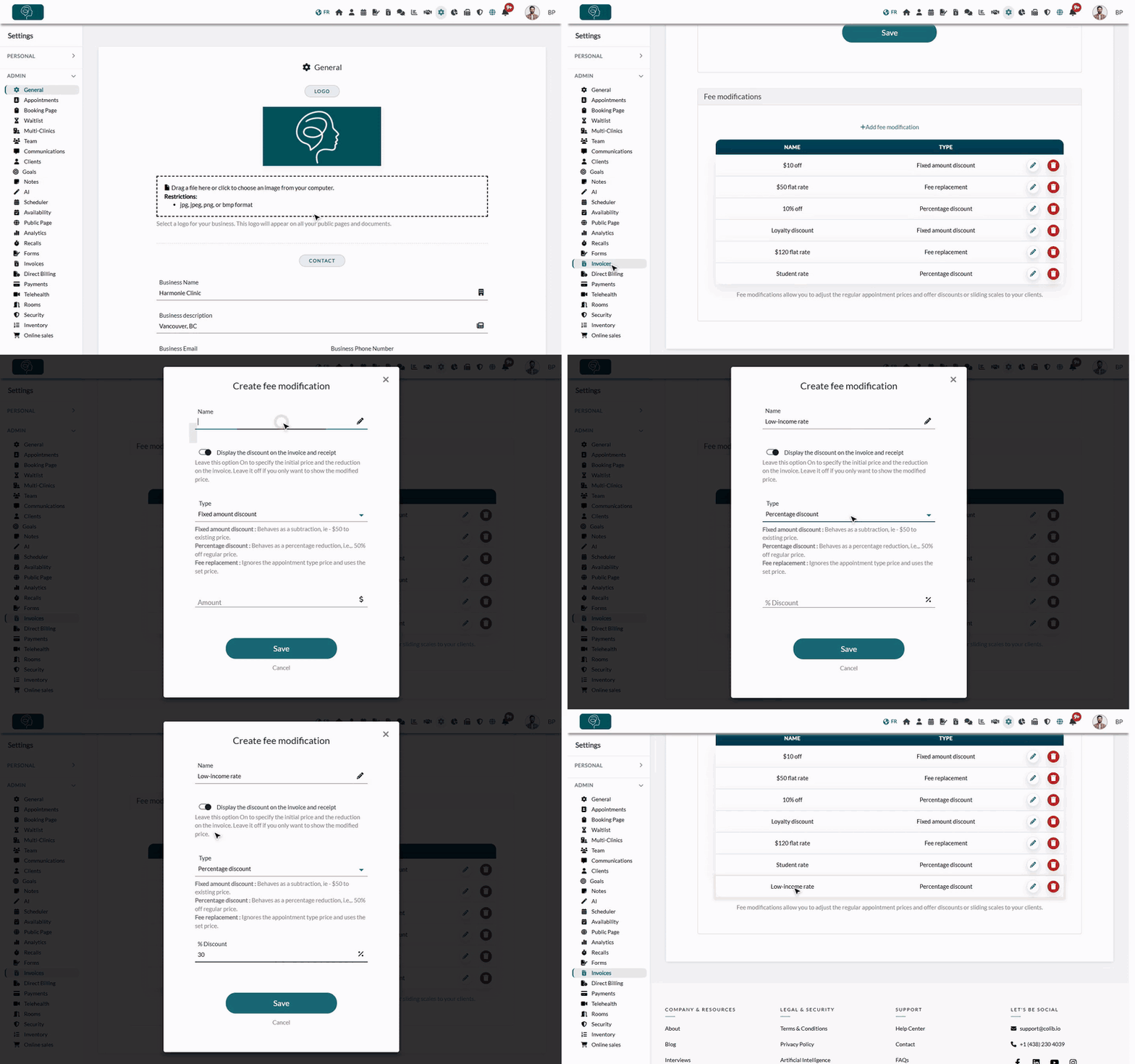
1Create your fee modifications
- Go to www.colib.io/settings?show=invoices. You can also click the Settings icon (gear) in the top bar, then Invoices in the Admin menu on the left.
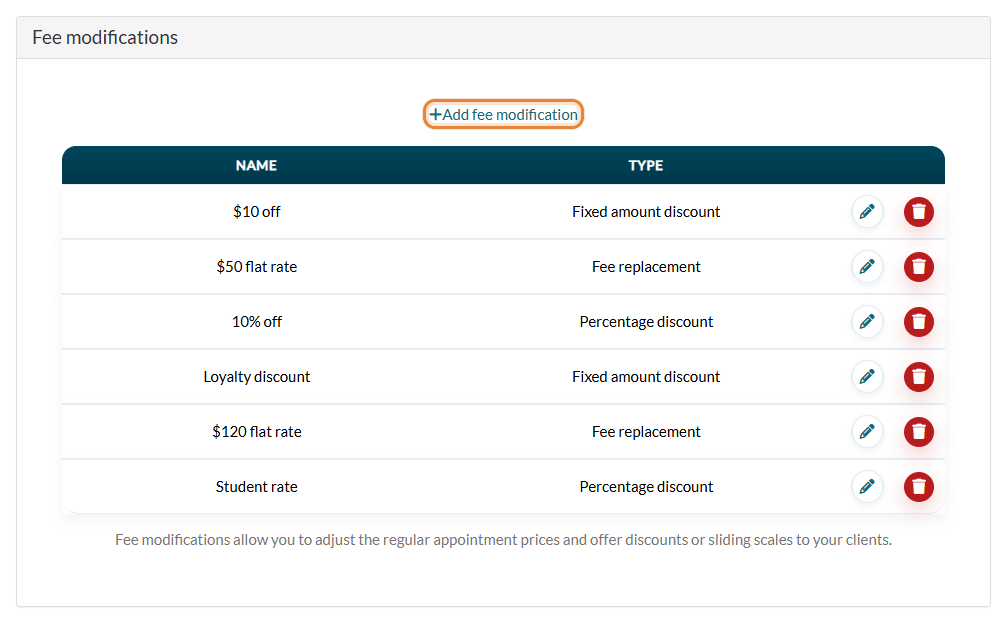
- At the bottom of the page, open the Fee modifications section. It lists the fee modifications already created, with their name and type.
- Click + Add fee modification.
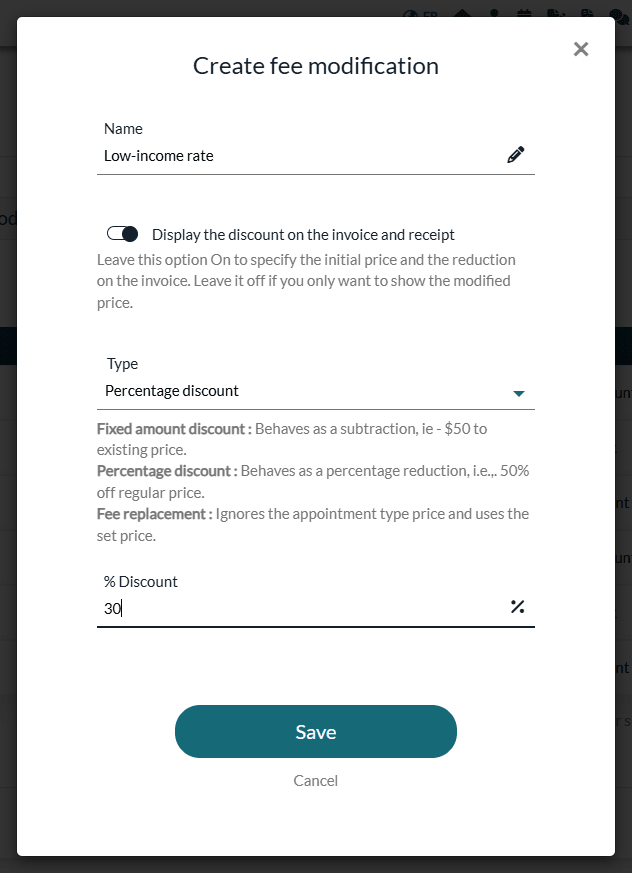
- Enter a Name (for example, Low-income rate). It is the name you choose on the client record.
- Choose whether to Display the discount on the invoice and receipt: turned on, the invoice shows the regular price of the appointment and, on a separate line, the reduction; turned off, it only shows the modified price.
- Choose the Type (see the table below), then enter the Amount or the % Discount.
- Click Save. The new fee modification appears in the list.
You can create as many fee modifications as you need. Three types are available:
| Type | What it does | Example with a $100 appointment |
|---|---|---|
| Fixed amount discount | Subtracts a fixed amount from the price of the appointment type. | $20 → the client pays $80. |
| Percentage discount | Reduces the price by a percentage (100% maximum). | 50% → the client pays $50. |
| Fee replacement | Ignores the price of the appointment type and uses the price you set. | $60 → the client pays $60. |
2Assign a fee modification to a client
- Open the client's record from your client list (www.colib.io/clients).
- Click the Profile tab, then open the Settings section.
- In Fee modification, choose the rate of this client. No modification means the client pays the regular prices. The Click here link under the field takes you to your fee modifications.
- Click Save at the bottom of the page.
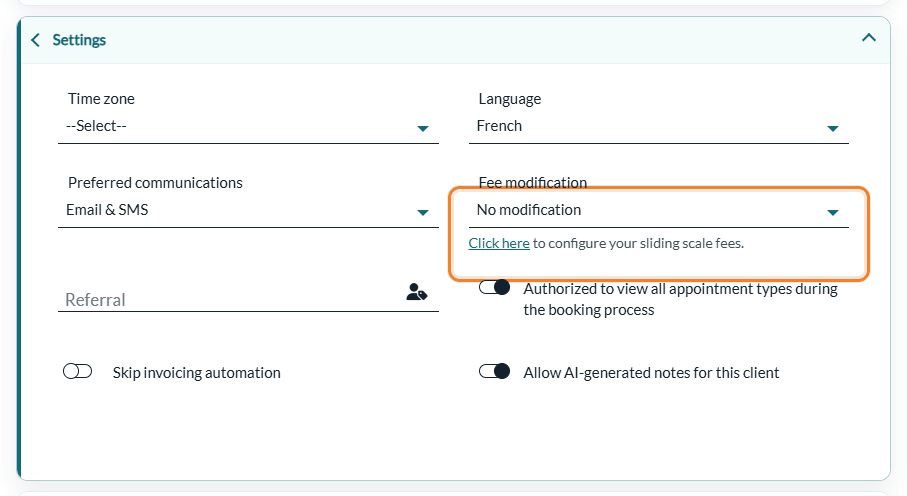
A client has one fee modification at a time.
3Test it by creating an invoice
- Create an invoice for an appointment of a client who has a fee modification (see How to create and send an invoice or a receipt).
- Check that the invoice shows the modified price. For example, with a 50% discount and a regular price of $100, the client pays $50.
The fee modification is applied every time an invoice is created from an appointment of this client, including the invoices created automatically when an appointment is completed. If Display the discount on the invoice and receipt is on, the reduction appears on its own line, named after the fee modification.
Good to know
- Appointments only — fee modifications change the price of appointments, not the products or other items you add to an invoice. They do not apply to an appointment type whose price is $0, and a discount never makes the price negative.
- Edit or delete — click the pencil icon of a fee modification to change it, or the trash icon to delete it. When you delete one, the clients who had it go back to No modification.
- Existing invoices — changing or deleting a fee modification, or the client's rate, does not change invoices already created. You can still edit the amounts of an invoice manually.
- No-shows and late cancellations — if you charge them automatically, the client's fee modification is also taken into account in the fee (see How to charge no-shows and late cancellation appointments).
Still have a question?
Write to us at support@colib.io, we will be happy to help.
Was this article helpful?
That’s Great!
Thank you for your feedback
Sorry! We couldn't be helpful
Thank you for your feedback
Feedback sent
We appreciate your effort and will try to fix the article