Who is this article for?
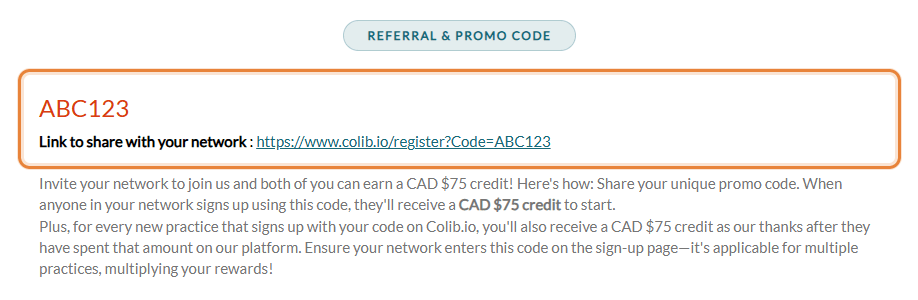
Invite your network to join us and both of you can earn a CAD $75 credit! This article explains where to find your unique referral code, how to share it, and when each of you receives the credit.
How it works
| Who | Credit | When |
|---|---|---|
| The new practice that signs up with your code | CAD $75 | Right at sign-up, to start. The credit is used for its payments after the free trial. |
| You, for every new practice that signs up with your code | CAD $75 | As our thanks, once that practice has spent this amount on our platform. |
Your code works for multiple practices: the more practices sign up with it, the more credits you earn.
1Find your referral code
- Go to Settings > General (www.colib.io/settings?show=general). You can also click the Settings icon (gear) in the top bar, then General in the Admin menu on the left.
- Scroll down to the Referral & Promo code section. It shows your unique code and, under it, the Link to share with your network.
2Share your code or your link
- The link (for example in an email or a message) — it opens the Colib sign-up page with your code already filled in. This is the simplest option.
- The code — your contact enters it on the sign-up page.
3Your contact signs up with the code
On the sign-up page, the code goes in the Optional referral code field. Ensure your network enters this code when creating their account: the credit is linked to the account at sign-up.
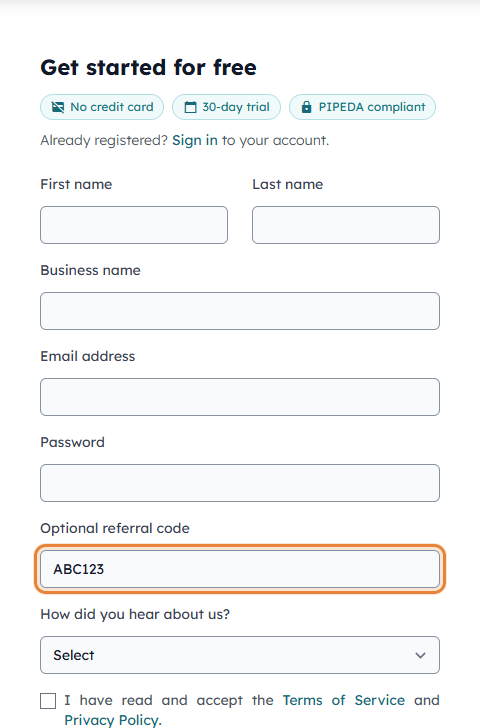
Important: the code cannot be entered later from the account. If your contact forgot to enter it when signing up, write to us at support@colib.io.
What happens next
- For the new practice — a notification (bell icon in the top bar) confirms the $75.00 credit as soon as the account is created. The free trial works as usual; after the trial, the credit appears as Credit in the Usage section of the Plan tab and pays the monthly bills, taxes included, until it is used up.
- For you — once the payments of that practice reach $75, a $75.00 credit is added to your account and a notification lets you know. The credit appears as Credit in the Plan tab (www.colib.io/planandpayments) and is applied to your next payments.
Good to know
- Credits before the card — a credit is always used before your card is charged. When it covers the whole monthly bill, your card is not charged that month. See How does payment for Colib plans work?
- Your promo code — if you signed up yourself with a code, it is shown as Promo Code in the Plan tab.
- Free trial — your contacts can try Colib for free first, without a credit card. Please see the article titled "What happens when my free trial ends?"
Still have a question?
Write to us at support@colib.io, we will be happy to help.
Was this article helpful?
That’s Great!
Thank you for your feedback
Sorry! We couldn't be helpful
Thank you for your feedback
Feedback sent
We appreciate your effort and will try to fix the article