Who is this article for?
Colib plans are without commitment. This article explains how to stop your subscription, what happens to your access and your data, and how to delete your personal profile or leave a practice.
Before you start: only administrators can unsubscribe. The Plan section (handshake icon in the top bar) is not shown to the other team members.
1Export what you want to keep
Once your access ends, the scheduler, the client records and the invoices are locked. These exports are self-serve: you run them yourself, at any time, directly in Colib, without having to ask our team. Download what you need first:
- Client list — on the Clients page (www.colib.io/clients), click the Excel icon (Export to Excel). See How to export my client data.
- A complete client record — in the client record, use the Download icon of the side panel to get a ZIP file with the summary and the documents.
- Invoices — on the Invoices page (www.colib.io/invoices), use Export to Excel or Export to QuickBooks.
- Form results — in the results of a form, use Export PDFs or Export to Excel.

2Cancel your subscription
- Go to Plan (www.colib.io/planandpayments).
- In the Plan tab, click Unsubscribe, under the Change plan button.
- Tell us why you are leaving: this field is mandatory and helps us improve Colib.
- Click Yes to confirm, or No to keep your plan. The page reloads with your new status.
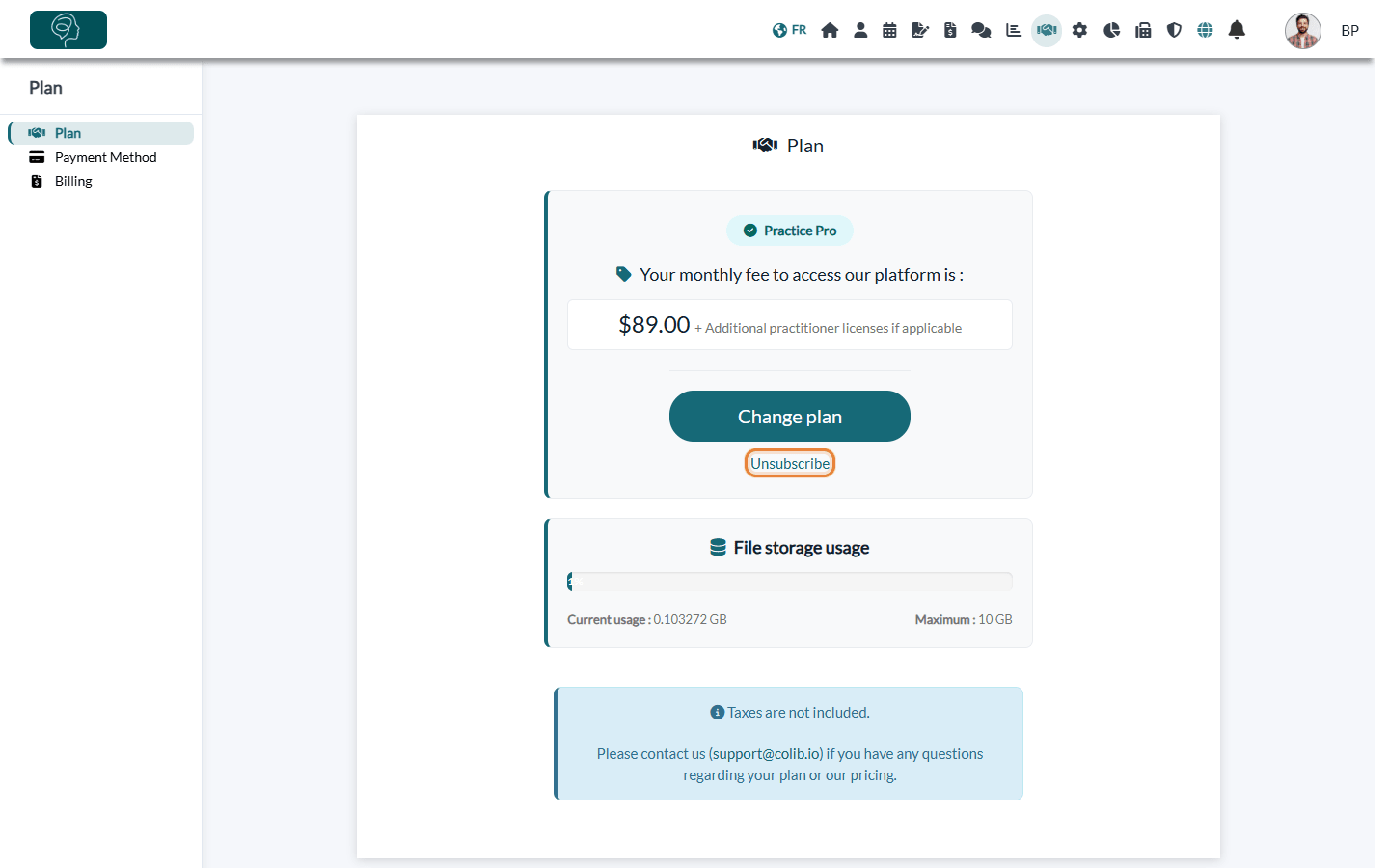
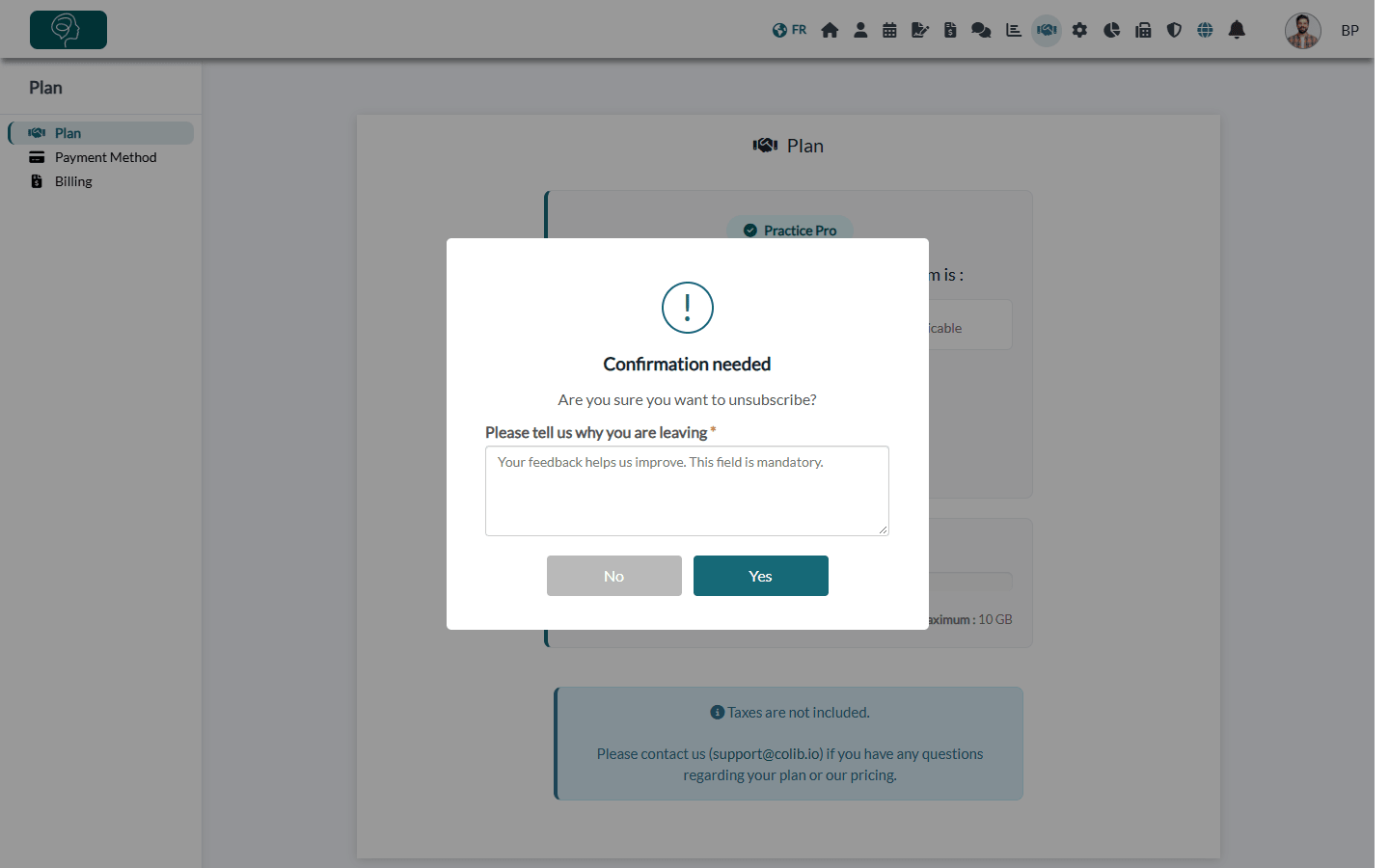
Important: On the Starter plan, the Unsubscribe link is not shown once you have more than 10 appointments in the current billing period. Write to us at support@colib.io to cancel.
3What happens after you unsubscribe
| Your plan | Your access |
|---|---|
| Practitioner, Practice Pro, Clinic | You keep access to Colib until one month after your last payment. In the meantime, the Plan tab shows this date as the end of a free trial period. |
| Starter | Access to the features that require a plan ends right away. |
- Colib does not charge your plan again. An amount that was already due before you unsubscribed (for example after a failed payment) remains payable.
- When your access ends, the Scheduler, the client records and the editing of invoices show You need to update your plan to perform this action, and new appointments can no longer be created, including online bookings.
- Your data is kept. To use Colib again, click Change plan and choose a plan: everything is unlocked.
- No confirmation email is sent: the Plan tab shows your new status.
4Delete your personal profile
Delete Profile deletes your own user account: you are signed out and can no longer sign in with this email address.
- Go to Settings > Personal > Profile (www.colib.io/settings?show=personalgeneral).
- At the bottom of the page, click Delete Profile.
- Enter your password, then click Delete. The deletion is immediate and cannot be undone.
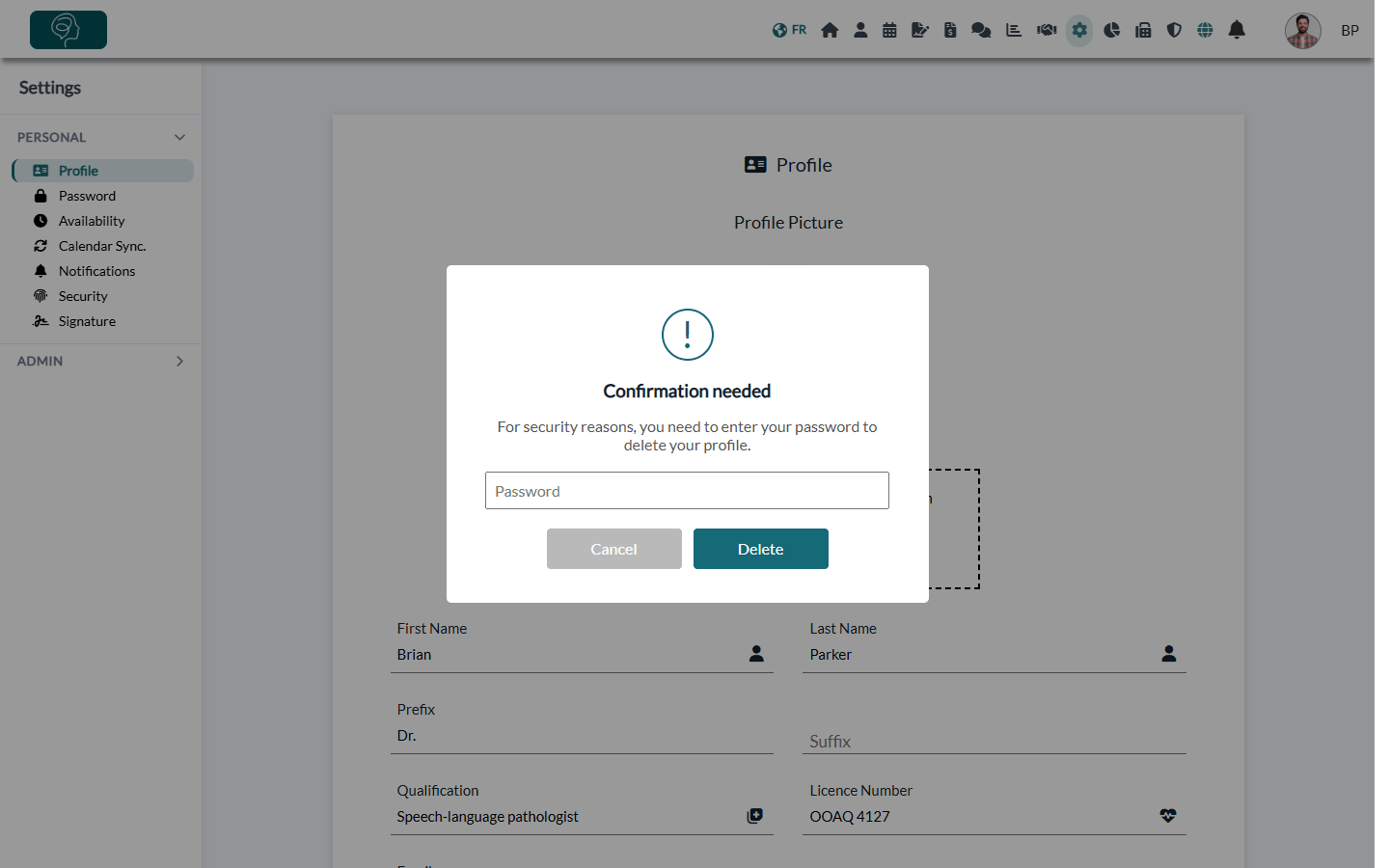
Important: Deleting your profile does not cancel your subscription and does not delete the practice: its clients, notes, invoices and files stay in Colib. If you are the owner of the practice, unsubscribe first (step 2). However, if your practice no longer has any team member the practice and all the client data will be automatically deleted within 24 hours for security reasons.
- Other users — only the owner of the practice can delete their profile. Administrators and team members cannot delete their own profile while they belong to a practice: Colib asks them to contact their administrator. The administrator removes them in Settings > Team (www.colib.io/settings?show=team) with the trash icon Delete team member. The appointments and clients of that person are not deleted; reassign them first.
- Deleting the data of the practice — to have all the data of your practice deleted, write to us at support@colib.io from the email address of the owner of the account.
Good to know
- Changing plans instead? You can move to another plan at any time from the Plan tab with Change plan. See also How does payment for Colib plans work?
- Your monthly receipts remain available in the Billing tab (www.colib.io/planandpayments?show=billing).
- Inactive accounts — an account without a paid plan in which nobody has signed in for 18 months is deleted automatically, after a warning email sent 20 days before.
Still have a question?
Write to us at support@colib.io, we will be happy to help.
Was this article helpful?
That’s Great!
Thank you for your feedback
Sorry! We couldn't be helpful
Thank you for your feedback
Feedback sent
We appreciate your effort and will try to fix the article