Who is this article for?
This article is for practice owners and administrators who are using Colib for free and want to know what happens at the end of the trial: what you see during the trial, when you are charged, and what changes if you do not choose a plan.
During the trial
- 30 days, free — the trial starts when you create your account. Some partner offers include a longer trial.
- No credit card — you do not need to enter a payment method to try Colib.
- Nothing is billed — the appointments dated during your trial are never charged.
To see when your trial ends, go to Plan (handshake icon in the top bar, www.colib.io/planandpayments). As long as you have not chosen a plan, the Plan tab shows the Trial badge and the message Your free trial period ends on, followed by the date.
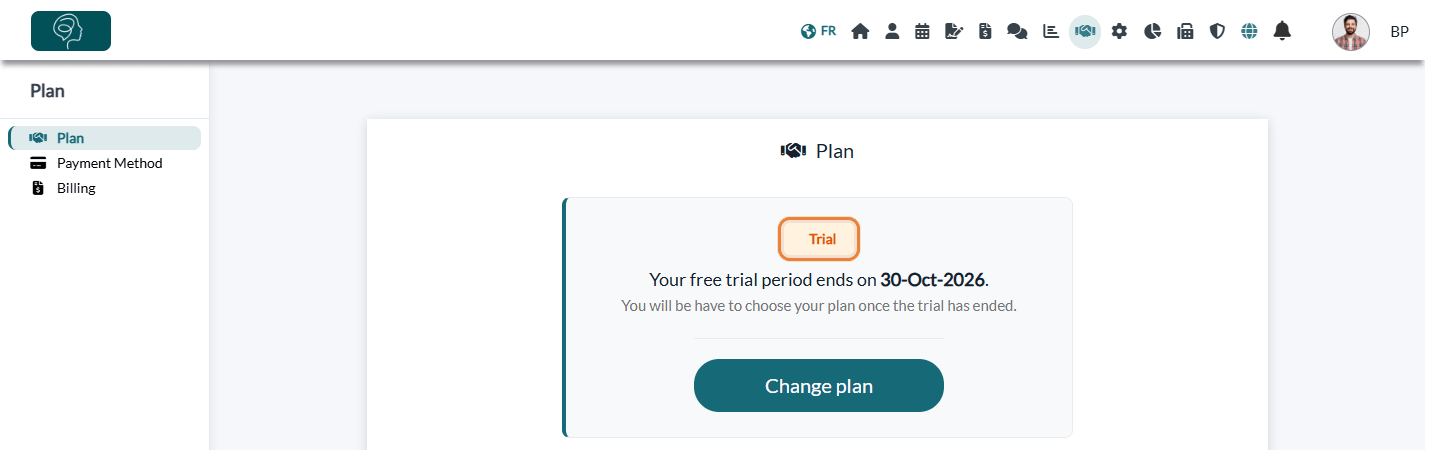
Only administrators see the Plan section. Colib also emails the person who created the account one week before the end of the trial (Your trial with Colib is ending soon) and when the trial ends (End of your trial period).
Your account during the trial: all the features
During the trial, your account has all the features of Colib, including those of the Practice Pro plan. The plan you choose then decides which ones you keep. Whatever the plan, everything you created during the trial (clients, appointments, notes, forms, invoices, settings) stays in your account.
| Feature | Starter | Practitioner | Practice Pro and Clinic |
|---|---|---|---|
| Several practitioners | No: one practitioner only | Yes | Yes |
| Rooms (Settings > Rooms) | No | Yes | Yes |
| Analytics menu | No | Yes | Yes |
| Direct Billing (Settings > Direct Billing) | Yes | No | Yes |
| Multi-Clinics (Settings > Multi-Clinics) | No | No | Yes |
| IP restriction (Settings > Security) | No | No | Yes |
- If you choose a plan during the trial, you keep all the features until the trial ends.
- You cannot choose the Starter plan while more than one team member is marked as practitioner: Colib refuses the change.
- The Starter plan also has a monthly limit of completed forms. For more details, please see the article titled "How are forms counted in my plan (monthly limit)?"
- After the trial, the settings tab of a feature that your plan does not include shows a message inviting you to change plans. What you had set up there is not deleted, but you can no longer change it.
Important: if you added IP restrictions during the trial (Settings > Security), they keep applying after the trial even if your plan does not include this feature, and you can no longer change them. Remove them before the end of the trial if you do not choose the Practice Pro or Clinic plan.
1Choose a plan before the end of the trial
- In the Plan tab, click Change plan, then Select plan under the plan you want, and confirm. For the details, please see the article titled "How to choose or change my plan".
- Add a credit card in the Payment Method tab (www.colib.io/planandpayments?show=details).
You can choose your plan at any time during the trial: you keep the remaining free days, and nothing is charged before the trial ends.
| Plan | First charge |
|---|---|
| Practitioner, Practice Pro | The day after the end of the trial, then every month on the same day. |
| Starter | You pay for the appointments of each month after the trial. The appointments dated during the trial are not counted. |
| Clinic | Price and billing are set with our team. |
The prices of each plan are explained in How does payment for Colib plans work?.
2What happens if you do not choose a plan
Nothing is charged automatically, and your data is kept: clients, appointments, notes, forms and invoices stay in your account. But the main features are locked until you choose a plan:
- the Scheduler, the client records and the editing of invoices open the pricing page with the message You need to update your plan to perform this action;
- new appointments can no longer be created, including the online bookings of your clients; when a client tries to book, the practice receives an email;
- the results of your forms show This feature requires a plan.
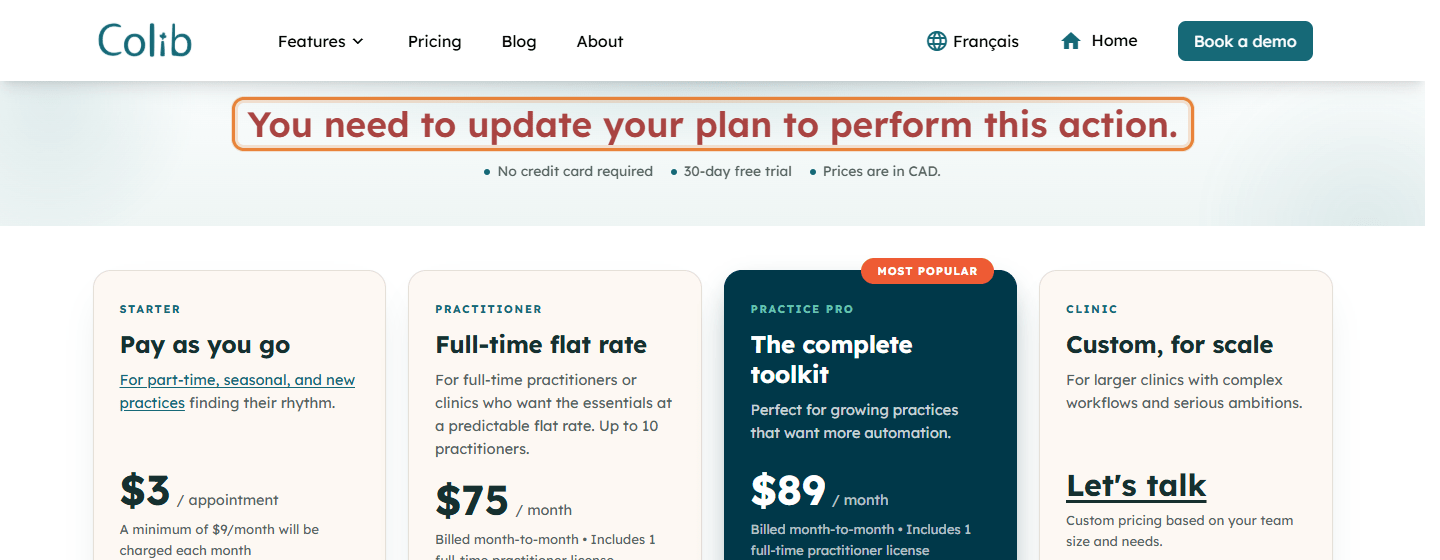
Team members who are not administrators are asked to contact the administrator of the account. As soon as an administrator chooses a plan and adds a payment method, everything is unlocked.
3If you chose a plan but did not add a card
As long as no card is saved, the Plan tab shows Please provide a payment method to continue using our platform. Once the trial is over, the Scheduler opens the Payment Method tab with the message You need to enter a payment method to perform this action. Add your card to keep using Colib.

Good to know
- No commitment — with a plan, you can change plans or unsubscribe whenever you want.
- Inactive accounts — an account without a paid plan in which nobody has signed in for 18 months is deleted. Colib sends a warning email 20 days before: sign in to keep your account.
- Why a card for the Starter plan? See Why is a credit card required for the Starter plan?
- Get started — to make the most of your trial, follow How to get started successfully on Colib.
- Referral — see How does the referral code work?
Still have a question?
Write to us at support@colib.io, we will be happy to help.
Was this article helpful?
That’s Great!
Thank you for your feedback
Sorry! We couldn't be helpful
Thank you for your feedback
Feedback sent
We appreciate your effort and will try to fix the article