Who is this article for?
Your clients can consult in the client portal the notes and documents you share with them. In rare cases, a health professional may judge that giving a client access to their record right now would likely cause serious harm to their health. Privacy laws allow access to be withheld temporarily in that situation, provided the decision is documented.
This article explains how to record this decision in Colib, what the client sees while it is in force, and how to restore access.
Before you start: you need full access to the client's information to record or lift a decision. Team members with read-only access to the record see the decision but cannot change it. The decision is a matter of professional judgement: Colib records it, but does not make it for you.
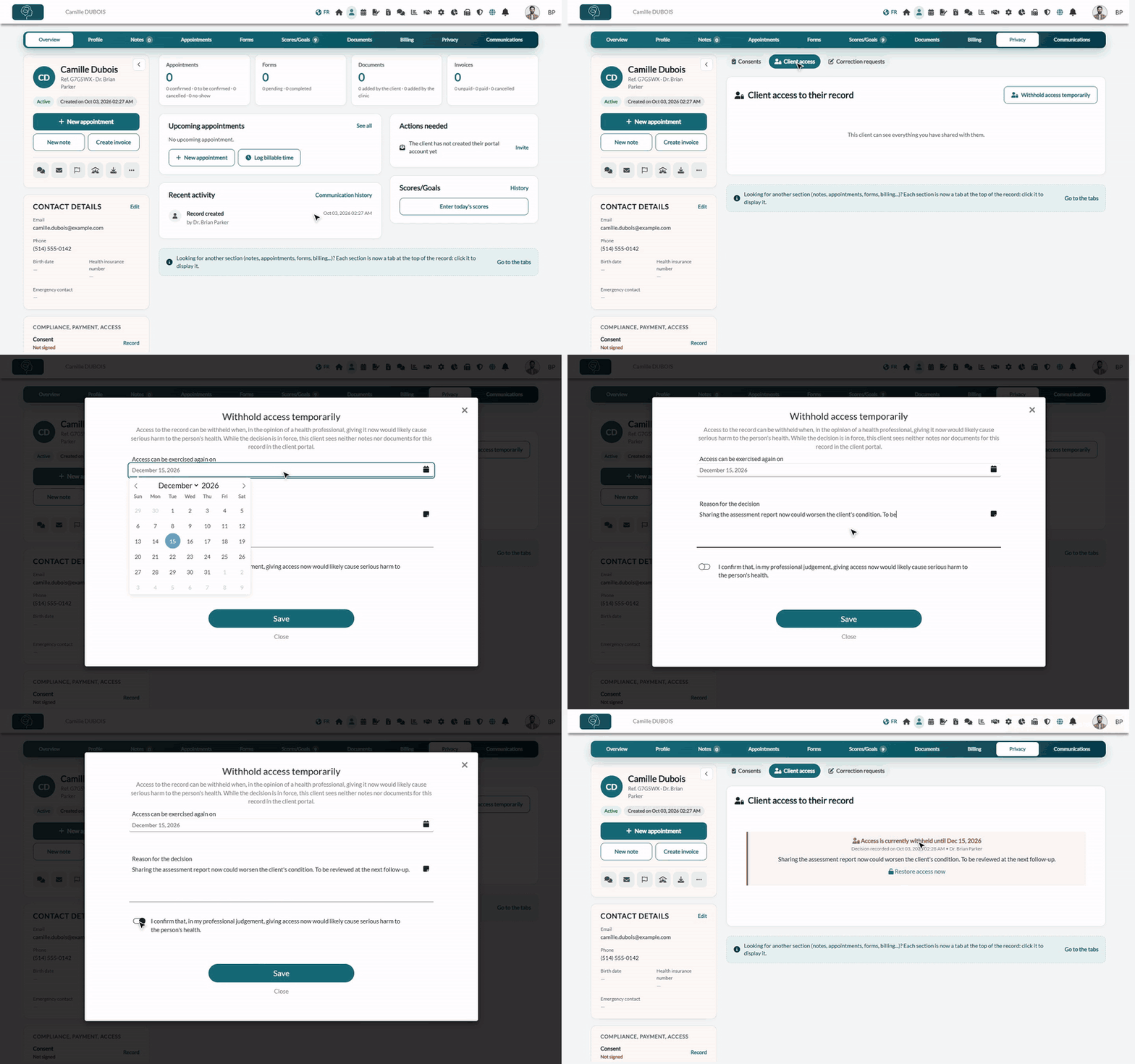
1Open the client access section
- Open the client's record from your client list (www.colib.io/clients).
- Click the Privacy tab, then Client access.
- The Client access to their record section shows the current situation. By default: This client can see everything you have shared with them.
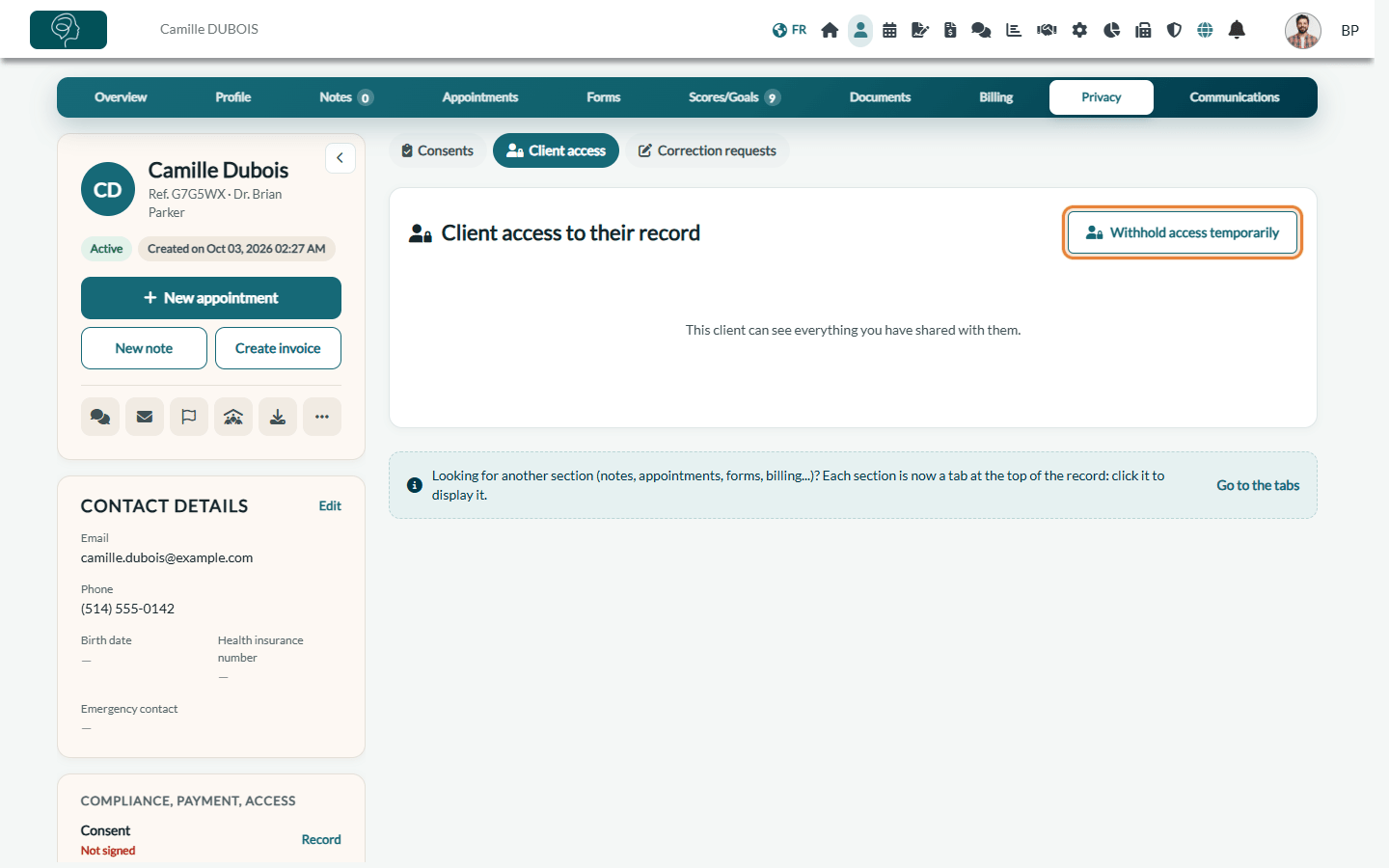
2Record the decision
- Click Withhold access temporarily.
- In Access can be exercised again on, choose the date from which the client will be able to consult their record again. It must be a future date.
- In Reason for the decision, explain why access is withheld. This field is mandatory.
- Turn on I confirm that, in my professional judgement, giving access now would likely cause serious harm to the person's health. The decision cannot be saved without this confirmation.
- Click Save.
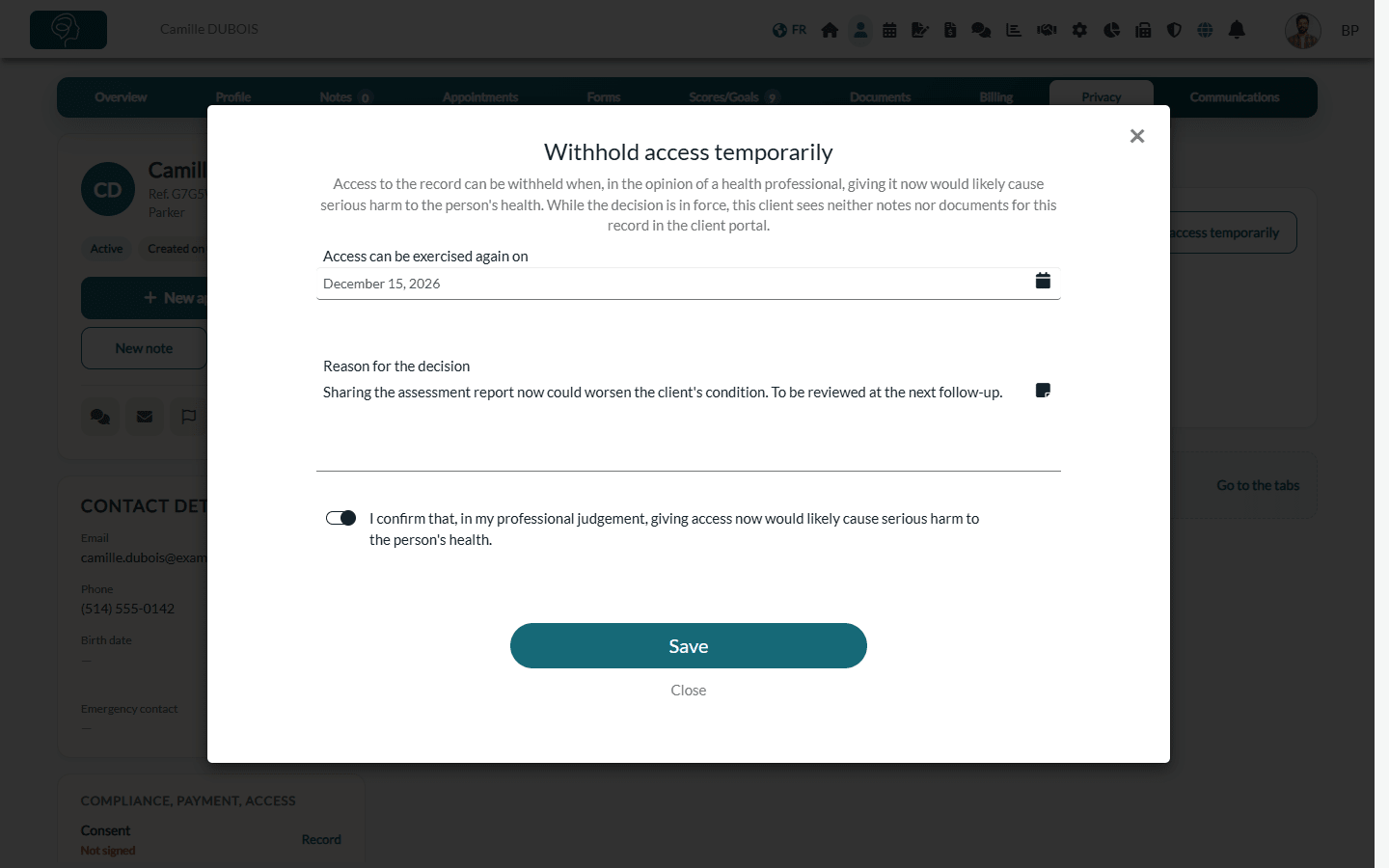
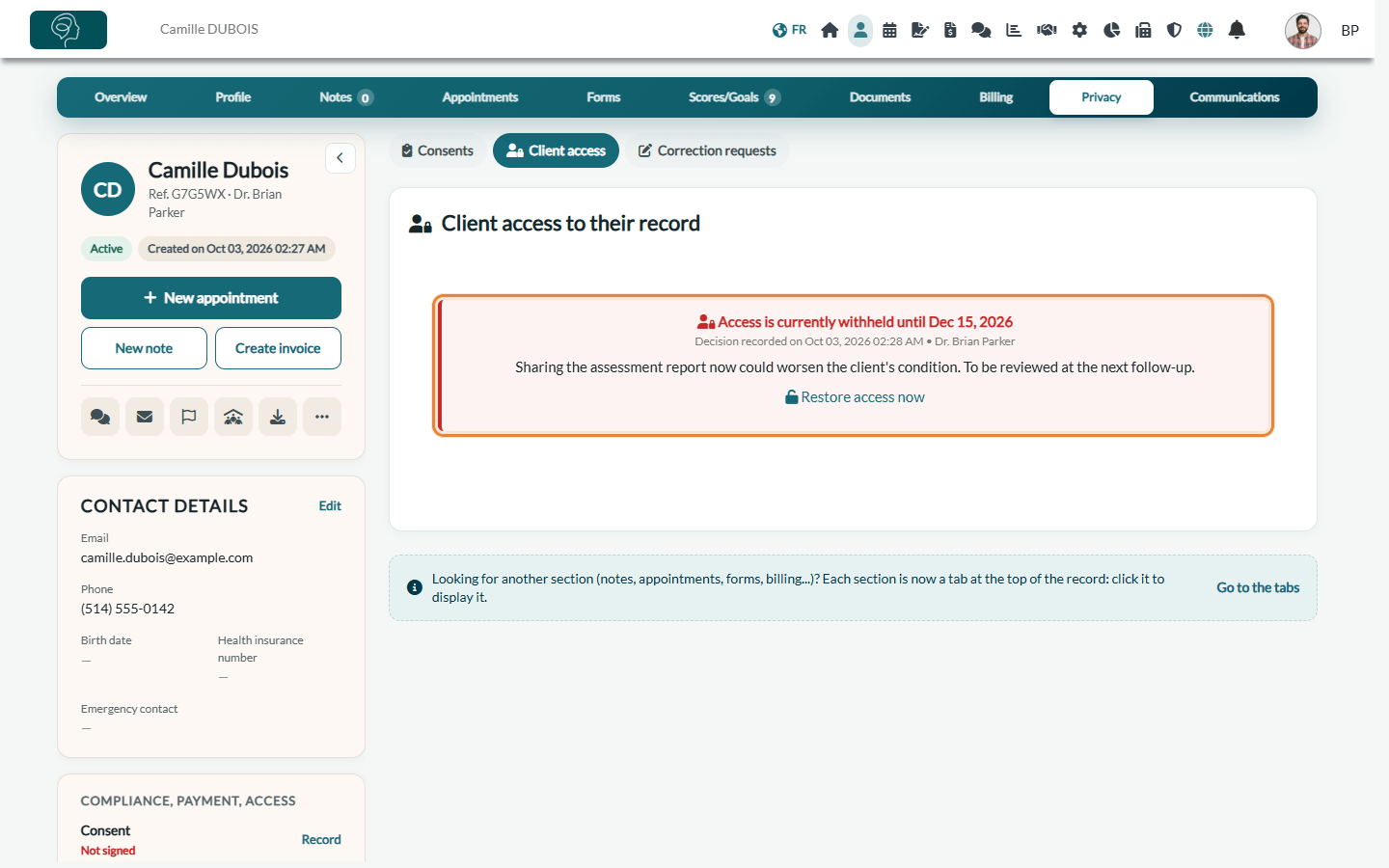
The section now shows Access is currently withheld until followed by the date, with the date and time the decision was recorded, the professional who recorded it and the reason. The client panel of the record also shows Access withheld.
What does the client see?
While the decision is in force, for this record:
- the client no longer sees, in the client portal, the notes and documents you have shared with them;
- completed forms shared with the client are hidden too, but the forms they still have to fill out remain available, so they can keep answering your requests;
- in their portal profile, under My information, the client sees the message This clinic has temporarily suspended access to the notes and documents of this record, until followed by the date, and is invited to contact the clinic. Their identity information remains visible.
The client does not receive any email when you record or lift the decision. Their appointments, invoices and payments are not affected.
3Restore access
Access comes back by itself on the date you chose: you have nothing to do. To restore it earlier:
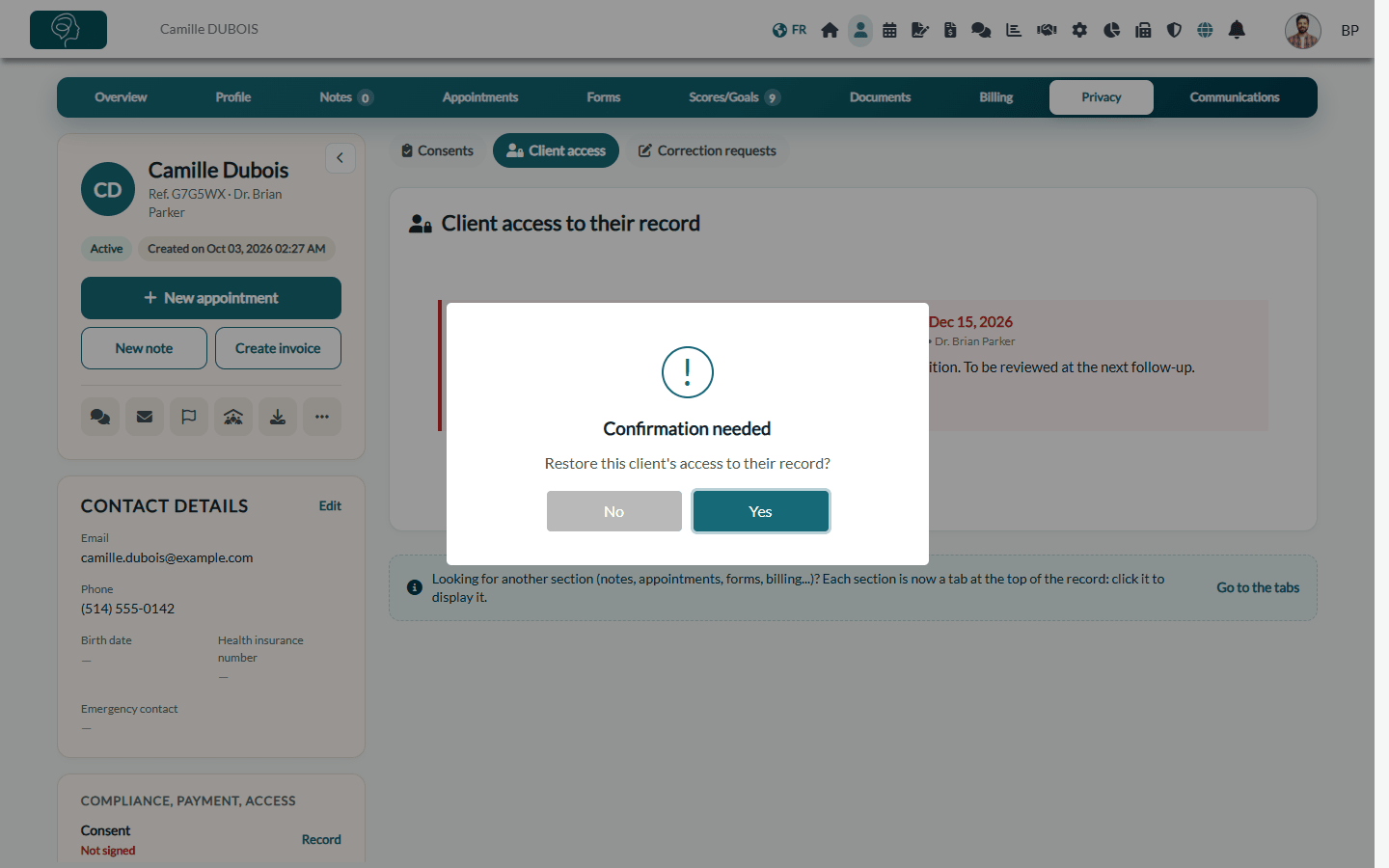
- In Privacy > Client access, click Restore access now.
- Confirm with Yes.
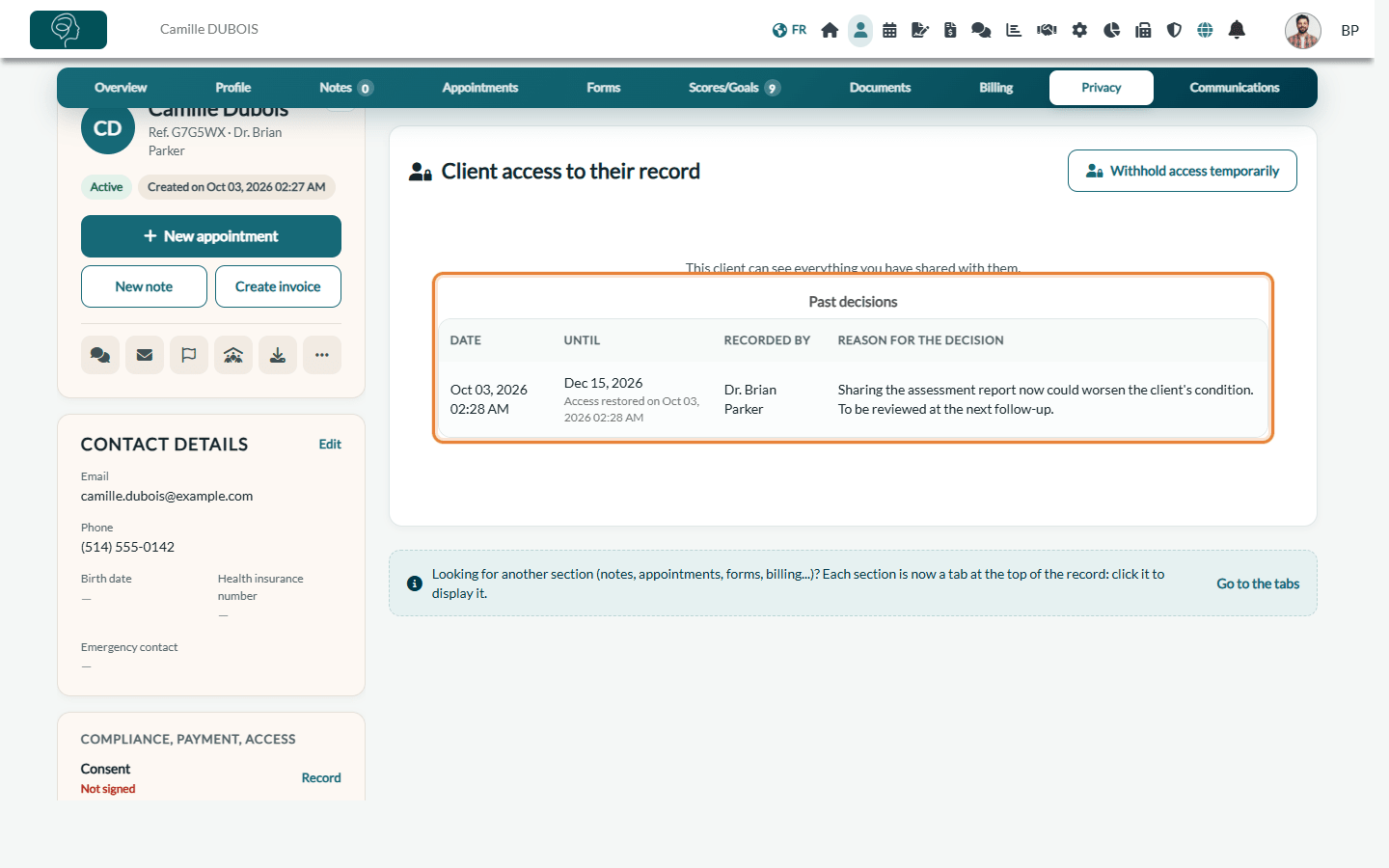
The client immediately sees again everything you have shared with them. The decision moves to Past decisions, with its date, the planned end date, the date access was restored, the professional who recorded it and the reason.
Good to know
- One decision at a time — while a decision is in force, the Withhold access temporarily button is hidden. To change the date, restore access, then record a new decision.
- History kept — decisions are never deleted: they remain in Past decisions as a record of your choices. Each decision and each restoration is also written to the record's activity log. See How to access the activity log.
- Per clinic record — the decision only applies to the record held by your practice. If the client is followed by another practice using Colib, their record there is not affected.
- Only the client portal — the decision hides content in the client portal. It does not block what you send by other means (an email, a fax, a printed copy): avoid sending the withheld information to the client while the decision is in force.
Related articles: How can I securely share notes with my clients?, How to share a document with a client, How to handle a client's request to correct their information, How to record and track client consents.
Still have a question?
Write to us at support@colib.io, we will be happy to help.
Was this article helpful?
That’s Great!
Thank you for your feedback
Sorry! We couldn't be helpful
Thank you for your feedback
Feedback sent
We appreciate your effort and will try to fix the article