Who is this article for?
Beyond scheduled appointments, you can bill a payer for other billable work: report writing, phone calls, case management, etc. You do it by logging billable time against one of the client's funding policies.
This article explains how to log a time entry, how its amount is calculated, and the rules that apply until it is invoiced.
Before you start: the client must have at least one funding policy (see Third-Party Billing: how to attach a funding policy to a client), and your practice must have at least one active task (see How to use tasks in your scheduler). The task describes the kind of work billed. If one of them is missing, the window tells you and offers a shortcut: Add a funding policy or Go to settings. You also need full access to client information.
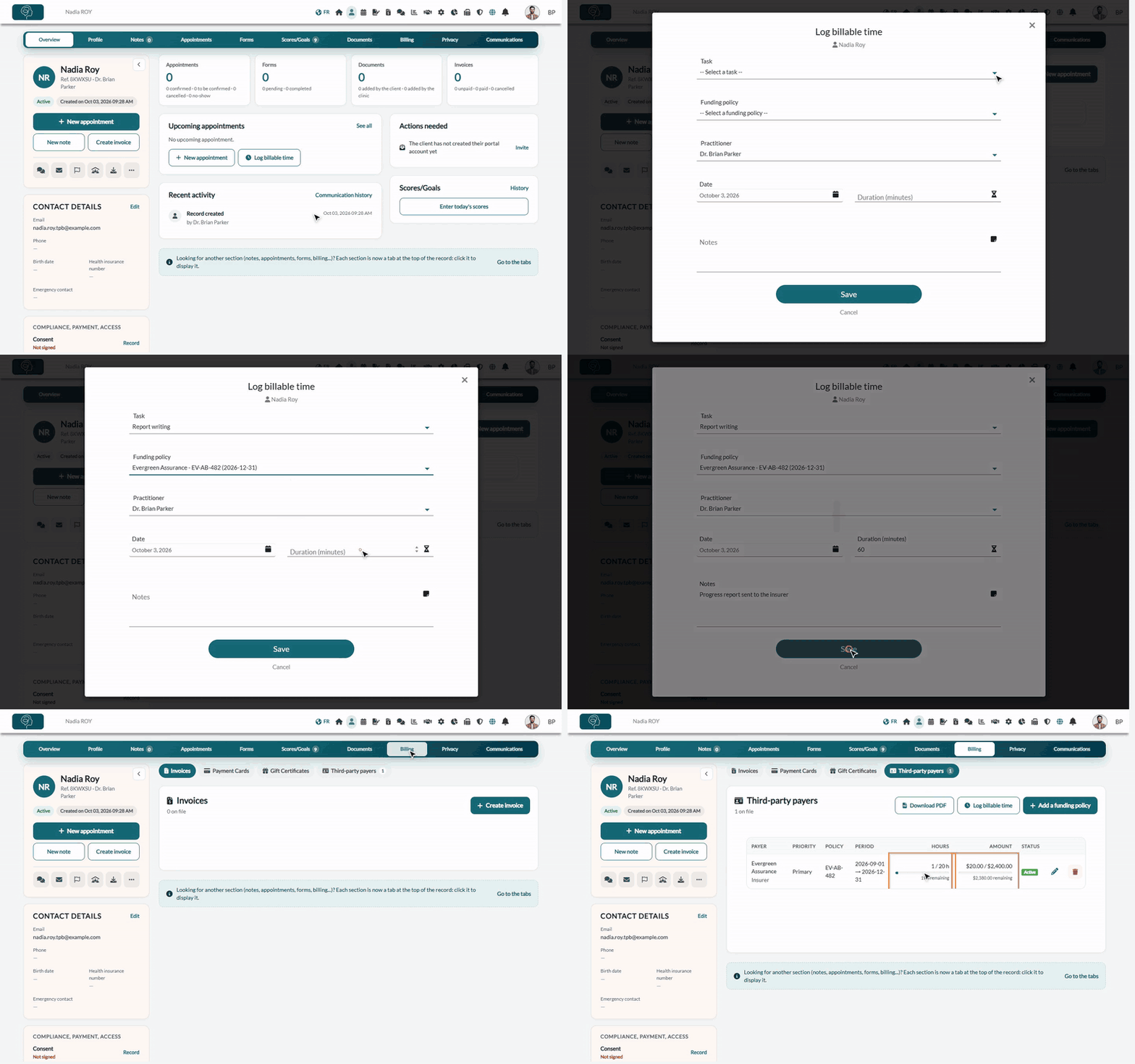
1Open the Log billable time window
- Open the client's record from your client list (www.colib.io/clients).
- Click Log billable time. The button is available in the Appointments tab, in the upcoming appointments card of the Overview tab, and in the Billing tab > Third-party payers.
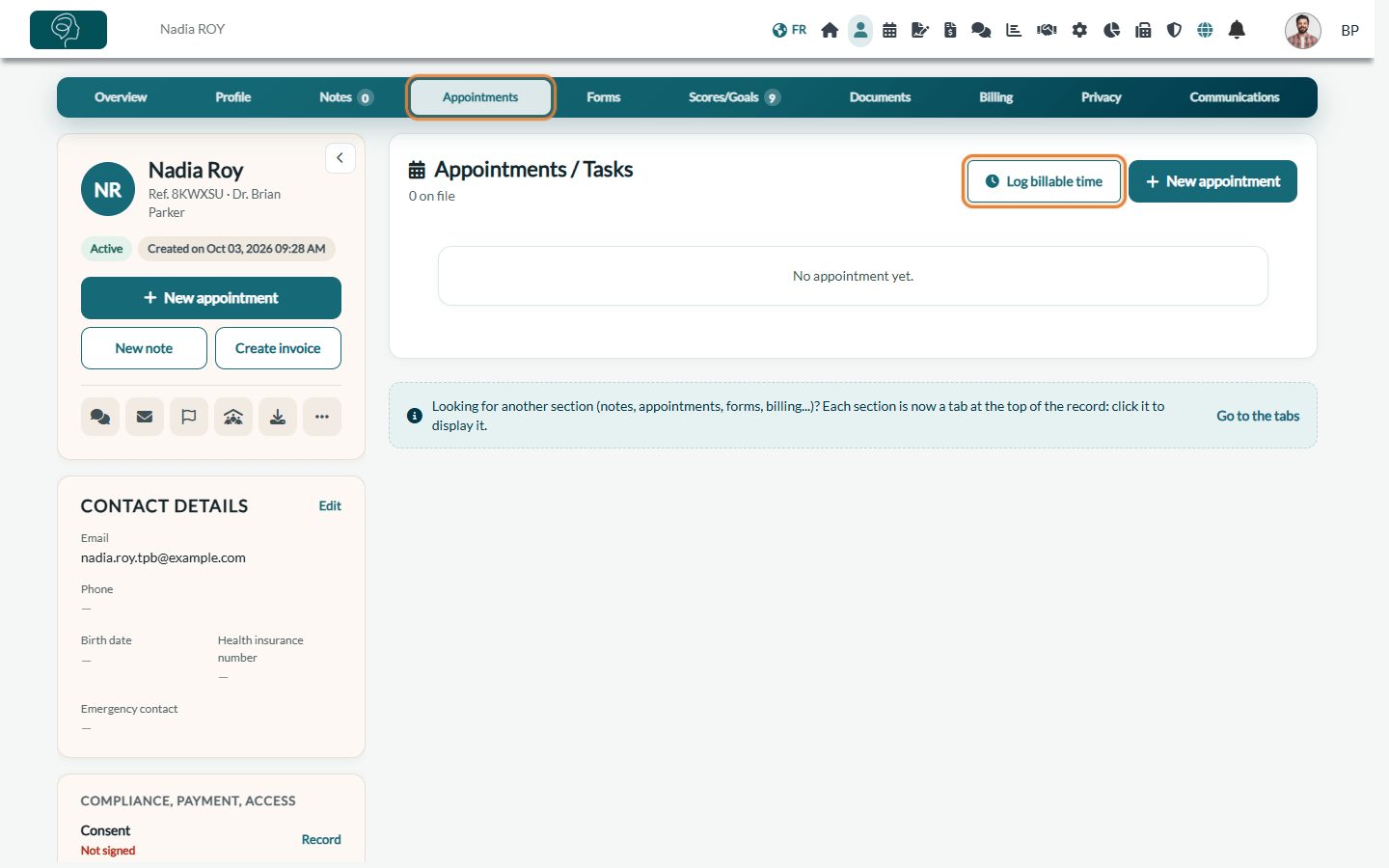
2Fill in the entry
| Field | What to enter |
|---|---|
| Task (required) | The kind of billable work, chosen among your practice's tasks. |
| Funding policy (required) | The client's policy to bill (shown with the payer, the policy number and the end date). Only open policies that are not exhausted can be selected. |
| Practitioner (required) | Who did the work. By default, the client's practitioner. |
| Date (required) | Today by default; choose another day in the calendar. It must fall between the start and end dates of the policy. |
| Duration (minutes) (required) | Between 1 and 1440 minutes. |
| Notes (optional) | A description of the work done. |
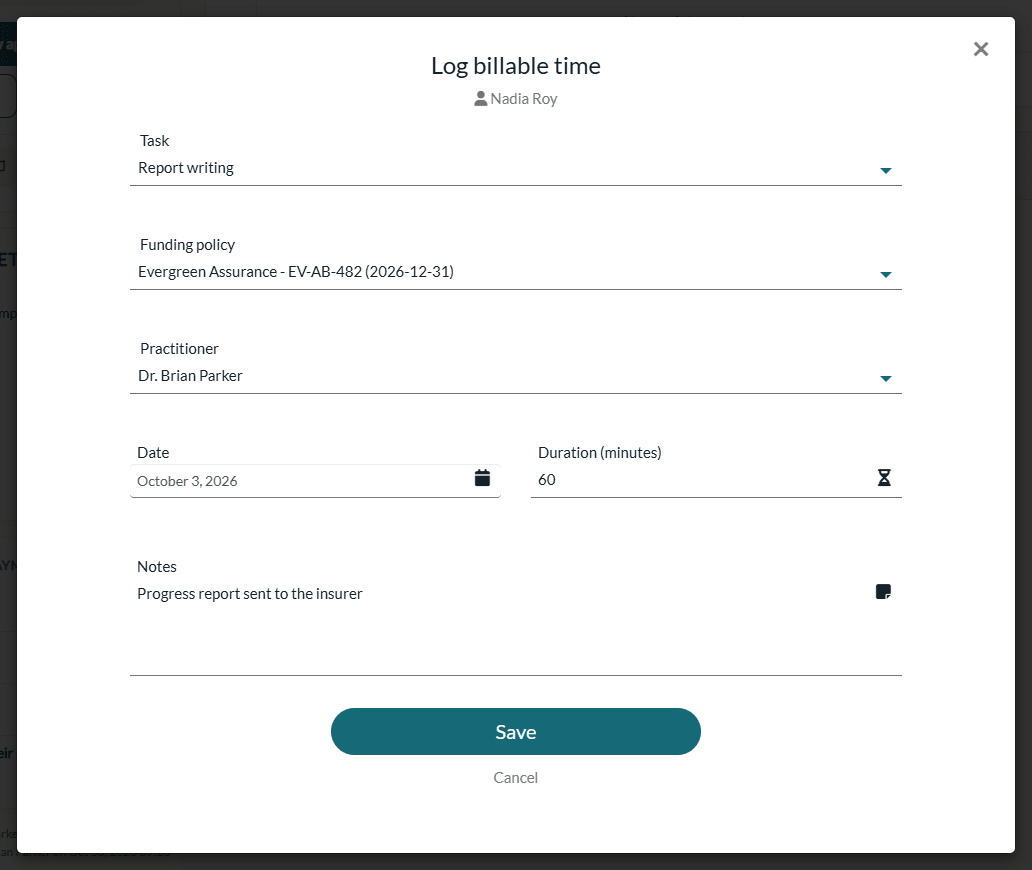
3Save
Click Save. The entry appears in the client's Appointments tab with the Billable Time tag, the payer and policy, and the Logged status. The usage of the policy is recalculated right away (hours and amount used, remaining balance, progress bars).
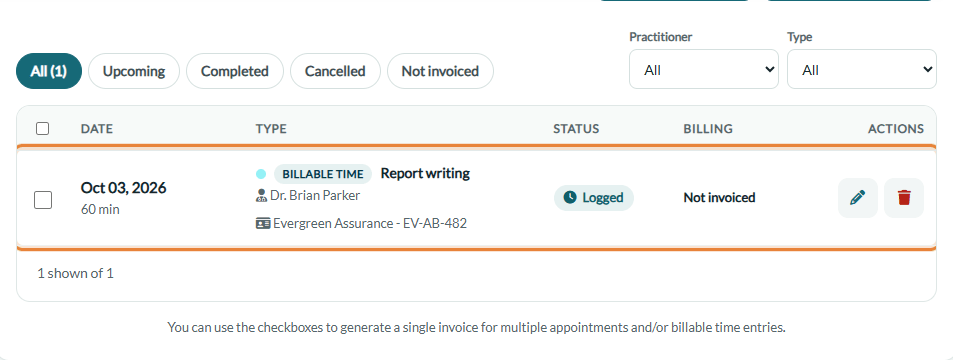
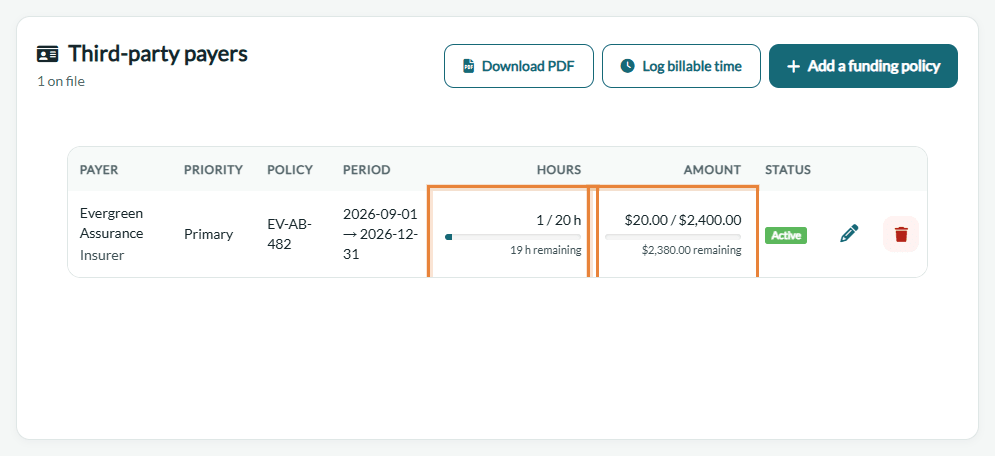
How the rate is applied: when you save, Colib records the hourly rate with the entry: the practitioner's own rate if one is set, otherwise your practice's default hourly rate (see Third-Party Billing: how to enable and configure the feature). The amount counted on the policy = duration × that rate. Changing the rates later does not change existing entries.
Rules to keep in mind
- Over-budget warning — if the entry would push the policy past its authorized hours and/or its funded amount, Colib asks for a confirmation ("Saving this entry will exceed... Do you want to save anyway?"). Click Save anyway to record it all the same.
- Date inside the coverage period — an entry dated before the start date or after the end date of the policy is refused, with a message.
- Policy fixed after saving — the funding policy of an existing entry cannot be changed. To move an entry to another policy, delete it and create a new one.
- Locked once invoiced — an entry added to an invoice shows the Invoiced status and a padlock: it can no longer be edited or deleted. If that invoice is cancelled or written off, the entry can be invoiced again.
- Alerts — saving an entry checks the funding alerts of the policy again (see Third-Party Billing: how do funding alerts work?).
Good to know
- Edit or delete an entry — in the Appointments tab, click the date of the entry or its pencil icon to edit it, or the trash icon to delete it (as long as it is not invoiced). If you choose another practitioner when editing, the rate of that practitioner is applied.
- Find your entries — the Not invoiced filter of the Appointments tab shows the entries and appointments that are not invoiced yet.
- Invoice the time — tick the entries and click Create a grouped invoice. See Third-Party Billing: how to create an invoice from billable time, tasks or appointments.
Still have a question?
Write to us at support@colib.io, we will be happy to help.
Was this article helpful?
That’s Great!
Thank you for your feedback
Sorry! We couldn't be helpful
Thank you for your feedback
Feedback sent
We appreciate your effort and will try to fix the article