Who is this article for?
Some of your correspondents still work by fax: physicians, hospitals, insurers, other clinics. Colib lets you fax a document, an invoice, a receipt or a completed form directly from a client's record, without printing anything and without a fax machine.
This article explains how to send a fax, how to follow its delivery, and how to find all the faxes sent by your clinic.
Before you start: sending faxes is available to every clinic, with nothing to set up. If your clinic has connected its own SRFax account, your faxes leave from your own number and you pay SRFax directly. Otherwise, they leave from the Colib shared number and each page successfully delivered is charged. See Fax: how much does it cost?
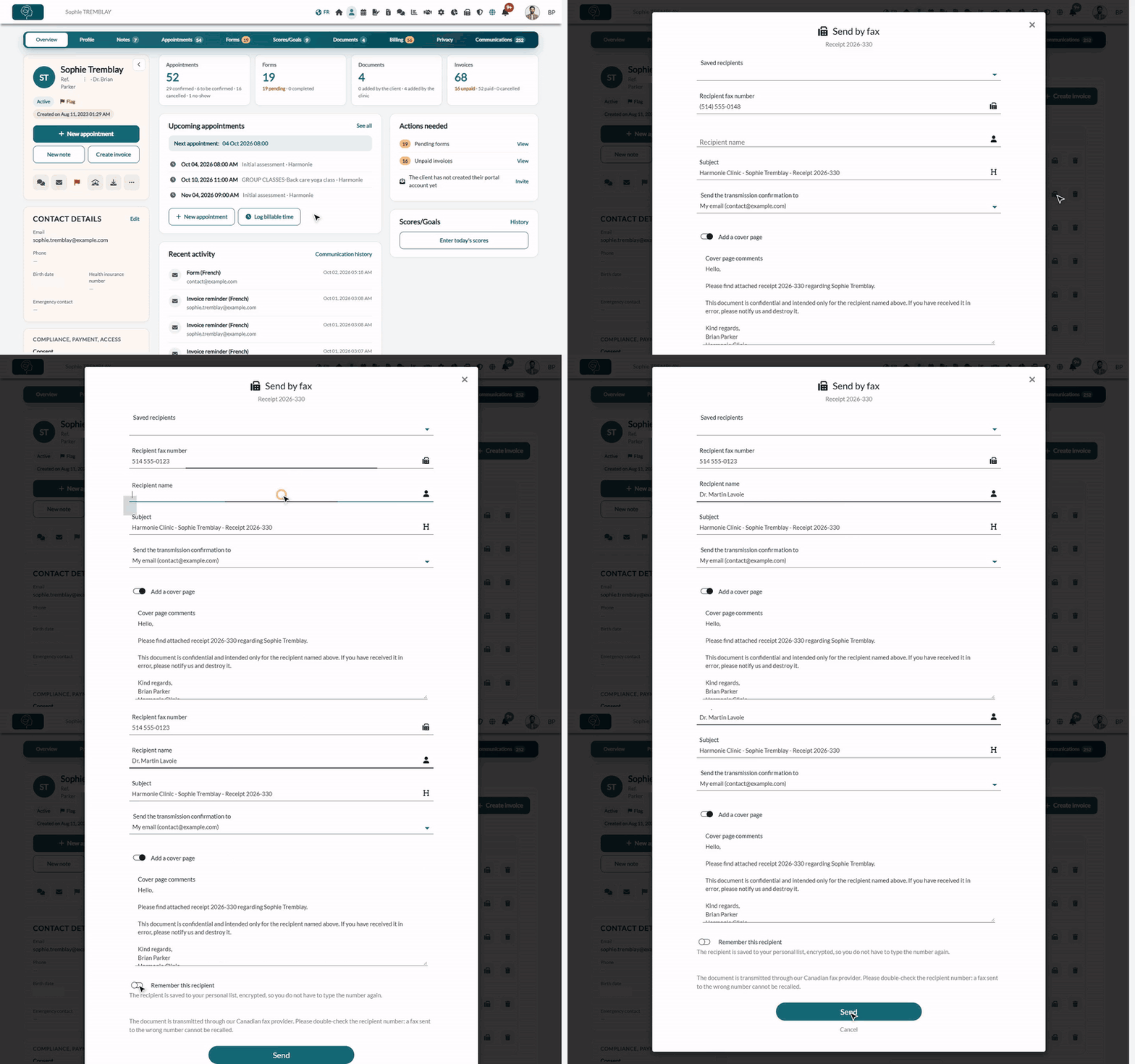
What can you fax?
| In the client record | What you can send |
|---|---|
| Documents tab | PDF files and images (JPG, PNG, GIF, BMP, TIFF). Other file types, such as Word documents, cannot be faxed: convert them to PDF first. |
| Billing tab > Invoices | Invoices. A paid invoice is sent as a receipt. |
| Forms tab | Completed forms (the ones that have a PDF). |
Clinical notes cannot be faxed.
To send a fax, you need the right to modify the matching section of the client record (documents, billing or forms). Team members with view-only access do not see the fax button.
1Open the fax window
- Open the client's record from your client list (www.colib.io/clients).
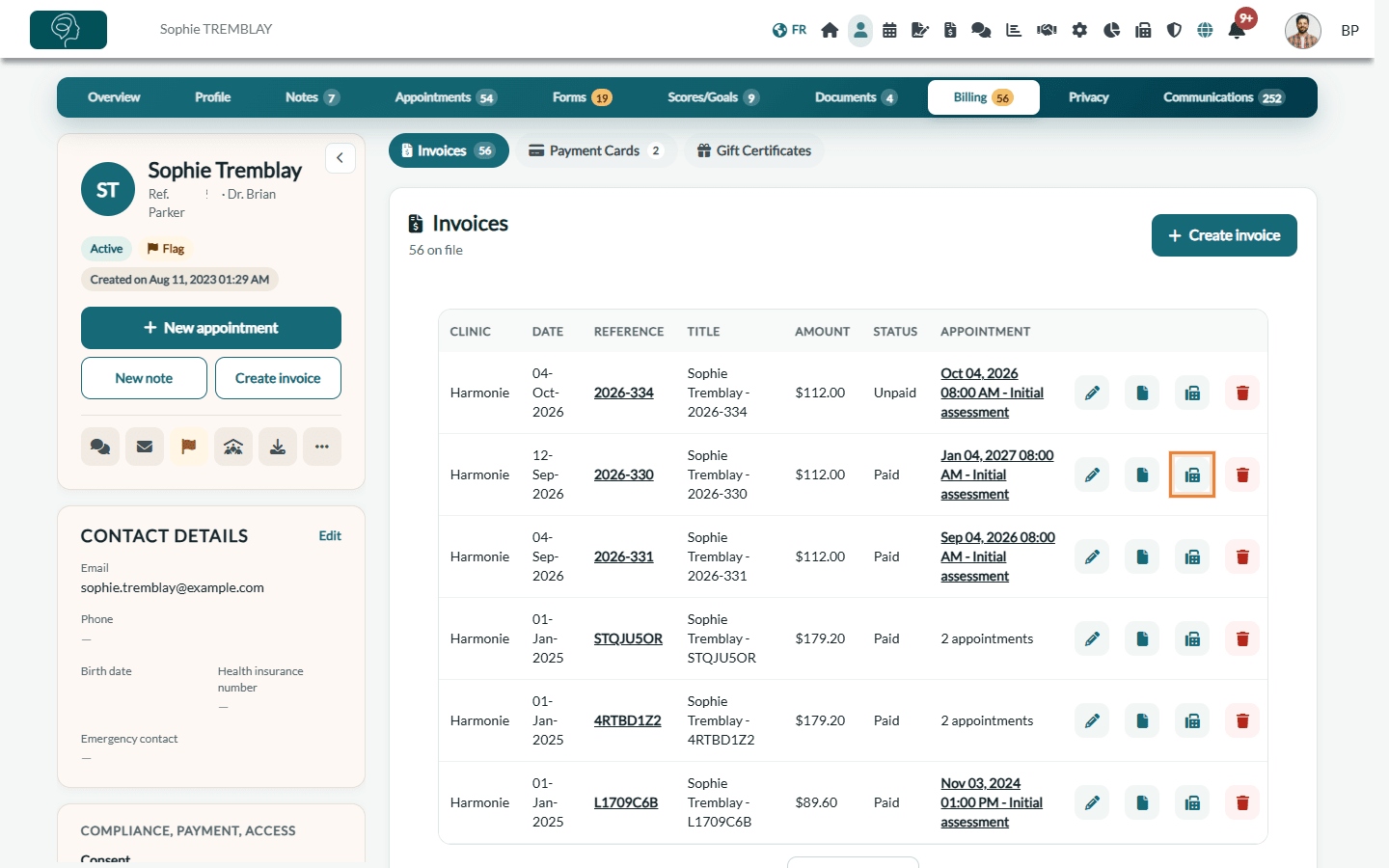
- Go to the Documents tab, the Billing tab (Invoices sub-tab) or the Forms tab.
- On the line of the item to send, click the fax icon (Send by fax).
2Enter the recipient
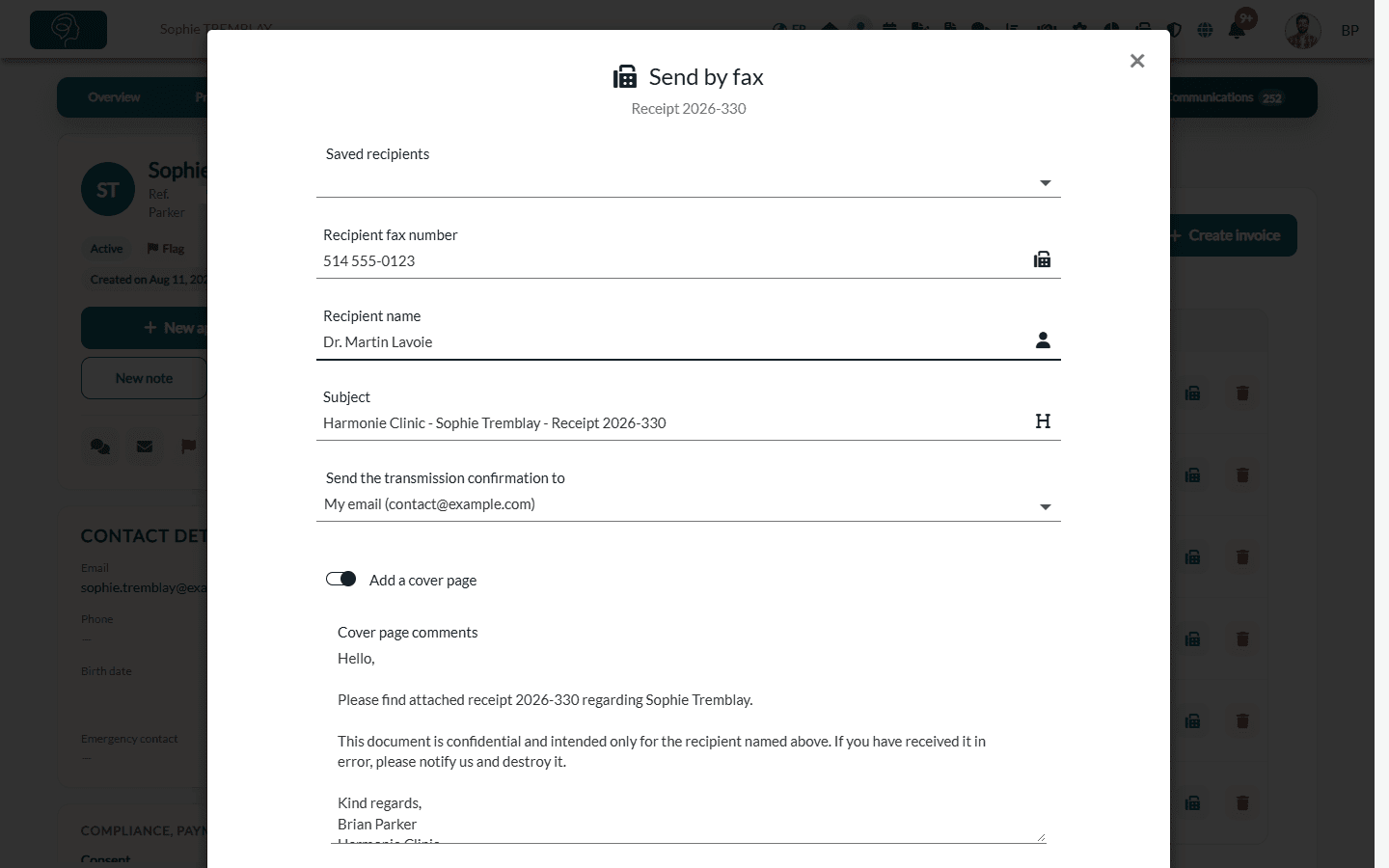
- Recipient fax number — a 10-digit North American number, for example 514 555-0123.
- Recipient name — optional, it appears on the cover page.
- Saved recipients — if you have already saved this correspondent, pick them from the list instead of typing the number again. The list appears once you have saved at least one recipient.
Important: double-check the number before sending. A fax sent to the wrong number cannot be recalled.
3Check the subject and the cover page
Colib prepares everything for you, and you can change any of it:
- Subject — pre-filled with the name of your clinic, the client's name and the title of the document.
- Send the transmission confirmation to — the email address that receives the transmission confirmation: yours by default, or the clinic's.
- Add a cover page — turned on by default. The cover page shows the recipient, your clinic and the subject. Turn it off to send the document alone.
- Cover page comments — a ready-to-send message: the document sent, the client concerned, a confidentiality notice and your signature. If your clinic does not receive faxes in Colib, the message also invites the recipient to reply by email.
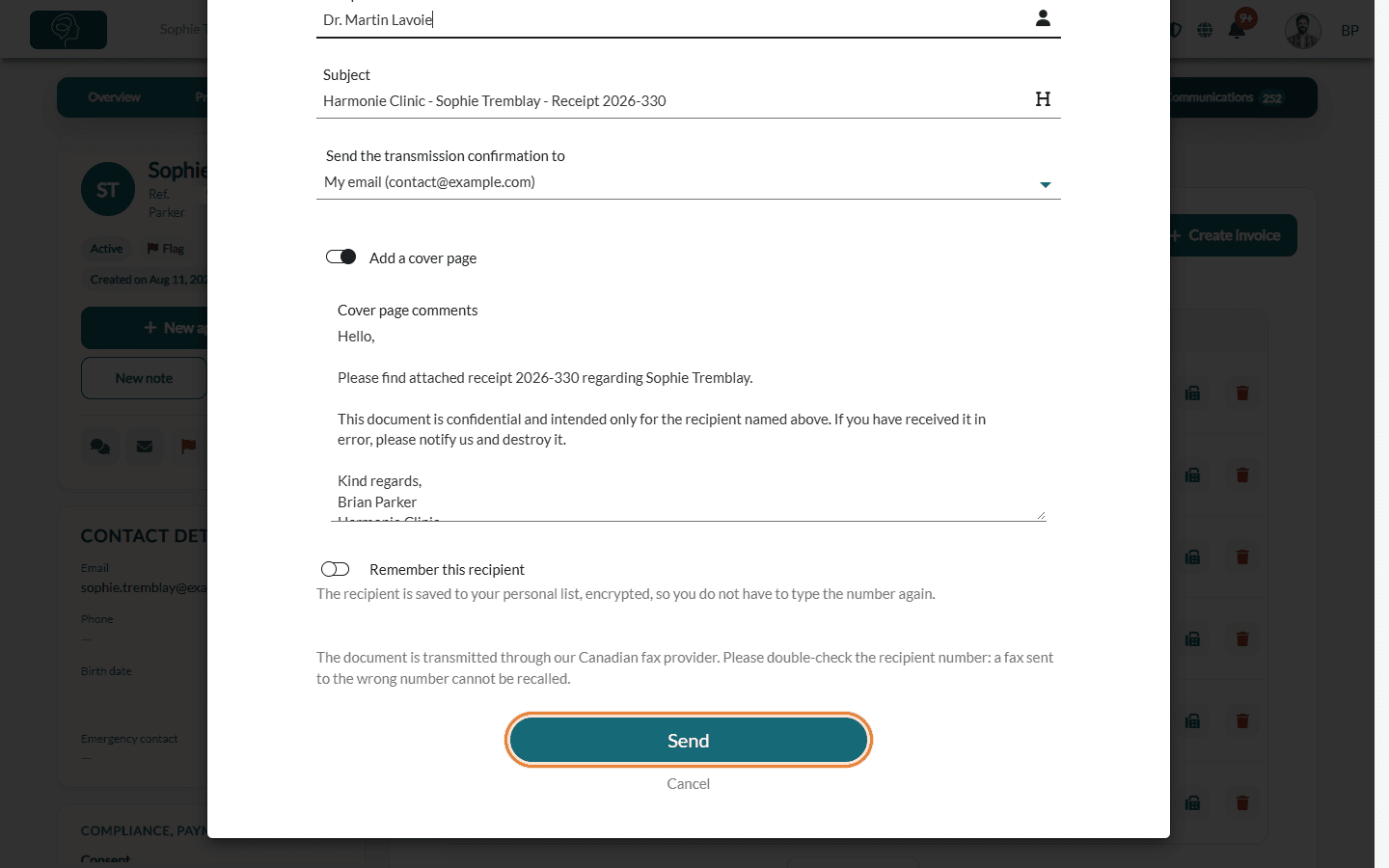
- Remember this recipient — turn it on to add the number (and the name, if entered) to your saved recipients, so you do not have to type it again. This list is personal and encrypted: only you see it in the fax window.
4Send
Click Send. The fax is handed over to our fax provider right away, and it appears in the Communications tab of the client's record.
If an error message appears instead (for example, the fax provider could not be reached), nothing was sent: check the number and try again a little later.
How do you know the fax was delivered?
Delivery is not instant: a fax usually takes from a few seconds to about an hour to be delivered, depending on the recipient's line. The status of the fax is shown in the Communications tab of the client's record and in the Sent faxes list.
| Status | Meaning |
|---|---|
| Transmitted, awaiting delivery confirmation | The fax has left Colib. The recipient's fax machine has not confirmed receipt yet. |
| Sent | The recipient's fax machine confirmed receipt. |
| Not sent | The fax could not be delivered, for example because the line was busy, the number is not a fax number, or the recipient's machine did not answer. |
Colib follows pending faxes automatically, and updates their status when you open the client's record. If a fax cannot be delivered, the person who sent it receives a Colib notification, Fax delivery problem, with a link to the client's record. Check the number and send the fax again.
Find all the faxes sent by your clinic
- Click Fax in the top bar (www.colib.io/faxes).
- Open the Sent faxes tab.
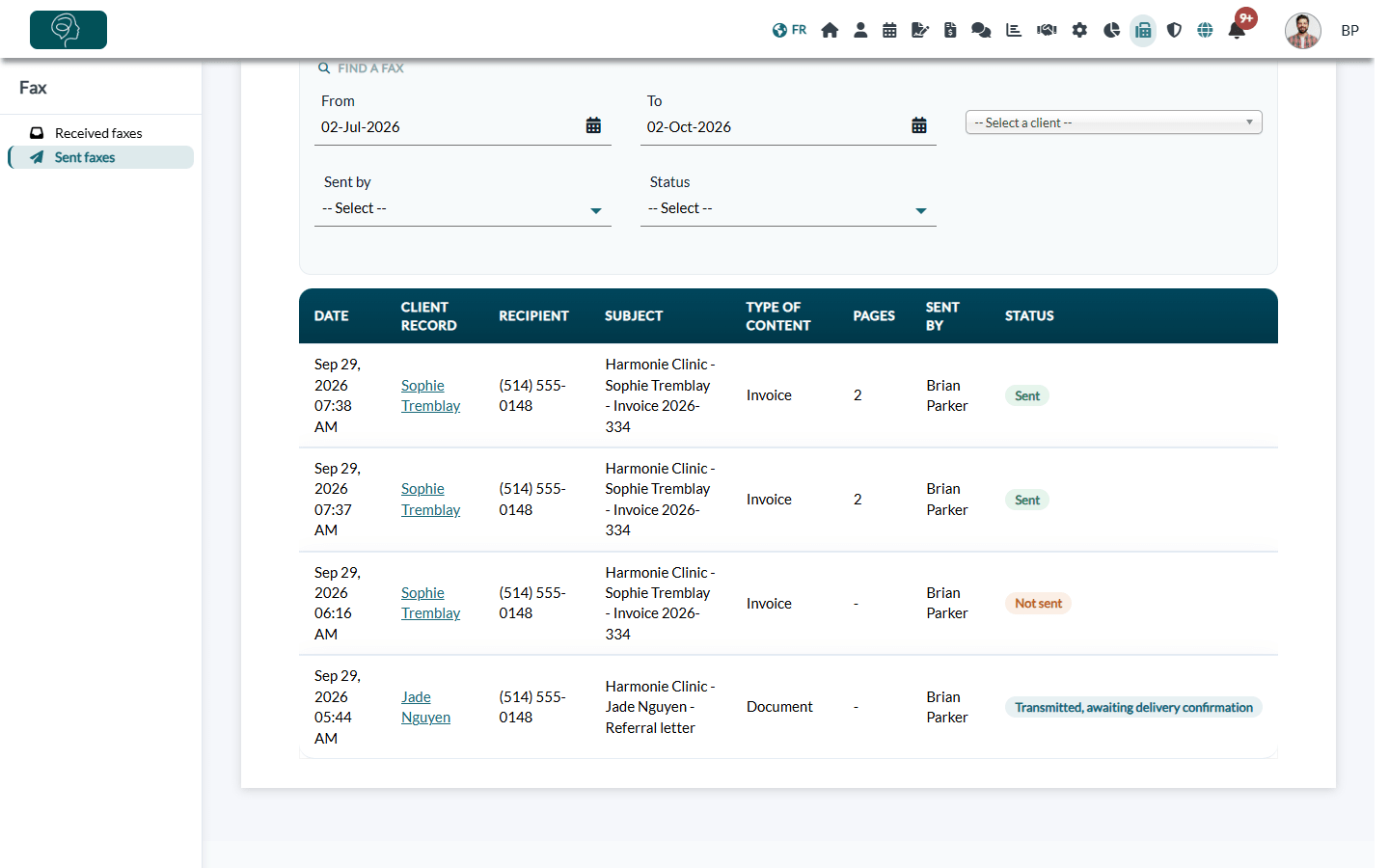
The list shows the faxes of the last three months. Use the filters to narrow it down:
- From and To — the period.
- Select a client — a searchable list of your clients.
- Sent by — the team member who sent the fax.
- Status — transmitted, sent or not sent.
Hover over a Not sent status to see the reason given by the provider. You only see the faxes of the clients you are allowed to view.
Note: the Fax menu only appears once your clinic has connected its own SRFax account, and only for the team members who have access to the fax inbox. See How to receive faxes in Colib with your own SRFax account. Without it, you follow your faxes in the Communications tab of each client's record.
Which number do my faxes come from?
- Your clinic has connected its own SRFax account: your faxes are sent from your SRFax number, and your correspondents can fax you back on it.
- Otherwise: your faxes are sent from the Colib shared number. Your correspondents cannot fax you back on that number, which is why the cover page invites them to reply by email.
Good to know
- Canadian provider — our fax provider is SRFax, a Canadian company based in British Columbia. Its fax service is PHIPA compliant, and faxes are stored in Vancouver.
- Privacy — fax numbers, recipient names and subjects are encrypted in Colib.
- Traceability — every fax sent is recorded in your clinic's audit log.
- Receive faxes too — connect your own SRFax account to get a fax inbox in Colib: see How to receive faxes in Colib with your own SRFax account.
Still have a question?
If a fax keeps failing to a given number, or if you do not see the fax button in a client record, write to us at support@colib.io, we will be happy to help.
Was this article helpful?
That’s Great!
Thank you for your feedback
Sorry! We couldn't be helpful
Thank you for your feedback
Feedback sent
We appreciate your effort and will try to fix the article