Who is this article for?
With a dedicated fax number, your clinic receives its faxes directly in Colib: referrals, reports, results, requests for information. There is no fax machine to watch and no paper to scan, and each fax can be filed in the right client record in a few clicks.
This article explains how to connect your own SRFax account to Colib, who is alerted when a fax arrives, who can open the fax inbox, and how to use it.
Before you start: receiving faxes requires your own SRFax account. You create it and pay for it directly with SRFax: Colib charges nothing for it. See Fax: how much does it cost? To connect the account, you need access to the practice settings.
1Create your SRFax account
- Go to www.srfax.com and create your account. You choose your fax number when you sign up. There is nothing to install and no phone line to configure on your side.
- Use a unique password for this account, one that you do not use anywhere else.
- Keep the SRFax welcome email: it contains your fax number and your account number, which you need in the next step.
2Connect your SRFax account to Colib
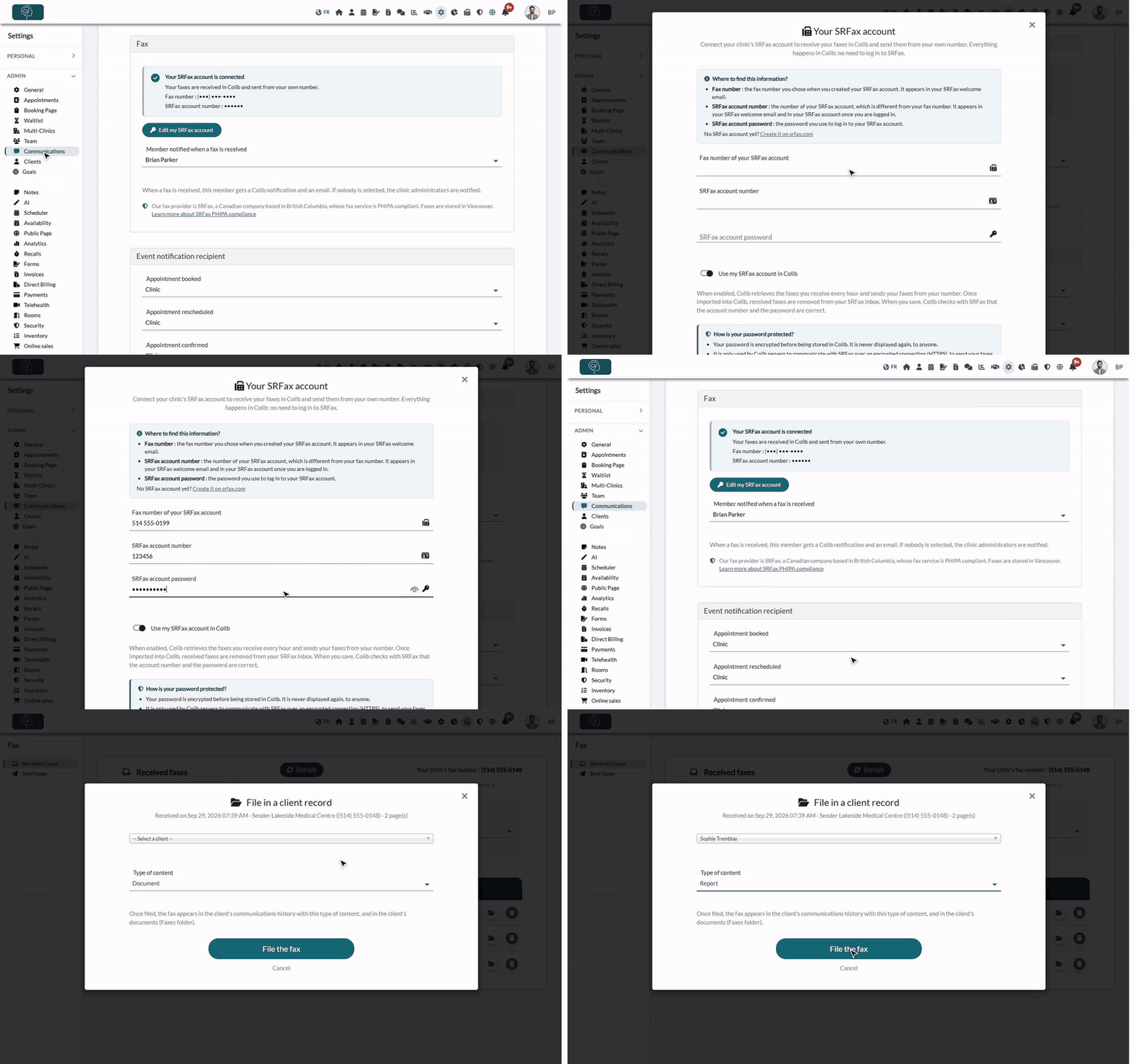
- Go to Settings > Communications (www.colib.io/settings?show=communications) and scroll down to the Fax section.
- Click Connect my SRFax account. Once an account is connected, the button becomes Edit my SRFax account.
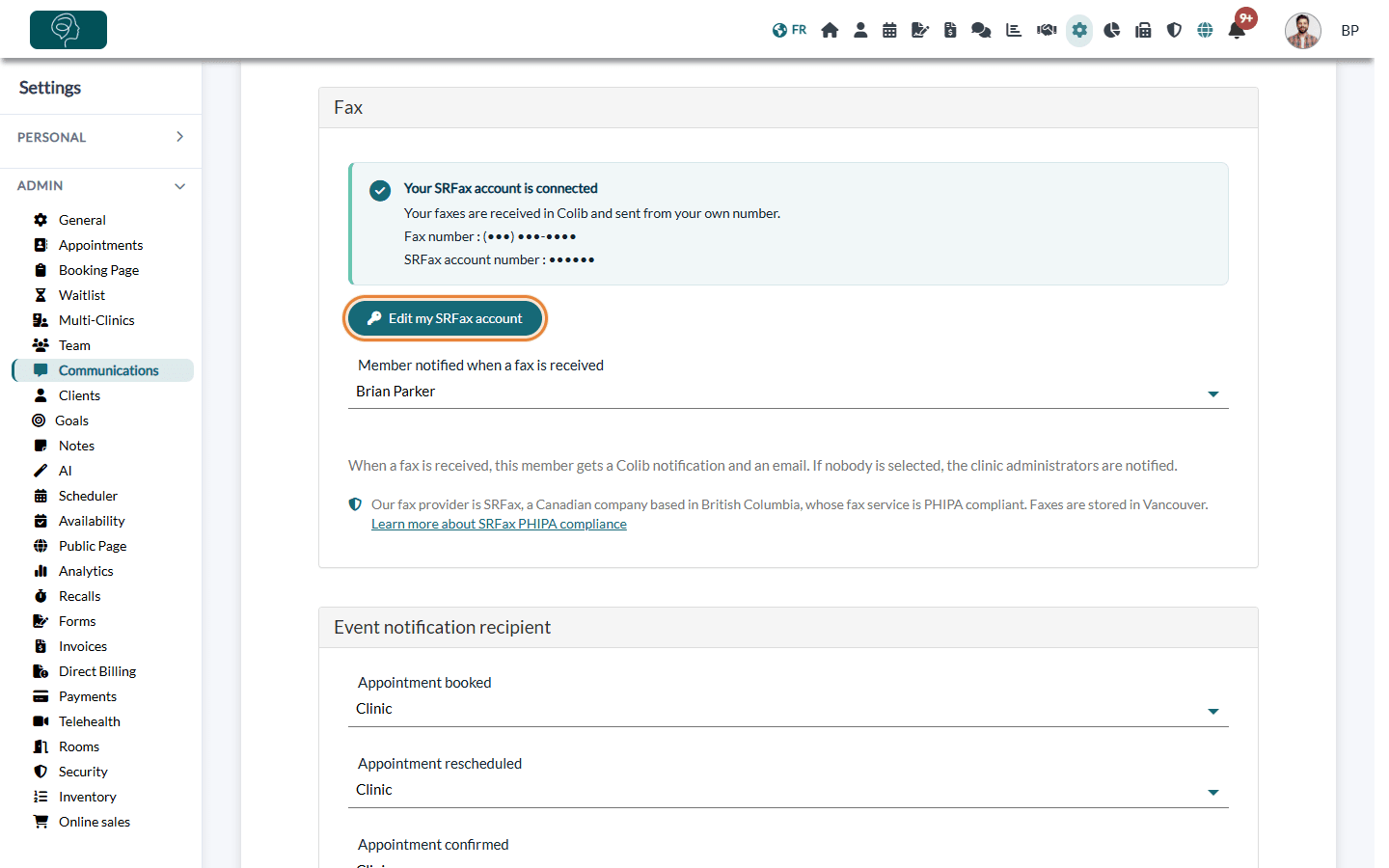
- In the Your SRFax account window, enter the Fax number of your SRFax account, your SRFax account number (it is different from your fax number) and your SRFax account password (the one you use to log in to SRFax).
- Leave Use my SRFax account in Colib turned on, then click Save.
When you save, Colib checks with SRFax that the account number and the password are correct. If SRFax refuses them, check them in your SRFax welcome email and try again. Once your account is connected:
- the faxes you receive arrive in Colib, with no need to log in to SRFax;
- the faxes you send from client records leave from your number, so your correspondents can fax you back;
- the Fax menu appears in the top bar for your team.
You can share your fax number with your network right away: referring physicians, hospitals, insurers and partner clinics. Add it to your letterhead, your email signature and your website too. Your number is shown in Settings > Communications > Fax (Your SRFax account is connected), and at the top of your fax inbox.
How is your password protected? It is encrypted before being stored in Colib and is never displayed again, to anyone. If you change it in SRFax, update it in Colib too: click Edit my SRFax account, enter the new password and save. Leave the password field empty to keep the saved one.
3Choose who is alerted when a fax arrives
- In the same Fax section of Settings > Communications (www.colib.io/settings?show=communications), open Member notified when a fax is received.
- Choose a team member, or Clinic administrators.
- Click Save at the bottom of the page.
By default, the person who created the clinic's account is alerted. You can choose this person before you connect your SRFax account: it will be ready on day one.
When a fax arrives, this person receives a Colib notification, Fax received, and an email. The email never contains the fax itself: it only invites you to open your fax inbox in Colib.
4Decide who can open the fax inbox
Every team member can open the fax inbox by default. To remove this access for someone:
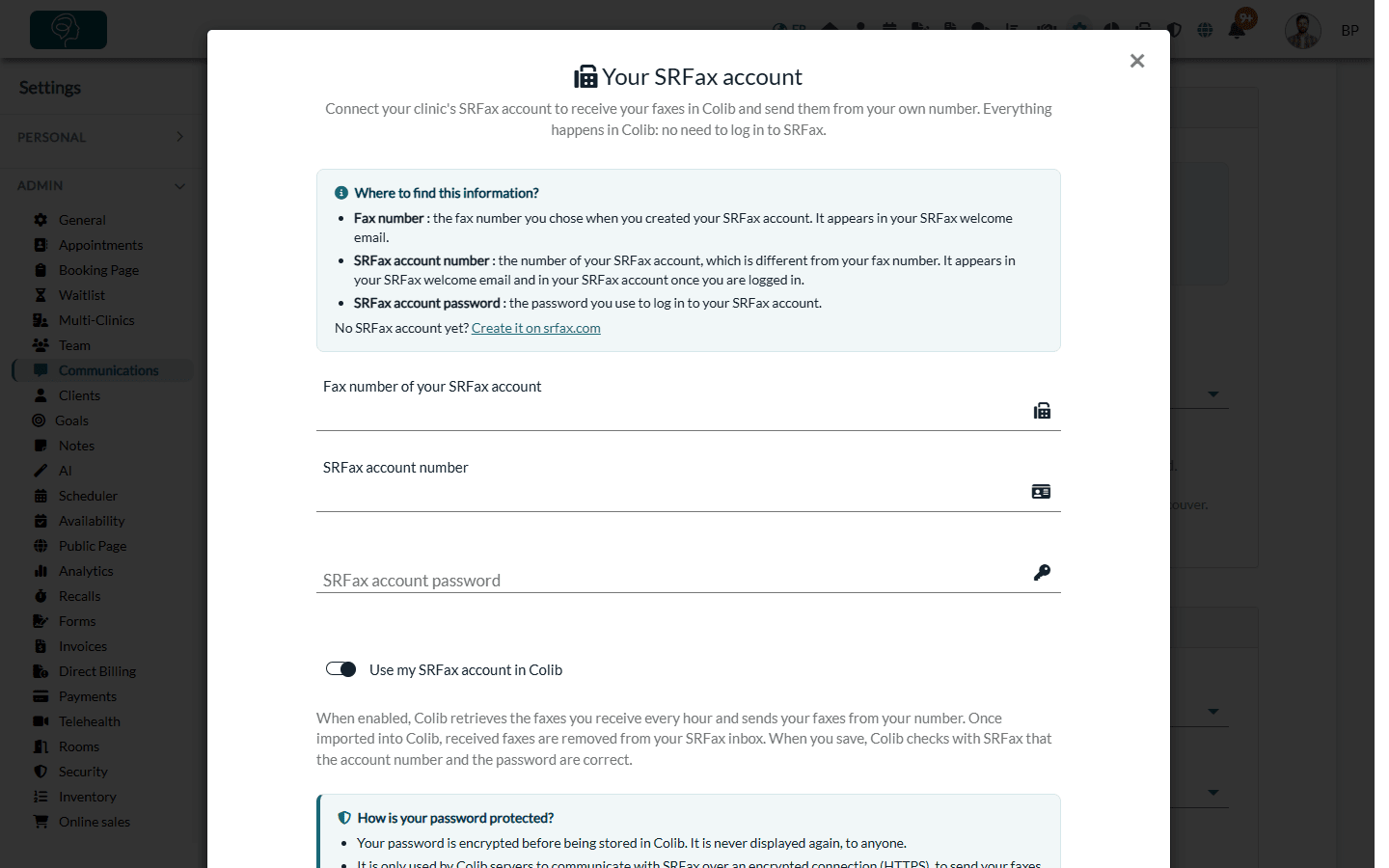
- Go to Settings > Team (www.colib.io/settings?show=team) and click the pencil icon of the team member.
- In the Rights section, turn off Access to the fax inbox.
- Click Save.
Using your fax inbox
Click Fax in the top bar (www.colib.io/faxes). The Received faxes tab opens first, with your clinic's fax number at the top, and shows the faxes of the last three months.
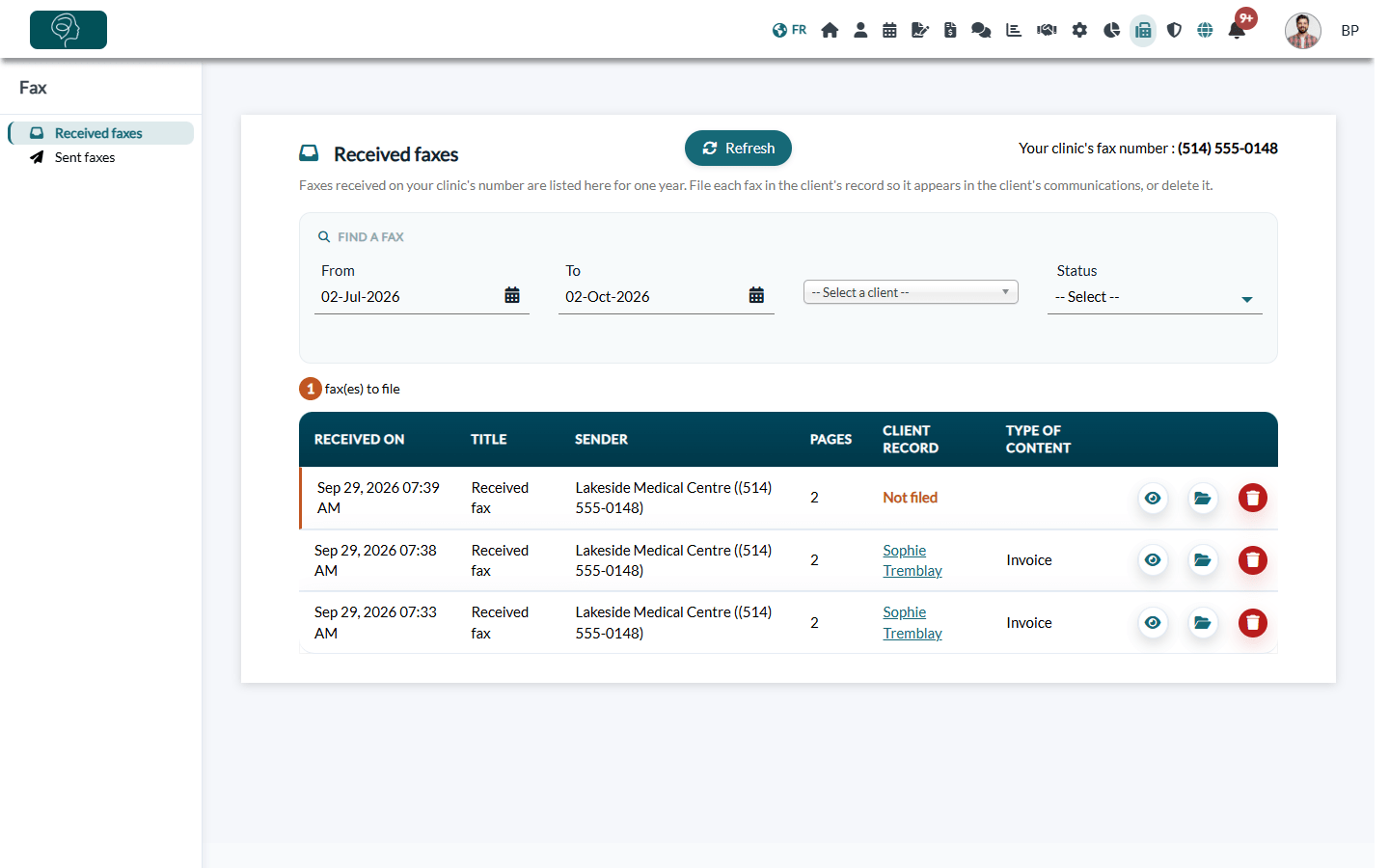
For each fax, you see:
- Received on — the date and time of receipt.
- Title — the identification sent by the sender's fax machine, or Received fax if there is none.
- Sender — the sender's fax number. If this number is among the recipients saved by your team when sending faxes, their name is shown next to it.
- Pages, the Client record where the fax is filed (Not filed otherwise) and its Type of content.
The number of faxes still to file is shown above the list. Use the filters to find a fax by period, by client, or by status: To file or Filed.
Who sees what: faxes that are not filed yet are visible to every team member who has access to the fax inbox. Once a fax is filed in a client record, only the team members allowed to view that client's documents can see it and open it.
New faxes
Colib checks your fax line regularly and imports new faxes automatically. To check right away, click Refresh: new faxes appear in the list immediately.
View a fax
Click the eye icon to open the fax in a viewer. You can browse its pages and download it.
File a fax in a client record
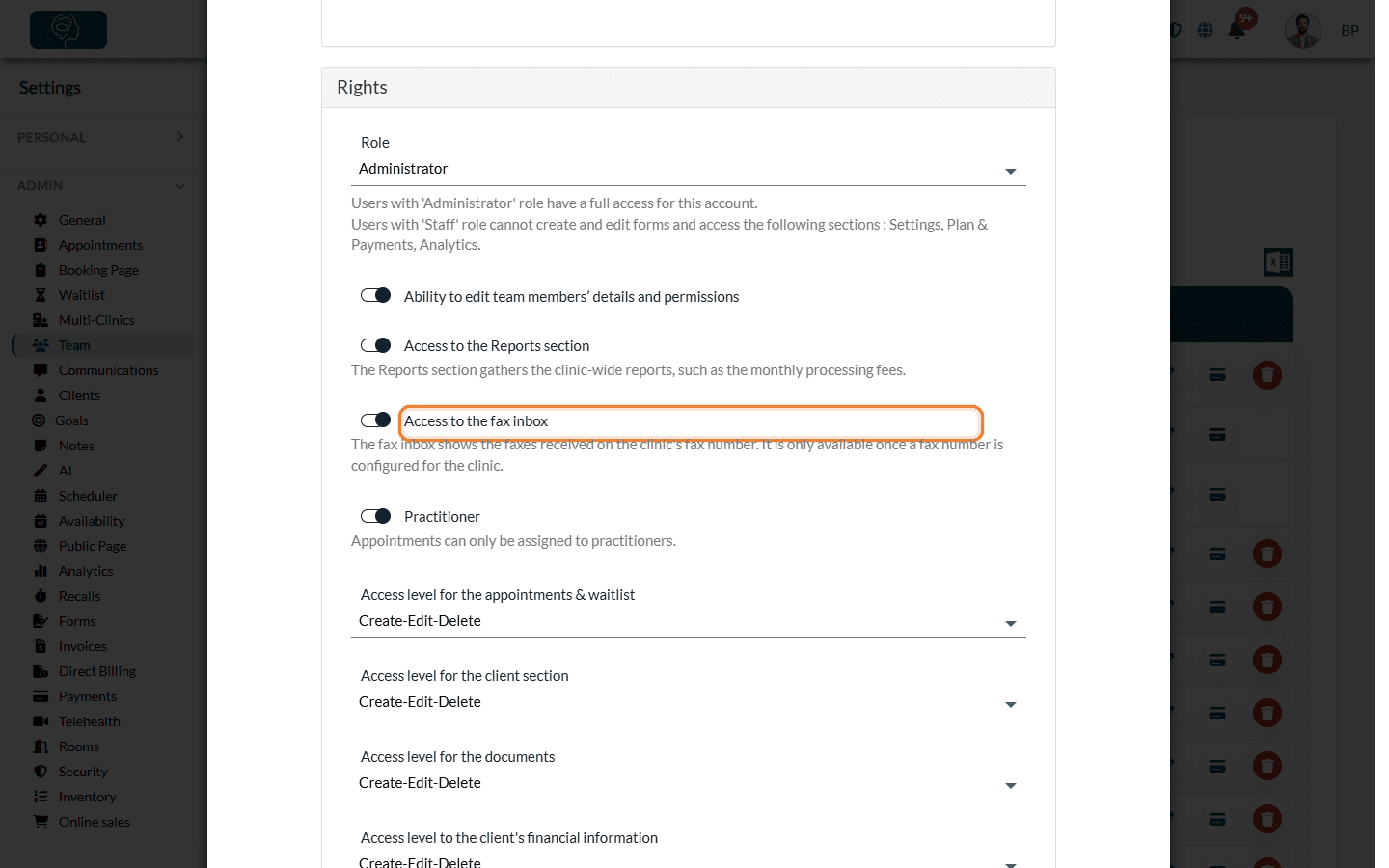
- Click the folder icon (File in a client record).
- Choose the client in the list. Type a few letters of the name to search.
- Choose the Type of content: document, report, form, invoice, receipt or other.
- Click File the fax.
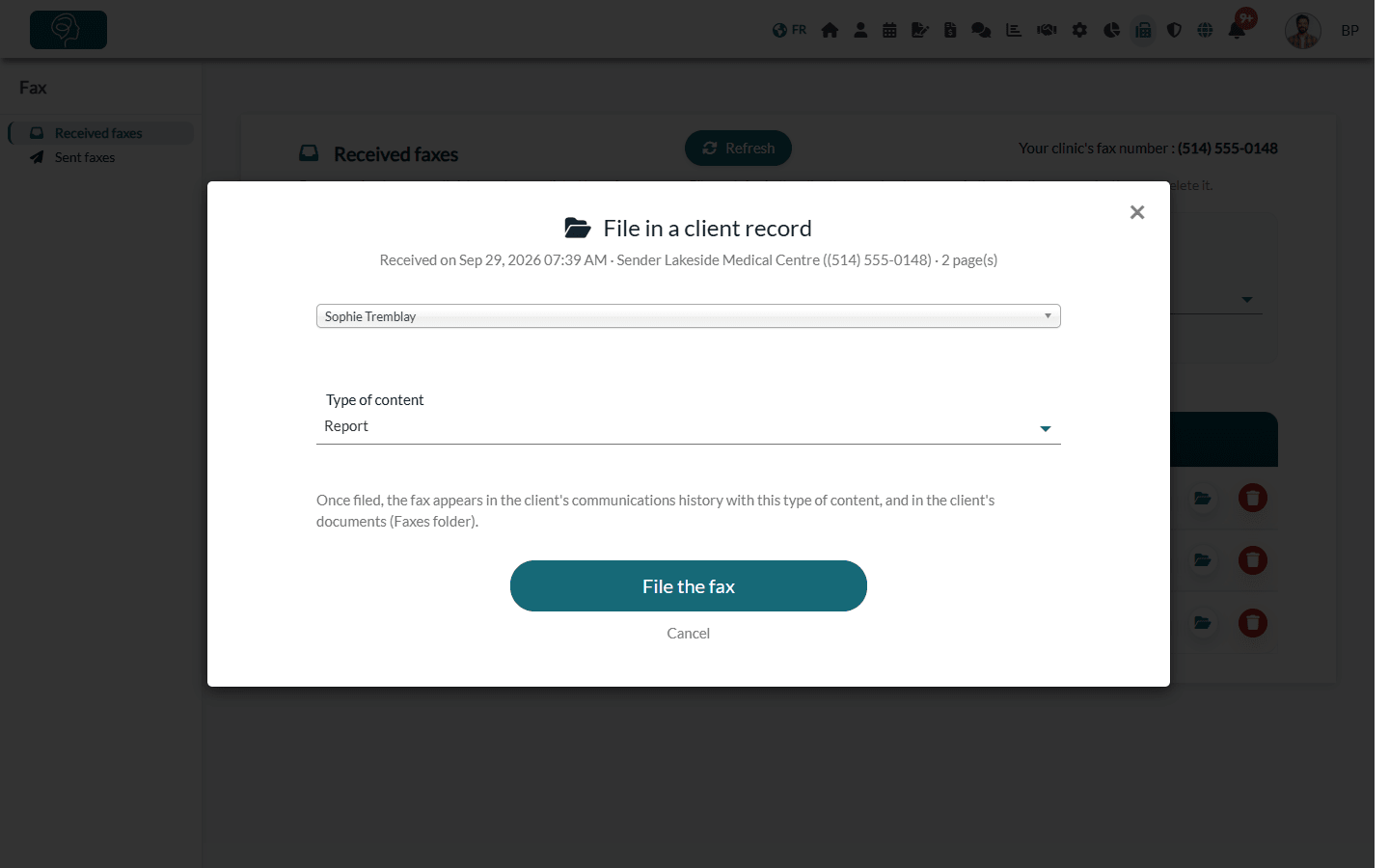
Once filed, the fax appears in two places in the client's record:
- in the Communications tab, with its type of content;
- in the Documents tab, in a Faxes folder, created automatically the first time.
Filed it in the wrong record? File it again in the right one: the document moves to the new client's record, it is not duplicated. To file a fax, you need the right to modify client documents; the list only shows the clients whose documents you can modify.
Delete a fax
Click the trash icon, then confirm. The fax is permanently deleted from the inbox. If it was already filed, the copy in the client's documents is kept, and deleting it from the inbox requires the right to modify that client's documents.
Stop using your SRFax account in Colib
Click Edit my SRFax account, turn off Use my SRFax account in Colib, then click Save. Colib stops receiving your faxes, the Fax menu disappears, and the faxes you send leave from the Colib shared number again. To close the SRFax account itself, contact SRFax.
Good to know
- Retention — received faxes stay in your fax inbox for one year, then they are deleted automatically. Faxes filed in a client record remain in the client's documents, like your other documents.
- Canadian provider — SRFax is a Canadian company based in British Columbia. Its fax service is PHIPA compliant, and faxes are stored in Vancouver.
- Imported faxes — once a fax is imported into Colib, it is removed from your SRFax inbox, and the file is stored encrypted in Colib.
- Traceability — each view, download, filing and deletion of a received fax, and each change to your SRFax account, is recorded in your clinic's audit log.
- Send faxes — see How to send a fax from a client record.
Still have a question?
If a fax you are expecting does not show up after a refresh, or for any other question, write to us at support@colib.io, we will be happy to help. For questions about your SRFax plan or invoice, contact SRFax.
Was this article helpful?
That’s Great!
Thank you for your feedback
Sorry! We couldn't be helpful
Thank you for your feedback
Feedback sent
We appreciate your effort and will try to fix the article