Who is this article for?
A client asks to come on another day, a practitioner is away, a session must start later: this article shows the two ways to move an appointment in your scheduler, what Colib does afterwards (notifications, reminders), and how your clients can reschedule by themselves.
Before you start: to move an appointment, you need the right to create, edit and delete appointments. Users who can only view the scheduler cannot move them. Open your scheduler from the calendar icon of the top bar (www.colib.io/scheduler).
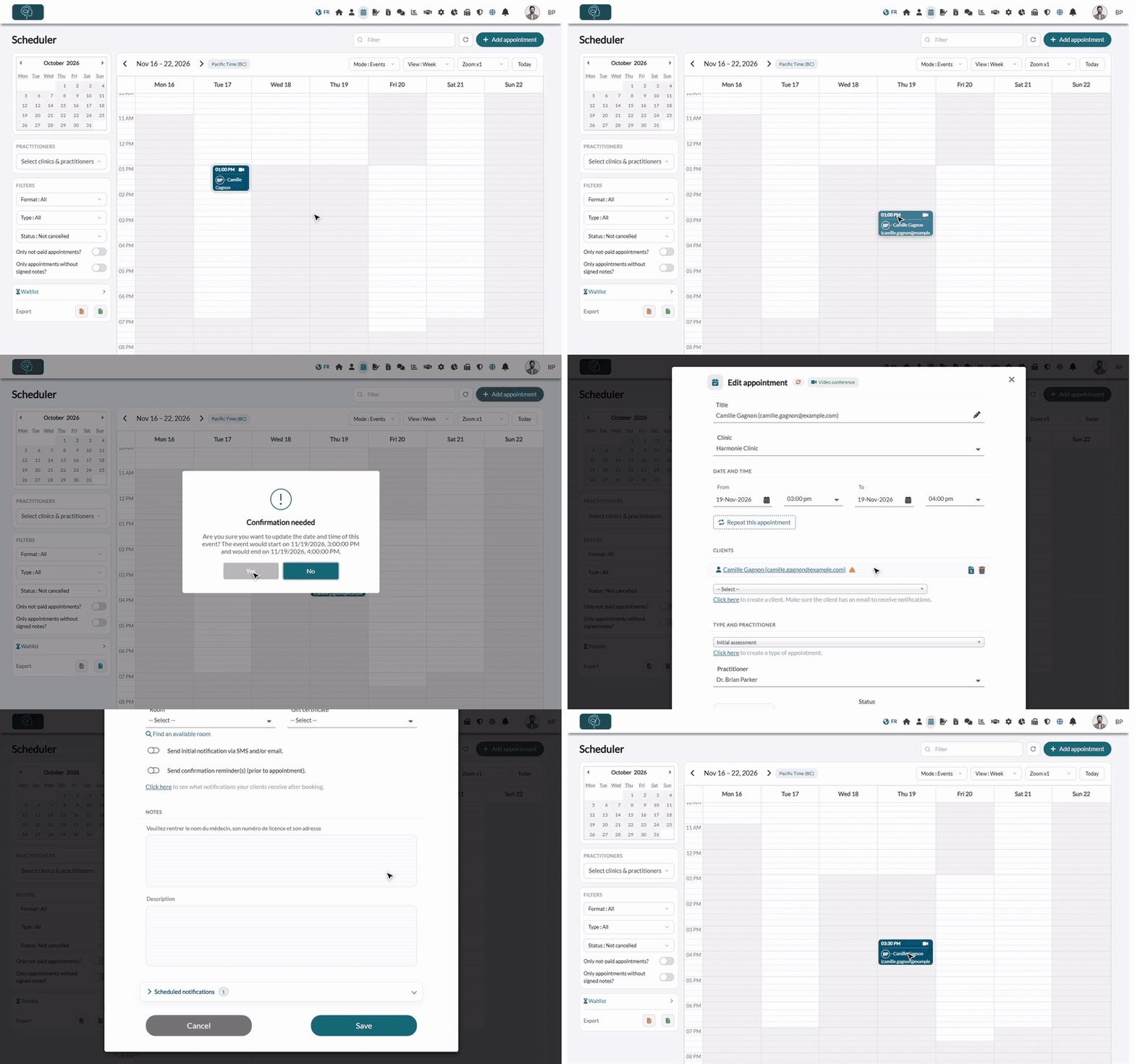
1Option 1: drag and drop the appointment
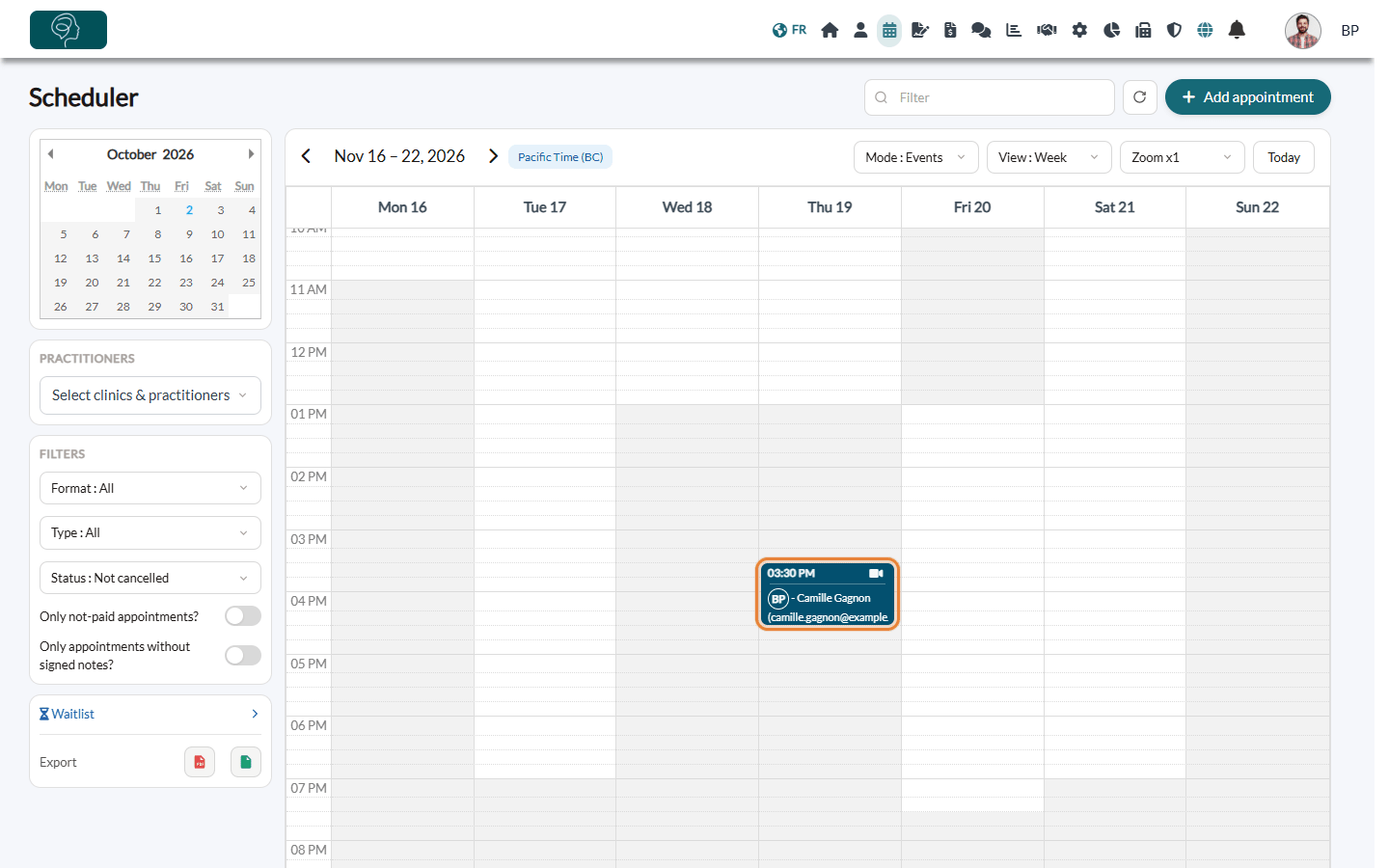
- In your scheduler, display the week (or the day) that contains the appointment.
- Click the appointment, hold the mouse button down and drag it to the new day and time. To reach another week, use the second method (step 2).
- Release the button. The Confirmation needed window shows the new start and end of the appointment.
- Click Yes to confirm, or No to put the appointment back where it was.
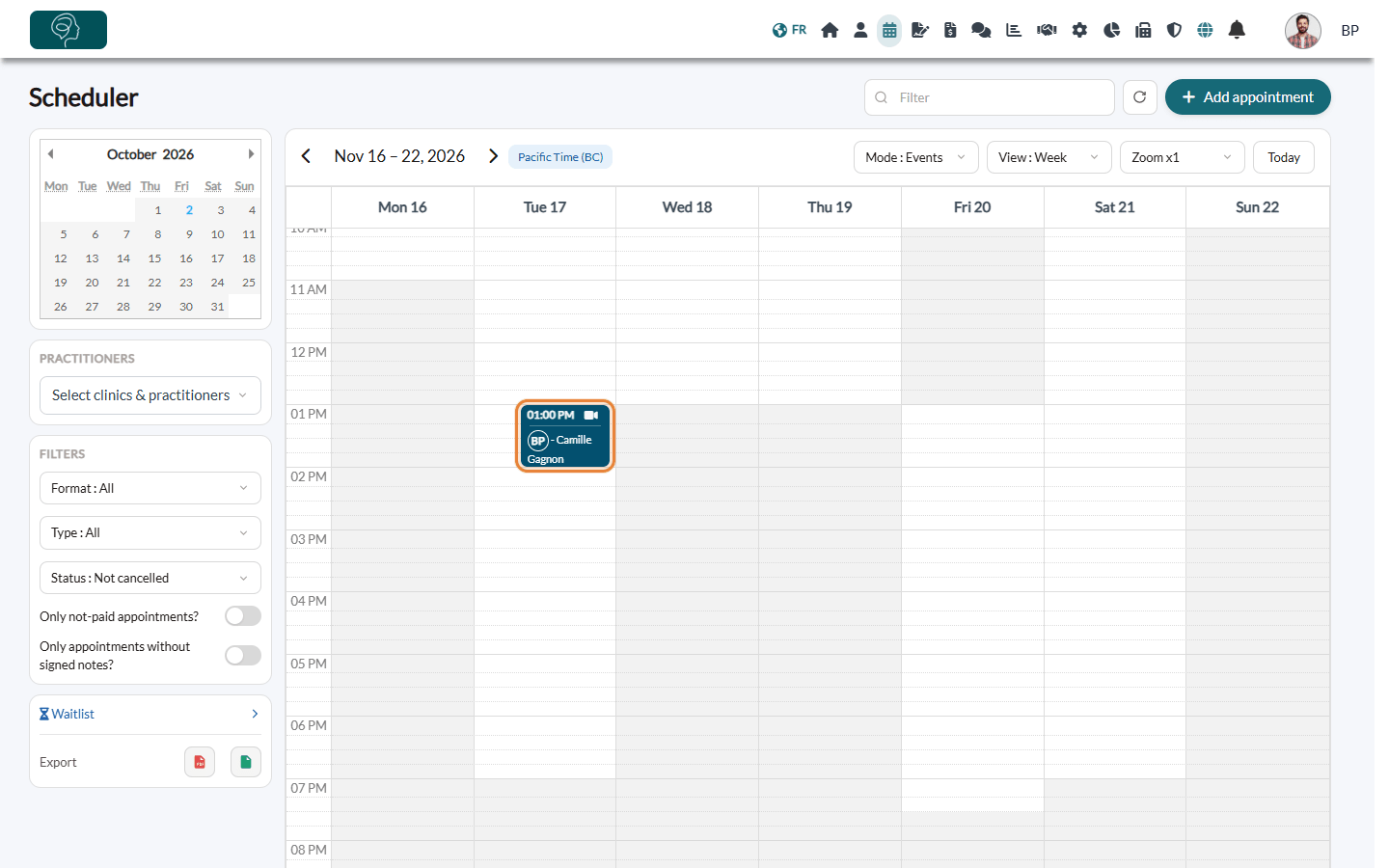
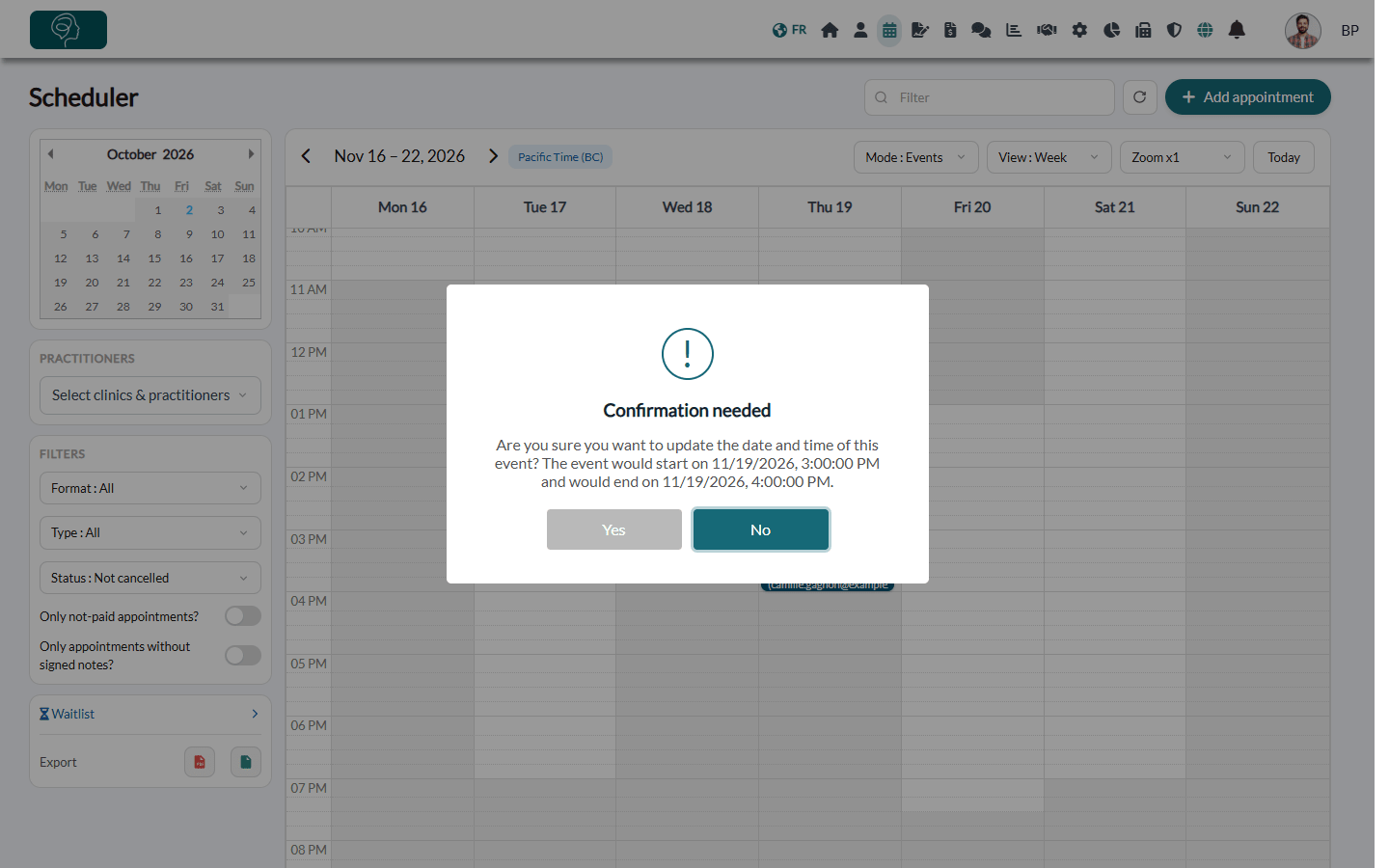
Change the duration: drag the bottom edge of the appointment up or down. The same confirmation is asked.
Drag and drop has a few limits:
- you cannot drop an appointment on a date or time that is already past;
- you cannot change the practitioner or the clinic this way: in the views by practitioner or by clinic, an appointment dropped in another column goes back to its place;
- an event that lasts several days must be changed from its window (step 2).
2Option 2: change the date and time in the appointment window
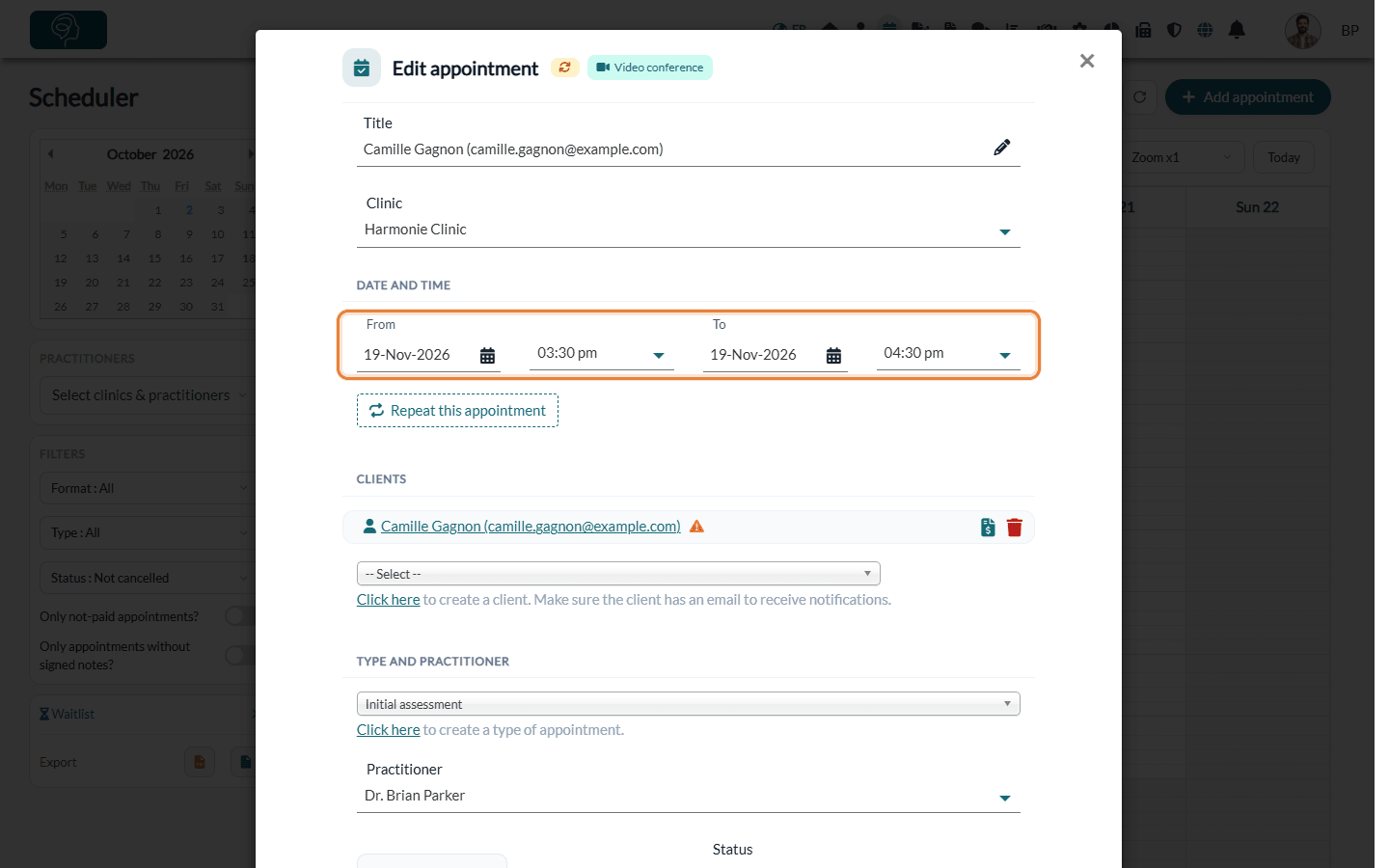
- Click the appointment in your scheduler. The Edit appointment window opens.
- In Date and time, change the date and the time of From. When you change the start time, the end time (To) moves with it, so the duration stays the same. Change To if you also want a longer or shorter appointment.
- If needed, choose another Practitioner in Type and practitioner, or another Room.
- Click Save at the bottom of the window.
The appointment appears at its new date and time.
3Notify the client (or not)
If the client had already received the notification of this appointment, Colib asks, after the move: The dates of the appointment have been modified. Do you want to notify your clients about these changes?
- Yes — the client receives an email about the change, with the new date and a calendar invitation, and a text message (SMS) saying that the appointment has been moved, according to their communication preferences.
- No — nothing is sent. Remember to tell the client yourself.
Colib does not ask this question for an appointment whose initial notification was not sent, for a cancelled appointment, or when the new date is in the past.
In all cases, the reminders of the appointment are rescheduled automatically for the new date, and the status of the appointment becomes Rescheduled.
Recurring appointments
When you save a change to an appointment that belongs to a series, Colib asks you to apply it to This appointment only or to This appointment and the following ones.
- If you changed the date, only This appointment only is available: move this occurrence first, then make your other changes.
- To change the time of all the following appointments, change only the time and choose This appointment and the following ones.
- With drag and drop, only the appointment you move changes.
See also How to create and edit recurring appointments.
When your clients reschedule by themselves
Your clients can move an appointment with the Modify my appointment link of their emails, the link of their text messages, or the Modify link of their appointment in the client portal. They then choose a new time slot on your booking page.
- This is always possible for the appointments they booked online. For the appointments you created in your scheduler, turn on Allow clients to edit appointments that were booked by practitioners in Settings > Booking Page (www.colib.io/settings?show=bookingpage).
- To refuse last-minute changes, set the minimum notice in Settings > Scheduler (www.colib.io/settings?show=scheduler): Do not allow cancelling or rescheduling under ... hours before the appointment. This field appears when Allow clients to cancel their appointments is turned on. Past this limit, the client is asked to contact you.
- You are notified in Colib when a client reschedules. Choose who receives this notification in Settings > Communications (www.colib.io/settings?show=communications), event Appointment rescheduled. To also receive an email, turn on Receive an email notification for each appointment booked, cancelled or updated by the client in Settings > Booking Page.
Good to know
- Check availability yourself — when you move an appointment, Colib only checks that the room is free (if the appointment has a room). It does not warn you about another appointment at the same time: look at the scheduler before you drop it.
- A colleague's appointment — when you drag and drop an appointment of another practitioner, that practitioner receives a notification in Colib with the previous and the new date.
- Resend the confirmation — to send the confirmation again after a change, open the appointment, click More actions, then Send new confirmation notifications to clients. See How can I manually resend a confirmation notification (email or SMS) for an appointment?
- Cancel instead — if the client does not want another date, cancel the appointment: see How to cancel an appointment: for practitioners and clients.
Still have a question?
Write to us at support@colib.io, we will be happy to help.
Was this article helpful?
That’s Great!
Thank you for your feedback
Sorry! We couldn't be helpful
Thank you for your feedback
Feedback sent
We appreciate your effort and will try to fix the article