Who is this article for?
You created an appointment by mistake, a duplicate, or an event you no longer need? You can delete it from your scheduler in a few clicks. This article explains how, what happens to the client and to the information linked to the appointment, and when it is better to cancel the appointment instead.
Before you start: you need the right to edit appointments. If you do not see the More actions menu in the appointment window, ask the administrator of your clinic.
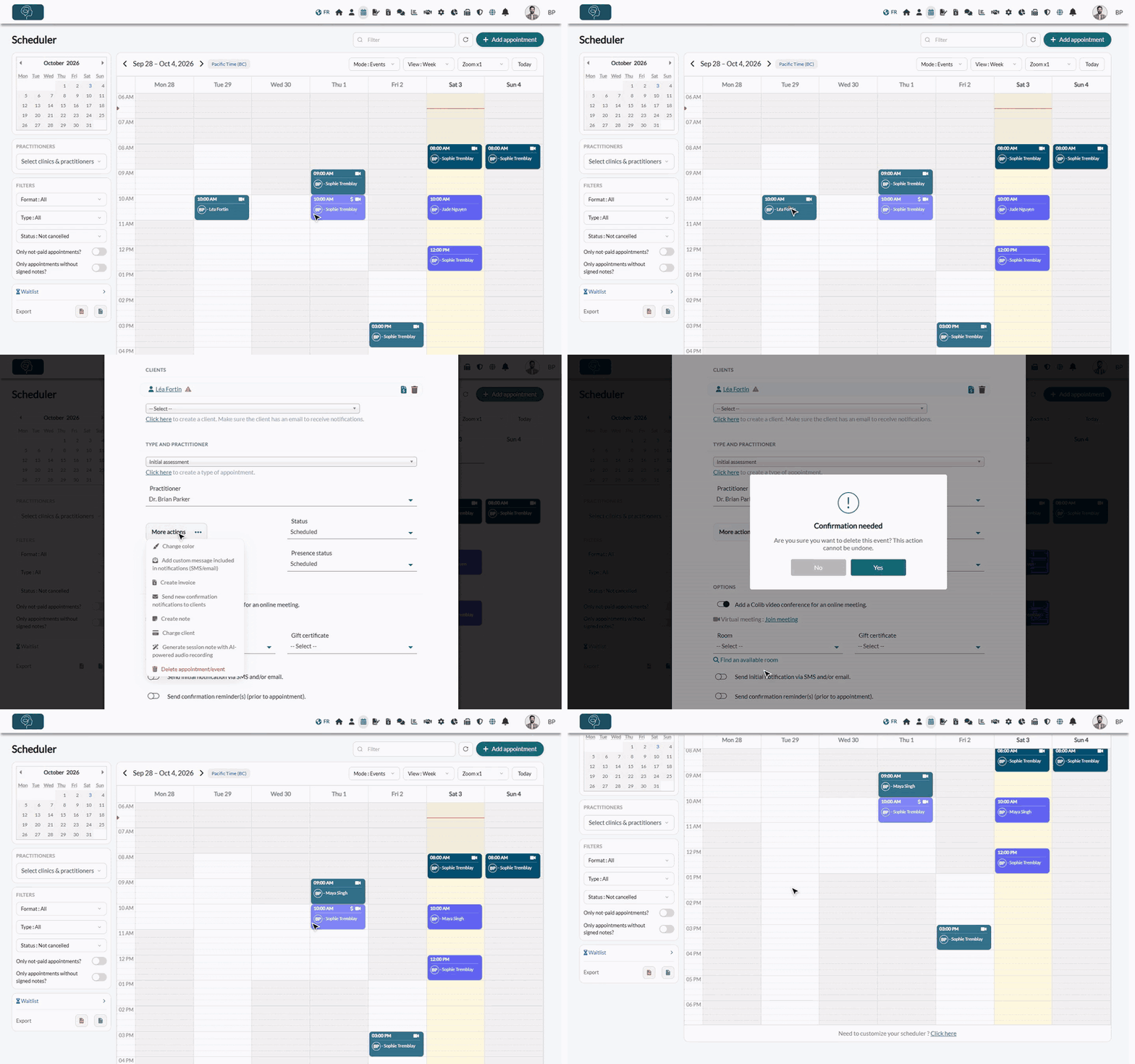
1Open the appointment
- Go to your Scheduler (www.colib.io/scheduler).
- Find the appointment (use the arrows or the small calendar to change week) and click it. The appointment window opens.
You can also open an appointment from the Appointments / Tasks list of a client record, by clicking its date.
2Delete it
- In the appointment window, click the three dots next to More actions.
- Click Delete appointment/event (in red, at the bottom of the menu).
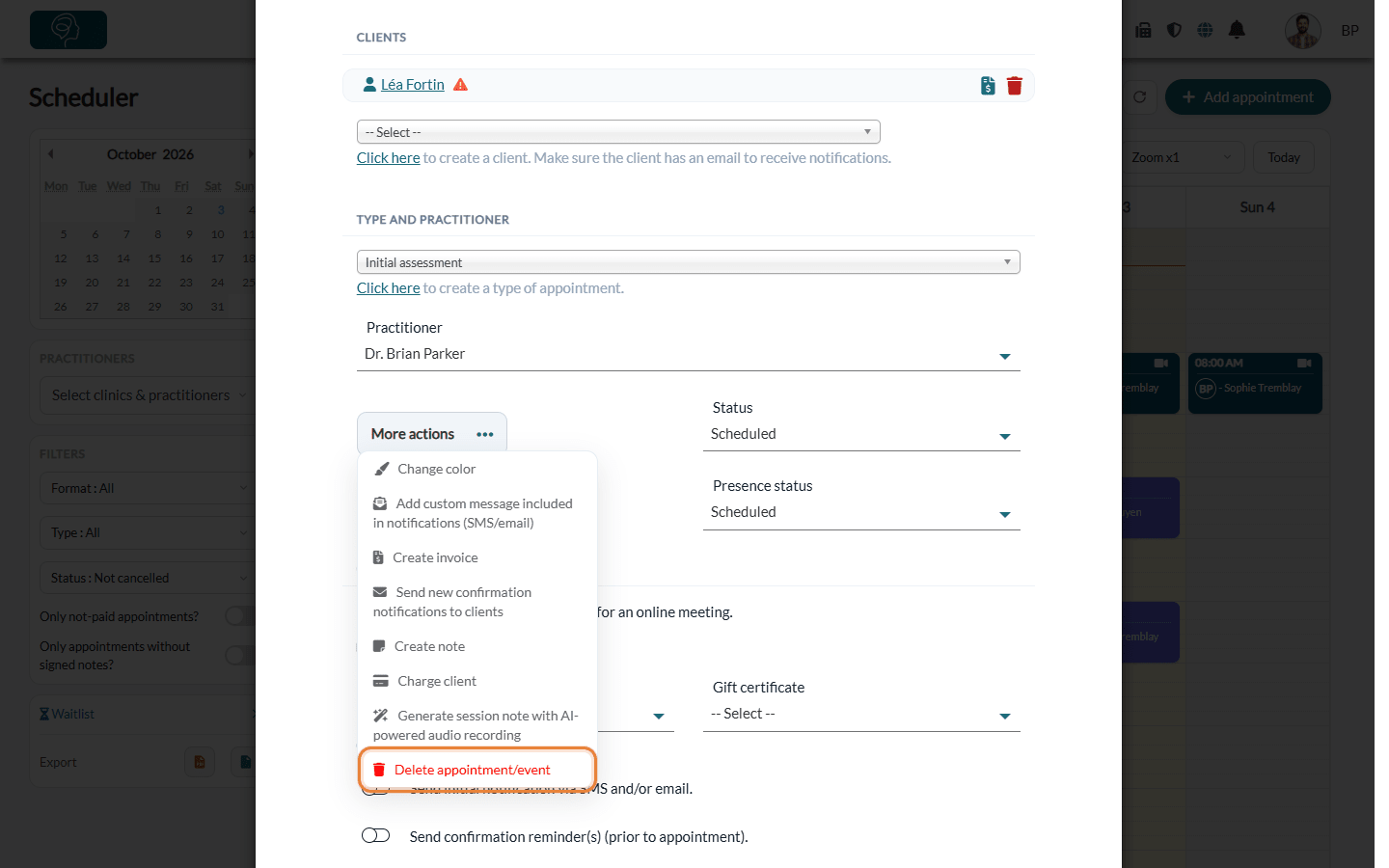
- A confirmation message asks: Are you sure you want to delete this event? This action cannot be undone. Click Yes to delete, or No to keep the appointment.
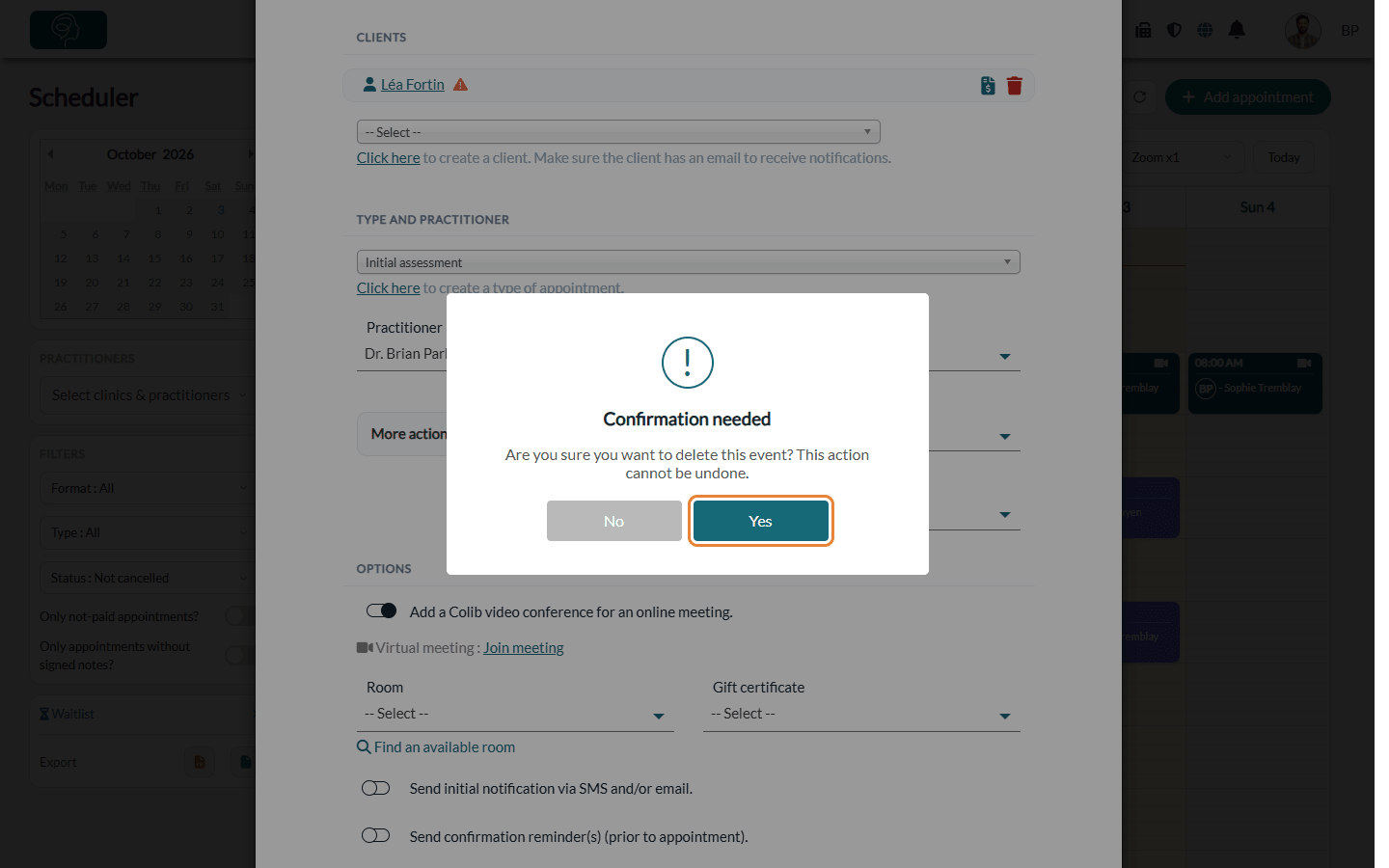
The window closes and the appointment disappears from your scheduler. The same steps also delete a task or a busy event.
What happens when you delete an appointment
- The client is notified if the appointment is in the future — a cancellation notice is sent to the clients of the appointment when the appointment has not passed yet, was not already cancelled, and its notifications are turned on (Send initial notification via SMS and/or email). No message is sent for a past appointment.
- Reminders are cancelled — the reminders planned for this appointment are no longer sent.
- Notes, documents and invoices are kept — they stay in the client record but are no longer linked to the appointment.
- Video meeting and calendar sync — the Colib video meeting of the appointment is removed, and so is the event in your synced Google or Outlook calendar.
- Waitlist — if your waitlist is active and sends notifications to clients, the freed time slot can be offered to the clients of your waitlist.
- Team — if you delete an appointment of another practitioner, that practitioner receives a notification in Colib.
Important: a deleted appointment cannot be restored, and it no longer appears in the client's appointment history. If the client cancelled or did not show up, change the Status of the appointment to Cancelled, Late-cancelled or No-Show instead: the appointment stays in the history and you can charge a fee if needed. See How to cancel an appointment: for practitioners and clients and How to charge no-shows and late cancellation appointments.
Good to know
- Recurring appointments — Delete appointment/event only deletes the appointment you opened. To delete this appointment and all the following ones of the series, click Stop the series in the Recurring appointment box at the top of the window. Earlier appointments are kept. For the details, see the Stop the series section of the article How to create and edit recurring appointments.
- Remove only one client — in a group appointment, you do not need to delete the appointment: click the trash icon next to the client's name, then click Save.
Still have a question?
Write to us at support@colib.io, we will be happy to help.
Was this article helpful?
That’s Great!
Thank you for your feedback
Sorry! We couldn't be helpful
Thank you for your feedback
Feedback sent
We appreciate your effort and will try to fix the article