Who is this article for?
You have your own website and want your visitors to book without leaving it? Colib gives you a booking widget: a button on your site opens your Colib booking page in a window, on top of your page.
This article explains where to find the code, how to add it to your website and what to do if you prefer a simple link.
Before you start: online booking must be enabled in Settings > Booking Page (www.colib.io/settings?show=bookingpage): the Client booking type must be something other than None. You also need to be able to add HTML code to your website (most website builders offer an "HTML" or "embed code" block).
1Find your booking page and the widget code
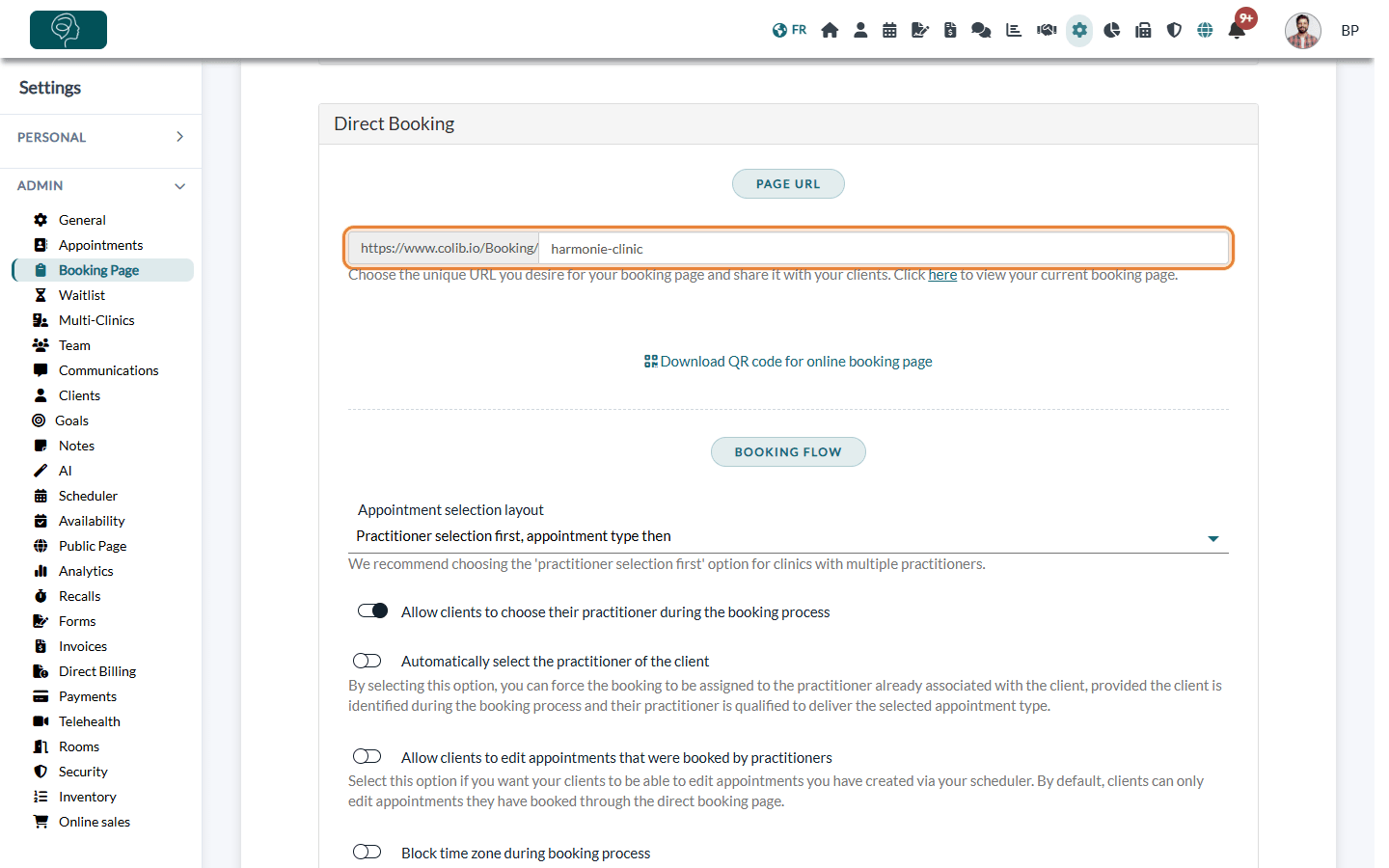
- Go to www.colib.io/settings?show=bookingpage. You can also click the Settings icon (gear) in the top bar, then Booking Page in the Admin menu on the left.
- In the Direct Booking section, Page URL shows the address of your booking page. To open the page, click the here link just below the field.
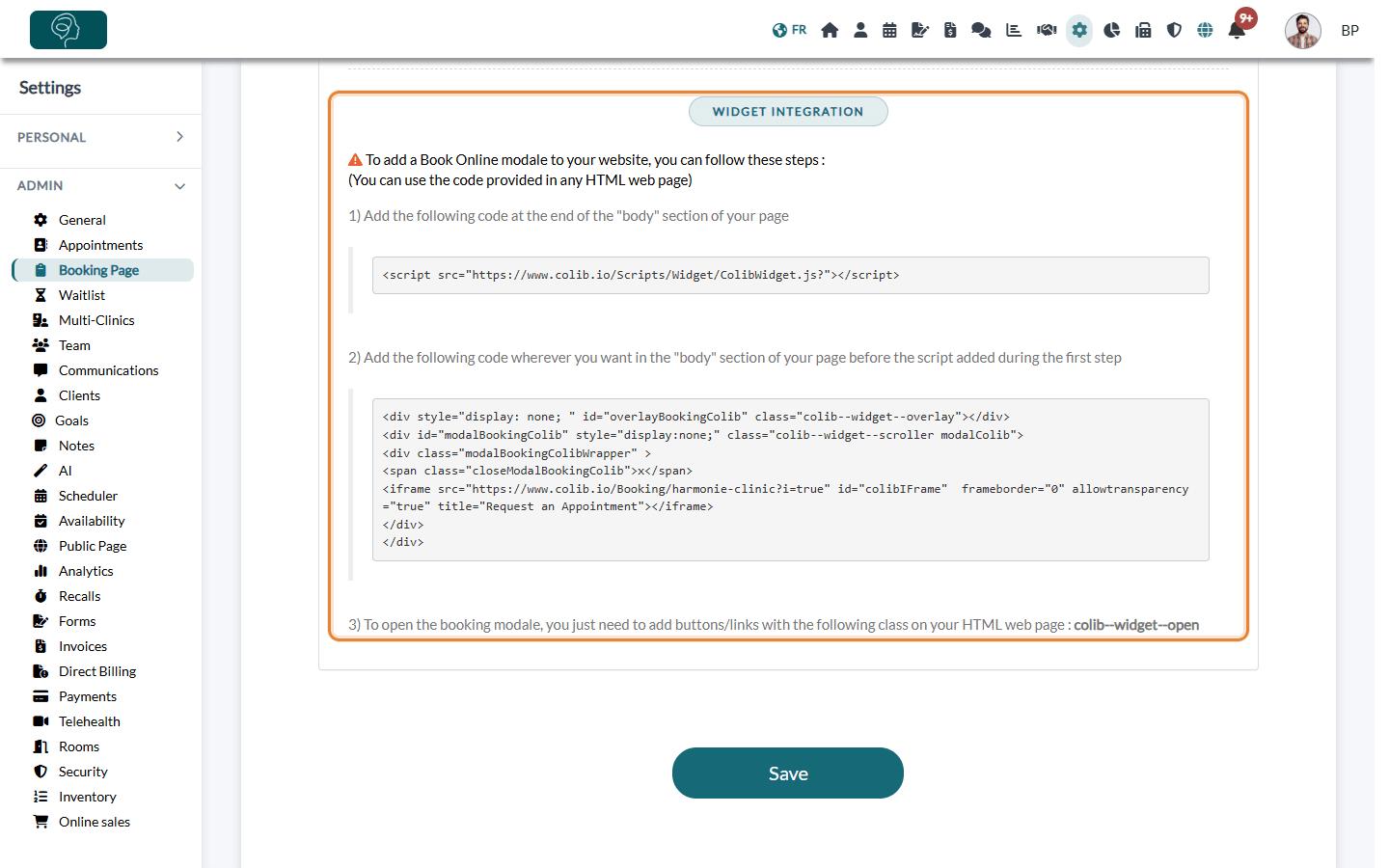
- Scroll down to the Widget integration section, at the bottom of the page: it contains the code to copy, already filled in with the address of your booking page.
2Add the code to your website
- Copy the first piece of code (the line that starts with
<script) and paste it at the end of thebodysection of your page. - Copy the second piece of code (the
<div>block) and paste it anywhere in thebodysection, before the script of the previous step. - On your page, add the class
colib--widget--opento the button or link that must open the booking window. For example:<a class="colib--widget--open">Book online</a>. - Publish your page.
3Test the result
Open your website and click your button: your booking page opens in a window above your page. Your visitors choose their appointment and book exactly as on your Colib booking page. The window closes with the x at the top right or by clicking outside it.
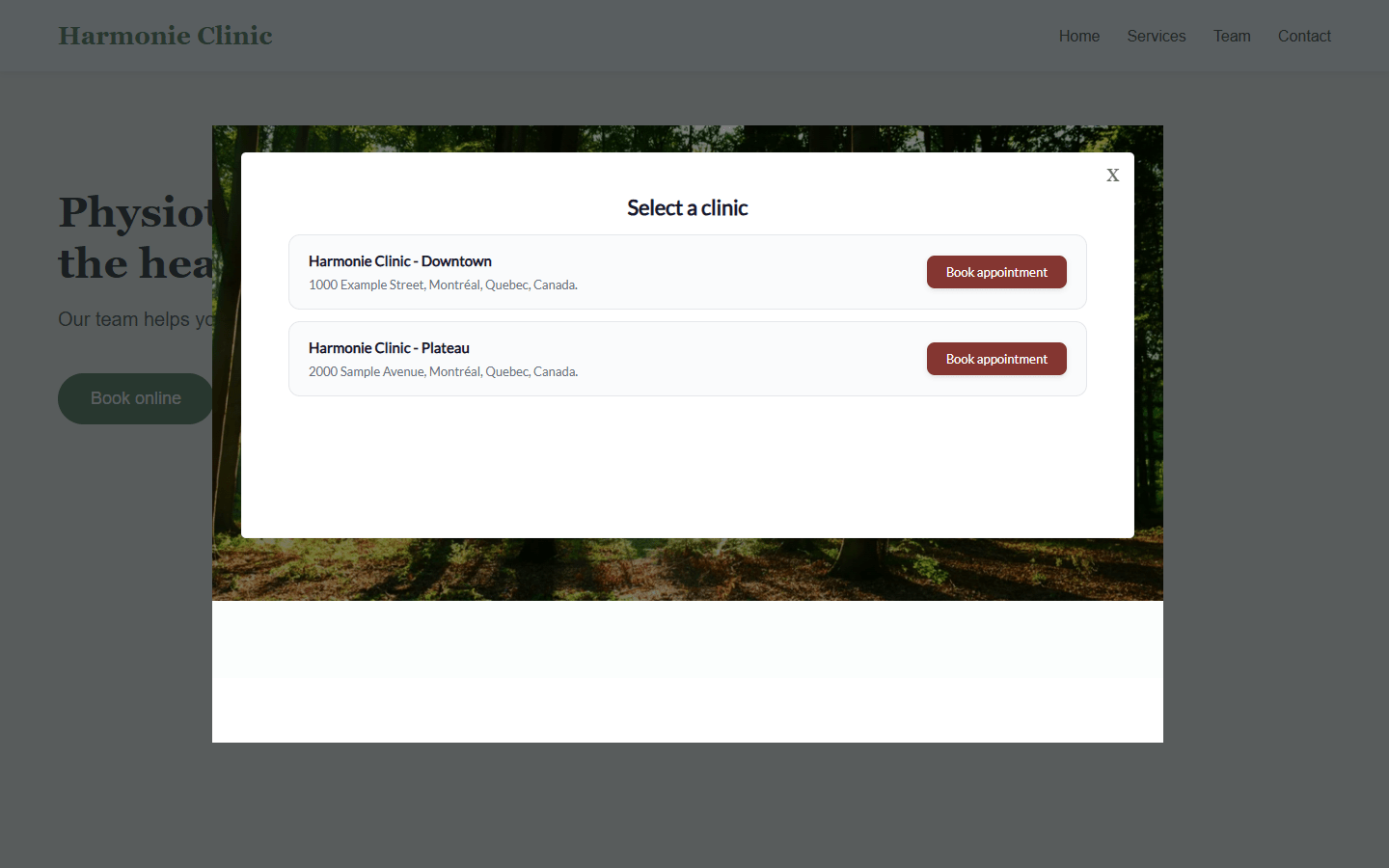
Want to see the widget before adding it to your site? Try it on our demo page: www.colib.io/practice/your-own-brand. Click the Colib booking Widget button to open the booking window.
Prefer a simple link?
If you cannot add code to your website, or if the widget does not fit your design, add a link or a button that opens your booking page address (the Page URL of step 1), for example https://www.colib.io/Booking/your-clinic. You can also print the Download QR code for online booking page QR code from the same section.
Good to know
- One button per page — only the first element with the class
colib--widget--openon a page opens the window. For other buttons on the same page, use a simple link to your booking page. - If you change your Page URL — update the code on your website: it contains the address of your booking page.
- Several clinics — your visitors first choose the clinic, as on your booking page.
- Settings stay in Colib — appointment types, availability, payment and notifications are those of your booking page: change them in Colib, the widget follows.
- Your own domain name — Colib does not support custom domain names: the widget and the link open your booking page on its Colib address. To show your logo and your practice name instead of the Colib brand, turn on Hide Colib brand in Settings > General (www.colib.io/settings?show=general).
Related articles: How do I set up the booking process in Colib?, How to create a direct link to a specific practitioner schedule, How to have a different booking page for each clinic
Still have a question?
Write to us at support@colib.io, we will be happy to help.
Was this article helpful?
That’s Great!
Thank you for your feedback
Sorry! We couldn't be helpful
Thank you for your feedback
Feedback sent
We appreciate your effort and will try to fix the article