Who is this article for?
Your clients should recognize your practice on every page they visit and in every email they receive. Colib lets you show your own logo, your practice name and your color instead of the Colib brand. This article explains the Branding options of your practice: Hide Colib brand (white label) and Theme color, and where they apply.
This is the White Label presented on our Public Webpage feature page, and the White-Label Look of our Client Portal feature page: your logo, your practice name and your color follow your clients from your public page to the booking page, the forms, the emails, the online appointment pages and the client portal. The table Where your brand appears below shows which pages always show your brand and which ones only show it when Hide Colib brand is turned on.
Before you start: these options are in Settings > General (www.colib.io/settings?show=general). You need access to the practice settings (Administrator role). Add your logo first, at the top of the same page.
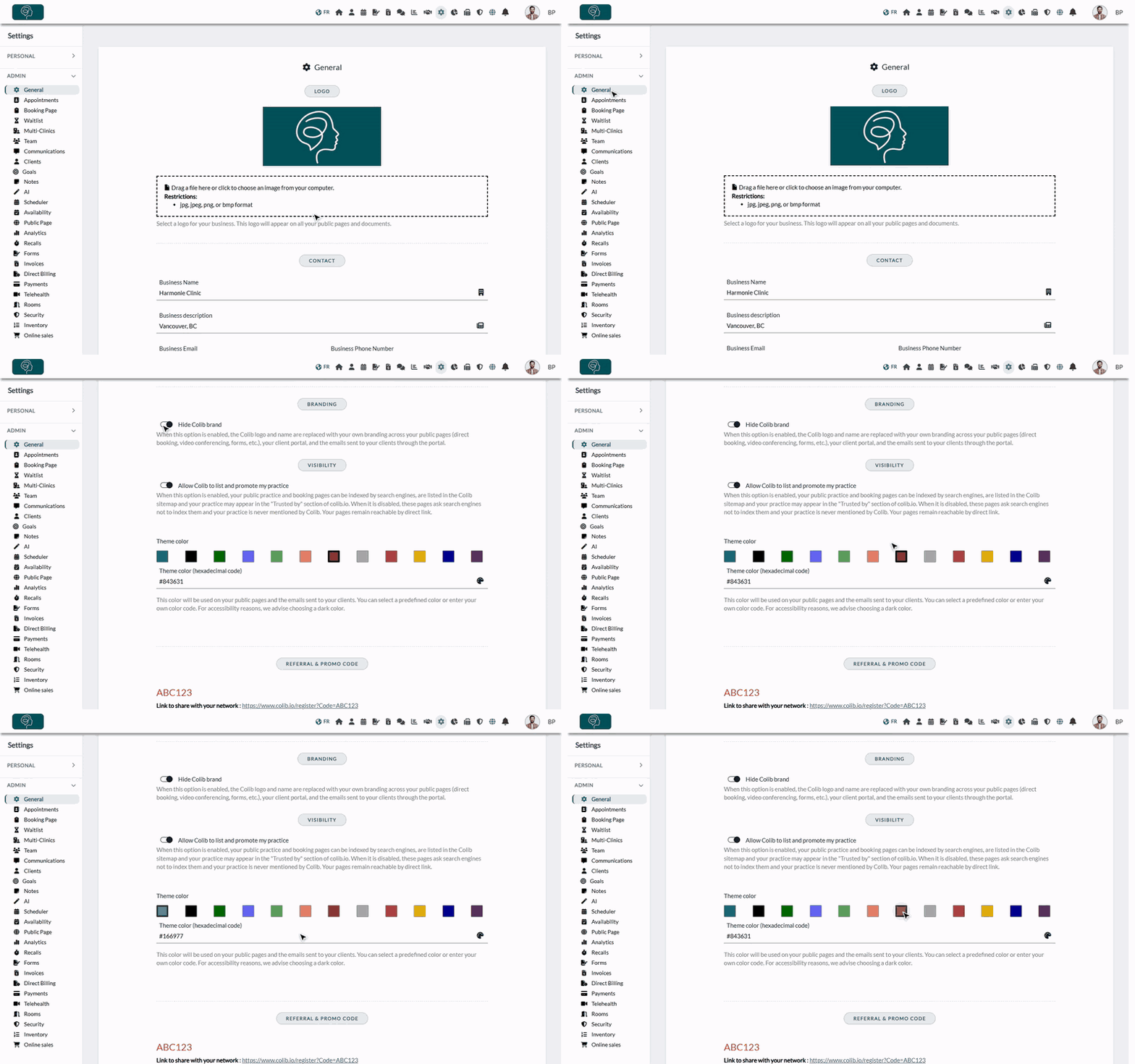
1Open the branding options
- Go to www.colib.io/settings?show=general. You can also click the Settings icon (gear) in the top bar, then General in the Admin menu on the left.
- Scroll down to the Branding section.
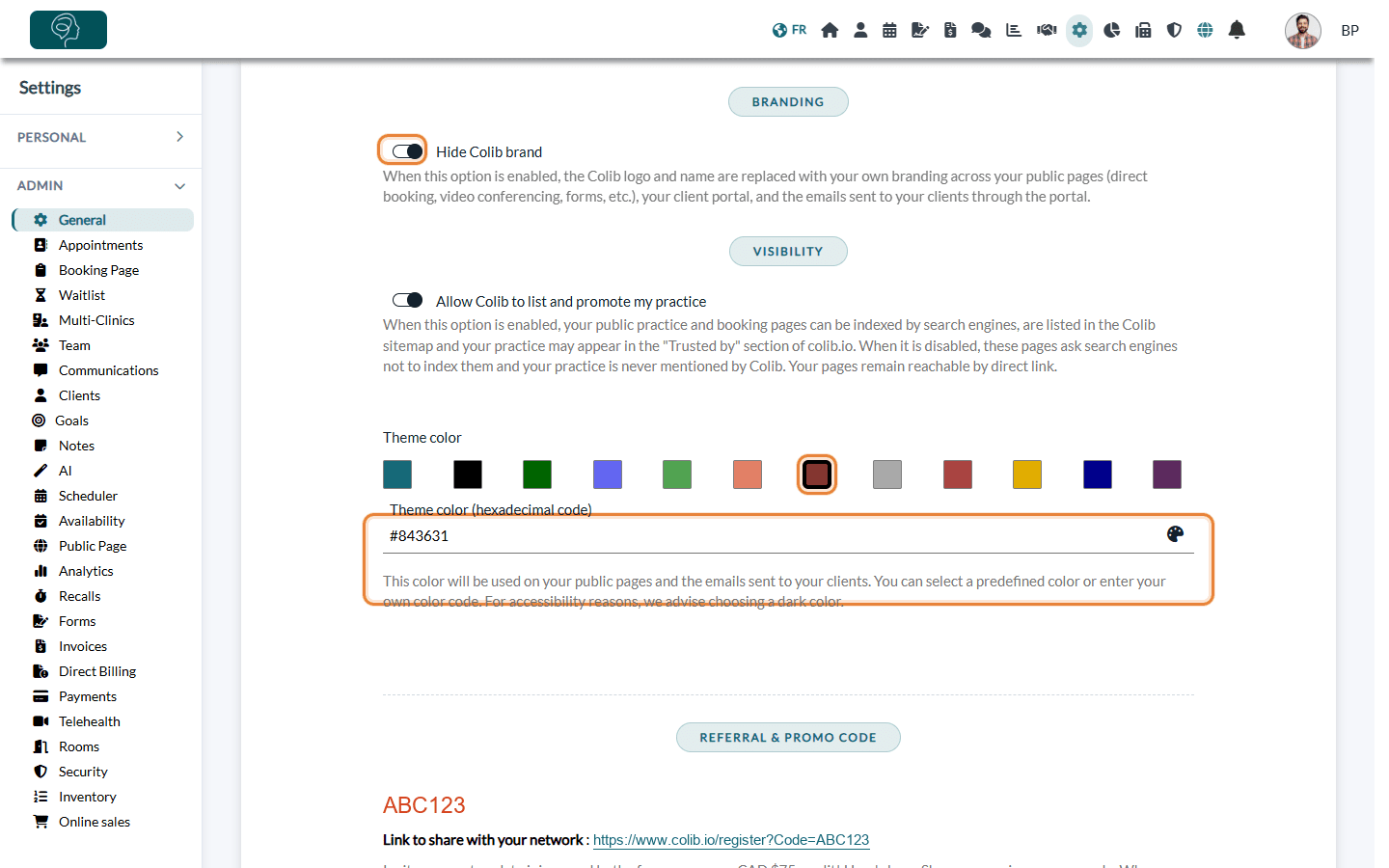
2Show your brand instead of Colib's (white label)
- Turn on Hide Colib brand.
- Click Save at the bottom of the page.
With this option, the Colib logo and name are replaced by your logo and your practice name on the client portal pages your clients see: account creation from an invitation, password reset, the portal itself and the page where the client saves a payment card for future payments. The emails the client portal sends them also carry your logo, your name and your color, without any mention of Colib.
Your booking page, your public web page, your forms and your online store always display your logo and your practice name at the top of the page. With the option on, the Colib logo in the top bar of these pages is also replaced by your logo.
Client portal: the portal shows your brand to the clients whose account is attached to your practice. A client who is followed by several practices that use Colib sees the brand of the practice their account is attached to.
3Choose your theme color
- Under Theme color, click one of the predefined colors, or type your own code in Theme color (hexadecimal code), for example #166977.
- Click Save at the bottom of the page.
The color is used for the buttons and highlights of your public pages (booking page, public web page, forms) and in the emails sent to your clients.
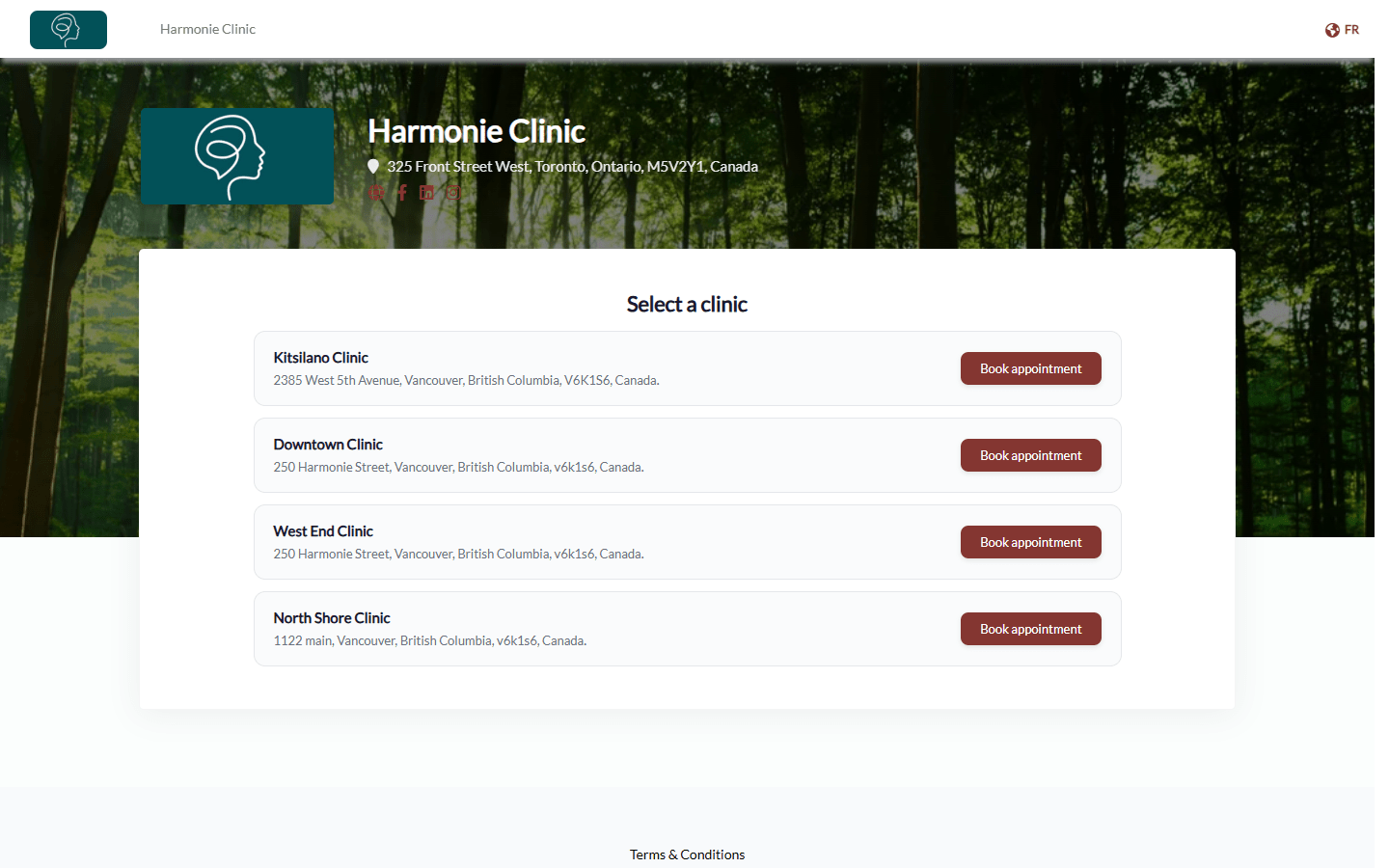
Important: choose a dark color: white text is written on it, and a light color (yellow, light gray...) makes your buttons hard to read. A code that is not a valid hexadecimal color is replaced by the default Colib color when you save.
Where your brand appears
Your logo and your practice name come from Settings > General; your color is the Theme color. Here is where your clients see them:
| Where | Your logo and practice name | Your theme color |
|---|---|---|
| Booking page, public web page, forms and online store | Always, at the top of the page. With Hide Colib brand, the Colib logo of the top bar is also replaced by your logo. | Always (buttons and highlights). |
| Emails sent to your clients (appointments, invoices, forms, messages...) | Always: your logo at the top, and the email is sent in the name of your practice. | Always (buttons). |
| Online appointment: the page where the client enters their name to join the session, and the waiting room | Always: your logo at the top of the page, and the title Online appointment followed by your practice name. The waiting room also shows your logo above the title. | Always (buttons and links). |
| Video room | Your logo and the same title at the top of the screen while the session loads, and on phones and tablets. | Not used. |
| Pages opened from an email or a text message: confirm or cancel an appointment, confirm your arrival, pay an invoice online | Always, at the top of the page. | Always. |
| Client portal: account creation from an invitation, password reset, the portal itself and its emails (see step 2) | Only when Hide Colib brand is turned on. Otherwise, these pages show the Colib brand. | In the emails of the portal, only when Hide Colib brand is turned on. |
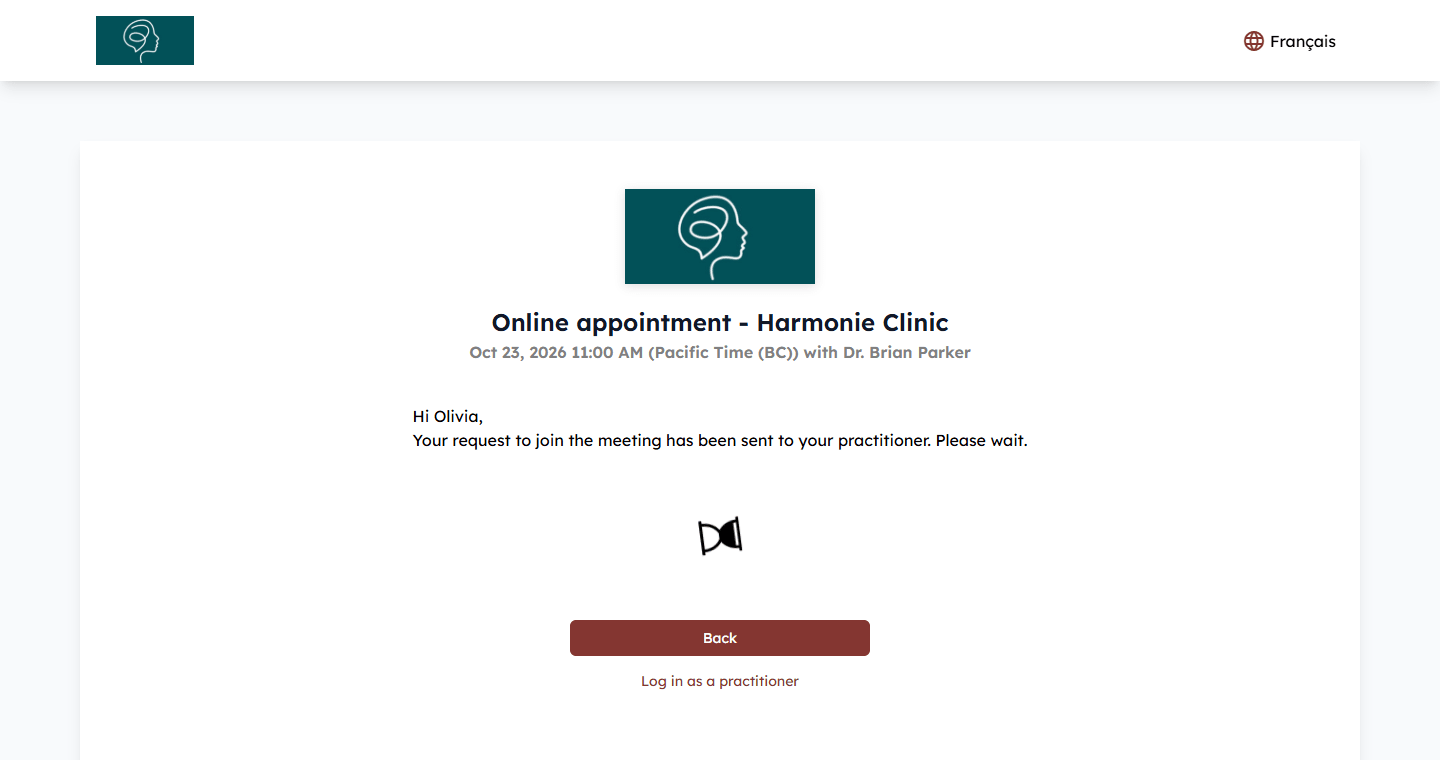
Online appointments: the page to join the session and the waiting room look the same whether Hide Colib brand is on or off. The page to join the session also tells the client that by joining, they agree to Colib's Terms of Service and Privacy Policy. To learn more about the waiting room, see How does the waiting room work for online meetings?
Can I use my own domain name?
No. Colib does not support custom domain names: your booking page, your public web page and your forms stay on the Colib address (www.colib.io), and the client portal on its own Colib address. Hide Colib brand changes the logo and the name shown on these pages, not their address.
To keep your clients on your own website, you have two options:
- Embed the booking widget in your website: a button on your site opens your Colib booking page in a window, without leaving your site. See How can I embed my booking page on my website?.
- Add a link or a button on your website that opens your booking page. You can choose the end of its address (the Page URL, for example www.colib.io/Booking/your-clinic) in Settings > Booking Page > Direct Booking (www.colib.io/settings?show=bookingpage).
Good to know
- Your logo — the logo used everywhere is the one of the Logo section at the top of Settings > General. Until you add one, the Colib logo is shown.
- Your public web page — its content (presentation, expertise, gallery...) is set in Settings > Public Page: see How to configure the public profile page of the practice.
- Your color in the scheduler — the theme color does not change the colors of Colib for you and your team, nor the colors of your appointment types in the scheduler.
- Booking options — to choose how your clients book, see What options does Colib offer for my clients to book appointments?.
- Feature pages — for an overview, see the Public Webpage and Client Portal pages.
Still have a question?
Write to us at support@colib.io, we will be happy to help.
Was this article helpful?
That’s Great!
Thank you for your feedback
Sorry! We couldn't be helpful
Thank you for your feedback
Feedback sent
We appreciate your effort and will try to fix the article