Recurrent form sendings let you automatically email a form to a client at a regular interval — for example a follow-up questionnaire every 7 days, or a monthly check-in form. Once set up, Colib sends the form by email automatically: no manual action is needed.
Before you start
- The client must have an email address in their file (or belong to a client group whose responsible person has an email and group notifications enabled). If the client has no email, the option is not displayed.
- The form must be active for your clinic.
- You need the permission to edit forms.
Create a recurrent sending
1. Open the client's file.
2. Go to the Forms section, then scroll to Recurrent form sendings (below the list of forms already sent). You can also use the ⋯ menu on the Forms card at the top of the client's file and select Add a recurrent sending.
3. Click Add a recurrent sending.
4. In the window that opens:
- Select the form to send.
- Enter the frequency in days (between 1 and 400). For example, enter 7 to send the form every week.
5. Save.
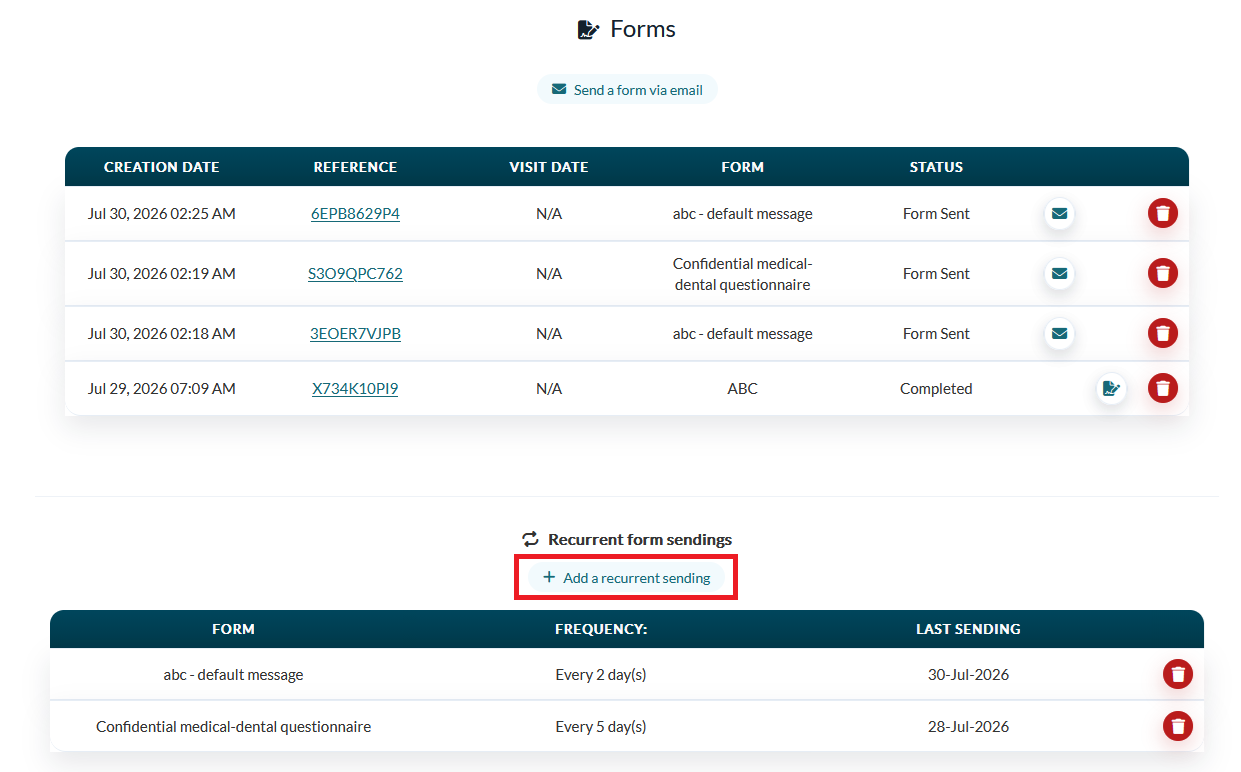
The first email is sent automatically on the next morning following the creation, then again after each interval. The Last sending column shows the date of the most recent automatic sending.
Good to know
- Only one recurrent sending per form can exist for a given client. To send two different forms on a recurring basis, create one recurrence for each form.
- Each sending creates a regular form request: the completed answers appear in the client's file and in your Forms results, exactly like a form sent manually.
- If the client stops being reachable by email or is deactivated, automatic sendings stop.
Change or stop a recurrent sending
- To stop the sendings, click the trash icon next to the recurrence in the Recurrent form sendings list.
- To change the frequency or the form, delete the existing recurrence and create a new one with the new settings.
Was this article helpful?
That’s Great!
Thank you for your feedback
Sorry! We couldn't be helpful
Thank you for your feedback
Feedback sent
We appreciate your effort and will try to fix the article