Who is this article for?
Every client record in Colib carries a consent register: a dated list, which cannot be modified, of what the client agreed to, refused or withdrew. Part of it fills itself when clients book online and sign forms. The rest is up to you: when a consent is given verbally, on paper, by a parent or through a third party, you record it yourself in a short form.
Privacy laws do not only require you to obtain consent: you must be able to show later that you obtained it, from whom, for what and when. That is what the register is for. This article explains how to read it, what Colib records on its own and how to record a consent, a refusal or a withdrawal.
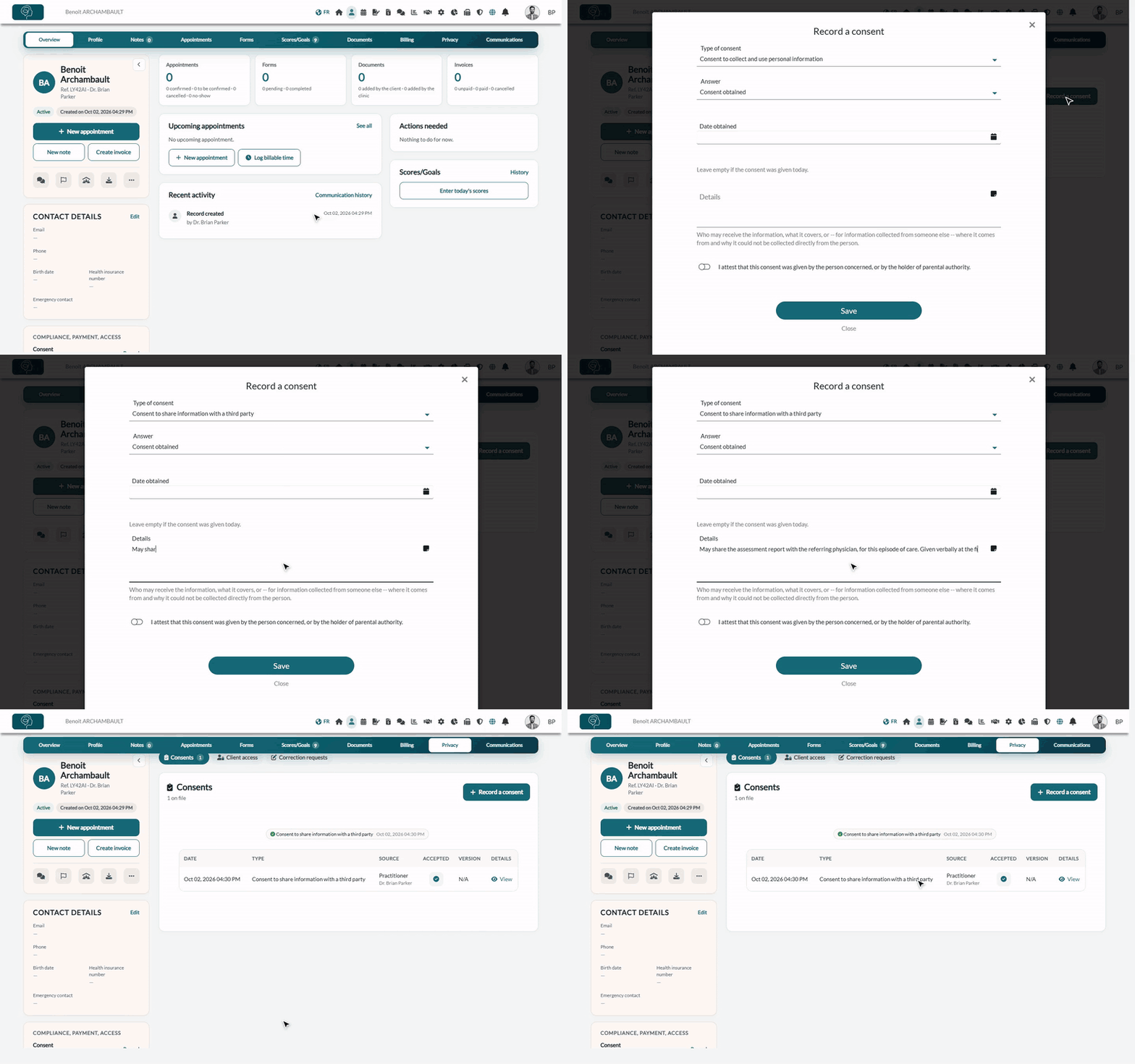
Where to find it: open the client record from your client list (www.colib.io/clients), click the Privacy tab, then Consents. The Compliance, payment, access card on the left of the record also shows Consent: Recorded with the date, or Not signed when no consent is in force.
Read the register
The section starts with one badge per type of consent, showing what applies today: a green check means the consent stands, a red cross means it was refused or withdrawn. The date beside each badge is the date of that answer.
Below, the table lists every entry ever recorded, newest first: Date, Type, Source (Online booking, Client portal, Form or Practitioner, with the name of the person who recorded it), Accepted, Version of the text accepted and Details (click View to read them). Nothing is ever overwritten: a consent that changes adds a line. Click Show all to unfold a long history.
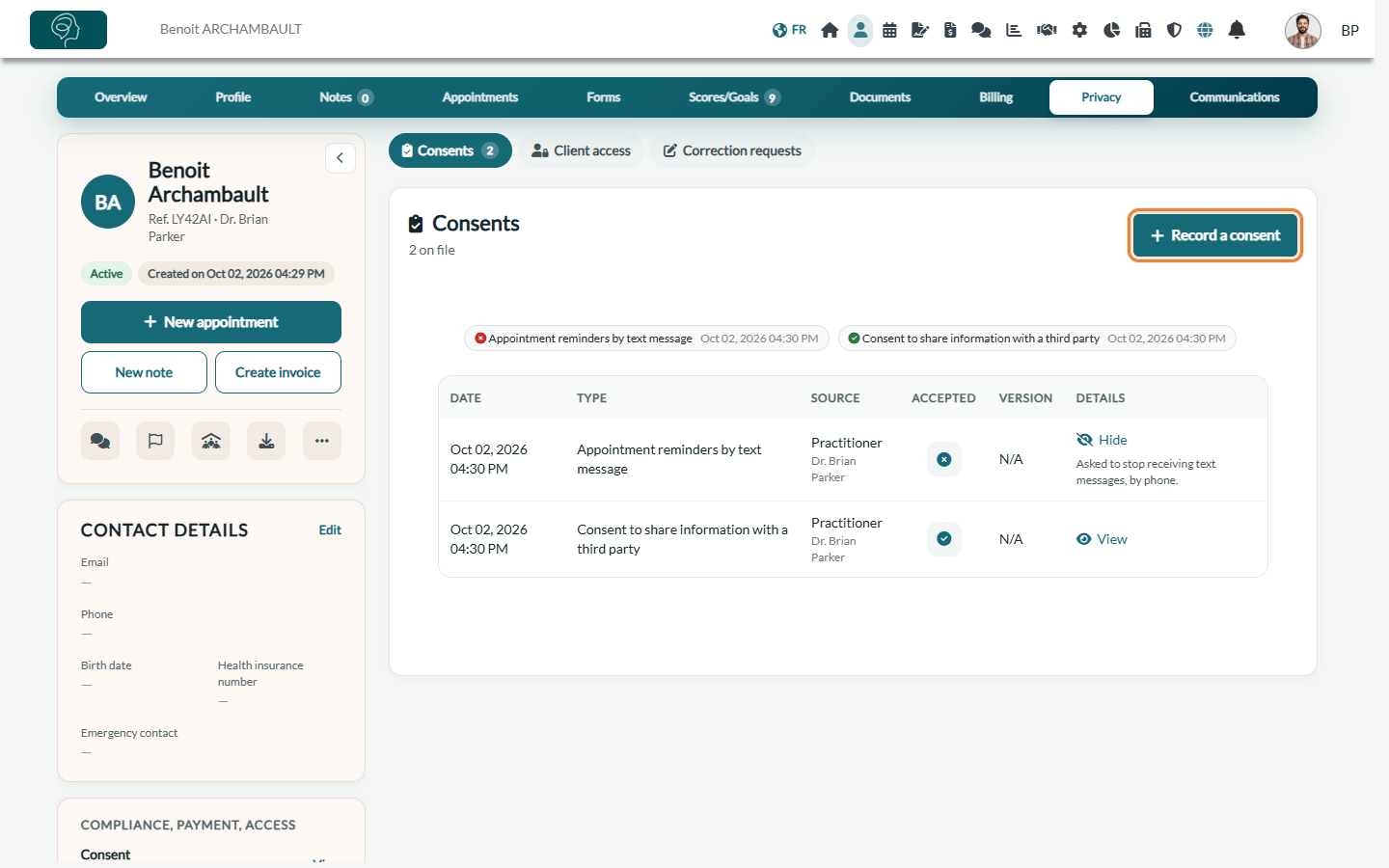
Reading tip: the badges answer "what is true right now"; the table answers "what happened, and when". In a complaint or an audit, the table carries the proof.
What Colib records on its own
| Type | Recorded when |
|---|---|
| Terms of service and cancellation policy | The client books online and accepts your terms. The version of the text is kept with the entry. |
| Appointment reminders by text message | The client answers the text message reminder question during online booking (asked when a phone number is entered). If the box is left unticked, Colib records a refusal and switches the client's reminders to email only, for that appointment and in their record. |
| Form signature attestation | The client signs a form: the attestation text shown to them is kept. |
| Parent or legal guardian consent (minor) | A booking is made online for a dependant under 14. |
1Record a consent yourself
Most consents are not given on a screen: they are given out loud, in the room, or on a paper form. Record them the same day.
- Open the client record and click the Privacy tab. The Consents section opens.
- Click Record a consent.
- Choose the Type of consent (see the table below).
- Choose the Answer: Consent obtained or Consent refused or withdrawn.
- If the consent was given on an earlier day, enter the Date obtained (it cannot be later than today). Leave it empty for today.
- In Details, write who may receive the information and what it covers, or anything that makes the entry clear a year from now.
- Turn on the attestation I attest that this consent was given by the person concerned, or by the holder of parental authority.
- Click Save. The new entry appears at the top of the table and the badge is updated.
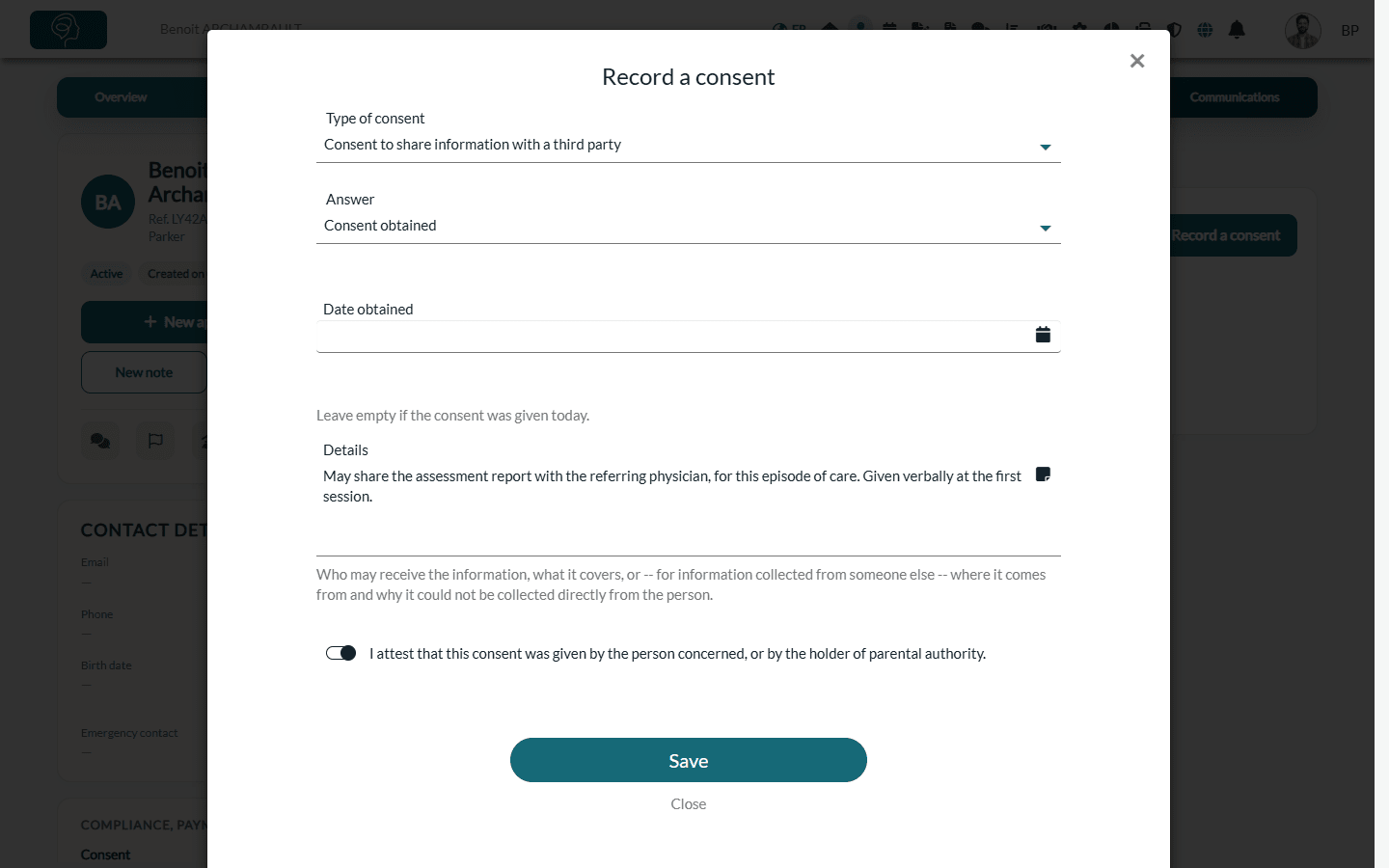
The attestation is what makes the entry hold up later: Colib records your name and the date with it. Without it, the consent cannot be saved.
| Type of consent | Use it for |
|---|---|
| Consent to collect and use personal information | The general consent, given verbally or on paper when the file is opened. |
| Consent to share information with a third party | A physician, an insurer, a school, a family member... Details are required: name the recipient and what may be shared. |
| Parent or legal guardian consent (minor) | The consent of the holder of parental authority for a client under 14, given in person or by phone. Name the parent in the details. |
| Information collected from a third party | Information that does not come from the client (see below). Details are required. |
| Appointment reminders by text message | The client agrees to, or refuses, text message reminders outside online booking. |
| Custom consent | A consent your clinic created itself (photos for the record, group sessions...). Shown only when your clinic has at least one active custom consent. Please see the article titled "How to create custom consents for your clinic". |
2Record a refusal or a withdrawal
A client can change their mind at any time, and the withdrawal is as important as the original consent. Record it the same way, choosing Consent refused or withdrawn, and say in the details what the client asked for. The badge turns red right away, so anyone opening the record sees the current position at a glance.
Important: a withdrawal of text message reminders recorded here does not change the reminder settings by itself. Also set the client's Preferred communications to Email only in the Profile tab > Settings.
3Information collected from someone else
Sometimes the information does not come from the client: a referring professional sends a summary, a parent fills in a history, an employer provides a form. You must then be able to say where it came from and why it could not be collected directly from the person. Choose Information collected from a third party and write the source and the reason in the details, one sentence each.
What to write, and what not to write
- Do write the scope: may share the assessment report with the referring physician, for this episode of care.
- Do write how it was given: verbally at the first session, on the paper form signed on a given date.
- Do not write clinical observations: the register proves a consent, it is not a place for notes.
- Do not paste a whole document: refer to it instead (the paper form can be added in the Documents tab).
The details are stored encrypted, like the rest of the record.
Good to know
- What the client sees — clients do not browse the register in their client portal, but the copy of their data they can download from the portal includes their consents for each clinic: date, type, decision, source, version of the text and details. Keep the details factual: the client may read them.
- Who can record a consent — users who can edit client information. Users who can only view client records see the register without the Record a consent button.
- Nothing is edited or erased — an entry cannot be modified or deleted. To correct a mistake, record a new entry with the right answer and explain it in the details.
- Merged or deleted records — the register follows the record when you merge two clients (Can I merge two client accounts?) and is deleted with the record when the record is deleted or purged. It is never edited and never partially erased: that is what gives it its value as proof.
- Related — the Privacy tab also holds the client's correction requests: see How to handle a client's request to correct their information.
Still have a question?
Write to us at support@colib.io, we will be happy to help. This article is updated whenever the register changes.
Was this article helpful?
That’s Great!
Thank you for your feedback
Sorry! We couldn't be helpful
Thank you for your feedback
Feedback sent
We appreciate your effort and will try to fix the article