Who is this article for?
On the first step of your booking page, your clients enter their name, email and phone number. You can ask them for more: a mandatory question of your choice (the reason for the visit, for example) and some of your additional client fields (referring physician, how they heard about you...).
This article explains how to set up both, what your clients see and where you find their answers.
Before you start: these options are in Settings > Booking Page (www.colib.io/settings?show=bookingpage), in the Direct Booking section. They only appear when the Client booking type is Online booking by client. To offer additional client fields, create them first: see how to add custom fields to your client records.
1Add your mandatory question
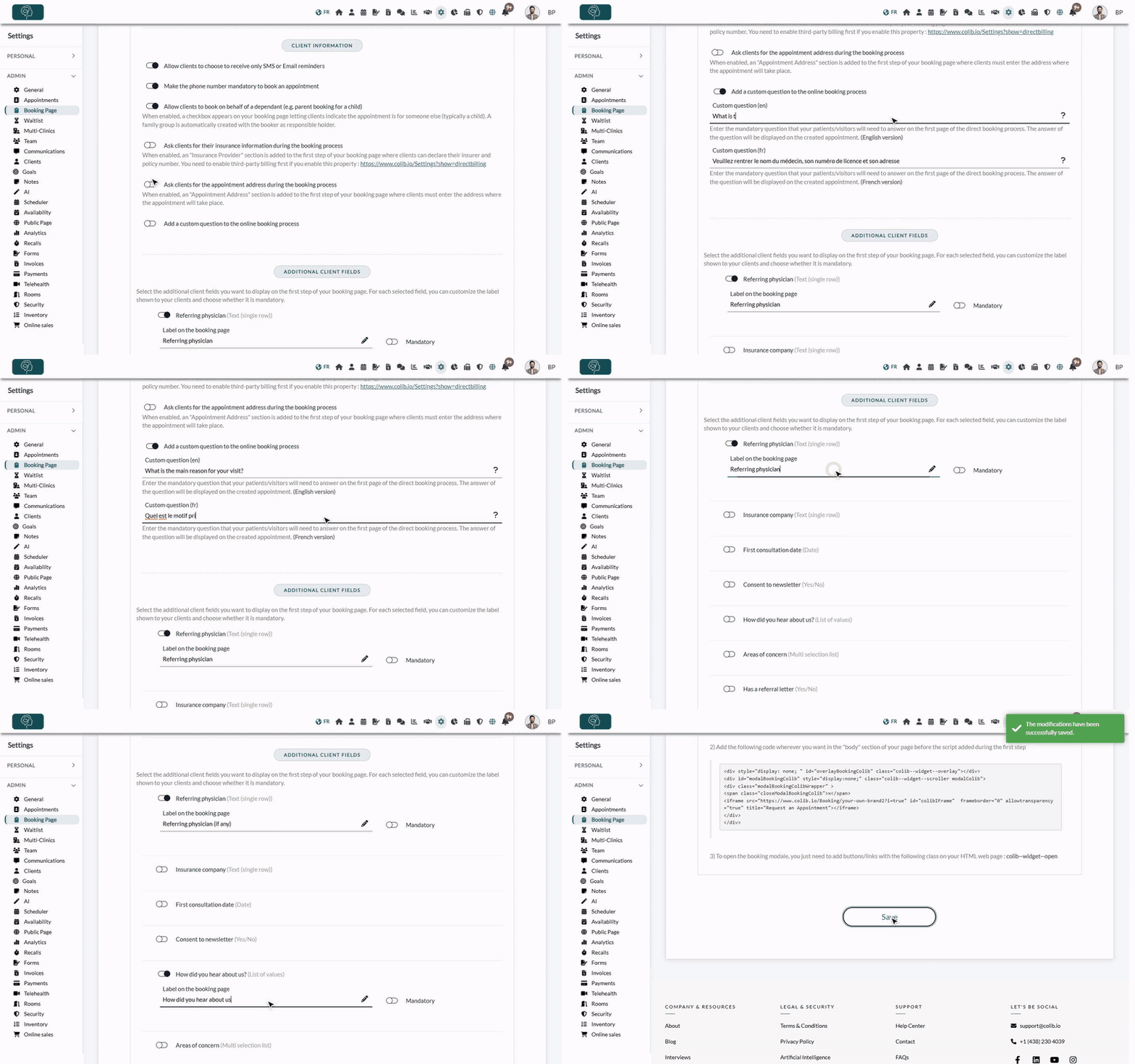
- Go to www.colib.io/settings?show=bookingpage. You can also click the Settings icon (gear) in the top bar, then Booking Page in the Admin menu on the left.
- In the Direct Booking section, scroll down to the Client information part.
- Turn on Add a custom question to the online booking process.
- Type your question in Custom question (en) and its French version in Custom question (fr).
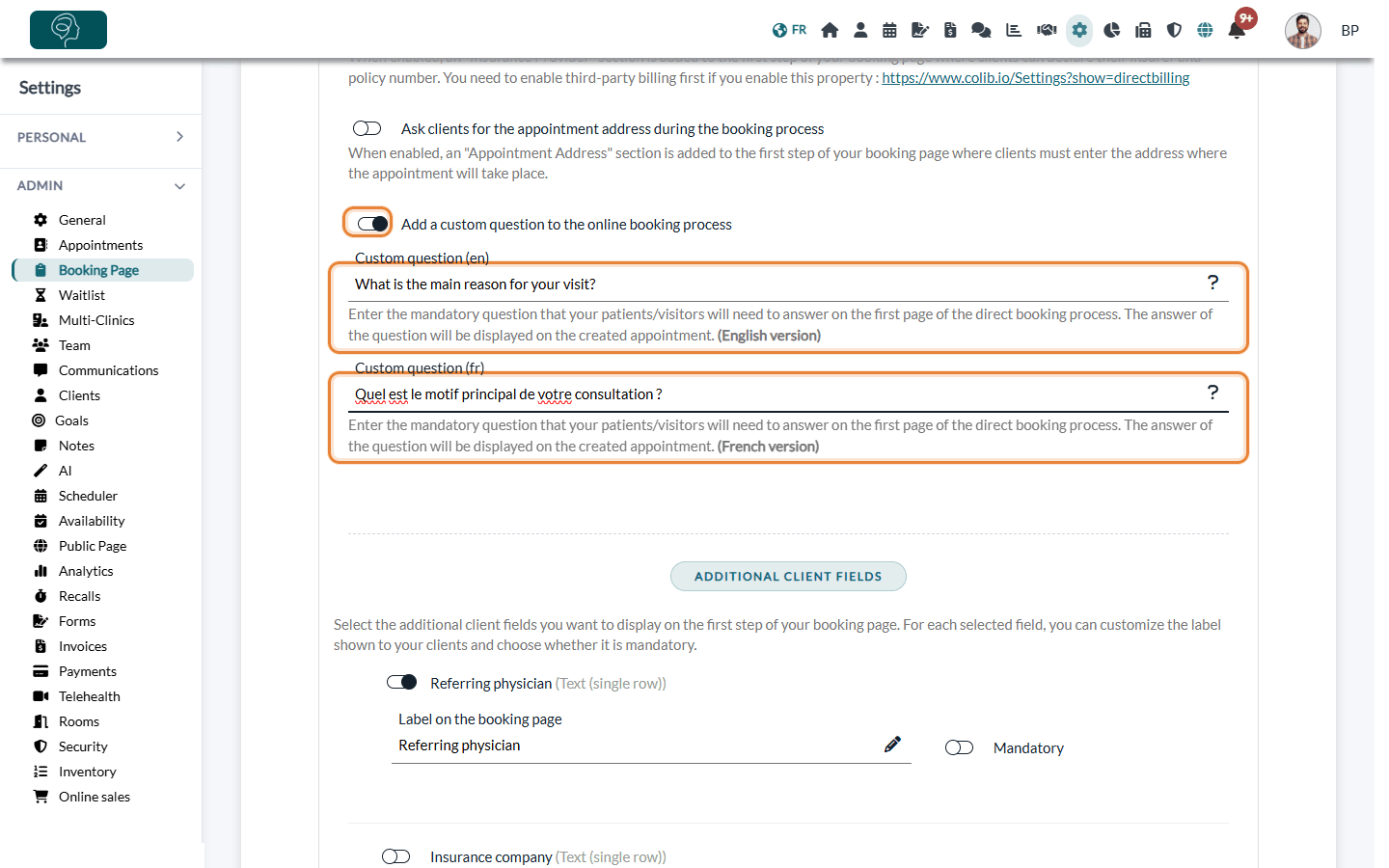
Clients who book in English see the English question, clients who book in French see the French one. If you fill in only one language, it is shown to everyone. At least one of the two fields is required when the option is on. You can add one question.
2Choose your additional client fields
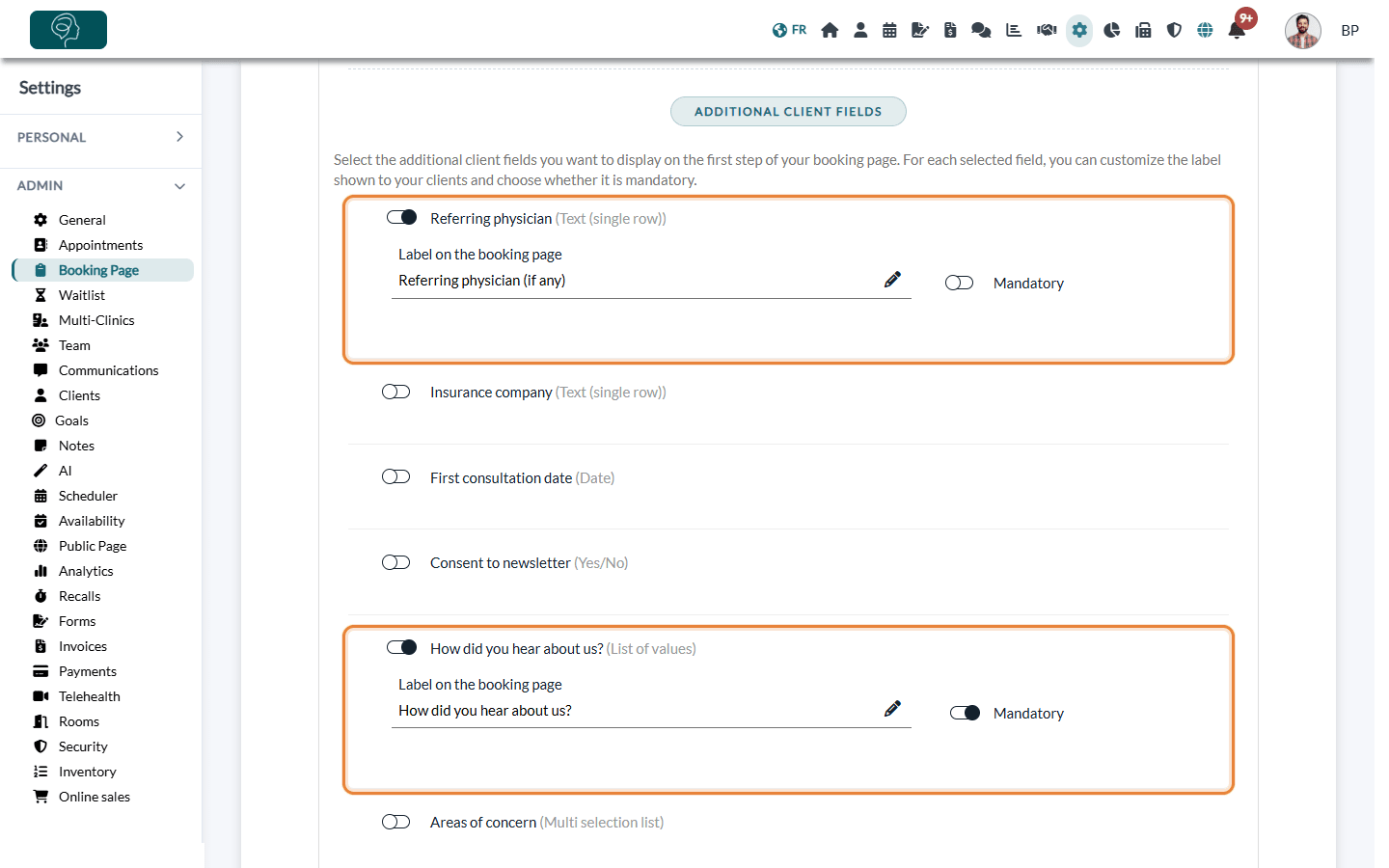
- Just below, in the Additional client fields part, turn on each field you want to show. Each field shows its type in brackets (text, date, yes/no, list...).
- For each field turned on, check the Label on the booking page: this is the wording your clients see. Change it if needed (for example, Referring physician (if any)).
- Turn on Mandatory if clients must answer before they can continue.
If you have not created any additional field yet, the part shows You have not created any additional client fields yet. with a link to Settings > Clients.
3Save and check your booking page
- Click Save at the bottom of the page. The message The modifications have been successfully saved. confirms the change.
- Open your booking page (link here under Page URL, at the top of the Direct Booking section) to see the result.
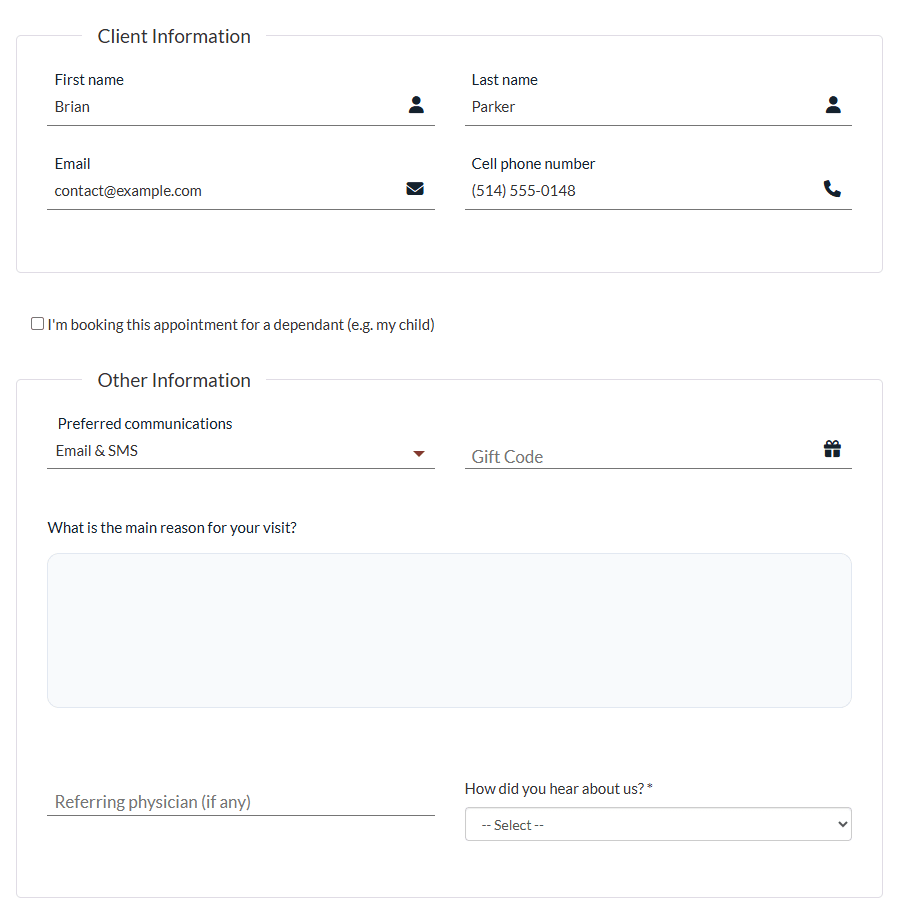
On the first step, under Client Information, an Other Information box shows your question with an answer box, then your additional fields. Mandatory fields are marked with an asterisk (*). Clients cannot continue until they have answered the question and the mandatory fields.
Where to find the answers
| Answer to | Where you see it |
|---|---|
| The custom question | On the appointment: open it from your scheduler (www.colib.io/scheduler), the question and the client's answer are shown in the appointment window. The answer belongs to that appointment. |
| The additional client fields | In the client record: Profile tab, Additional Information section. The answers are saved there when the booking is completed. |
For a client who already has a record, a new answer replaces the value already saved in the field. A field left empty on the booking page does not erase the value already in the record.
The other options of the Client information part
| Option | What it does |
|---|---|
| Allow clients to choose to receive only SMS or Email reminders | Adds a Preferred communications list to the first step. Only shown when your practice sends notifications by Email & SMS (Settings > Scheduler). |
| Make the phone number mandatory to book an appointment | Without it, the phone number is optional. It must be a valid Canadian or US number. |
| Allow clients to book on behalf of a dependant (e.g. parent booking for a child) | Adds a checkbox for an appointment booked for someone else. See how to allow clients to book on behalf of a dependant. |
| Ask clients for their insurance information during the booking process | Adds an Insurance Provider section where clients declare their insurer and policy number. This option depends on other settings of your account: contact us before turning it on. |
| Ask clients for the appointment address during the booking process | Adds an Appointment Address section (home visits, for example). You can then show only the practitioners located within a maximum distance (in km) of that address. |
Good to know
- One label for both languages — the Label on the booking page of an additional field is shown as is to every client. If your clients are bilingual, you can write it in both languages (for example, Referring physician / Médecin requérant).
- Remove the question — turn off Add a custom question to the online booking process and click Save. Answers already given stay on their appointments.
- Several clinics — see how to have a different booking page for each clinic.
- Need more questions? — for a full intake questionnaire, send a form with the confirmation: see how to automatically ask a client to fill out a form before an appointment.
- The whole booking page — see how to set up the booking process.
Still have a question?
Write to us at support@colib.io, we will be happy to help.
Was this article helpful?
That’s Great!
Thank you for your feedback
Sorry! We couldn't be helpful
Thank you for your feedback
Feedback sent
We appreciate your effort and will try to fix the article