Who is this article for?
Your Colib subscription is paid by credit card, charged automatically every month. This article explains how practice administrators add, replace or remove this card.
Before you start: only users with the Administrator role have access to the Plan section. Your business address must be entered in Settings > General (www.colib.io/settings?show=general) before you can add a card.
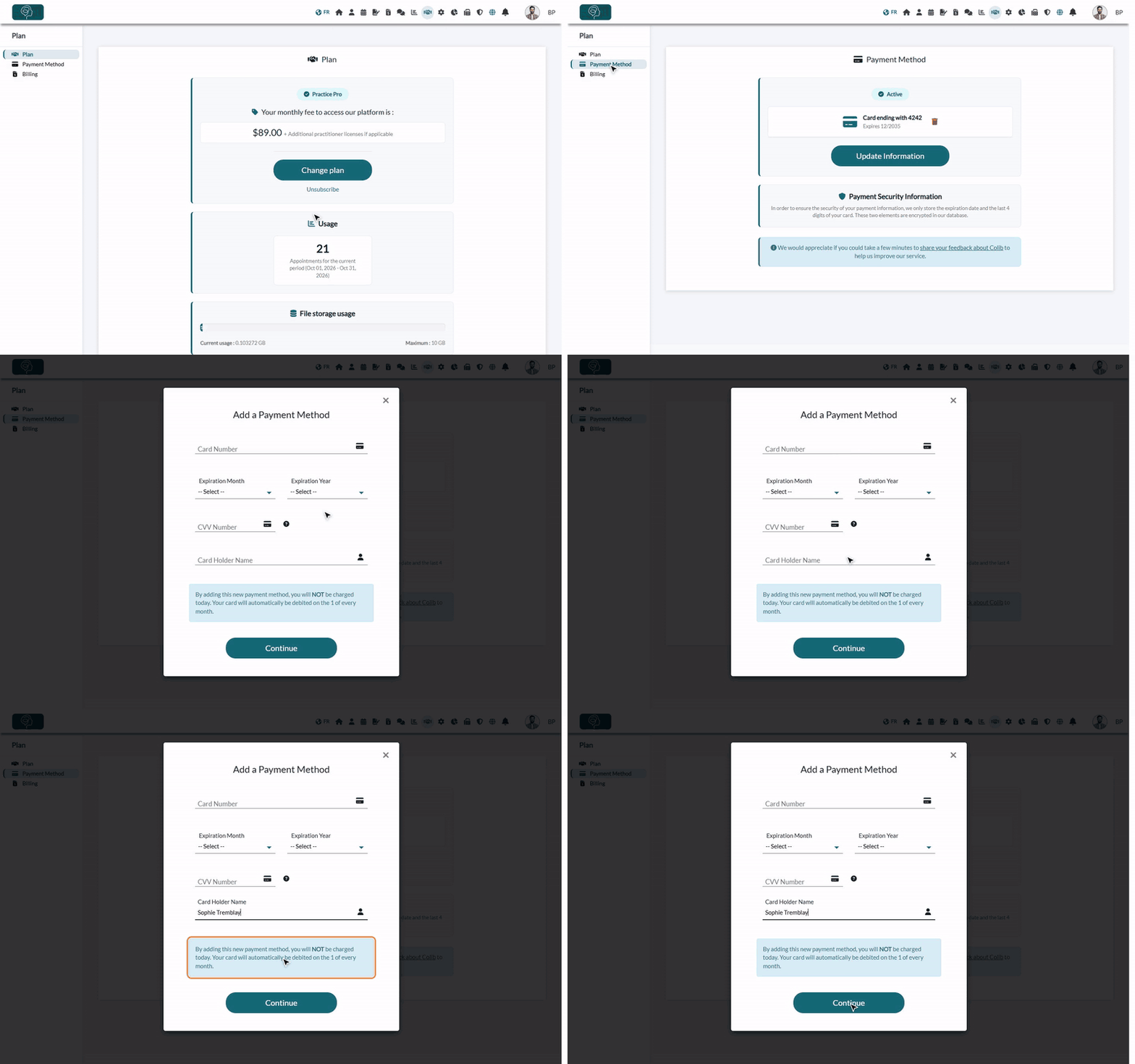
1Open the Payment Method tab
- Go to www.colib.io/planandpayments?show=details. You can also click the Plan icon (handshake) in the top bar, then Payment Method in the menu on the left.
- If no card is saved, the tab shows No payment method and an Add a Card button. If a card is already saved, you see its last 4 digits, its expiration date and an Update Information button.
- If the tab shows Address required, click Enter your address, fill in your business address in the settings, save, then come back to this tab.
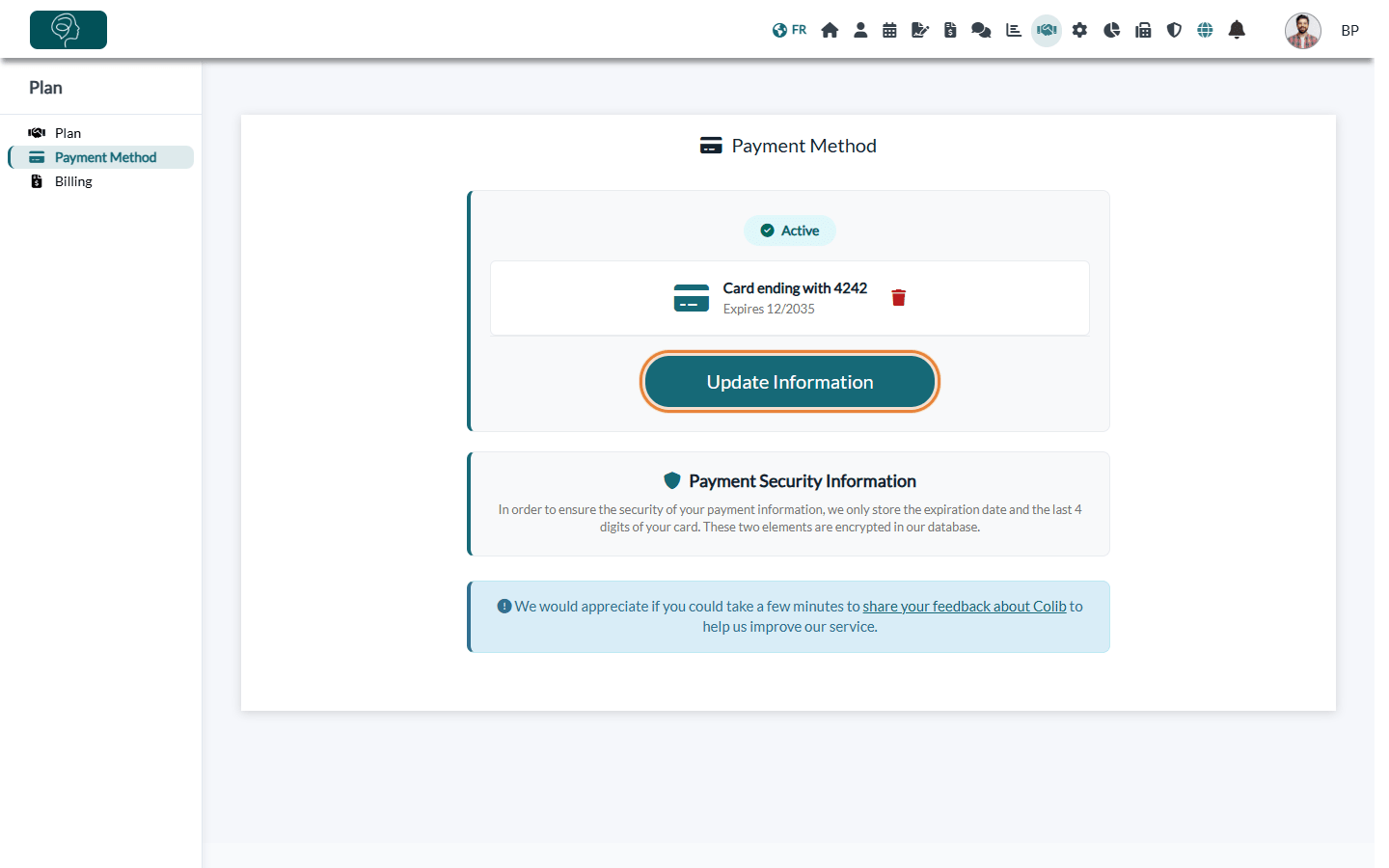
2Enter your card
- Click Add a Card (or Update Information). The Add a Payment Method window opens.
- Enter the Card Number (digits only, no spaces).
- Choose the Expiration Month and the Expiration Year.
- Enter the CVV Number: the 3 or 4 digits printed on your card.
- Enter the Card Holder Name, as written on the card.
- Click Continue. The message The card has been added. confirms that your card is saved.
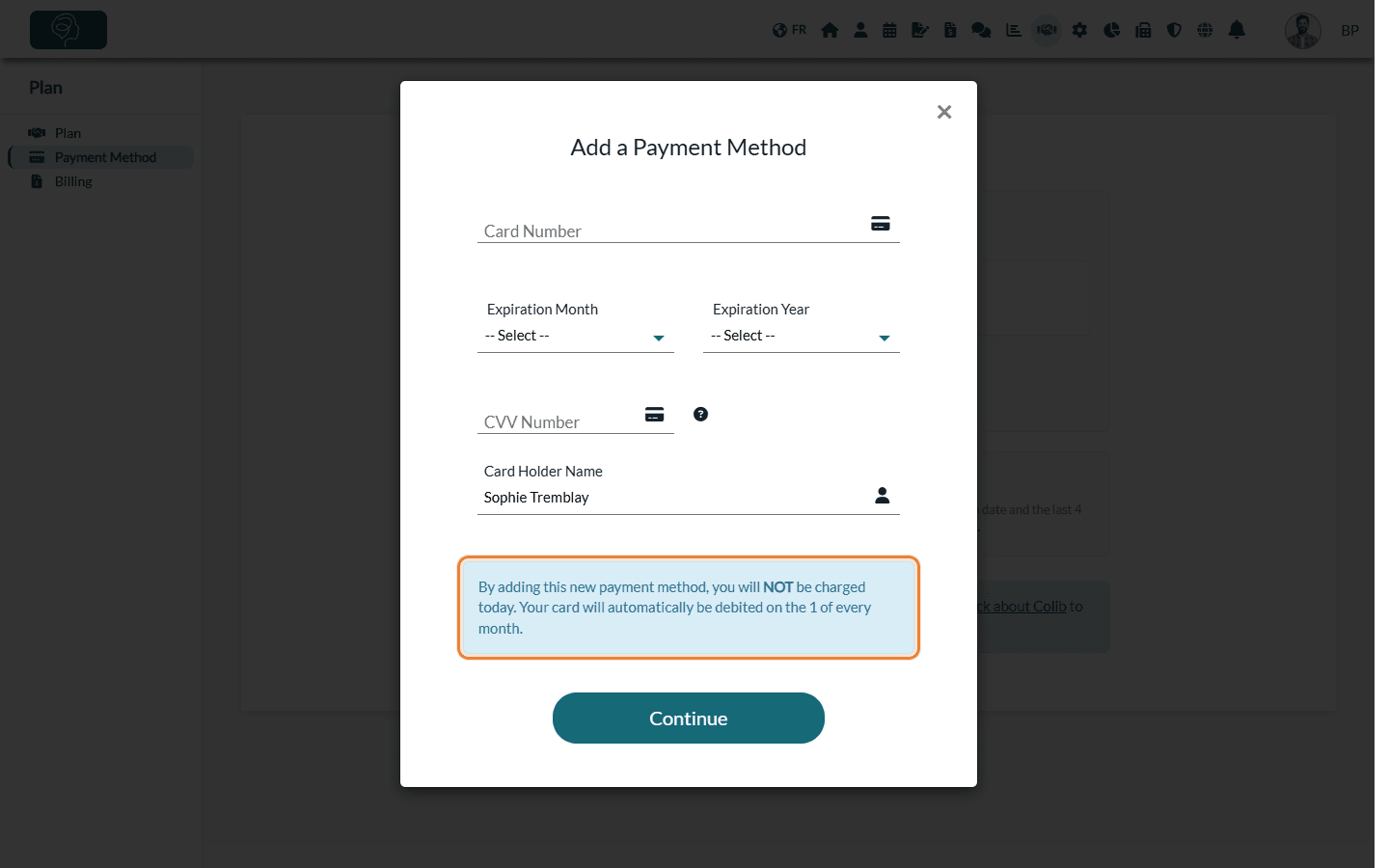
You are not charged today. As shown in the window, your card is charged automatically on the same day every month (your billing date). The amount depends on your plan; taxes are added. See How does payment for Colib plans work?
3Replace or remove your card
- Replace — click Update Information and enter the new card. It replaces the previous one: only one card is used at a time.
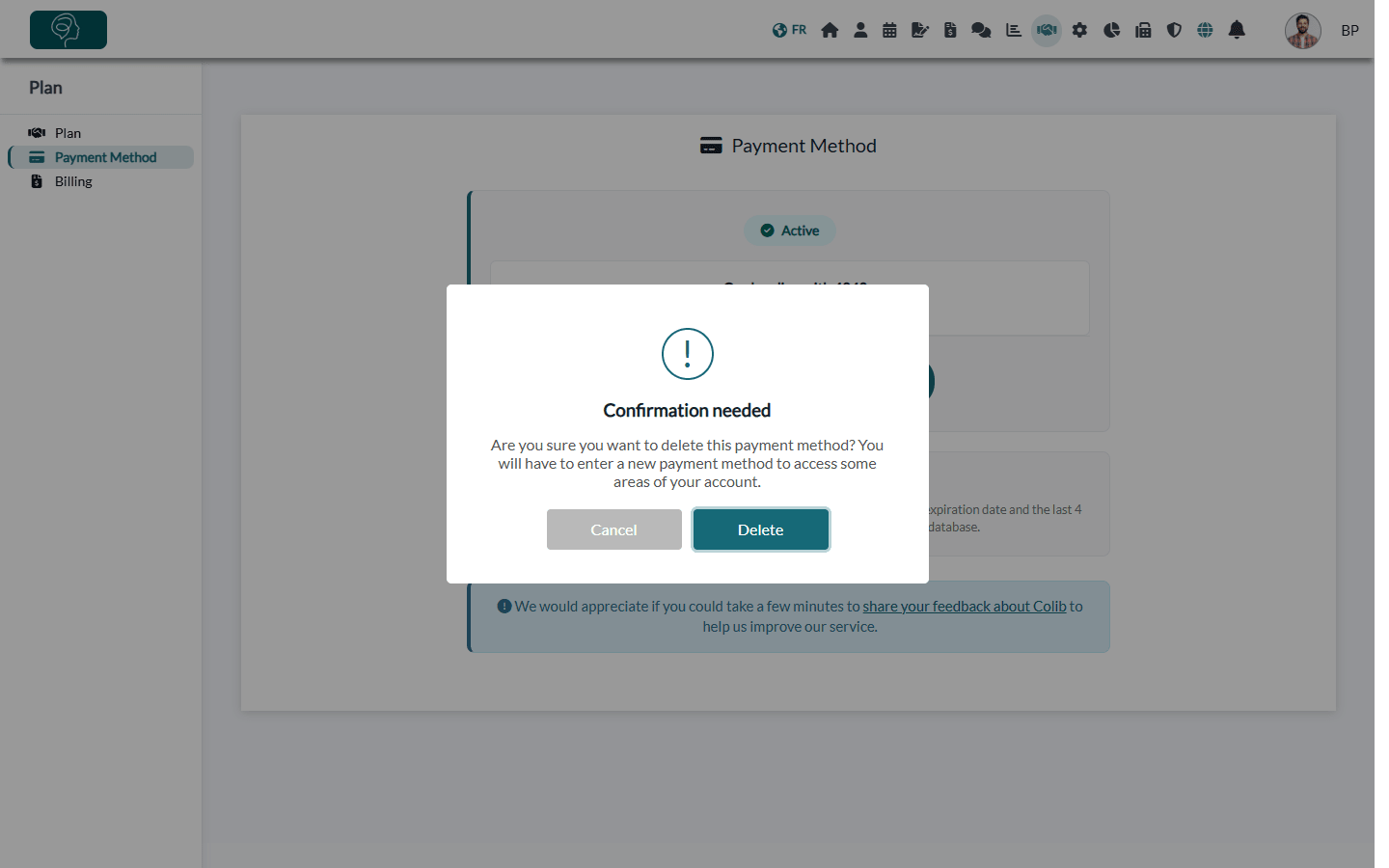
- Remove — click the trash icon next to the card, then Delete to confirm. Without a card, you will have to enter a new payment method to access some areas of your account.
Good to know
- Security — your card is processed by our secure payment platform, Stripe. Colib only keeps the expiration date and the last 4 digits of your card, encrypted.
- When the trial ends — if you have chosen a plan and no card is saved, Colib sends you to the Payment Method tab with the message You need to enter a payment method to perform this action. Until a card is saved, the Plan tab also shows Please provide a payment method to continue using our platform.
- Failed payment — if monthly payments fail repeatedly, you receive an email and your account is blocked until you add a new card. Cards that ask for an authentication step on each payment do not work for automatic monthly payments: use another card.
- Starter plan — a card is also required for the pay-as-you-go plan. See Why is a credit card required for the Starter plan?
- Your receipts — each monthly payment appears in the Billing tab (www.colib.io/planandpayments?show=billing), with a receipt to download.
Still have a question?
Write to us at support@colib.io, we will be happy to help.
Was this article helpful?
That’s Great!
Thank you for your feedback
Sorry! We couldn't be helpful
Thank you for your feedback
Feedback sent
We appreciate your effort and will try to fix the article