Who is this article for?
Every month, Colib charges your subscription to your credit card. This article shows practice administrators where to find the history of these payments and how to download the receipt of each one, for example for your accounting.
Before you start: only users with the Administrator role have access to the Plan section. This page is about what you pay to Colib; the invoices you send to your own clients are in the Invoicing section.
1Open the Billing tab
- Go to www.colib.io/planandpayments?show=billing. You can also click the Plan icon (handshake) in the top bar, then Billing in the menu on the left.
- The table lists all your successful payments, from the most recent to the oldest.
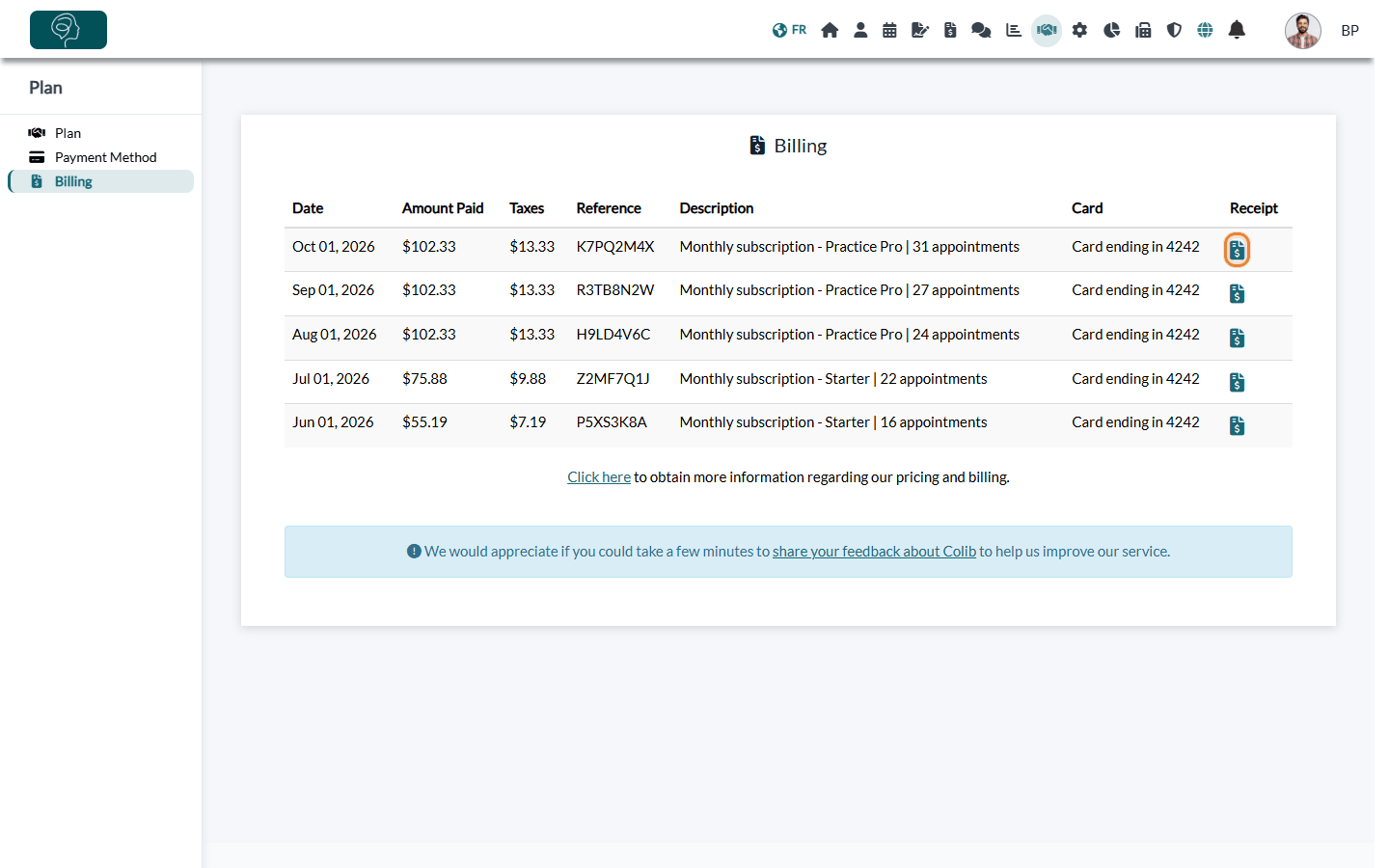
| Column | What it shows |
|---|---|
| Date | The day the payment was made. |
| Amount Paid | The total charged to your card, taxes included. |
| Taxes | The total of the taxes included in this amount. |
| Reference | The number of the payment, also printed on the receipt. Give it to us if you have a question about a payment. |
| Description | What was paid: usually your monthly subscription, with your plan and the number of appointments of the period. Other charges also appear here, for example a package of AI-generated notes, or the fees of online payments that are charged back to you (for example after a refund to one of your clients). |
| Card | The last 4 digits of the card that was charged. |
| Receipt | The icon to download the receipt in PDF. |
2Download a receipt
- On the row of the payment, click the icon in the Receipt column.
- The receipt is downloaded in PDF. It shows the reference and the date of the payment, your practice's name, email address, address and phone number, the detail of what was billed, the subtotal, each tax (GST, HST or provincial tax, depending on your province), the total in Canadian dollars and the period covered.
Good to know
- No payment yet? — the table shows No payment at this time during your free trial and until your first monthly payment.
- Receipts are not sent by email — download them from this tab whenever you need them. After each payment, a notification appears in Colib (bell icon in the top bar).
- Practice details on the receipt — they come from Settings > General (www.colib.io/settings?show=general) at the time of the payment. If you change them, the receipts of the following payments use the new details.
- How the amount is calculated — see How does payment for Colib plans work? and, for the Starter plan, How can I see the number of appointments I made during the current period?
- Change the card that is charged — go to the Payment Method tab (www.colib.io/planandpayments?show=details).
Still have a question?
Write to us at support@colib.io with the reference of the payment, we will be happy to help.
Was this article helpful?
That’s Great!
Thank you for your feedback
Sorry! We couldn't be helpful
Thank you for your feedback
Feedback sent
We appreciate your effort and will try to fix the article