Who is this article for?
The Insurance claims dashboard lists all the claims and predeterminations sent through TELUS Health eClaims, with their status and amounts, so you can follow what the insurers covered and find the claims that need your attention.
1Open the dashboard
- Go to Invoices and click Insurance claims in the menu of the page (www.colib.io/Invoices?show=claims).
- The tab is shown once TELUS Health eClaims is turned on, to the users who have access to financial information.
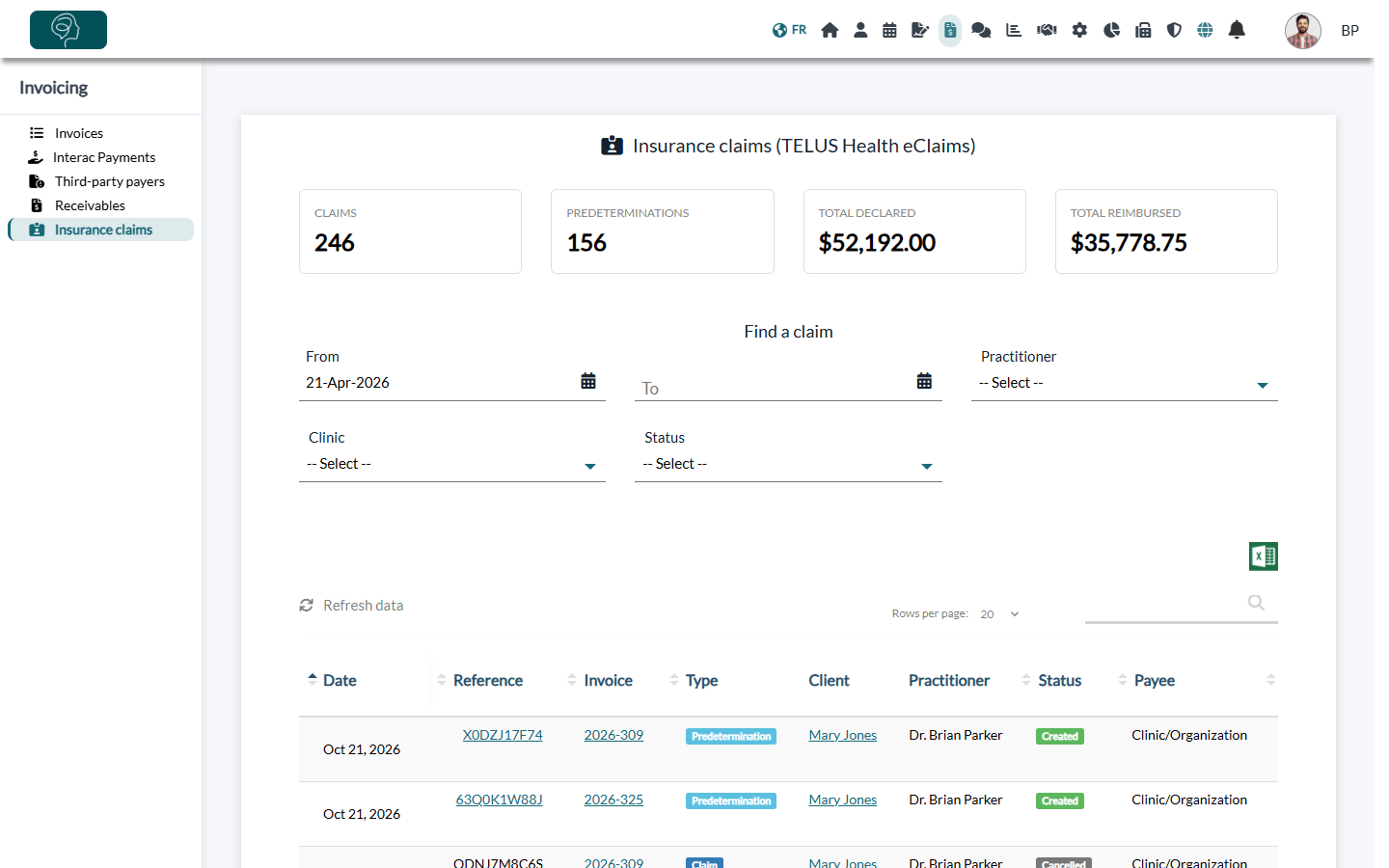
2Read the totals
| Total | What it counts |
|---|---|
| Claims | Number of claims in the list. |
| Predeterminations | Number of predeterminations in the list. |
| Total declared | Amount sent to the insurers (claims only). |
| Total reimbursed | Amount covered by the insurers (claims only). |
The totals follow the filters: change the period or the practitioner to see their totals.
3Find a claim
Under Find a claim, filter by period (From and To, the last 6 months by default), by Practitioner, by Clinic (accounts with several clinics) and by Status, or type a client name, a reference or an invoice number in the search field.
| Status | Meaning |
|---|---|
| Created | The insurer processed the claim. Check the reimbursed amount and the PDF. |
| Refused by the insurer | The insurer processed the claim but refused it. The reason is in the PDF; the client pays the invoice. |
| Pending | The insurer reviews the claim by hand and sends the result outside Colib. Do not submit it again. |
| Error | The claim could not be processed electronically. Submit it manually on the TELUS platform, or correct the invoice and submit a new claim. |
| Cancelled | The claim was cancelled on the day it was submitted. |
4Open a claim
Each row shows the date, the reference, the invoice, the type (Claim or Predetermination), the client, the practitioner, the status, the payee, the declared amount and the reimbursed amount.
- Click the invoice to open it (to add the reimbursement, cancel the claim or submit a new one).
- Click the client to open the client record.
- Click the PDF icon (Open the insurer document) to read or download the insurer's document.
The Excel button exports the list as filtered, for example for your accounting.
Good to know
- Who sees what — users see the claims of the other practitioners only if they are allowed to see the other practitioners' data. In accounts with several clinics, each user sees the clients of their own clinics.
- Pending claims — their status is not updated automatically in Colib: the insurer sends the result directly.
Related articles
- Please see the article titled "How to submit a claim through TELUS Health eClaims".
- Please see the article titled "What to do with a pending, refused or failed TELUS Health eClaims claim".
- Please see the article titled "How to cancel a TELUS Health eClaims claim".
- Please see the article titled "How to request a predetermination and turn it into a claim".
Still have a question?
Write to us at support@colib.io, we will be happy to help.
Was this article helpful?
That’s Great!
Thank you for your feedback
Sorry! We couldn't be helpful
Thank you for your feedback
Feedback sent
We appreciate your effort and will try to fix the article