Who is this article for?
You use Google Calendar or Outlook for your personal life and Colib for your appointments? Connect them, and Colib keeps both calendars in sync, in both directions:
- your Colib appointments appear automatically in your Google or Outlook calendar;
- the events of your Google or Outlook calendar block your time in Colib, including on your online booking page, so clients cannot book you when you are busy;
- changes, cancellations and recurring events follow in both directions.
You can connect Google Calendar, Outlook, or both. Personal accounts (gmail.com, outlook.com) and professional accounts (Google Workspace, Microsoft 365) are supported. Each practitioner connects their own calendar.
Before you start: the sync is set in your personal settings: Settings > Personal > Calendar Sync. (www.colib.io/settings?show=calendarsynchro). Choose your preferences first (step 1), then connect your calendar (step 2).
1Choose your preferences
- Go to www.colib.io/settings?show=calendarsynchro. You can also click the Settings icon (gear) in the top bar, then Calendar Sync. in the Personal menu on the left.
- In the Preferences section, turn on the options you want (see the table below). Each change is saved immediately and applies to Google and Outlook.
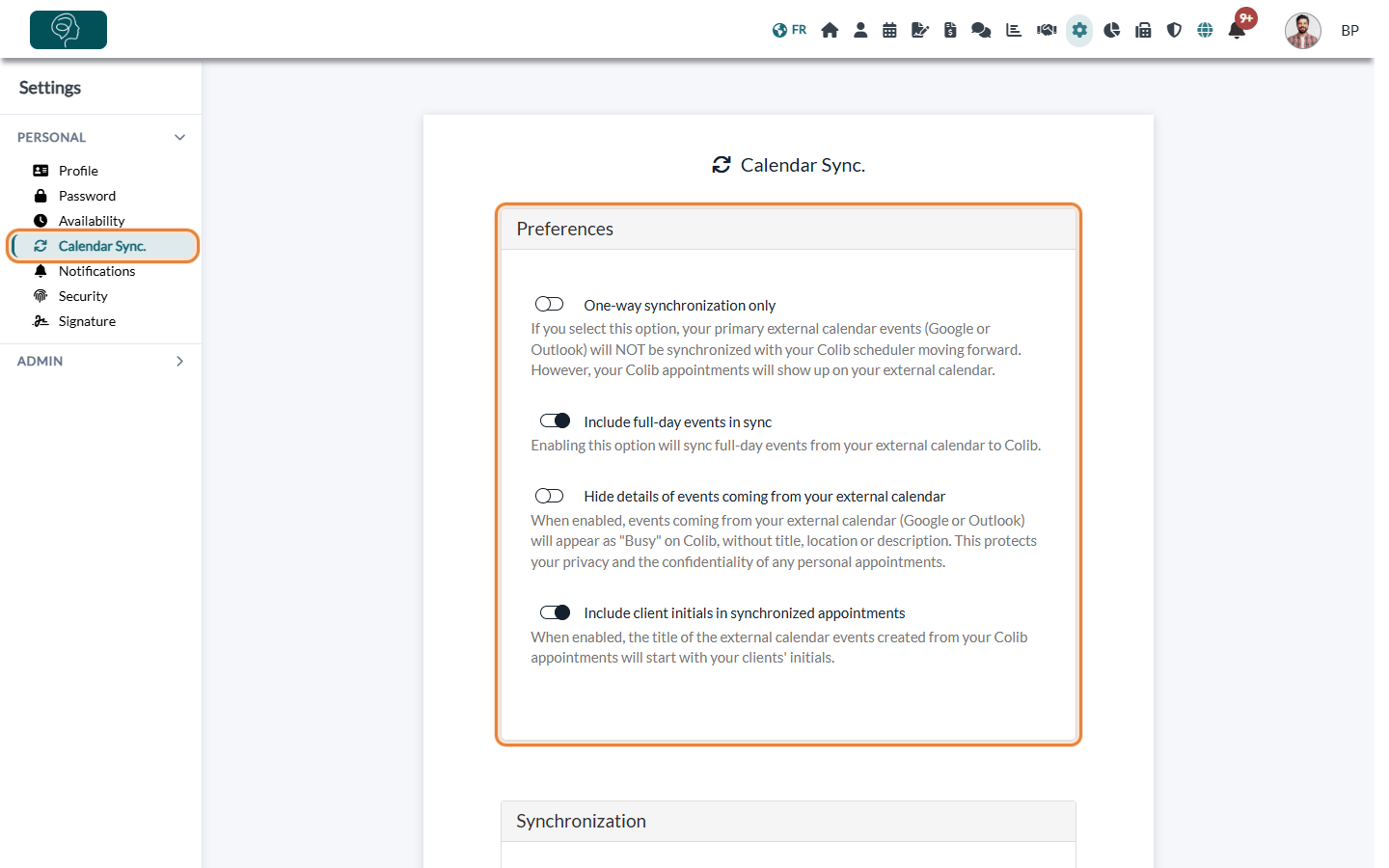
| Option | What it does |
|---|---|
| One-way synchronization only | Your Colib appointments still go to your external calendar, but your external events are no longer brought into Colib. |
| Include full-day events in sync | Full-day events of your external calendar (a day off, a trip) also block your Colib schedule. |
| Hide details of events coming from your external calendar | Your external events appear in Colib as a simple « Busy » block, without title, location or description. Your colleagues only see that you are not available. |
| Include client initials in synchronized appointments | The title of the events created in your external calendar starts with your clients' initials (for example « JD - Initial consultation »). Turn it off to show the appointment type only. |
2Connect your calendar
- In the Synchronization section, click Sign in with Google or Sign in with Microsoft.
- Choose the account whose calendar you want to sync and accept the requested permissions.
- You come back to Colib and the first synchronization starts. It runs in the background and usually takes a few minutes: the tab shows Please wait for the end of the synchronization in the meantime, and you receive a notification when it is complete.
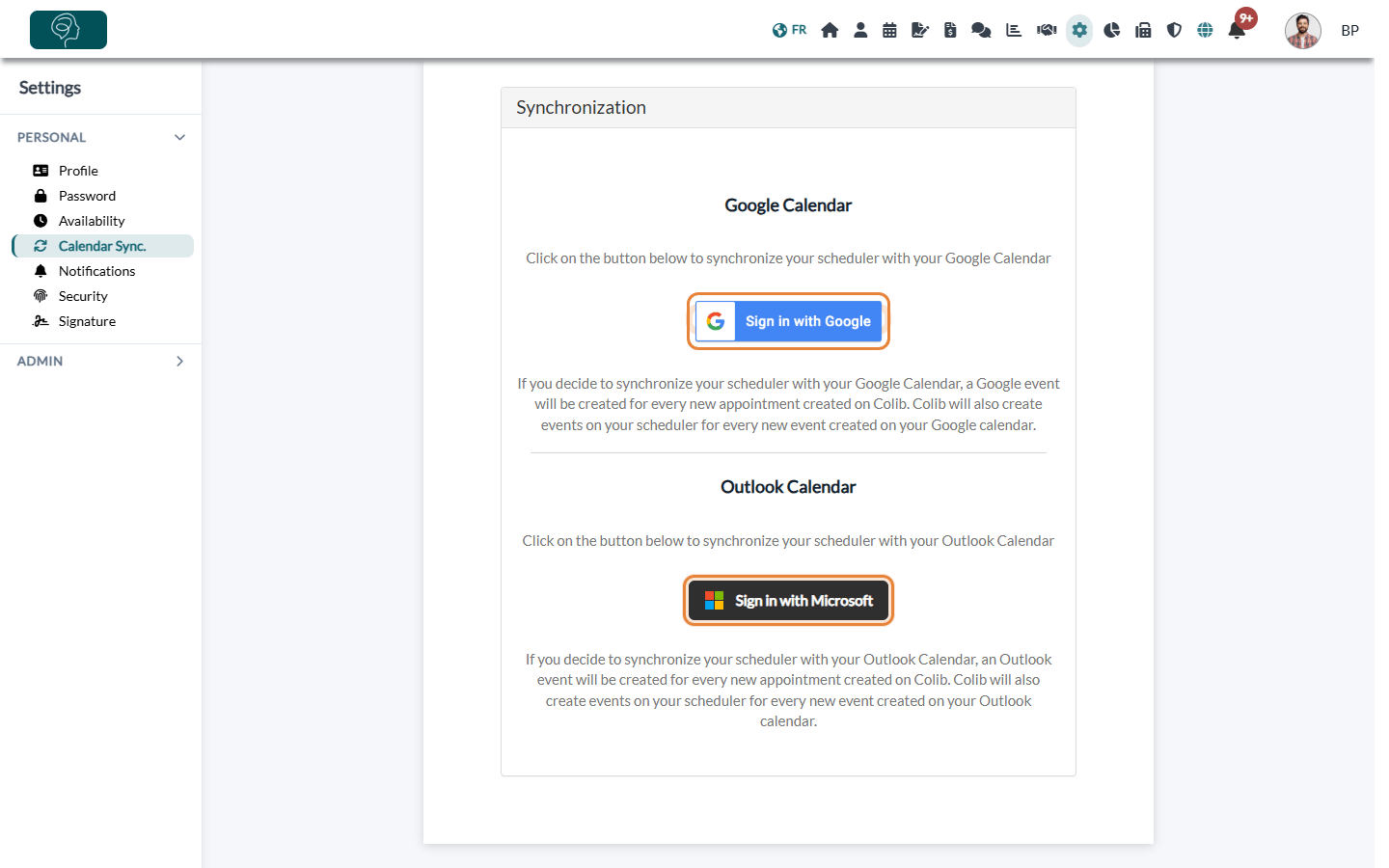
During the first synchronization, your upcoming Colib appointments are added to your calendar and your upcoming external events are brought into Colib as busy blocks. Once connected, the tab shows Your scheduler is synchronized with your Google Calendar (or your Outlook Calendar).
How the two-way sync behaves
| When you... | Then... |
|---|---|
| book, move or edit an appointment in Colib | the event is created or updated in your external calendar within moments. |
| cancel an appointment in Colib, or a client cancels it | the event is removed from your external calendar. |
| add an event in your external calendar | a busy block appears in your Colib schedule and the time slot disappears from your online booking page. |
| delete an external event (or a whole recurring series) | the matching busy blocks are removed from Colib. |
What is shared
- Events sent to your calendar contain the appointment type, the date and time, the room or location, a link to the appointment in Colib and, if you chose it, the client's initials. Never full names, contact details or clinical content.
- Events brought from your calendar are only shown in your own Colib schedule, and can be hidden as « Busy ».
- Colib uses the official secure sign-in of Google and Microsoft: your calendar password is never seen or stored by Colib.
Disconnect your calendar
- Go to www.colib.io/settings?show=calendarsynchro.
- Under the calendar to disconnect, click Revoke synchronization, then confirm with Revoke.
Colib removes your Colib appointments from your external calendar and removes the imported busy blocks from your Colib schedule. You receive a notification when it is done. You can connect again at any time.
Good to know
- Primary calendar only — only your primary Google or Outlook calendar is synchronized. Events in other calendars of the same account (shared or secondary calendars) are ignored.
- One calendar per practitioner — if two Colib users connect the same external calendar, each one sees the other's appointments as busy blocks.
- « Please wait for the end of the synchronization » stays displayed — the first sync can take a while if your calendar has many events. If it lasts more than an hour, contact us.
- Notification « Your scheduler is no longer synchronized » — it usually happens after a password change, a deactivated account or removed permissions. Click Revoke synchronization, wait until it is complete, then connect your calendar again.
- Apple Calendar — there is no direct Apple sync, but you can go through Google: see How to use Google ↔ Apple calendar sync with Colib.
Related article: How can I block time on my scheduler?
Still have a question?
Write to us at support@colib.io, we will be happy to help.
Was this article helpful?
That’s Great!
Thank you for your feedback
Sorry! We couldn't be helpful
Thank you for your feedback
Feedback sent
We appreciate your effort and will try to fix the article