Overview
You can now define a default email message on each of your forms. This message is automatically used as the body of the email your clients receive when you send them that form — whether you send it manually or automatically (when a form is attached to an appointment notification).
This saves you from rewriting the same instructions every time, while still letting you review and tweak the message before each send.
▎ Good to know — three things are added automatically, so you never have to insert them yourself:
▎ - A greeting (e.g. "Hi [client first name],")
▎ - The link to the form ("Complete Form")
▎ - Your clinic footer (the email footer defined in your practice settings)
▎ You only need to write the message itself (your instructions, context, sign-off, etc.).
---
1. Setting up the default message
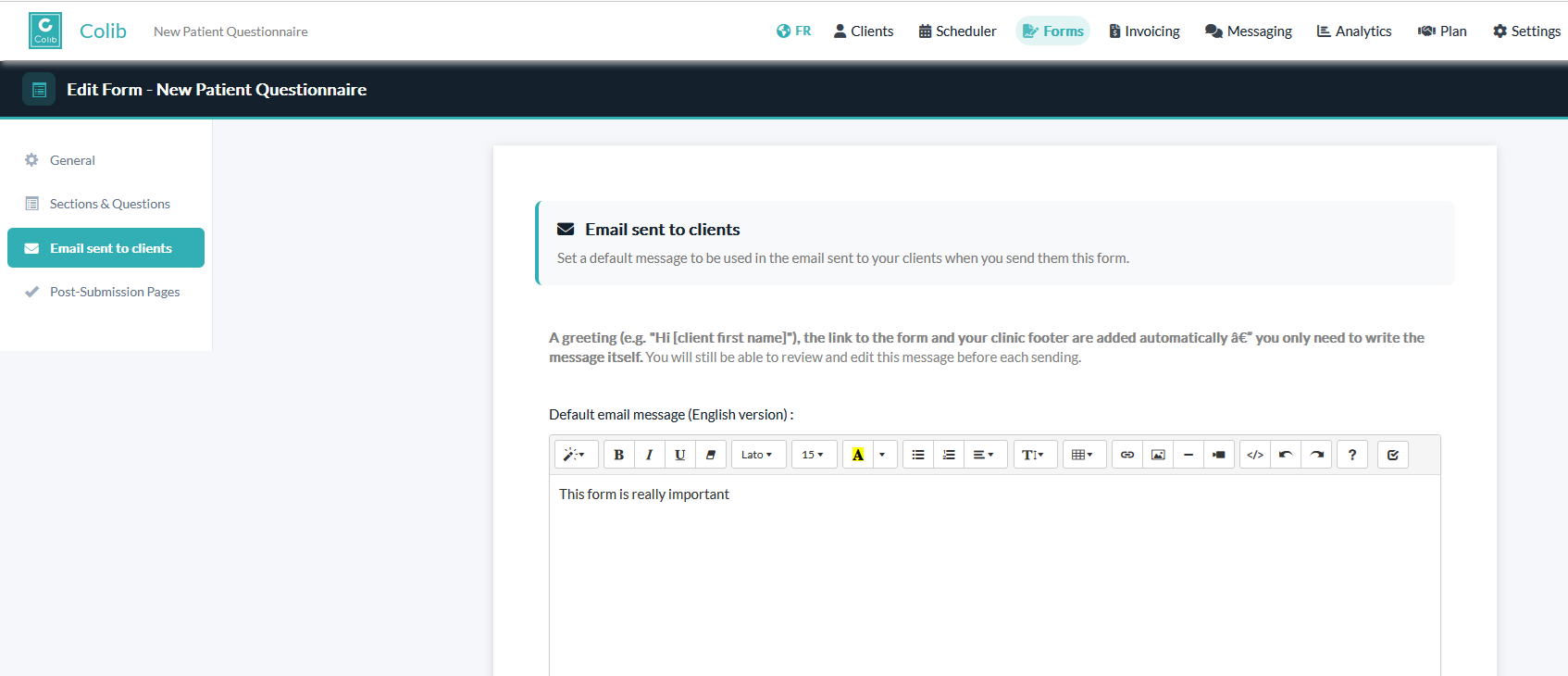
1. Go to Forms and open the form you want to configure (Edit form). ( https://www.colib.io/forms )
2. In the left menu, click the Email sent to clients tab (✉️), located between Sections & Questions and
Post-Submission Pages.
3. Type your message in the rich-text editor.
- If your form is in English only, you'll see the English editor.
- If your form is in French only, you'll see the French editor.
- If your form is bilingual, you'll see both editors — fill in each language.
4. Click Save.
The message is optional. If you leave it empty, a standard default message is used instead.
Tips for writing a good message
- Write only your content (a short intro, why you need the form, a friendly sign-off). The greeting, the form link and the footer are added for you.
- Keep it concise — clients are more likely to complete the form when the message is clear.
- The message supports basic formatting (bold, lists, links, etc.).
---
2. Sending a form manually
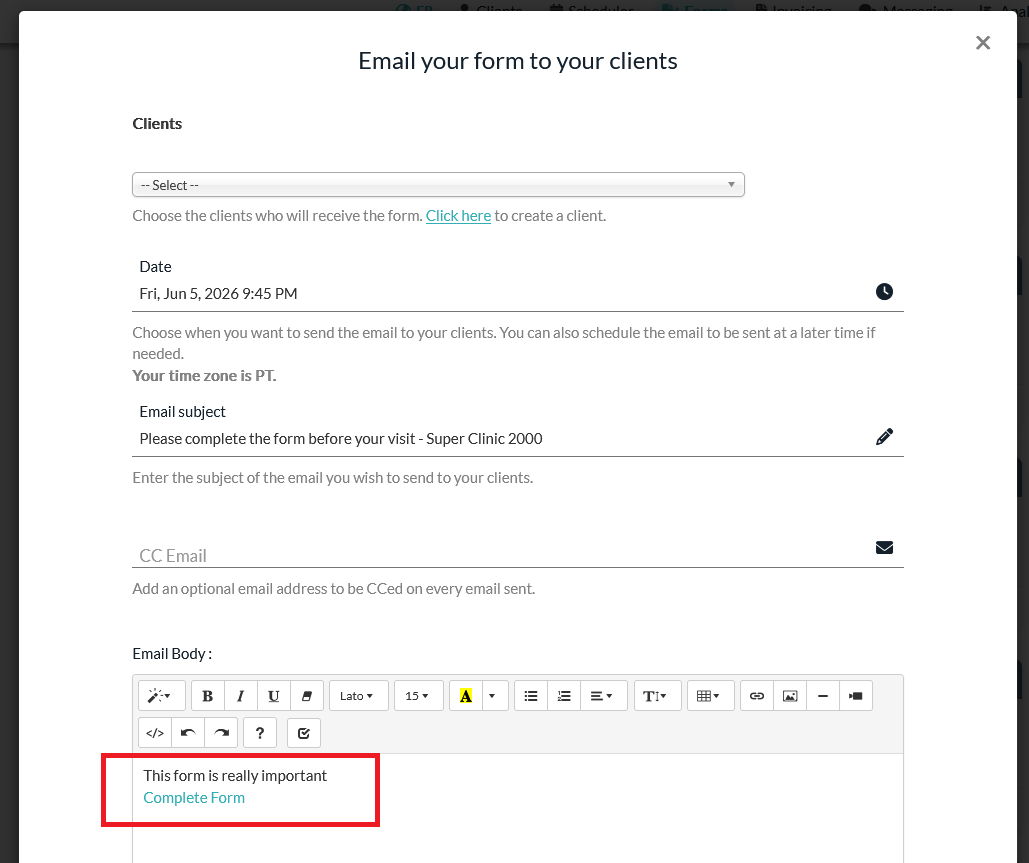
When you send a form to a client from the "Email a form to your client" screen:
1. Choose the client (or open the action directly from a client's profile).
2. Select the form to send.
- As soon as you pick a form, its default message is loaded automatically into the editor.
- If that form has no default message, the standard default message is loaded instead.
3. Review and edit the body if needed for this specific client.
- The form link is already included in the message — please keep it.
- The greeting (Hi [client first name]) and the footer are not shown in the editor: they are added automatically when the email is sent.
4. Adjust the Subject, add an optional CC email, and choose the send date (you can schedule it for later).
5. Click Send.
▎ If you change the selected form, the editor reloads with that form's default message.
---
3. Sending forms automatically (with appointment notifications)
If a form is configured to be sent automatically with an appointment's initial notification, the same logic applies:
- The email body uses the form's default message (or the standard default if none is set).
- The greeting, form link and footer are added automatically.
- The language (English / French) follows the client's language.
No extra setup is required beyond defining the default message on the form and enabling the "send form with the notification" option on the appointment type.
---
4. How the language is chosen
- Manual send: the message follows the interface language you're currently using.
- Automatic send: the message follows the client's language.
- If a message exists only in one language, that version is used as a fallback.
---
5. What the final email looks like
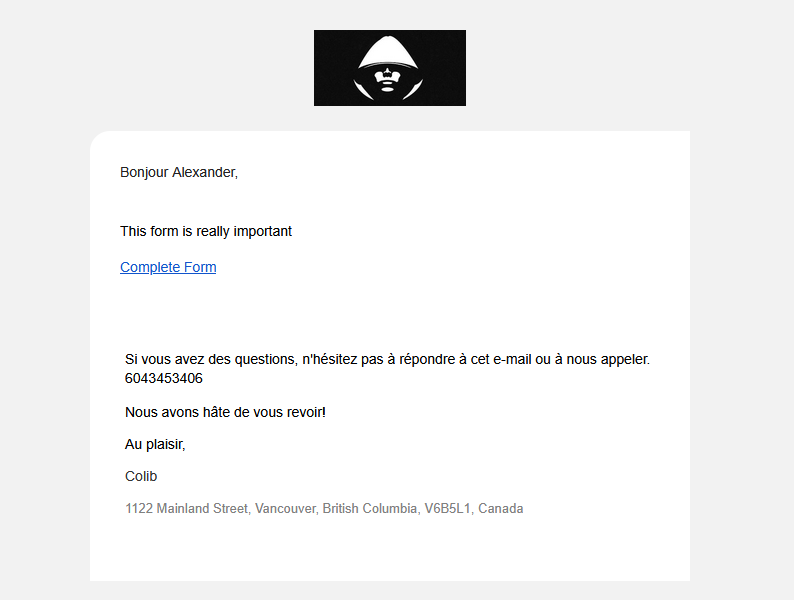
Every form email is built the same way:
Hi [Client first name],
[ Your default message — or the message you edited before sending ]
[ Complete Form link ]
[ Your clinic footer ]
---
Frequently asked questions
Do I have to include the form link in my message?
No. The link is added automatically. If you're editing the body before a manual send, just make sure not to delete the
link that's already there.
What if I don't set a default message?
A standard, ready-to-use message is sent instead — your clients will still receive a clear email with the form link.
Can I still customize the email for a single client?
Yes. When sending manually, the default message is only a starting point — you can edit the body, subject and CC
before sending.
Where does the footer come from?
From your practice's email footer settings (English/French). It's applied automatically to the form email.
Was this article helpful?
That’s Great!
Thank you for your feedback
Sorry! We couldn't be helpful
Thank you for your feedback
Feedback sent
We appreciate your effort and will try to fix the article