Who is this article for?
Sometimes another person needs to receive the emails you send to a client: a parent who follows a young adult's care, an employer or an insurer who pays for the sessions, a case manager at a workers' compensation board. Colib offers two separate settings for this:
- Additional emails for email communications, in the client record: the addresses entered there are copied (CC) on every email Colib sends to this client.
- CC Email, on an invoice: this address is copied only on the invoice and receipt emails of that invoice.
Before you start: you need the right to edit the client's information (for the client record) or the invoice (for the invoice). The people you add see the full content of the emails they receive: only add an address if your client agrees.
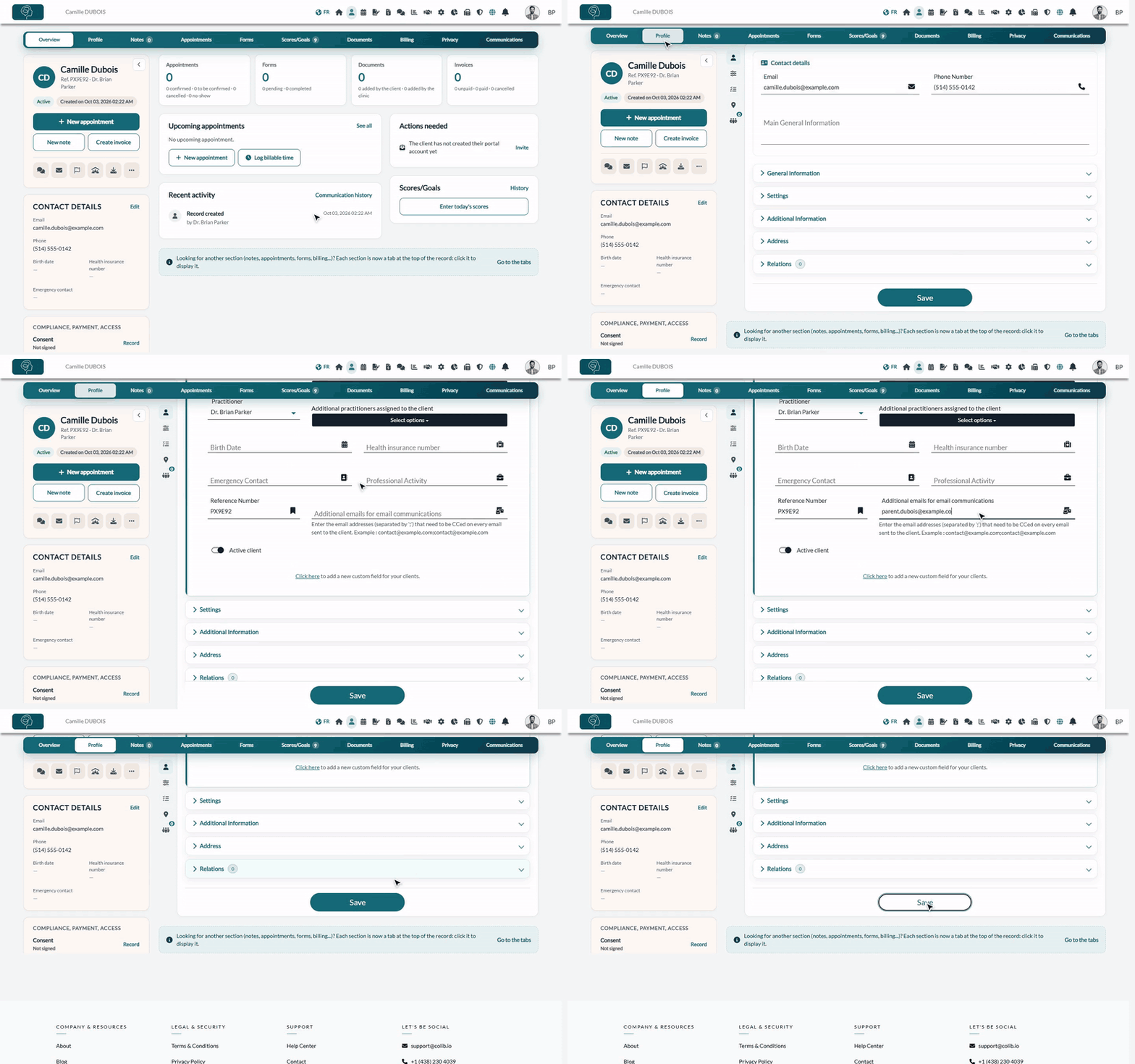
1Copy one or more addresses on all of a client's emails
- Open the client's record from your client list (www.colib.io/clients).
- Click the Profile tab, then open the General Information section.
- In Additional emails for email communications, enter the address to copy. To add several, separate them with a semicolon, for example parent@example.com; hr@example.com.
- Click Save at the bottom of the page.
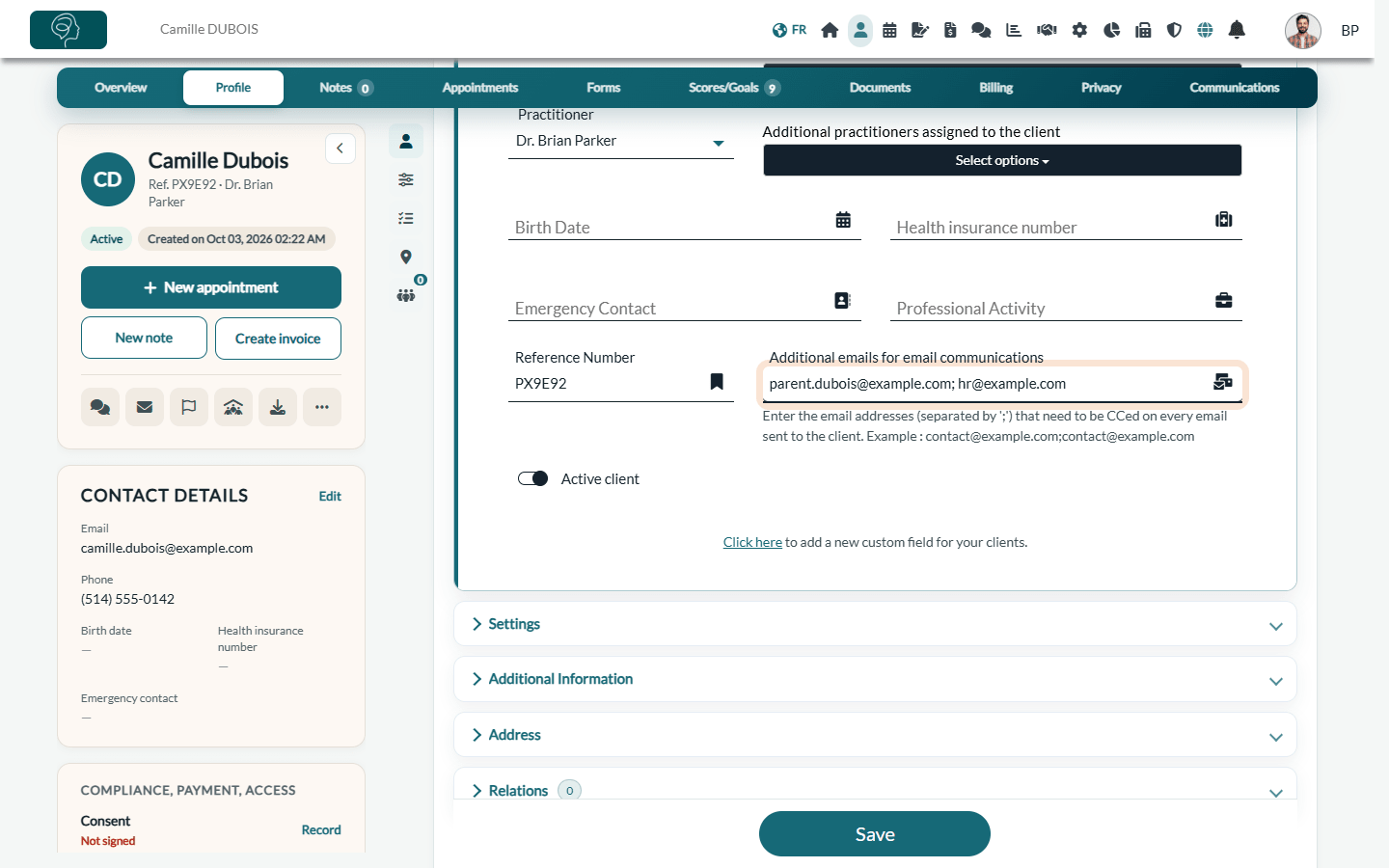
Each address is checked when you save. If one of them is not a valid email address, Colib tells you which one and nothing is saved until you correct it.
Which emails are copied?
Once saved, the additional addresses are copied on the emails Colib sends to this client, in particular:
- appointment notifications: confirmation, reminders, changes and cancellations;
- invoices, receipts, automatic payment reminders, refund notices and requests for payment information;
- forms you send (by hand or automatically before an appointment), documents and notes you share with the client;
- notifications of new private messages, the welcome email, waitlist and recall emails, gift certificates.
Text messages (SMS) are not copied: only emails are.
2Copy an address on a single invoice
Use this setting when a third person only needs one invoice, for example an employer who reimburses a specific series of sessions, without receiving the client's other emails.
- Open the invoice from Invoices (www.colib.io/invoices) or from the Billing tab of the client record.
- In CC Email, enter the address to copy. This field accepts one address.
- Save the invoice, then send it as usual.
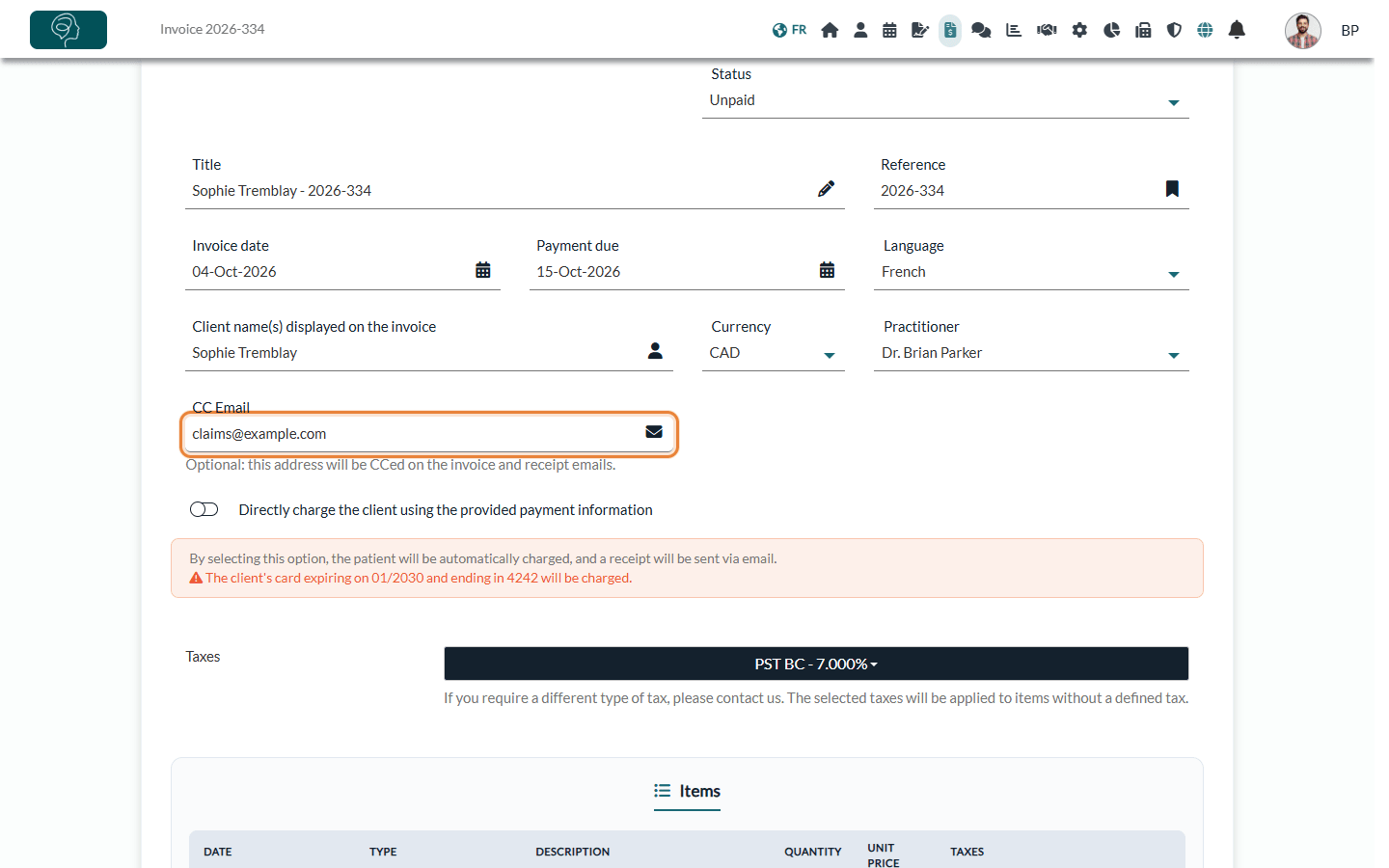
The address is copied on the emails of this invoice: the invoice, its receipt (including the receipt sent when the client pays online), and the automatic payment reminders. It is added to the client's additional emails, if any. You can change or clear the field at any time: the next emails of the invoice use the new value.
Which setting should I use?
| Situation | Setting |
|---|---|
| A parent or relative must receive all appointment reminders and all invoices. | Additional emails for email communications (client record) |
| An employer, an insurer or a case manager needs one particular invoice and its receipt. | CC Email (invoice) |
| You manage children or a family, with a parent responsible for several clients. | A client group (see the links below) |
Good to know
- Check who received an email — in the Communications tab of the client record, the CCs column lists the addresses copied on each email. See How to view client communications.
- Forms sent by hand — the window used to send a form has its own CC Email field, filled in for each sending. See How can I send the form to my clients?
- Client groups — when a client belongs to a client group, the group owner and the responsible holders can receive the notifications on their behalf, and their own additional emails are copied too. See How to communicate with child clients using client groups and How to manage client group notifications.
- Stop copying someone — delete the address from the field and save. Emails already sent are not affected.
Important: the copied addresses receive the same email as your client, including the attached invoice or receipt and the links it contains. Check each address carefully and keep this list up to date when your client's situation changes.
Still have a question?
Write to us at support@colib.io, we will be happy to help.
Was this article helpful?
That’s Great!
Thank you for your feedback
Sorry! We couldn't be helpful
Thank you for your feedback
Feedback sent
We appreciate your effort and will try to fix the article