Who is this article for?
This article is for practice administrators who manage the team. It explains how to follow the invitations you sent, what to do when a person has not received or accepted theirs, and how to remove a team member who no longer works with you, with everything that changes when you do.
Before you start: the team is managed in Settings > Team (www.colib.io/settings?show=team). You need the Administrator role with the option Ability to edit team members’ details and permissions.
1Review your team list
- Go to www.colib.io/settings?show=team. You can also click the Settings icon (gear) in the top bar, then Team in the Admin menu on the left.
- For each member, the list shows the role, the Invitation Status and the Last sign-in:
- Pending — the person has not accepted the invitation sent by email yet.
- Accepted — the person has confirmed their email address and can use Colib.
- No sign-in for 90 days — this badge points out an account that has not been used for 90 days, or never. It may belong to someone who no longer works with your practice.
- Excel icon (top right) — exports the list, to keep a record of your access reviews.
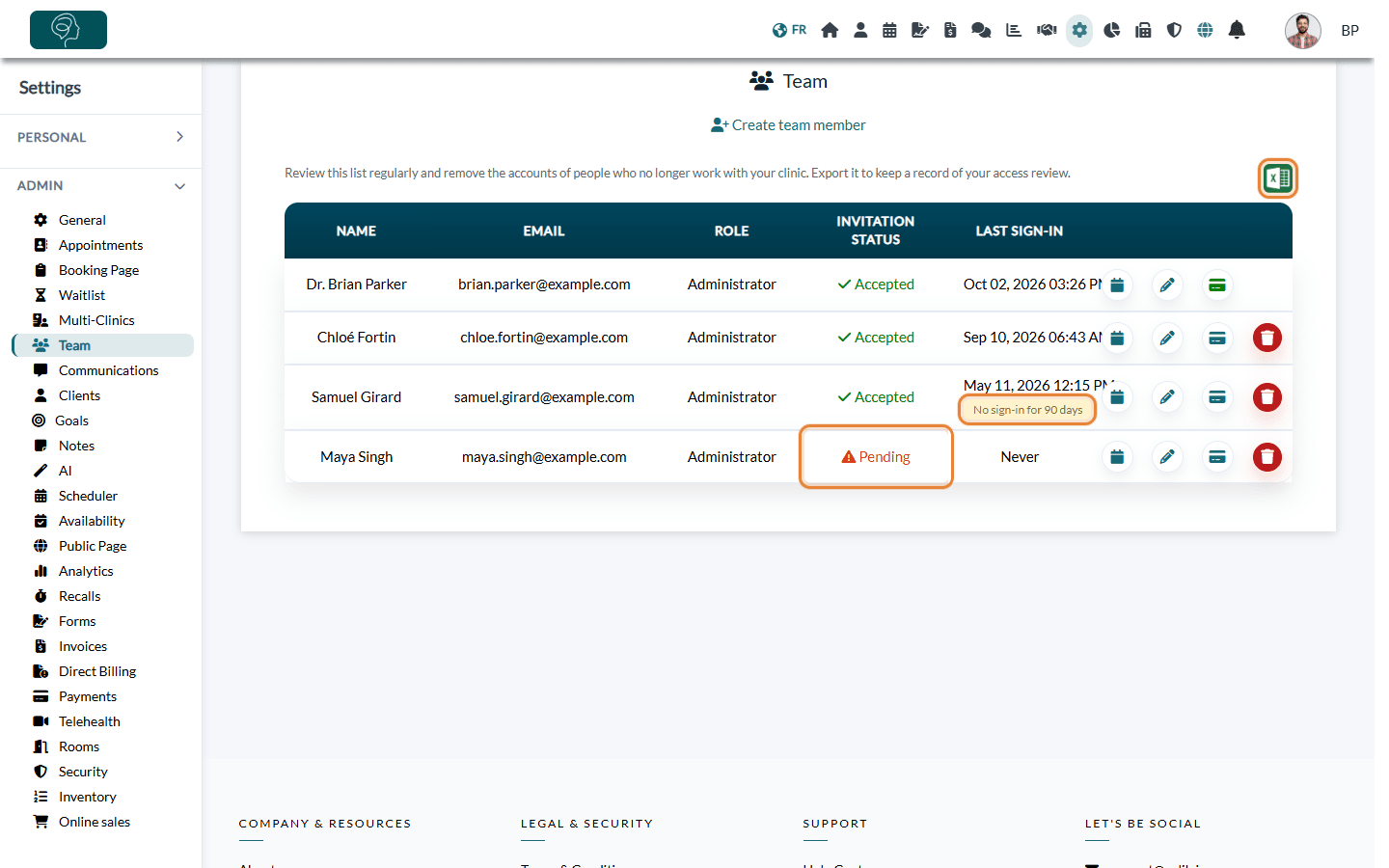
Reviewing this list regularly, and removing the accounts of people who have left, keeps your clients' information accessible only to the people who need it.
2Help a person who did not accept their invitation
There is no button to send the invitation again. Here is what you can do when a member stays Pending:
- Ask the person to look in their junk mail folder for the email Welcome to Colib.io, and to click Continue in it.
- If they have not accepted it, Colib automatically sends them a reminder about three days after the invitation.
- At any time, the person can get a new link on their own: on the Colib sign-in page, they click Forgot your password?, enter the email address you invited and click Continue. They receive an email to choose their password. Once it is saved, their address is confirmed and their status becomes Accepted.
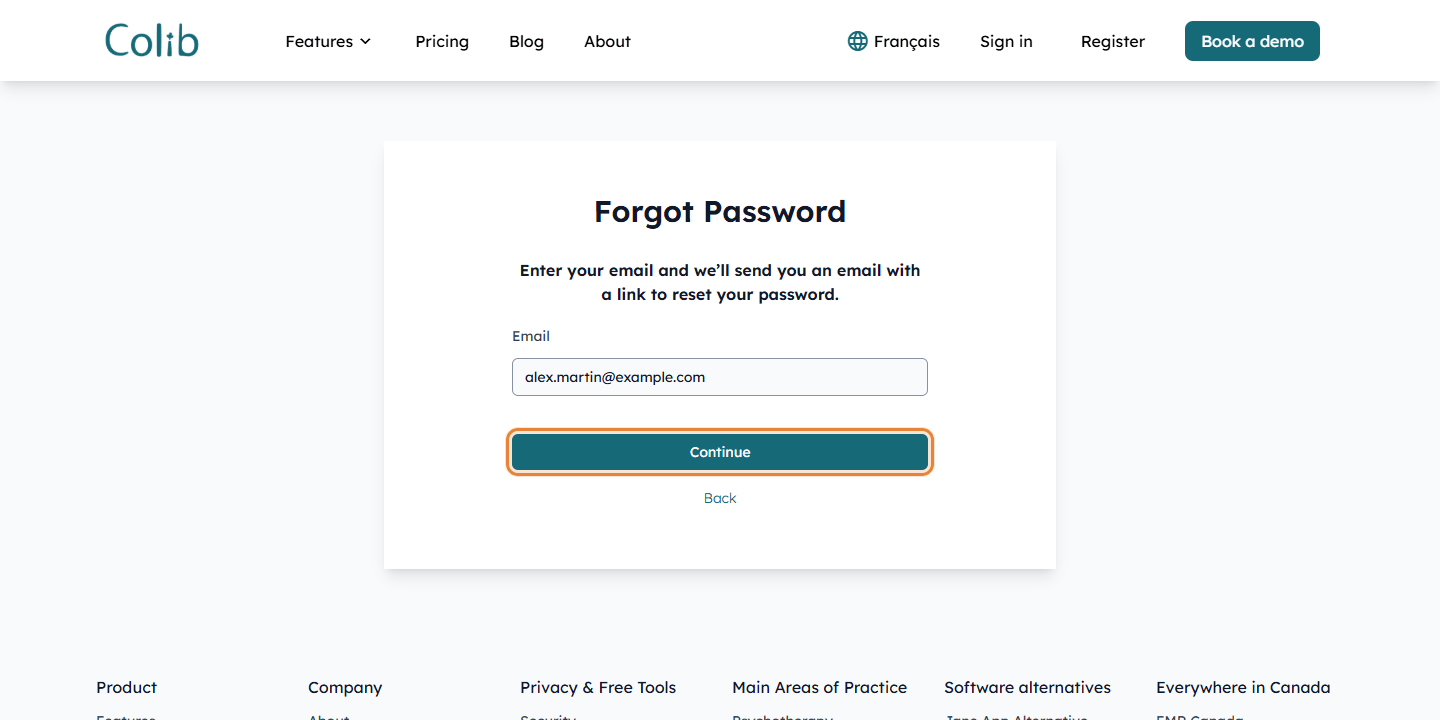
Important: deleting a pending member and creating them again does not send a new invitation: their account is kept and added back to your team directly. Use the Forgot your password? link instead.
Wrong email address? The email of a member cannot be changed in the edit window. Delete the pending member (see below), then create them again with the right address from Create team member.
3Remove a team member
- Before removing a practitioner, reassign their clients and their upcoming appointments to another practitioner.
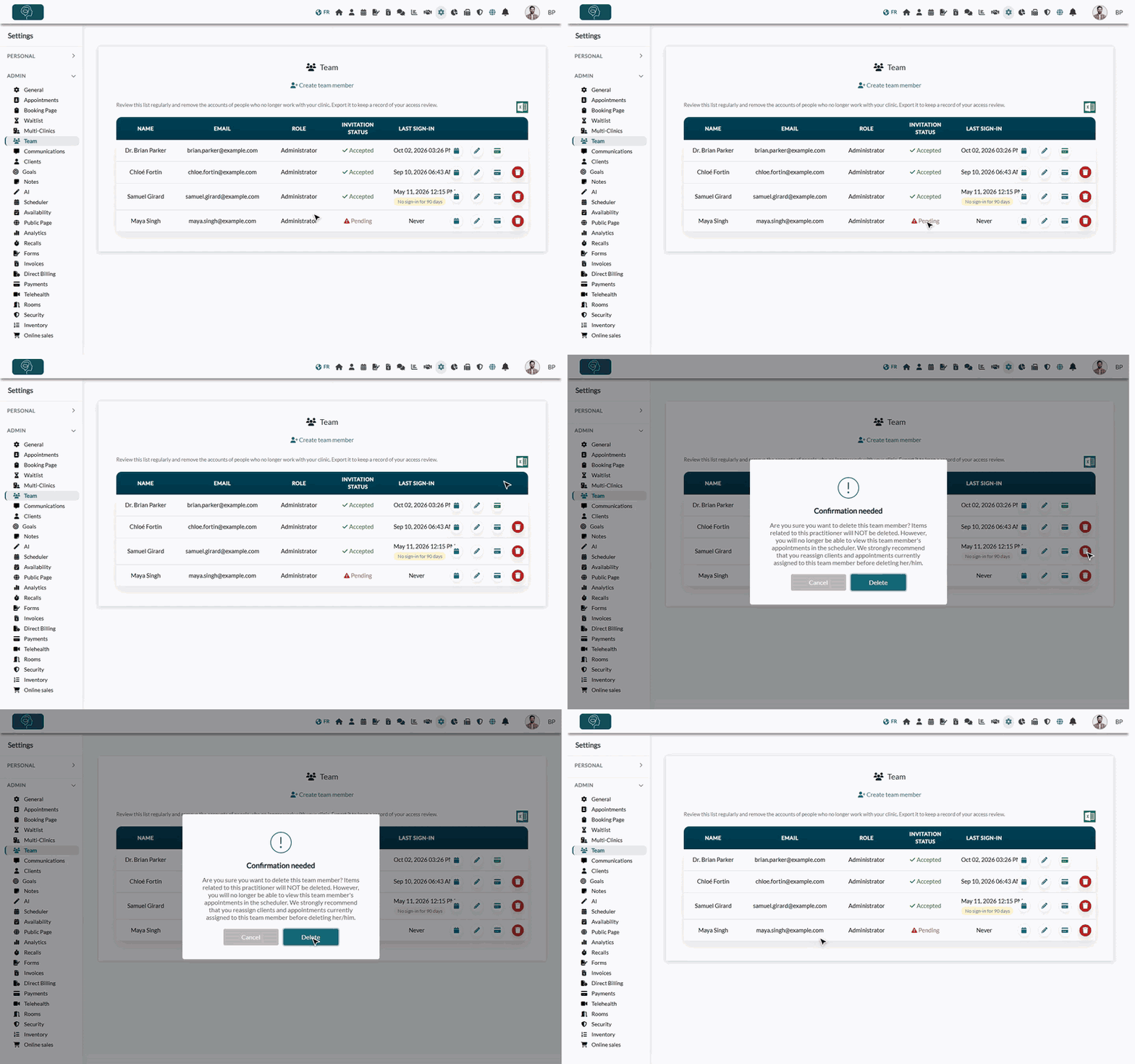
- In the team list (www.colib.io/settings?show=team), click the red trash icon (Delete team member) on the person's row.
- Read the message of the Confirmation needed window, then click Delete. Click Cancel to keep the member.
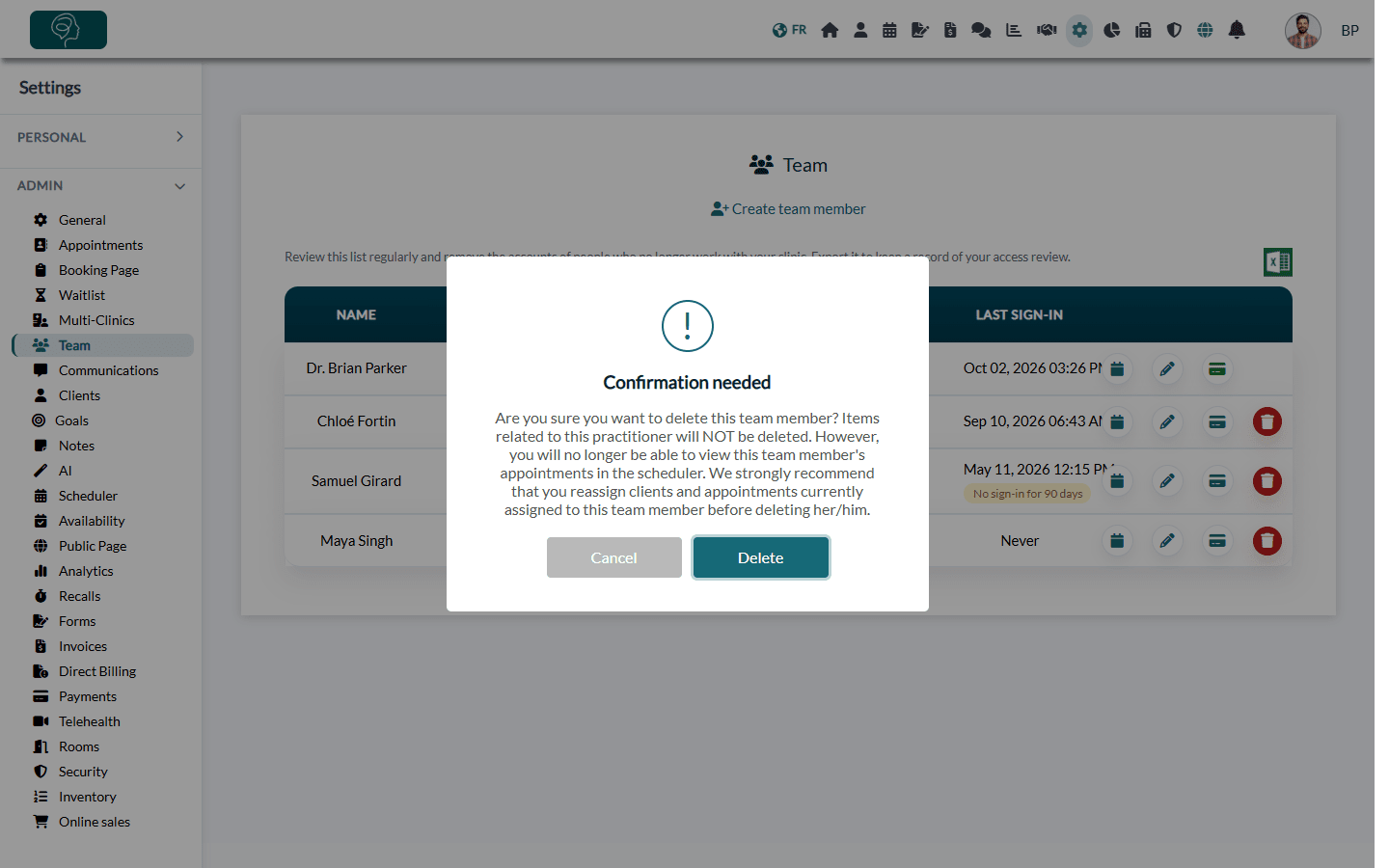
The trash icon is not shown on your own row or on the row of the practice owner (the person who created the account): these accounts cannot be removed. Colib also refuses to remove the last administrator: The practice needs to have at least one admin user.
What happens when you remove a member?
| What | After the removal |
|---|---|
| Access | The person can no longer access your practice: they are signed out of Colib and can no longer see your clients, notes, invoices or schedule. |
| Their Colib account | It is not deleted, but it is no longer linked to your practice. You can invite the same email address again later: the account is added back to your team directly. |
| Notes, invoices, appointments | Nothing is deleted. Their past and future appointments stay in your practice, but you no longer see them under this member in the scheduler: reassign the upcoming ones before the removal. |
| Assigned clients | The clients who had this person as their practitioner are no longer assigned to anyone. Assign them to another practitioner from their client record. |
| Settings of the member | Their authorized appointment types and their clinics are removed. Their Google or Outlook calendar synchronization is stopped. |
| Online payments | If online payments were shared with the practitioner's own bank account, the next payments go entirely to the practice. |
Good to know
- Change access rather than remove — to reduce what a person can do without removing them, click the pencil icon (Edit team member) on their row and change their role or their rights: see What are the different levels of rights options for the members of my practice?.
- Trace of the removal — each removal is recorded in the activity log of your practice: see How to access the activity log.
- Client visibility — to choose which clients each practitioner sees, see Assigning practitioners and configuring client visibility.
Still have a question?
Write to us at support@colib.io, we will be happy to help.
Was this article helpful?
That’s Great!
Thank you for your feedback
Sorry! We couldn't be helpful
Thank you for your feedback
Feedback sent
We appreciate your effort and will try to fix the article