À qui s'adresse cet article ?
Vos clients peuvent voir, dans leur portail client, les principaux renseignements que votre clinique détient sur eux, et vous demander de corriger ce qui est inexact. Toute personne a le droit de faire rectifier les renseignements inexacts qui la concernent ; le dossier appartient à votre clinique, la demande vous parvient donc et c'est vous qui décidez.
Rien ne se fait dans votre dos : le client ne modifie jamais le dossier, vous recevez un avis, et chaque décision est datée et conservée. Cet article explique ce que voit le client, comment appliquer, accepter ou refuser une demande, et ce que voit le client ensuite.
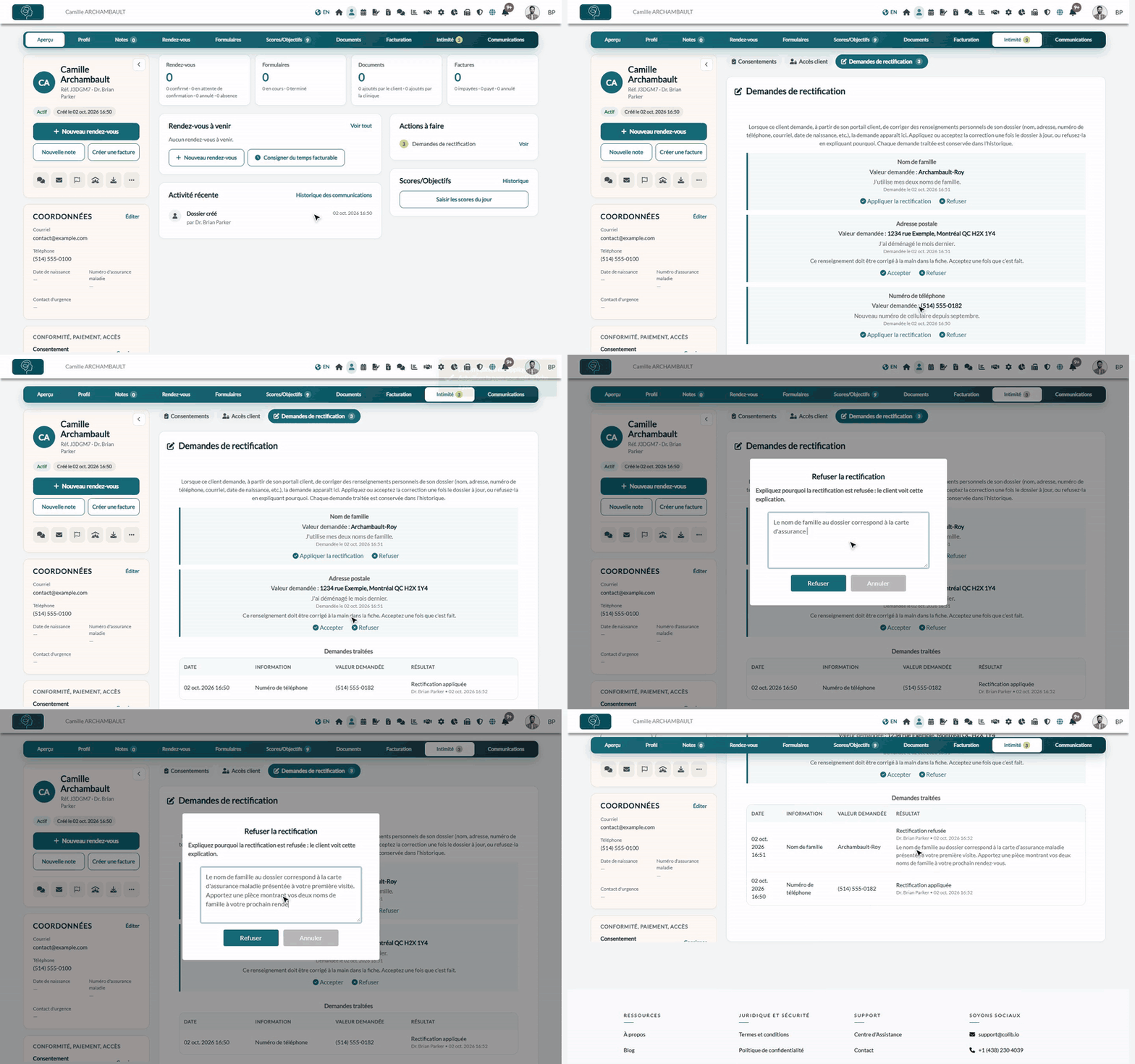
Où trouver les demandes : ouvrez le dossier du client depuis votre liste de clients (www.colib.io/fr-ca/clients), cliquez sur l'onglet Intimité, puis sur Demandes de rectification. Quand des demandes sont en attente, leur nombre s'affiche sur l'onglet Intimité et sur Demandes de rectification.
Ce que voit le client dans le portail client
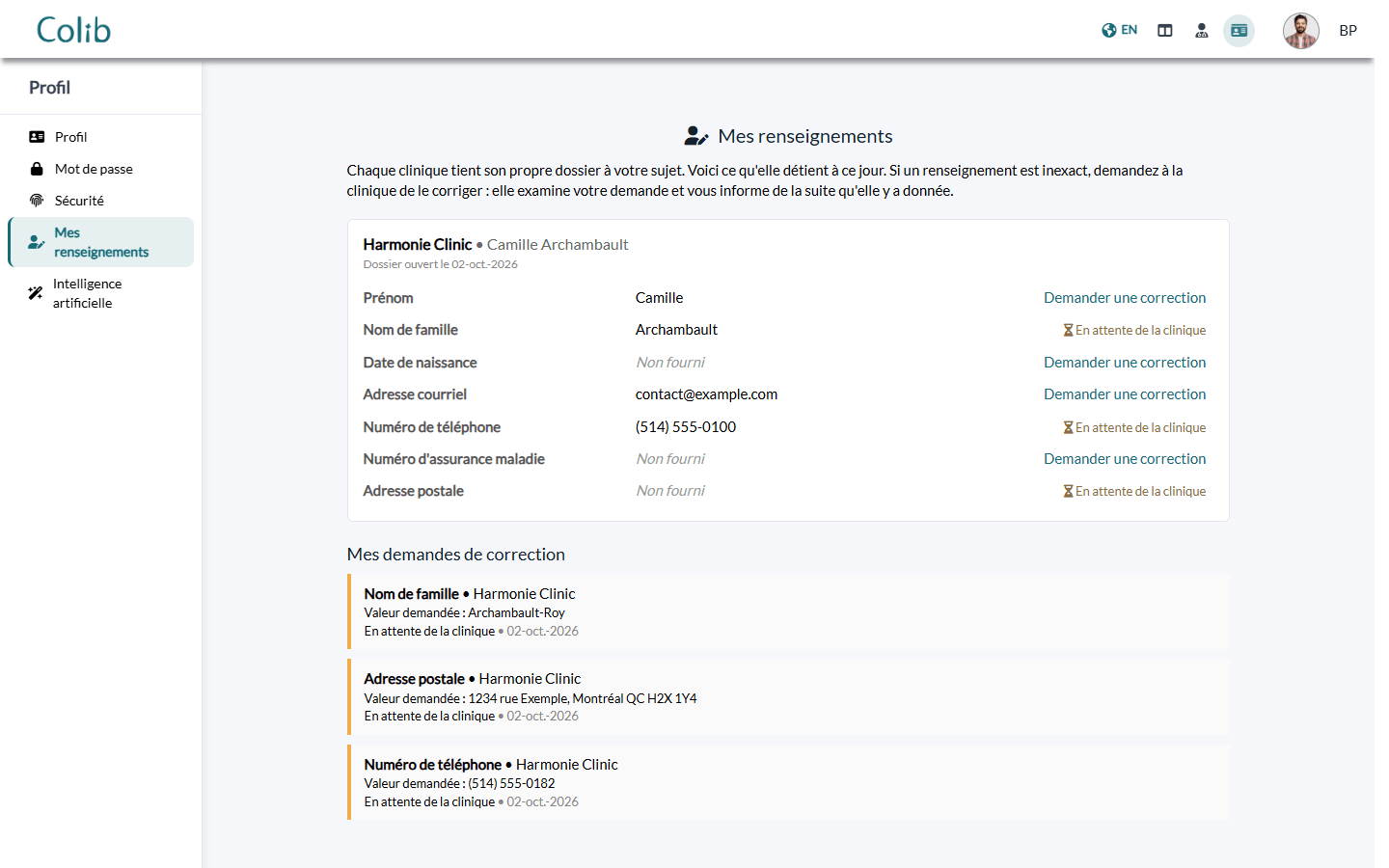
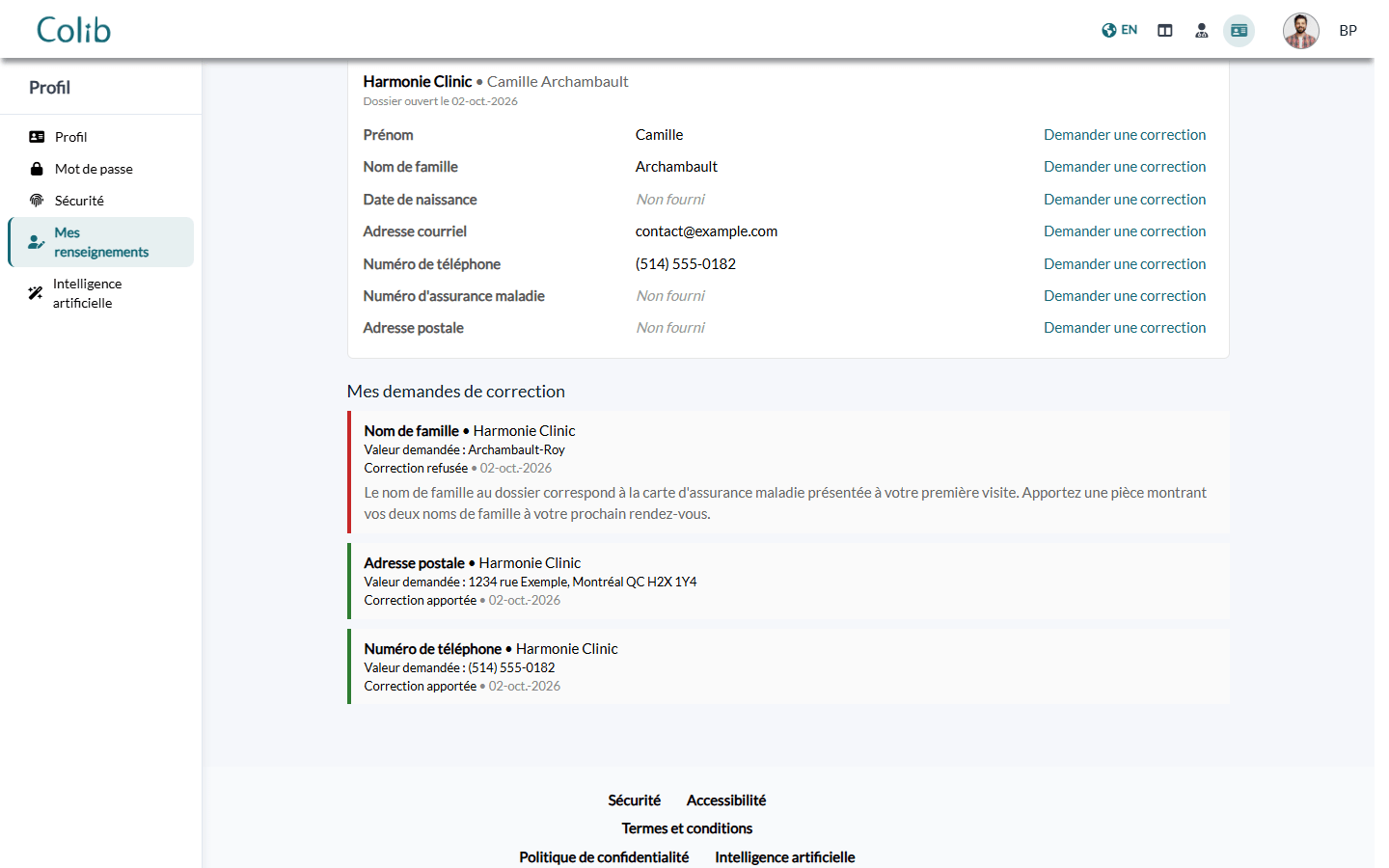
Dans le portail client, sous Profil > Mes renseignements, le client voit une carte par clinique où il a un dossier, avec ce que cette clinique détient : Prénom, Nom de famille, Date de naissance, Adresse courriel, Numéro de téléphone, Numéro d'assurance maladie et Adresse postale.
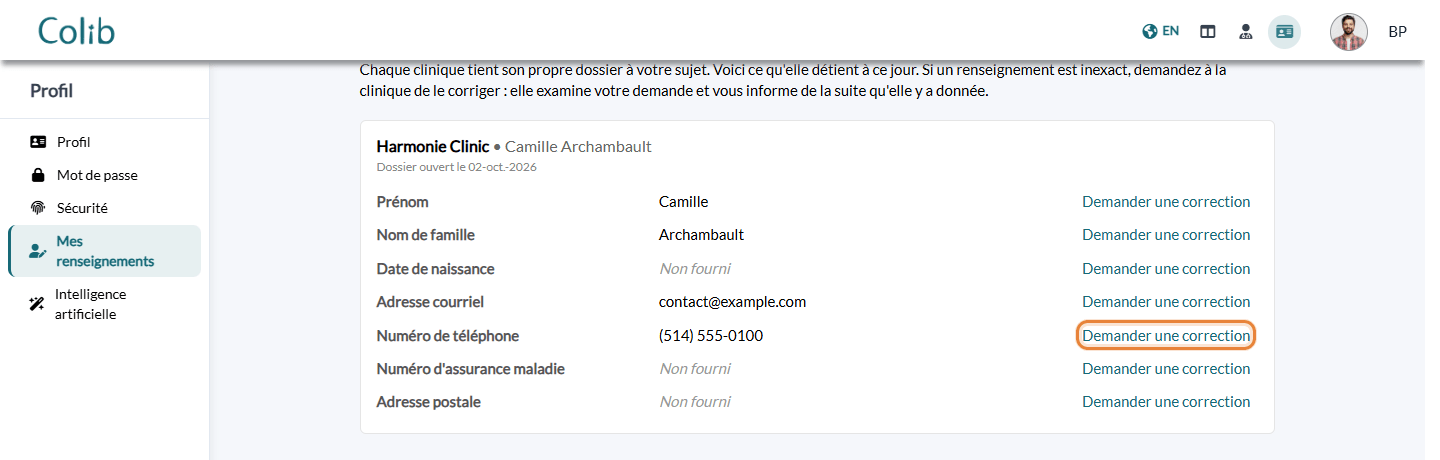
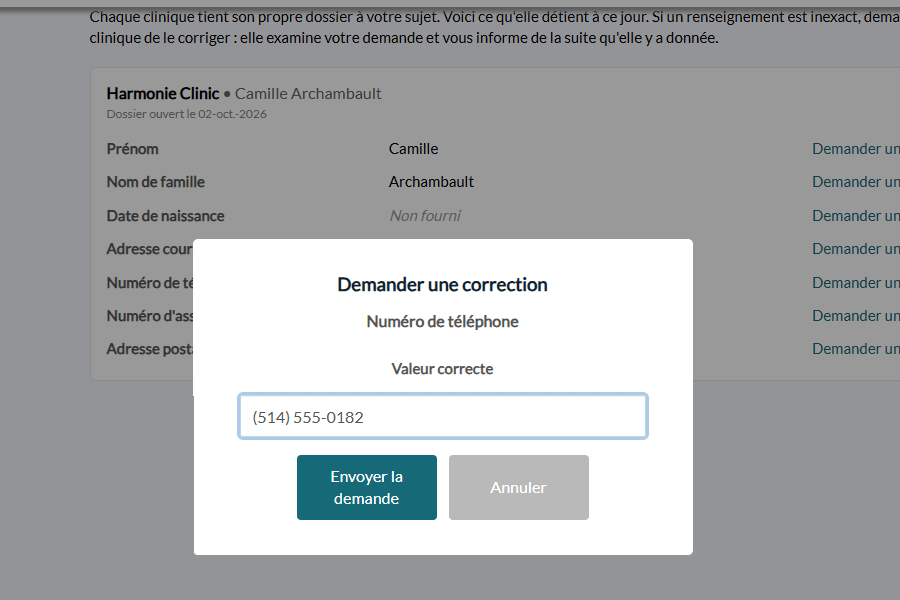
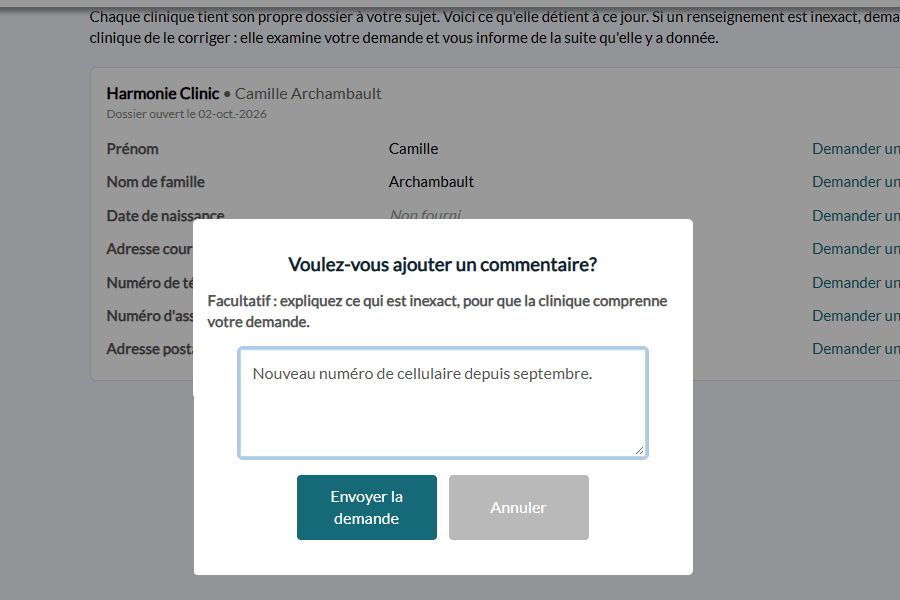
À côté de chaque ligne, un lien Demander une correction. Le client saisit la Valeur correcte (la date de naissance au format jj/mm/aaaa), peut expliquer ce qui est inexact, puis clique sur Envoyer la demande. C'est tout ce qu'il peut faire : il ne modifie jamais le dossier et ne peut pas demander à changer autre chose dans le dossier.
Tant qu'une demande est en attente, la ligne affiche En attente de la clinique au lieu du lien, et la demande apparaît sous Mes demandes de correction : il n'y a qu'une demande en attente par renseignement. Si une demande plus récente sur le même renseignement parvient à la clinique avant que la première soit traitée, l'ancienne est fermée avec le statut Remplacée par une demande plus récente : vous voyez toujours une seule demande en attente par renseignement.
1Recevez la demande
- Une notification apparaît dans la cloche en haut de Colib. Elle est envoyée au praticien à qui appartient le dossier et aux praticiens additionnels du dossier. Si le dossier n'a pas de praticien, elle va à la personne qui a créé la pratique.
- Cliquez sur la notification pour ouvrir le dossier du client, puis sur l'onglet Intimité > Demandes de rectification.
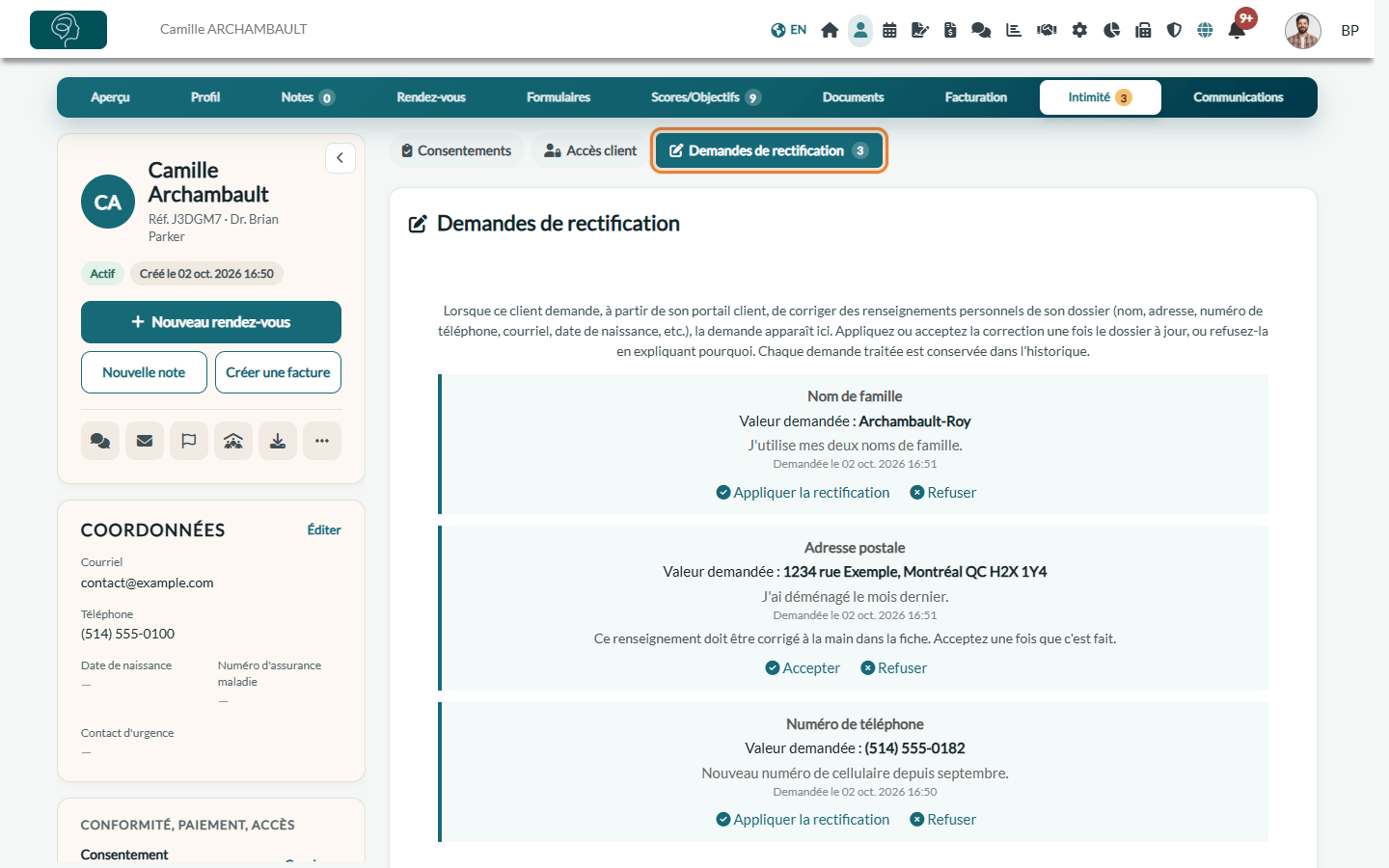
Chaque demande en attente affiche le renseignement concerné, la Valeur demandée, l'explication du client s'il en a écrit une, et la date de la demande.
2Appliquez la rectification
Pour le prénom, le nom de famille, la date de naissance, l'adresse courriel, le numéro de téléphone et le numéro d'assurance maladie, Colib peut inscrire la nouvelle valeur dans le dossier pour vous.
- Cliquez sur Appliquer la rectification sous la demande.
- Confirmez avec Oui. Le dossier est mis à jour immédiatement, comme si vous aviez saisi la valeur vous-même, et la demande passe dans l'historique. Actualisez la page pour voir la nouvelle valeur en haut du dossier.
Si la valeur envoyée par le client n'est pas utilisable telle quelle (une date qui n'existe pas, une adresse courriel sans @, une valeur trop longue), Colib vous indique qu'il n'a pas pu l'appliquer. Corrigez le dossier à la main dans l'onglet Profil, puis refusez la demande avec une courte explication pour que le client sache qu'elle a été traitée.
3Acceptez une rectification faite à la main
Une adresse postale comporte plusieurs parties : Colib ne la réécrit donc pas pour vous. La demande indique Ce renseignement doit être corrigé à la main dans la fiche. Acceptez une fois que c'est fait.
- Corrigez l'adresse dans l'onglet Profil du dossier et cliquez sur Sauvegarder.
- Revenez à Intimité > Demandes de rectification, cliquez sur Accepter sous la demande et confirmez.
4Refusez une demande
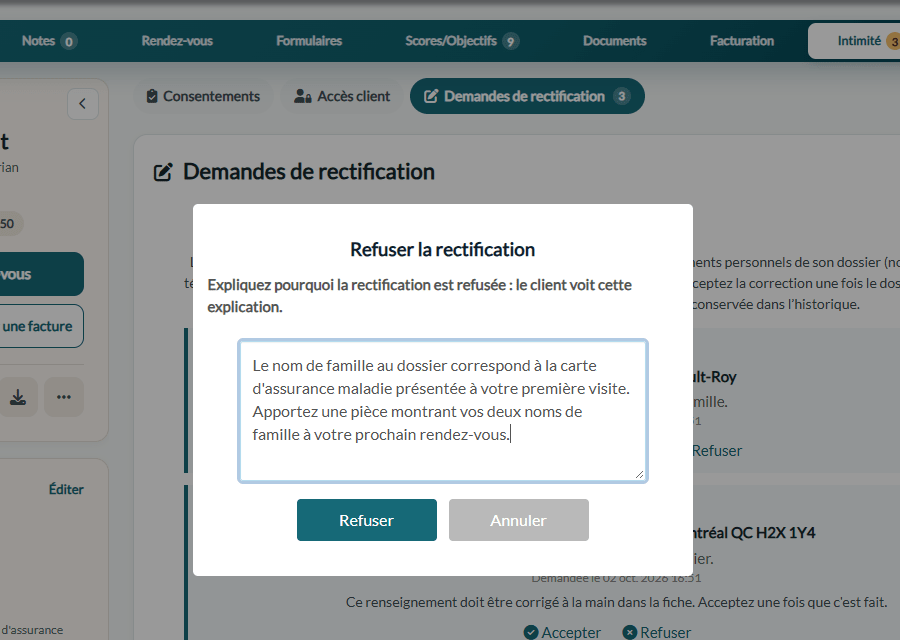
Rien ne vous oblige à appliquer toutes les demandes : le client peut se tromper, ou le renseignement peut être exact tel qu'il est consigné. Mais un refus doit être expliqué, et le client lit votre explication dans son portail.
- Cliquez sur Refuser sous la demande.
- Rédigez l'explication en une ou deux phrases : ce que vous avez vérifié et pourquoi le dossier reste tel quel. Par exemple : « La date de naissance au dossier correspond à la carte d'assurance maladie fournie. Communiquez avec nous si vous croyez que la carte comporte une erreur. »
- Cliquez sur Refuser pour confirmer.
Important : tenez-vous-en aux faits : l'explication fait partie du dossier et le client la lira. Pas de contenu clinique, pas de jugement sur la personne.
Et ensuite
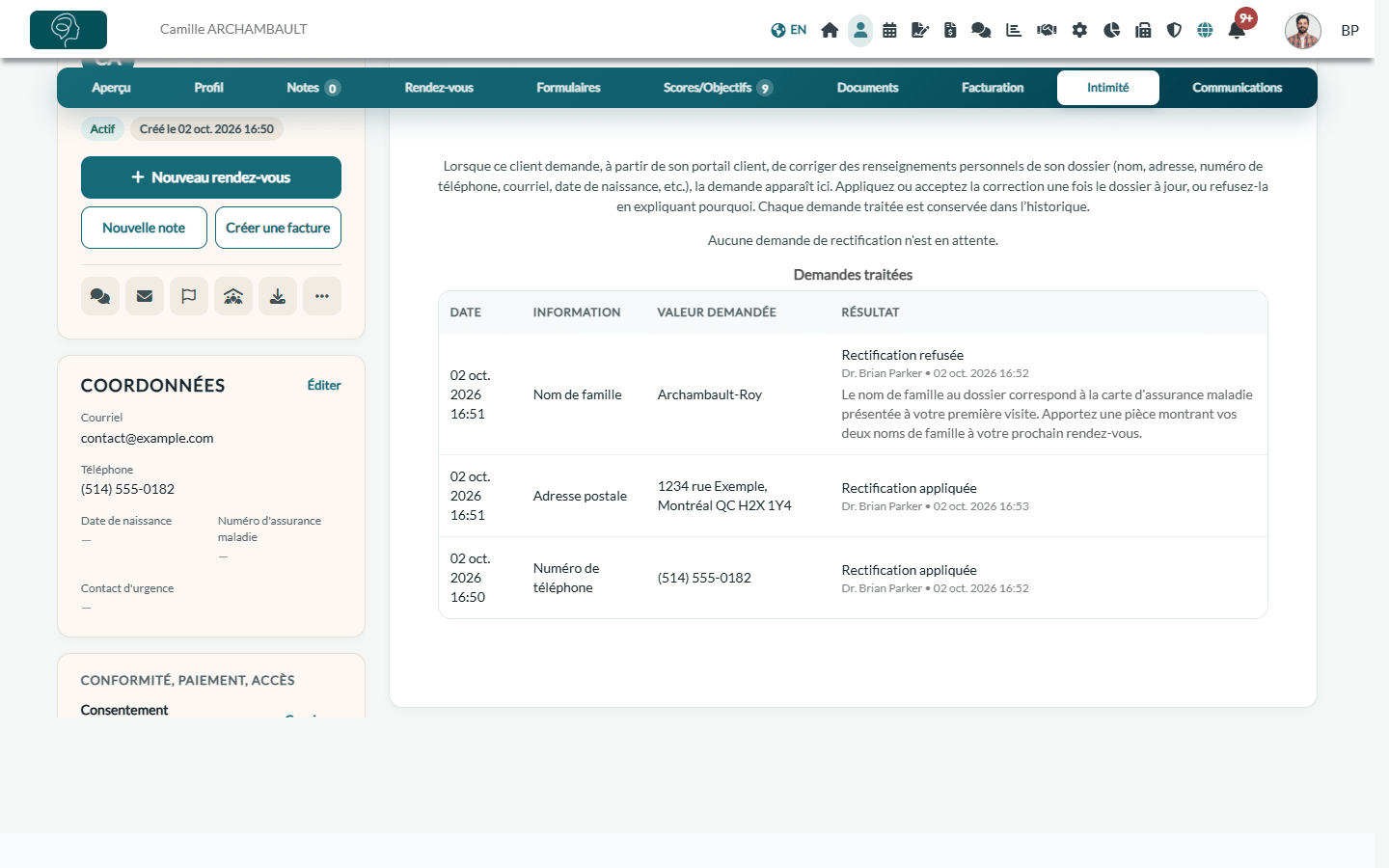
Les demandes traitées restent dans le tableau Demandes traitées du dossier, avec la date, le renseignement, la valeur demandée, le résultat, le nom de la personne qui a décidé, la date de la décision et l'explication d'un refus. Rien n'est supprimé.
Dans le portail client, le client suit chaque demande sous Mes demandes de correction : En attente de la clinique, Correction apportée ou Correction refusée, avec votre explication et la date de votre décision.
Bon à savoir
- Vérifiez avant d'appliquer — certains renseignements identifient la personne dans tout le dossier : nom, date de naissance, numéro d'assurance maladie. Traitez une demande sur ces renseignements comme vous le feriez à l'accueil : une faute d'orthographe ou un nouveau numéro de téléphone peut être appliqué tout de suite ; pour un changement de nom, de date de naissance ou de numéro d'assurance maladie, demandez d'abord la pièce justificative. Si quelque chose vous semble anormal, refusez avec une explication et invitez le client à communiquer avec vous : un refus n'est pas un rejet de la personne, c'est une décision documentée.
- Qui peut décider — les utilisateurs qui peuvent modifier les informations des clients. Ceux qui peuvent seulement consulter les dossiers voient les demandes sans les boutons.
- Tout est conservé — la demande, la décision, sa date, la personne qui a décidé et l'explication restent dans le dossier ; la demande du client est aussi inscrite dans son propre historique d'actions. Vous n'avez rien d'autre à classer.
- Pourquoi c'est important — les lois sur la protection des renseignements personnels donnent à toute personne le droit d'accéder aux renseignements détenus à son sujet et de les faire corriger lorsqu'ils sont inexacts. À titre de responsable du dossier, votre clinique doit une réponse au client, et un refus doit être justifié.
- À voir aussi — l'onglet Intimité contient aussi le registre des consentements : voir Comment consigner et suivre les consentements des clients dans Colib. Pour en savoir plus sur le portail, voir Qu'est-ce que le portail client ?.
Vous avez encore une question ?
Écrivez-nous à support@colib.io, nous serons heureux de vous aider.
Was this article helpful?
That’s Great!
Thank you for your feedback
Sorry! We couldn't be helpful
Thank you for your feedback
Feedback sent
We appreciate your effort and will try to fix the article