Who is this article for?
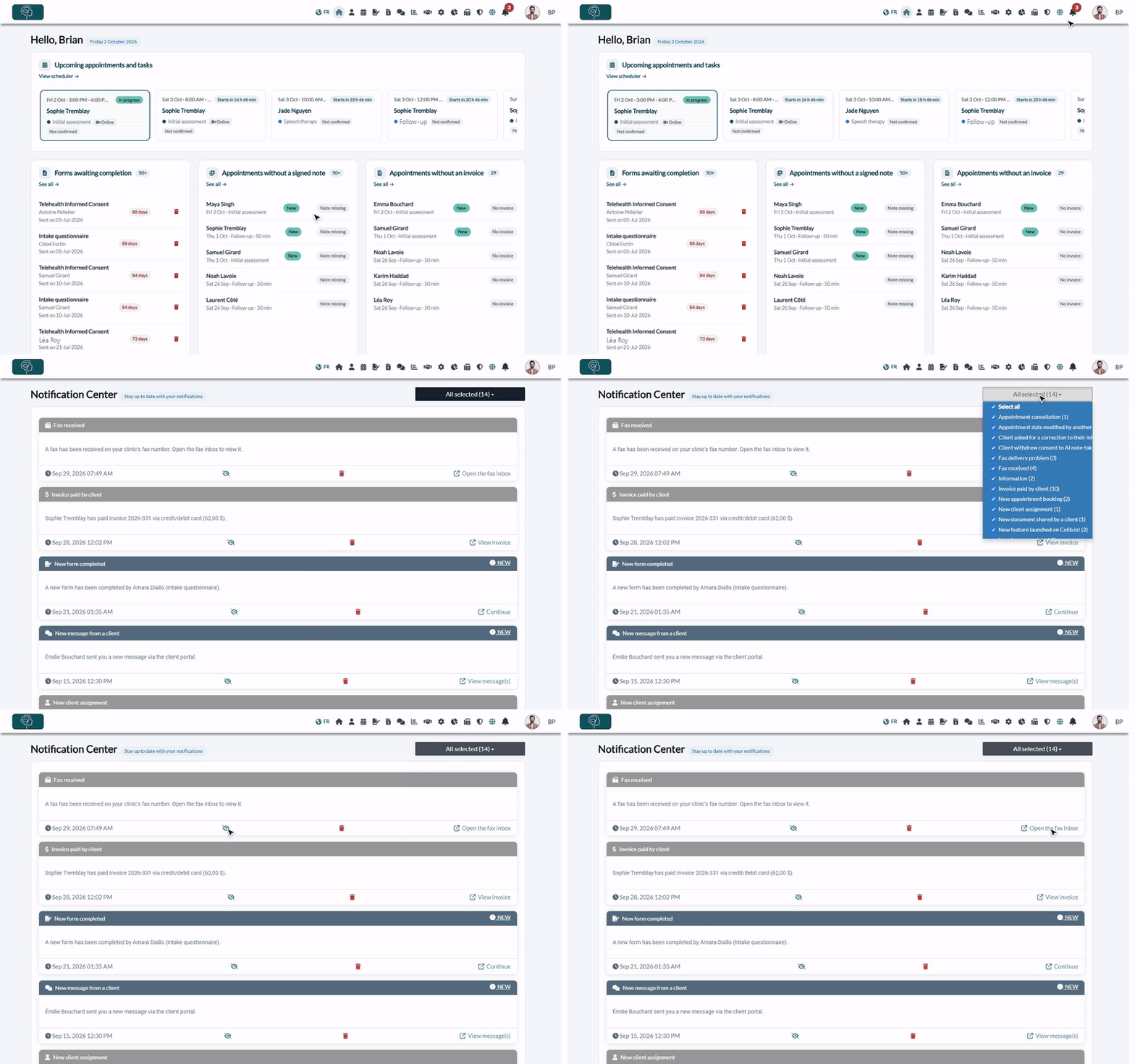
Colib keeps you informed of what happens in your practice while you work: a client completes a form, sends you a message, books or cancels an appointment, pays an invoice, a fax arrives... All these alerts are gathered in the Notification Center, behind the bell icon of the top bar.
This article explains where to find your notifications, how to read them, filter them and act on them, and which notifications you can receive.
1Open the notification center
- Click the bell icon in the top bar, or go to www.colib.io/notifications.
- When you have notifications to read, a red badge on the bell shows how many. Hover over the bell to see the number in a tooltip.

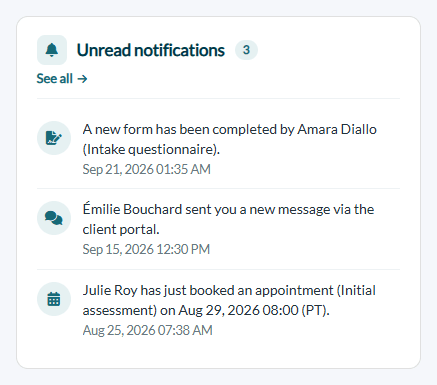
Your home page (www.colib.io/establishmentadmin/home) also shows your latest unread notifications in the Unread notifications card. Click one to go straight to the related page, or click See all to open the notification center.
2Read your notifications
The notification center lists your notifications from the most recent to the oldest. Each card shows:
- the type of notification, with its icon (for example New form completed or Fax received);
- a short message that explains what happened;
- the date and time;
- a link to the related page, for example View invoice, View client, View message(s) or Open the fax inbox.
Notifications you had not read yet have a darker header and the NEW label. As soon as you open the notification center, they are marked as read: the badge on the bell disappears.
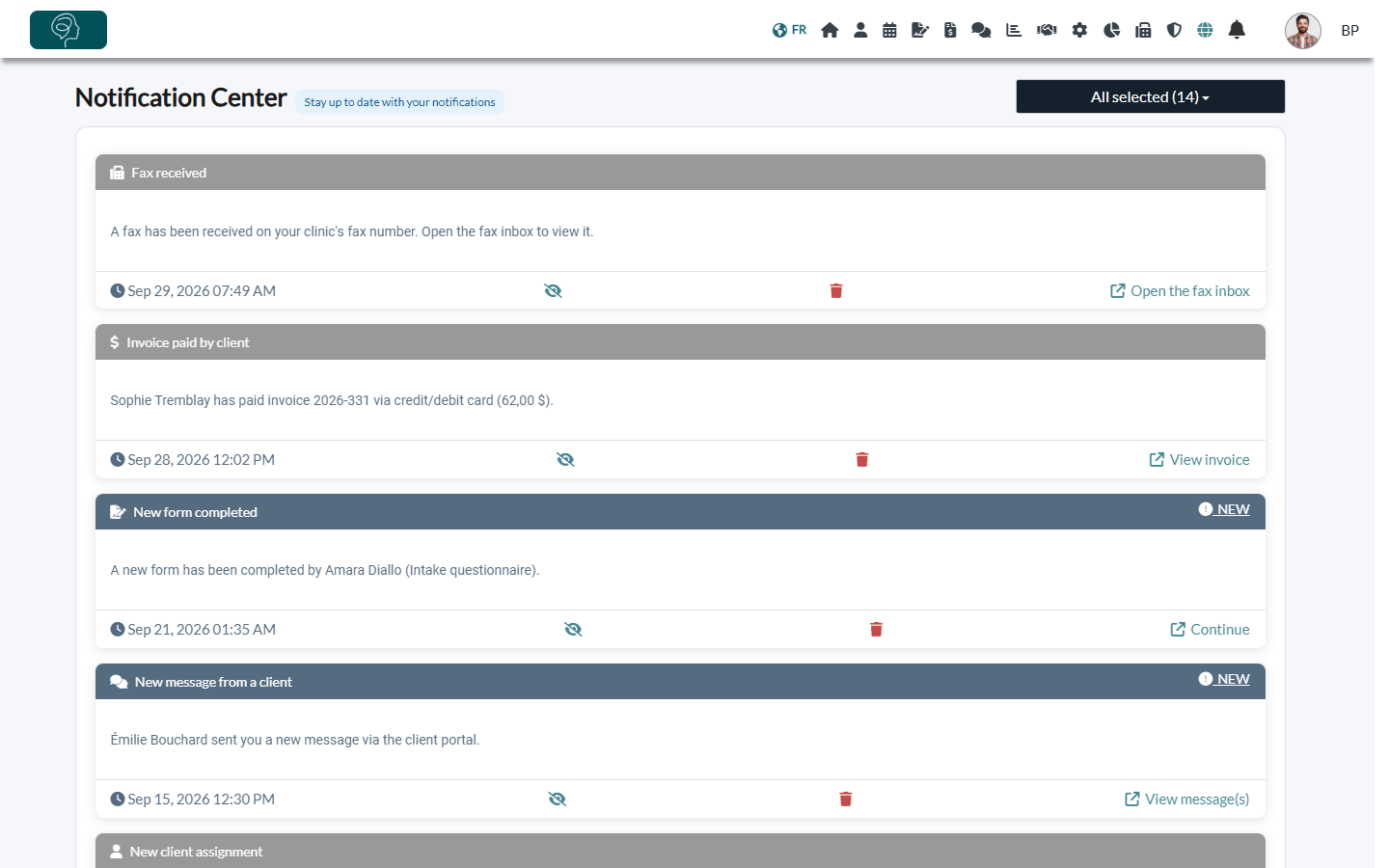
The page shows your 50 most recent notifications. Click Show all notifications at the bottom of the list to see older ones.
3Filter by type
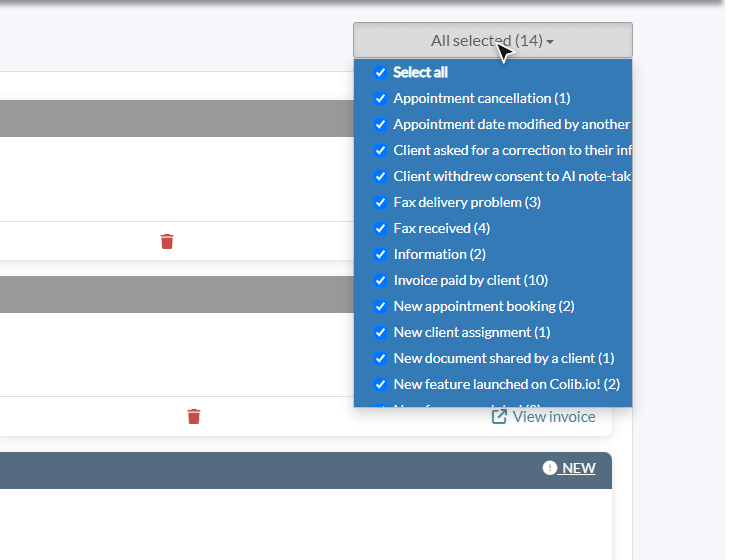
- Click the list at the top right of the page (All selected). It shows each type of notification you received, with the number of notifications of that type.
- Uncheck the types you do not want to see, or use Select all to show everything again. The list updates immediately.
4Act on a notification
The bottom of each card has three actions:
- Eye icon (Set as not read) — marks the notification as unread again, as a reminder to deal with it later. It shows the NEW label again the next time you open the page and counts again in the bell badge.
- Trash icon (Delete) — removes the notification from the list.
- Link on the right — opens the page you need: the client record, the invoice, the appointment, the message, the form or the fax inbox.

Important: there is no confirmation when you click the trash icon, and a deleted notification cannot be restored. Only the notification is deleted: the client, the invoice, the message or the form it refers to are not affected.
Which notifications can you receive?
Here are the main types of notifications. You only receive those that concern the features you use.
| Topic | Notifications |
|---|---|
| Appointments | New appointment booking, Appointment modification, Appointment cancellation, Appointment confirmed by client, Client arrival update, New appointment request, Appointment without an invoice, Appointment date modified or deleted by another user |
| Clients | New form completed, New message from a client, New document shared by a client, New client assignment, Waitlist request received, Client asked for a correction to their information, Client withdrew consent to AI note-taking |
| Payments and invoices | Invoice paid by client, Client payment information collected, Expiring payment card, Client payment dispute, Interac e-Transfer match or mismatch, Credit added to your account |
| Notes and recordings | AI note was successfully generated, AI note was not generated, Appointment audio or video available |
| Communications | Email delivery problem, SMS delivery problem, Fax received, Fax delivery problem |
| Calendar synchronization | Google or Outlook synchronization completed, Google or Outlook synchronization error |
| Your Colib account | Monthly subscription, Unsuccessful payment, Your referral credit is now available, New feature launched on Colib.io!, Information |
Good to know
- Personal or shared notifications — some notifications are addressed to you only (for example a client assigned to you, or a note generated for your appointment). Others concern the whole practice: they are shown to the team members who have the right Ability to see other practitioners information.
- Read for everyone — a notification shared with the whole practice is marked as read for all as soon as one team member opens the notification center. Use the eye icon to mark it as unread again if a colleague still needs to see it.
- Several clinics — in a practice with several clinics, you only see the shared notifications about clients you have access to.
- Emails and SMS — the notification center does not replace the emails and text messages Colib sends you for some events (for example the reminder before each appointment). To set them up, see How to get an email or SMS reminder before each appointment.
- Messages from clients — to learn how you are alerted of a new message, see How will I be notified when a client sends me a message?
Still have a question?
Write to us at support@colib.io, we will be happy to help.
Was this article helpful?
That’s Great!
Thank you for your feedback
Sorry! We couldn't be helpful
Thank you for your feedback
Feedback sent
We appreciate your effort and will try to fix the article