Who is this article for?
This article is for clients of a practice that uses Colib. Before or after an appointment, your practice may ask you to fill out a form: an intake questionnaire, a consent form, a follow-up questionnaire, and so on. Everything is done online, on a computer, a tablet or a phone. You do not need to print anything.
In short: open the form from the email or from the Forms tab of the client portal, answer the questions, sign, then click Submit.
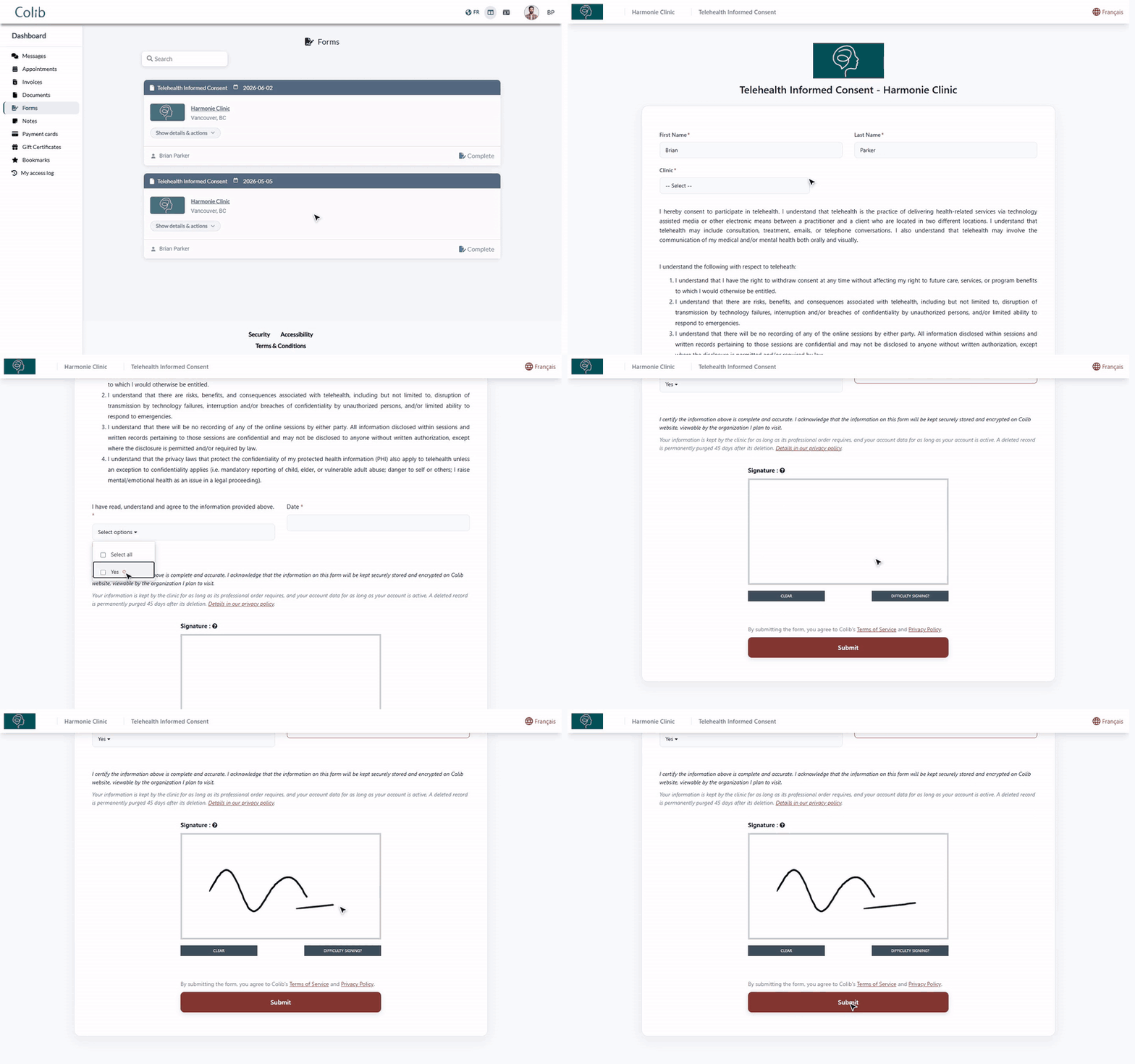
1Open the form
You can open the form in two ways:
- From the email — the email from your practice is titled [Practice] - Please complete the form ([form name]). Click the Complete Form button. If you have not filled out the form yet, you may receive a reminder whose title starts with [REMINDER].
- From the client portal — sign in to portal.colib.io, open the Forms tab, then click Complete on the form to fill out.
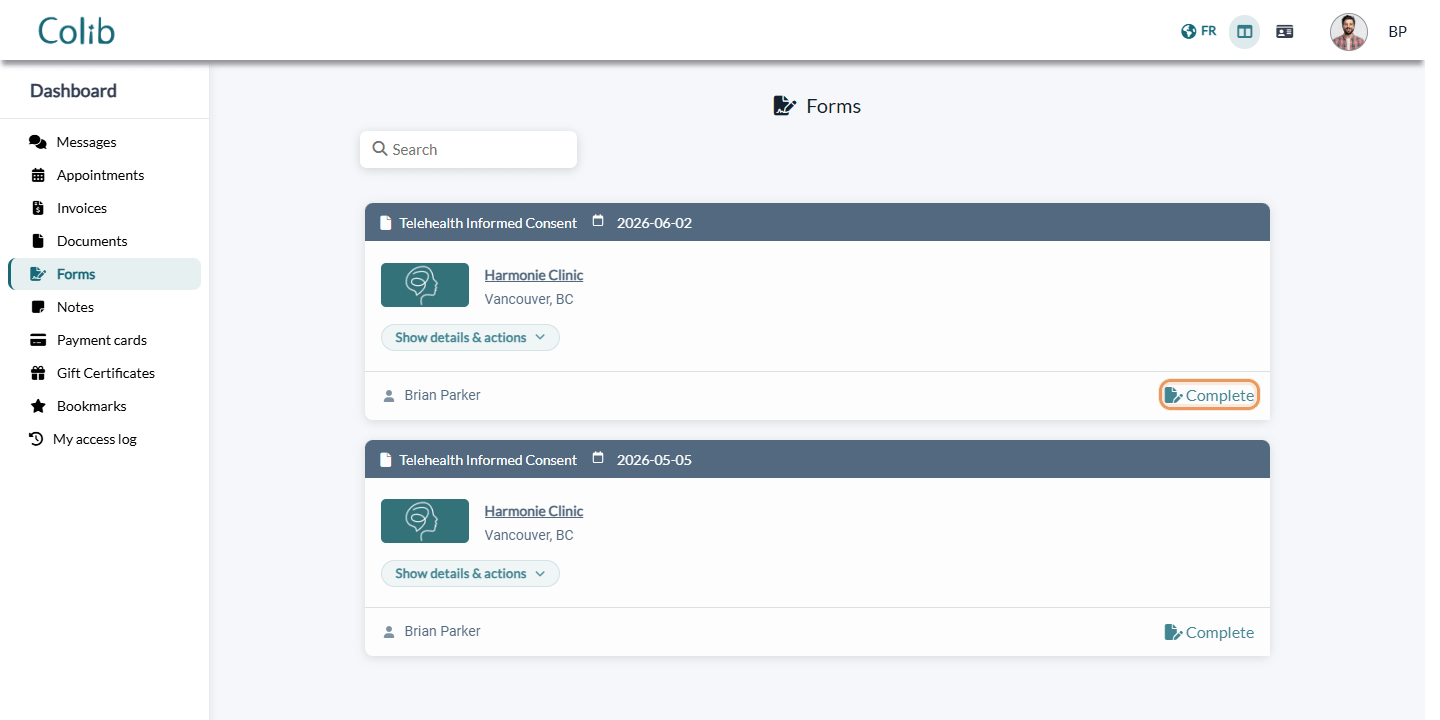
In the portal, the forms to fill out show the status Form Sent or Form Opened (click Show details & actions to see it). If the tab shows You need to confirm your email address to view your Form(s)., first confirm your email address with the link you received when your account was created.
Asked to create an account? some practices require a client portal account to fill out certain forms. In that case, an Account required page opens instead of the form: enter your email and click Continue. You receive an email with a link to create your account; once it is created, you are taken back to the form automatically.
2Answer the questions
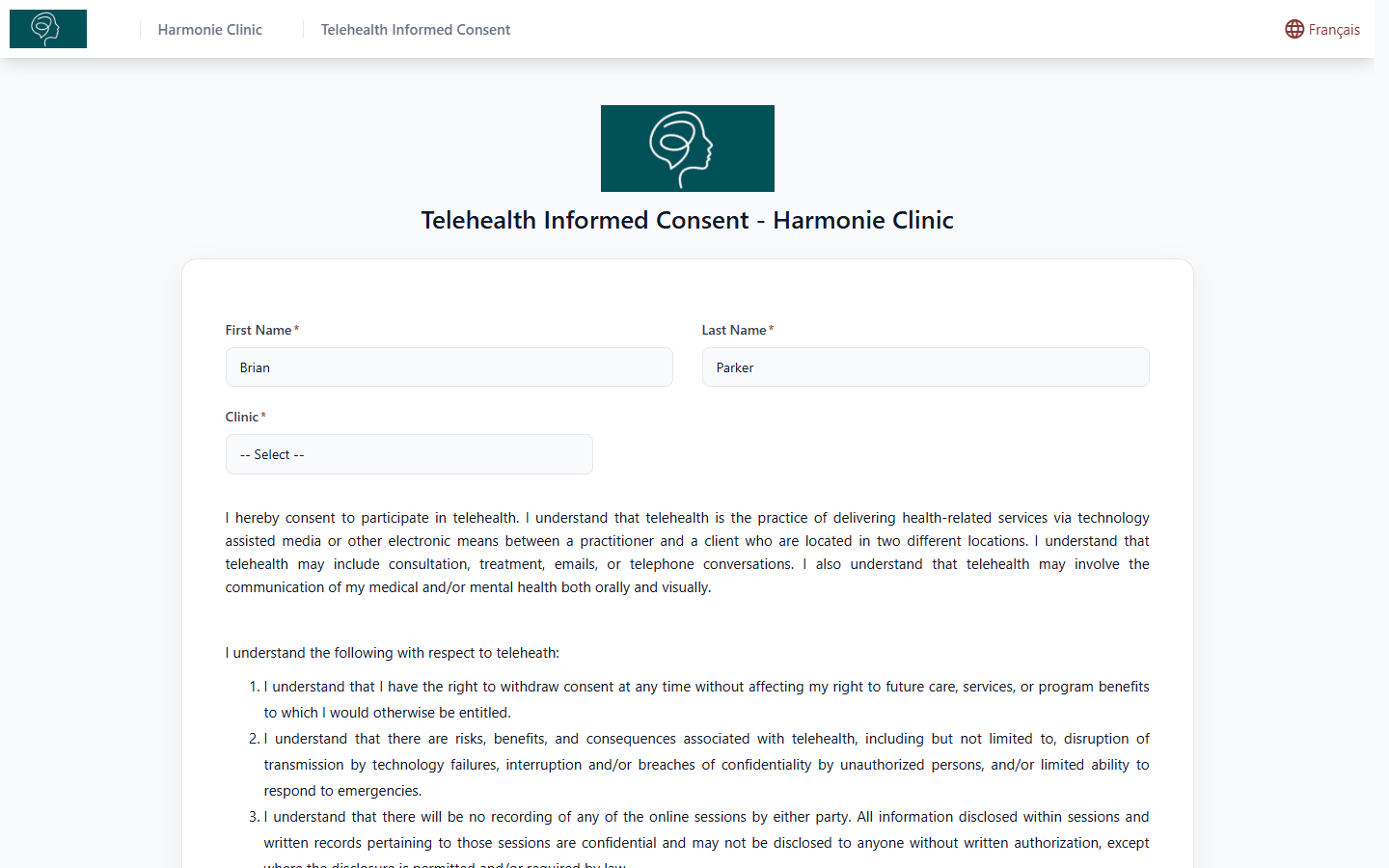
- Check your First Name and Last Name. When you open the form from your practice's email or from the portal, they are usually filled in already.
- Depending on the form, choose the Clinic where you are seen and enter the Visit Date.
- Scroll down and answer the questions. The questions marked with a red * are required.
- Some questions only appear after a given answer (for example, a Details box after a Yes). Answer them too.
- For a document to send (a referral letter, a photo of a document...), drag your file into the box or click it to choose a file. Images and PDF files are accepted, up to 20 MB. Click Delete file to replace it.
The whole form is on a single page: there is no Next button. To read the form in the other language, click Français at the top right (when your practice offers the form in both languages).
Important: your answers are not saved as you go. If you close or reload the page before clicking Submit, you will have to start over. Take the time to fill out the form in one sitting.
3Sign the form
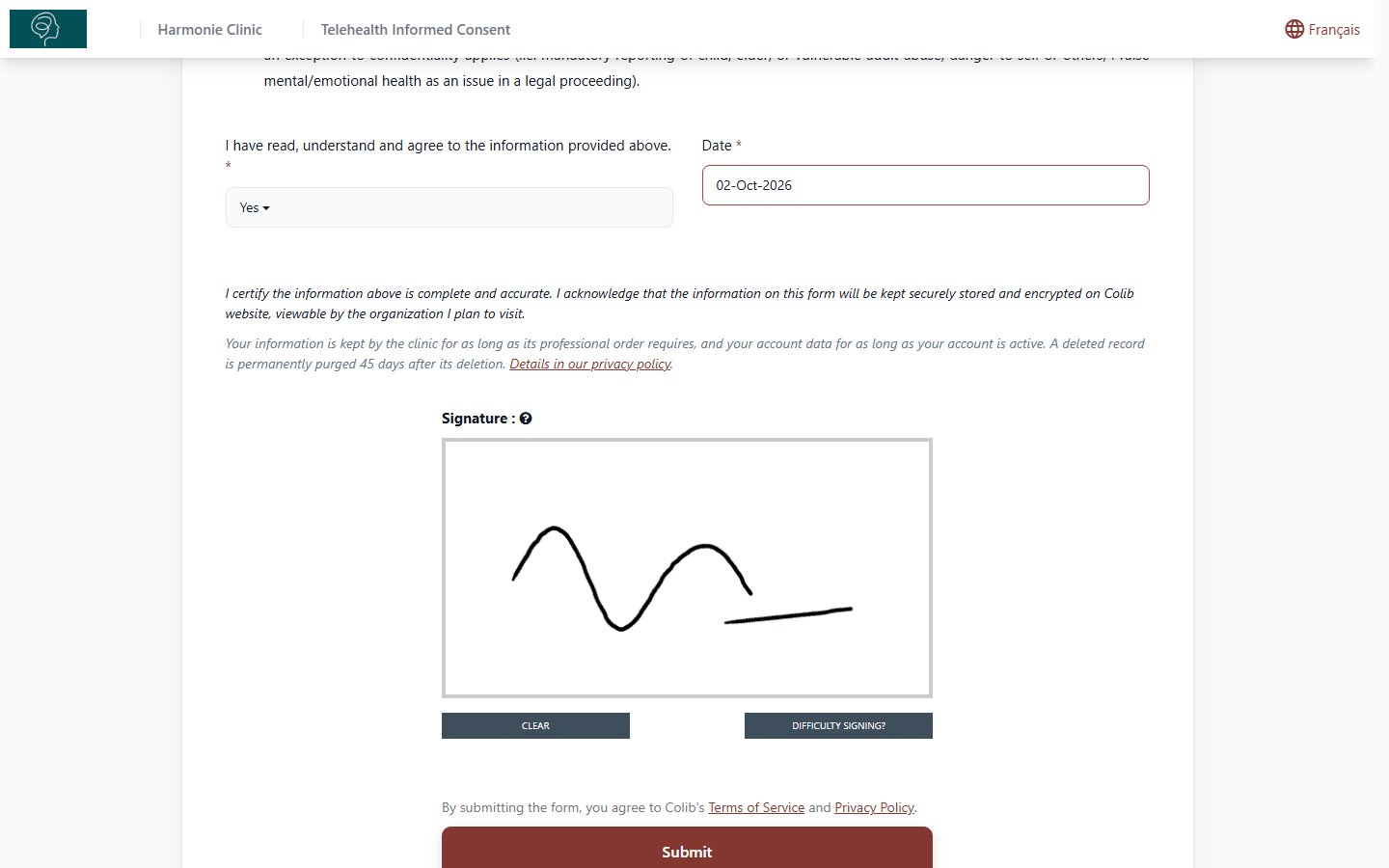
- Draw your signature in the white box: with your mouse on a computer (keep the left button pressed), or with your finger on a phone or a tablet.
- Not happy with it? Click Clear and sign again.
- If you cannot sign with your device, click Difficulty Signing? then Continue: a signature is generated with the first name and last name you entered.
Depending on the form, you may also be asked for the Full name of the signee (for example, when a parent signs for a child), or for a second signature in Additional signee.
4Submit the form
- Click Submit at the bottom of the form.
- If a required answer is missing, a message under the question tells you so (Please answer this question., Please sign the form....). Complete it and click Submit again.
- Once the form is sent, a confirmation message from your practice replaces the form, for example Thanks for completing the form. The information has been received.
Your answers go directly to your practice, in your client record. There is nothing else to do.
5Download a completed form
If your practice shares completed forms with its clients, you can download them as PDF files: in the client portal (portal.colib.io), open the Forms tab and click Download on a form with the status Completed. The confirmation page shown after you submit a form can also offer a link to download it from the portal.
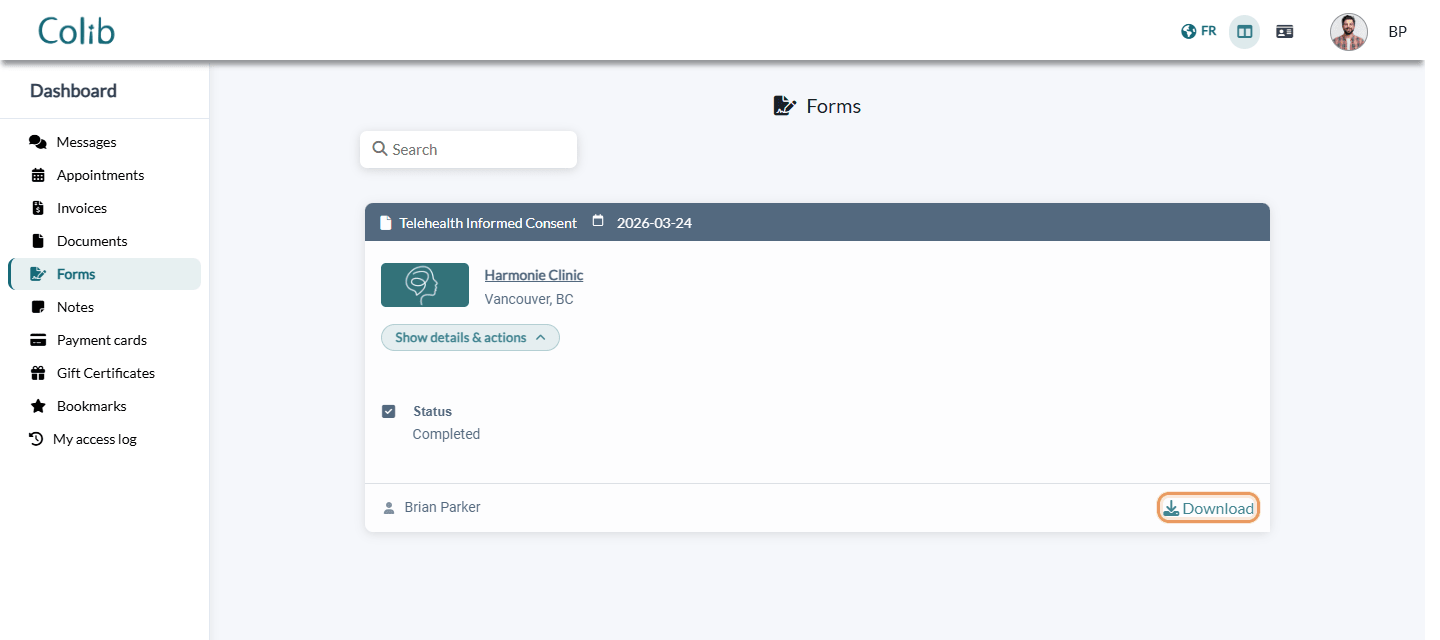
If your practitioner must also sign the form, it appears in the portal once they have signed it.
Good to know
- The link is personal — the form link sent by your practice is linked to your client record. Do not forward it to someone else.
- Already submitted? — once a form is sent, it disappears from the forms to fill out in the portal. If you open the email link again, you get a blank form: you do not need to fill it out again, unless your practice asks you to.
- Wrong answer after submitting? — you cannot edit a form already sent. Contact your practice: it can send you the form again.
- Client portal — to learn more about the portal, see What is the client portal? and Who can access the client portal?.
- For practitioners — to send a form to a client, see How can I send the form to my clients?.
Still have a question?
Write to us at support@colib.io, we will be happy to help.
Was this article helpful?
That’s Great!
Thank you for your feedback
Sorry! We couldn't be helpful
Thank you for your feedback
Feedback sent
We appreciate your effort and will try to fix the article