Who is this article for?
This article is for clients of a practice that uses Colib. In your client portal, the Documents tab gathers the documents your practice shares with you and lets you send a file to your practice (a referral letter, a test result, a photo of a document...). The Notes tab shows the notes your practitioner has chosen to share with you.
In short: sign in to the client portal (portal.colib.io), open Documents and click Send document to send a file, or Download to get a shared document. Your shared notes are in Notes.
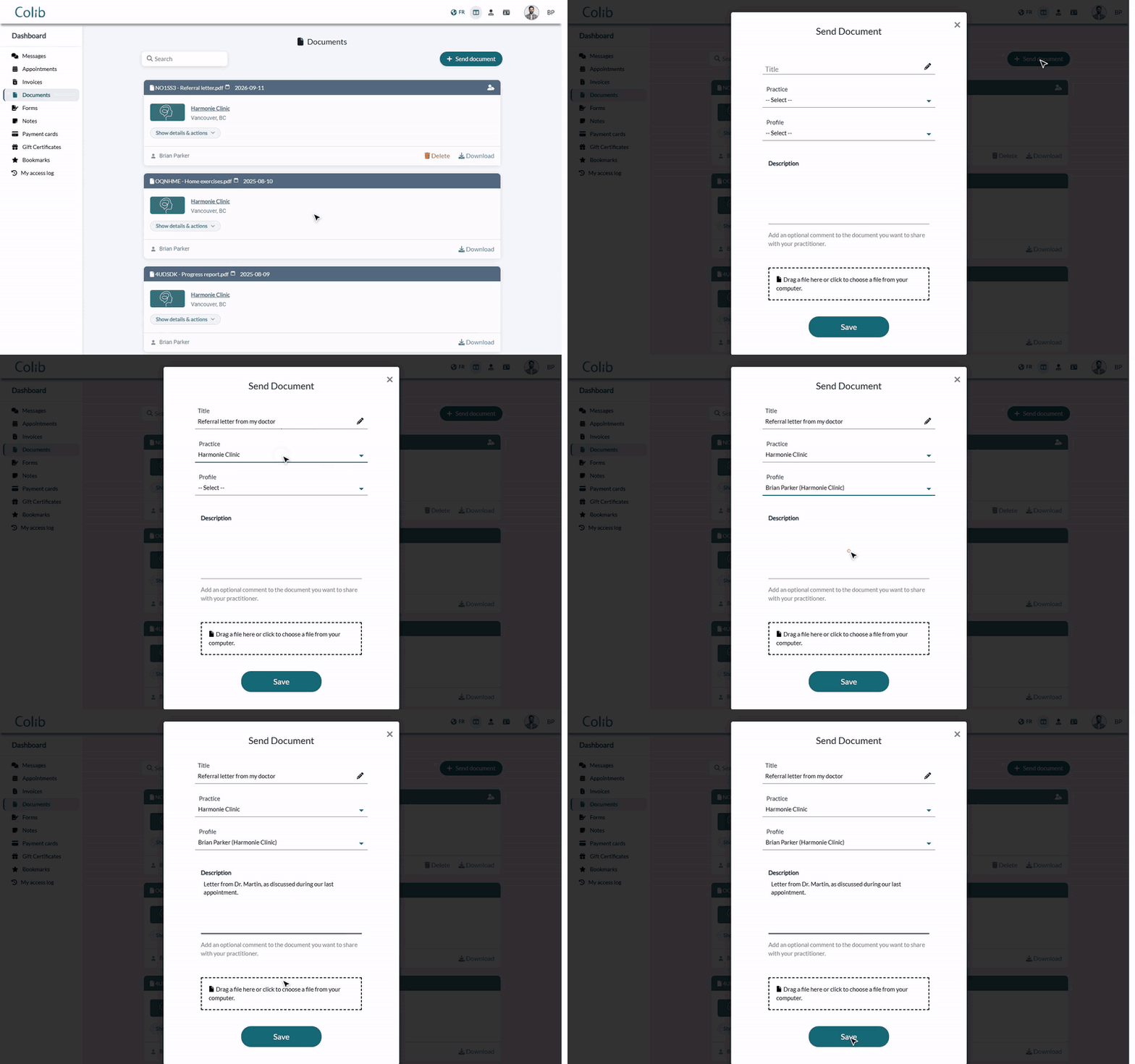
1View and download the documents shared with you
- Sign in to the client portal (portal.colib.io).
- In the menu on the left of the Dashboard, click Documents.
- Each document shows its reference, its title, the date and the practice. Click Show details & actions to see the related appointment, the related notes and the description, when there are any.
- Click Download to save the document on your computer or your phone.
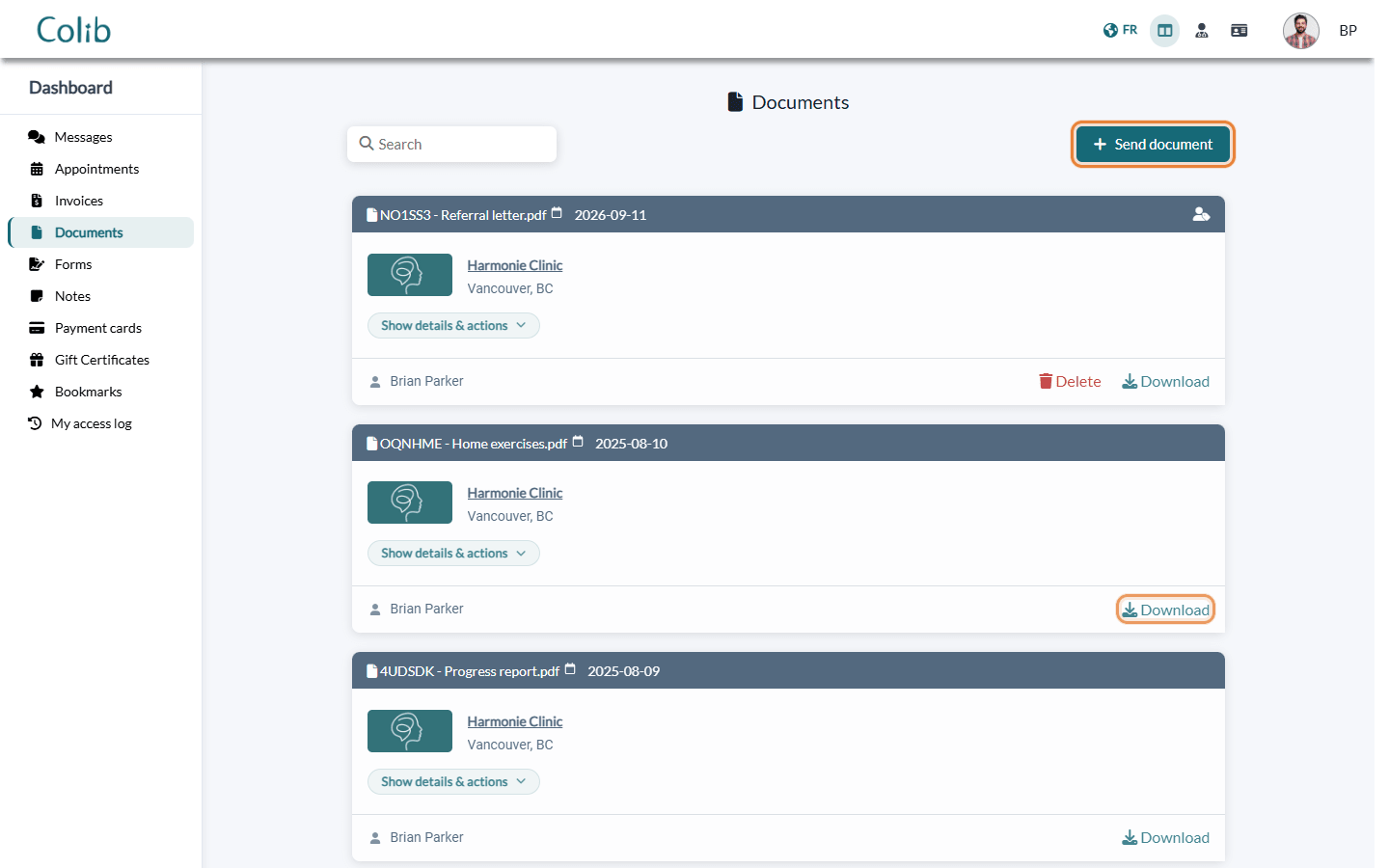
Use the Search box to find a document by its title. The documents you sent yourself are marked with a person icon at the top right of the card, with the tooltip The document has been uploaded by the client.
2Send a document to your practice
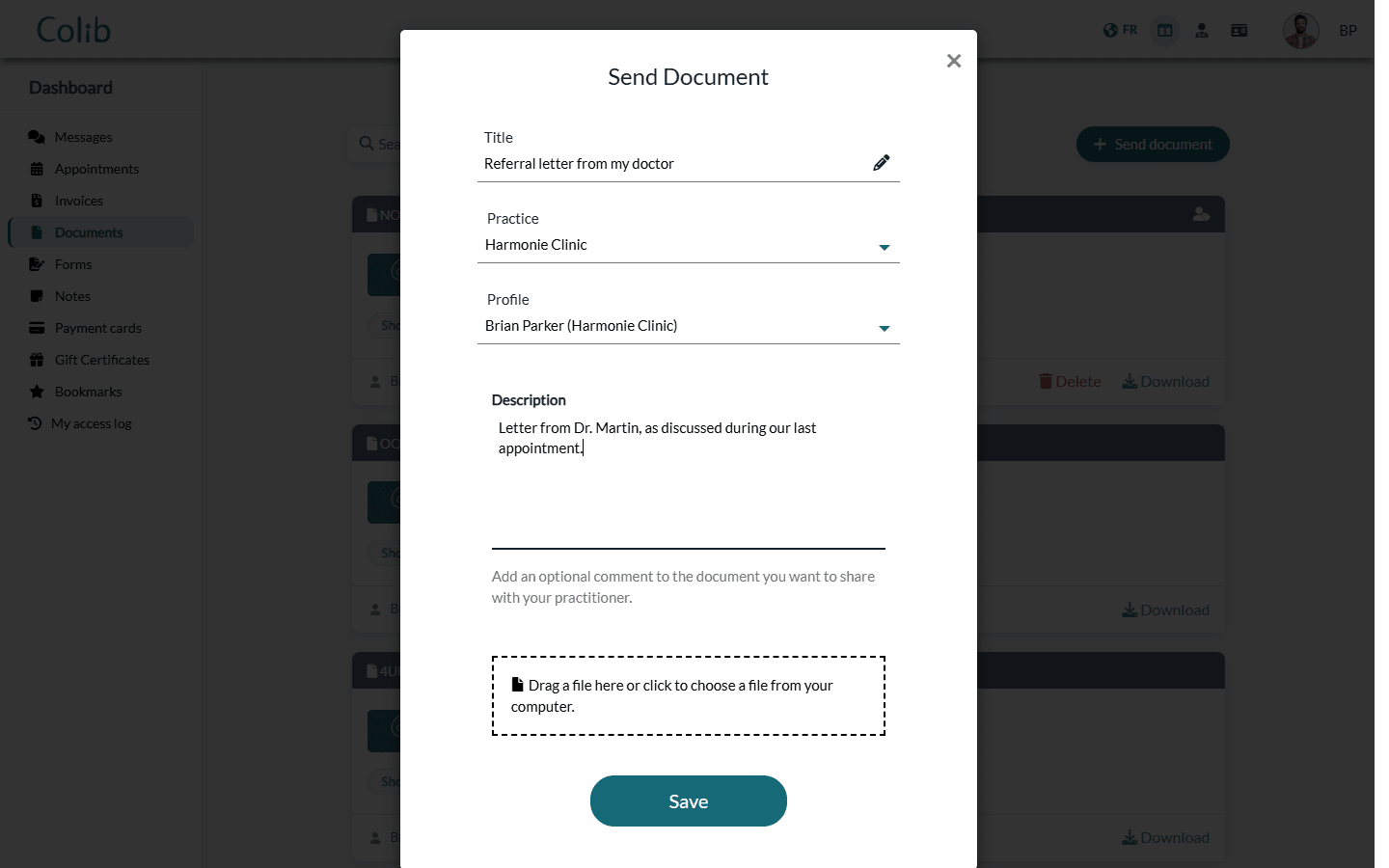
- In the Documents tab, click Send document.
- Enter a Title (required), for example Referral letter from my doctor.
- If you are a client of several practices, choose the Practice to send the document to. If you have several client records in that practice (for example, for your child), choose the Profile concerned.
- Optionally, add a Description for your practitioner (up to 800 characters).
- Drag your file into the box, or click the box to choose a file. Only one file can be sent at a time.
- Click Save.
The message Thank you. The document has been shared with your practitioner who has been notified. confirms the sending. Your practitioner receives a notification and an email, and finds the document in your client record. The document then appears in your Documents tab.
| Accepted files | Maximum size |
|---|---|
| PDF, Word (.doc, .docx), Excel (.xls, .xlsx), PowerPoint (.ppt, .pptx), text (.txt) and images (.jpg, .jpeg, .png, .gif) | 250 MB per file |
Delete a document you sent: click Delete on its card, then confirm. Your practitioner will no longer have access to it and is notified of the deletion. You cannot delete or edit the documents shared by your practice, and a document you sent cannot be edited: delete it and send it again.
3Read your shared notes
- In the menu on the left, click Notes.
- Each note shows its title, its date and the practice. Click Show note to read it: you also see the practitioner, the related appointment and the documents attached to the note, which you can download.
- Click Download to get the note as a PDF file.
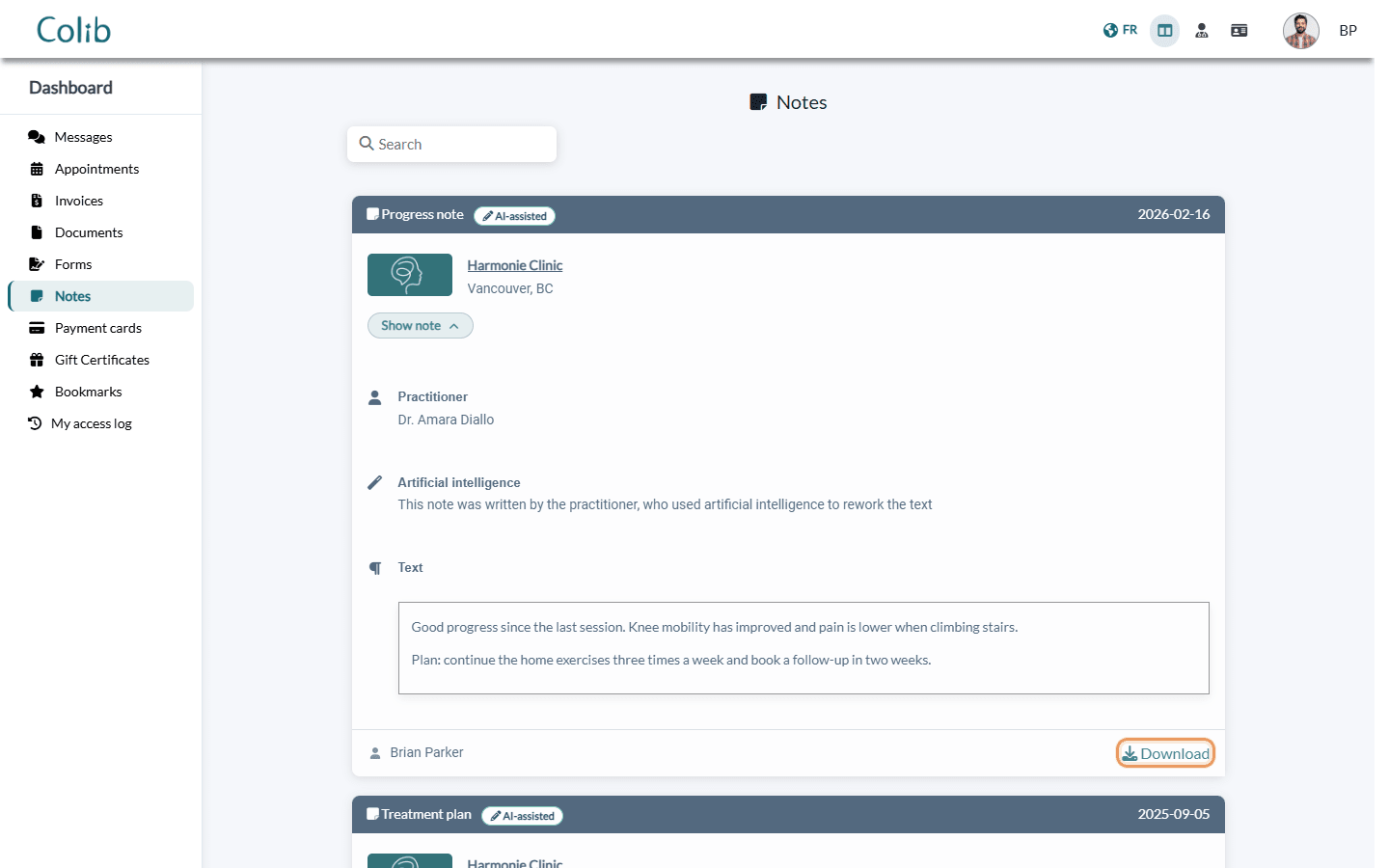
A label shows when artificial intelligence was used: Generated by AI or AI-assisted. Notes are read-only: you cannot reply to them or change them. To ask a question about a note, contact your practice.
Good to know
- Only what is shared — you only see the documents and notes your practice has chosen to share with you. Your practitioner's other notes and documents stay private.
- Confirm your email address — if the tab shows You need to confirm your email address to view your document(s). (or your note(s)), click the link in the confirmation email you received after signing up. The message also offers a link to receive a new one.
- Email notifications — when your practitioner shares a note with you, you receive an email with a View my notes button that opens the Notes tab.
- For practitioners — see How to share a document with a client and How can I securely share notes with my clients?.
- Client portal — see What is the client portal?.
Still have a question?
Write to us at support@colib.io, we will be happy to help.
Was this article helpful?
That’s Great!
Thank you for your feedback
Sorry! We couldn't be helpful
Thank you for your feedback
Feedback sent
We appreciate your effort and will try to fix the article