Who is this article for?
Some clients stop booking after a few sessions, often simply because they forgot. With recalls, Colib automatically sends them an email and/or a text message when they have not booked again a given number of days after their last appointment.
This article explains how to create a recall, how Colib decides who receives it, and how to check the recalls that were sent.
Before you start: recalls are managed in Settings > Recalls (www.colib.io/settings?show=recalls). You need access to the practice settings to create or modify them.
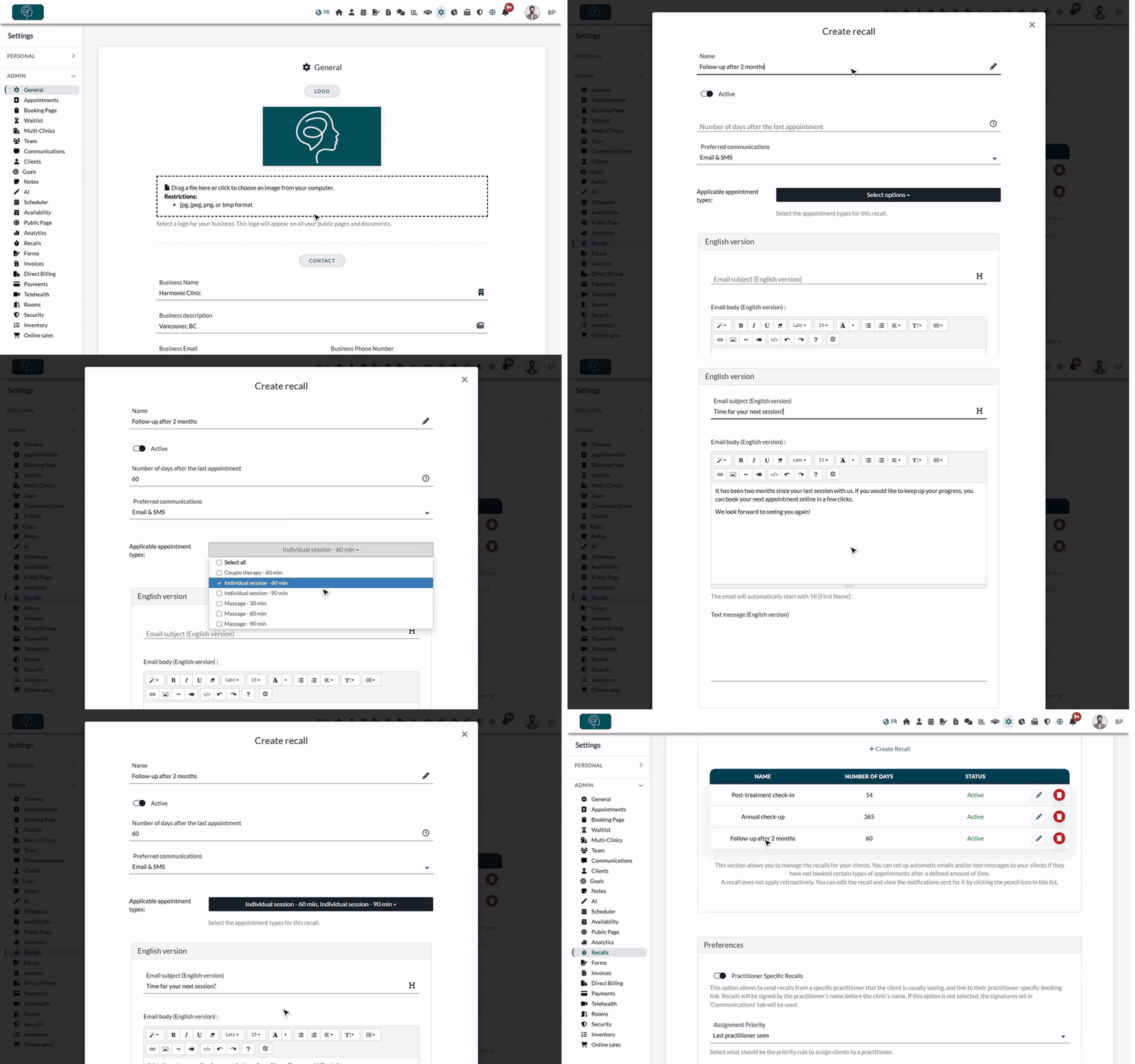
1Open the recalls
- Go to www.colib.io/settings?show=recalls. You can also click the Settings icon (gear) in the top bar, then Recalls in the Admin menu on the left.
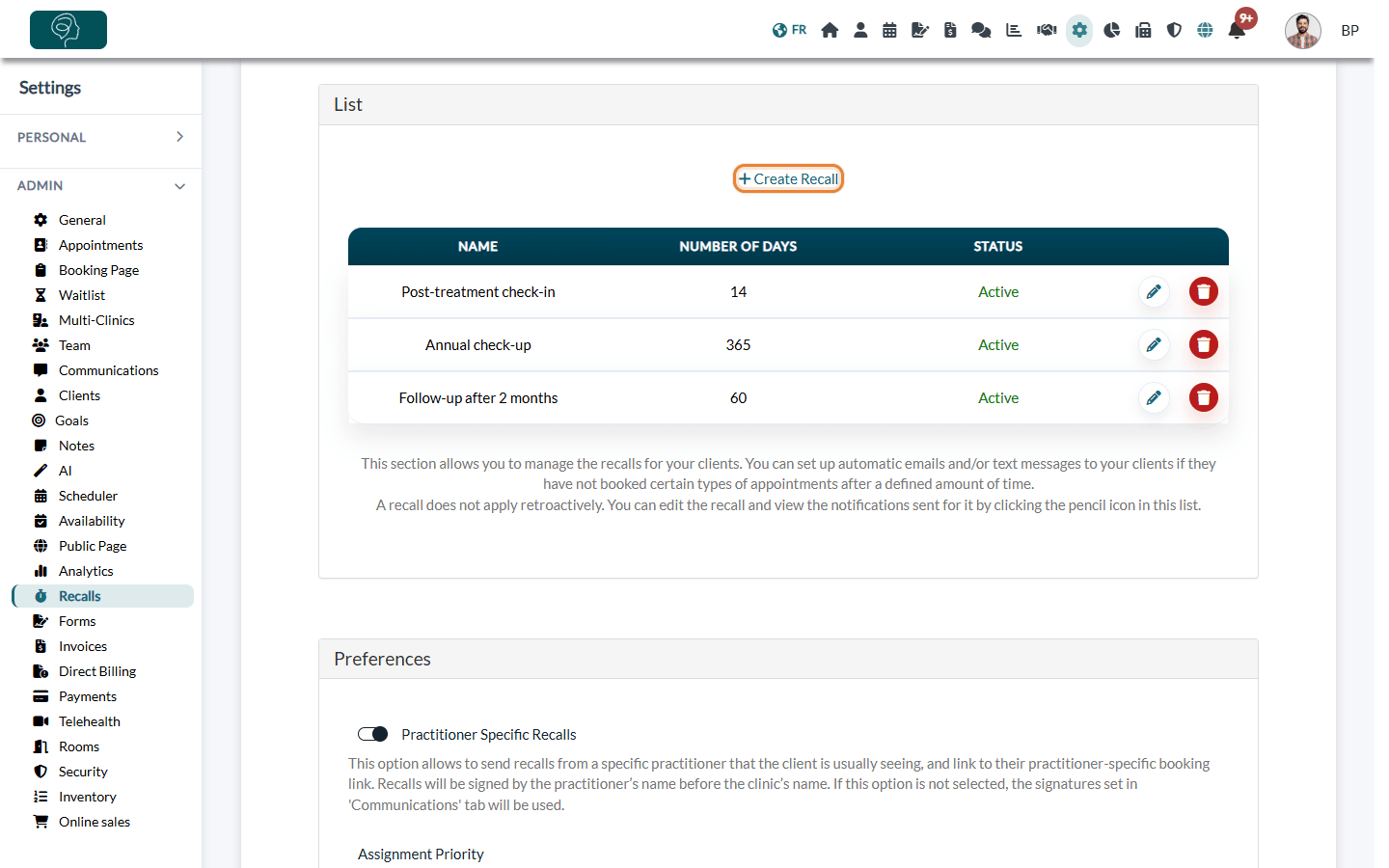
- The List section shows your recalls with their number of days and their status (Active or Disabled).
2Create a recall
- Click Create Recall.
- Enter a Name (for example, Follow-up after 2 months). It is only visible to your team and must be different from the names of your other recalls.
- Leave Active turned on so the recall starts working as soon as it is saved.
- In Number of days after the last appointment, enter the delay after which the client is contacted (for example, 60).
- In Preferred communications, choose Email & SMS, Email only or SMS only.
- In Applicable appointment types, select the appointment types concerned by this recall.
- Write your message in the English version and/or the French version: the email subject and body, and the text message (500 characters maximum), depending on the communication method chosen. At least one version must be complete.
- Click Save. The recall appears in the list.
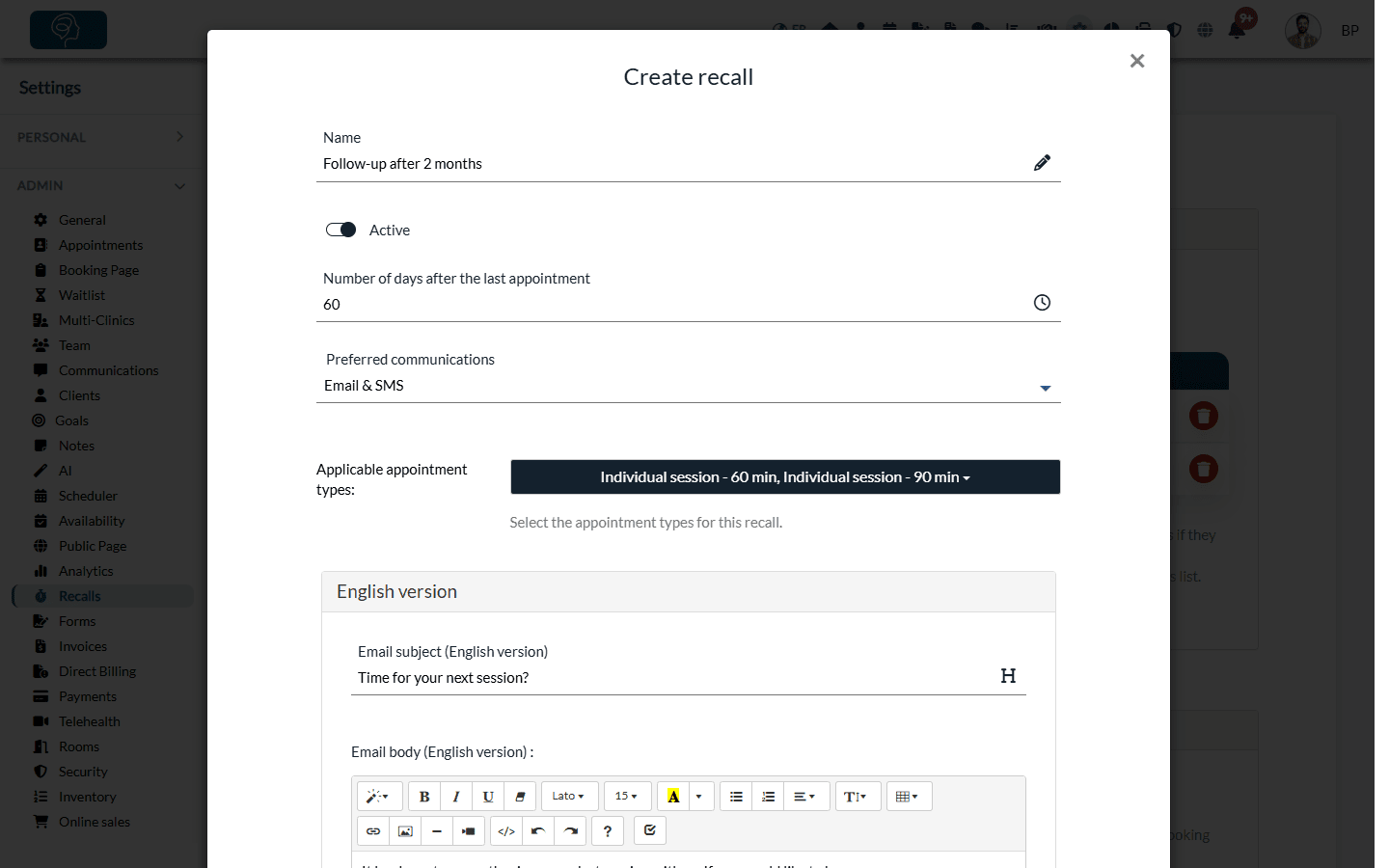
Important: select at least one appointment type. A recall without an appointment type is never sent.
3How Colib decides who receives a recall
When the chosen number of days has passed since an appointment of one of the selected types, Colib checks each client of that appointment:
- if the client has another appointment of one of the selected types after that one (already past or booked in the future), nothing is sent: the client has rebooked;
- otherwise, the recall is sent, once for that appointment.
A few rules to know:
- Not retroactive — only the appointments that reach the number of days after the recall is created are taken into account. Clients whose last appointment is older do not receive it.
- Cancelled appointments are ignored, as well as archived clients.
- Language — each client receives the version in their language. If that version is empty, the other one is used.
- Contact details — with Email & SMS, a client who only has an email address receives the email, and a client who only has a phone number receives the text message. A client with neither receives nothing.
- Client groups — for a client who belongs to a group (a child, for example), the recall is sent to the contact details of the person responsible for the group.
- Greeting and signature — the email automatically starts with a greeting (the client's first name, or their title and last name, depending on the Greetings option) and ends with the email signature of the practice. Both are set in Settings > Communications (www.colib.io/settings?show=communications). Replies go to the email address of the clinic of the appointment, or otherwise to the practice's email address.
Tip: add the link to your booking page in your message so the client can book right away. With the option below, Colib adds a link to the practitioner's own booking page for you.
4Send recalls on behalf of the practitioner (optional)
In a practice with several practitioners, you can have recalls signed by the practitioner the client usually sees, with a link to book directly with them.
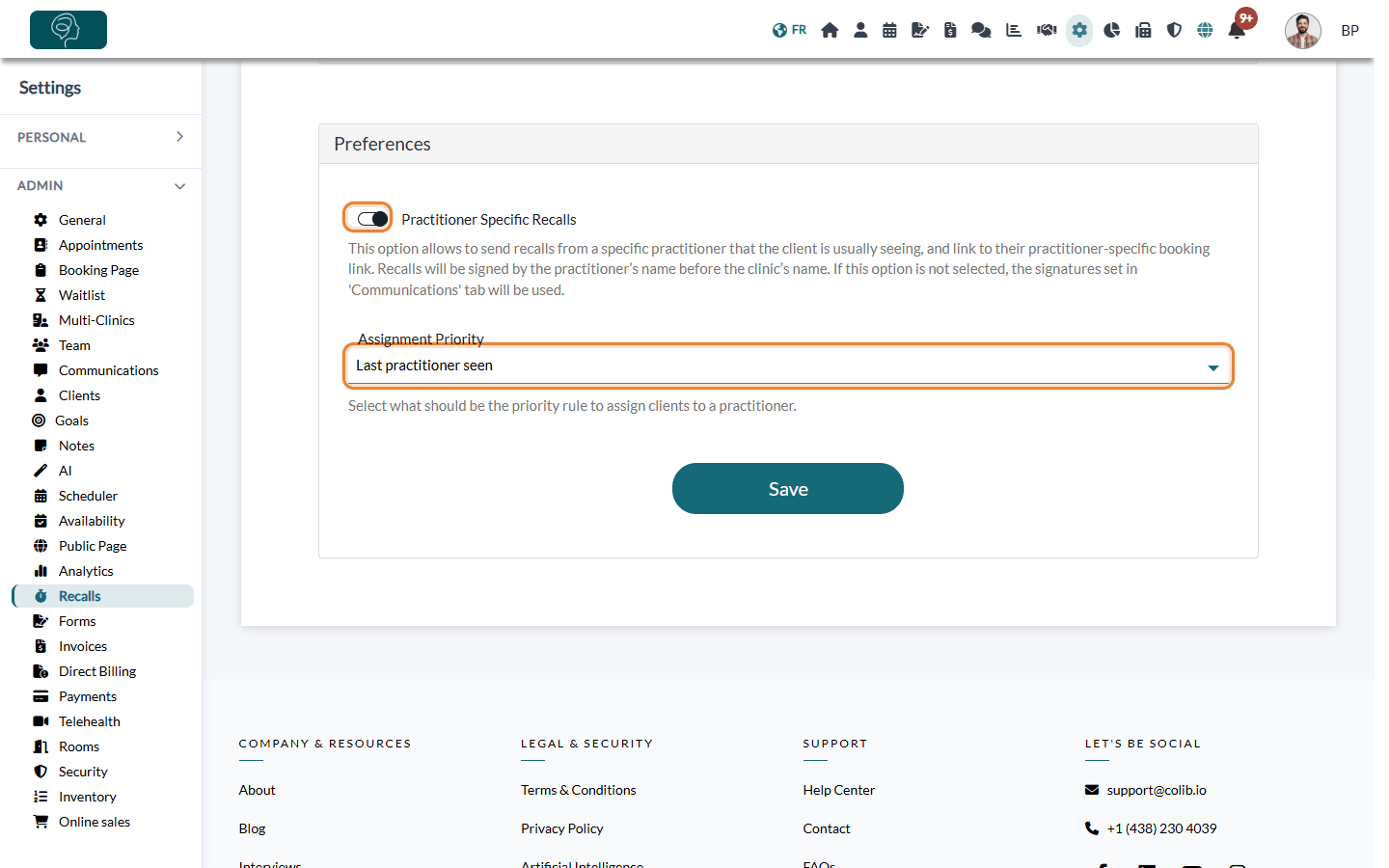
- In the Preferences section of the Recalls tab, turn on Practitioner Specific Recalls.
- Choose the Assignment Priority: Assigned practitioner (the practitioner assigned in the client's record, otherwise the practitioner of their last appointment) or Last practitioner seen (the practitioner of their last appointment, otherwise the assigned practitioner).
- Click Save.
The email is then signed with the practitioner's name and the name of the practice, followed by a Book a new appointment with me link. The text message ends with the same information and the link. When this option is turned off, the signature set in Settings > Communications is used.
5Check the recalls sent
- In the List, click the pencil icon of a recall.
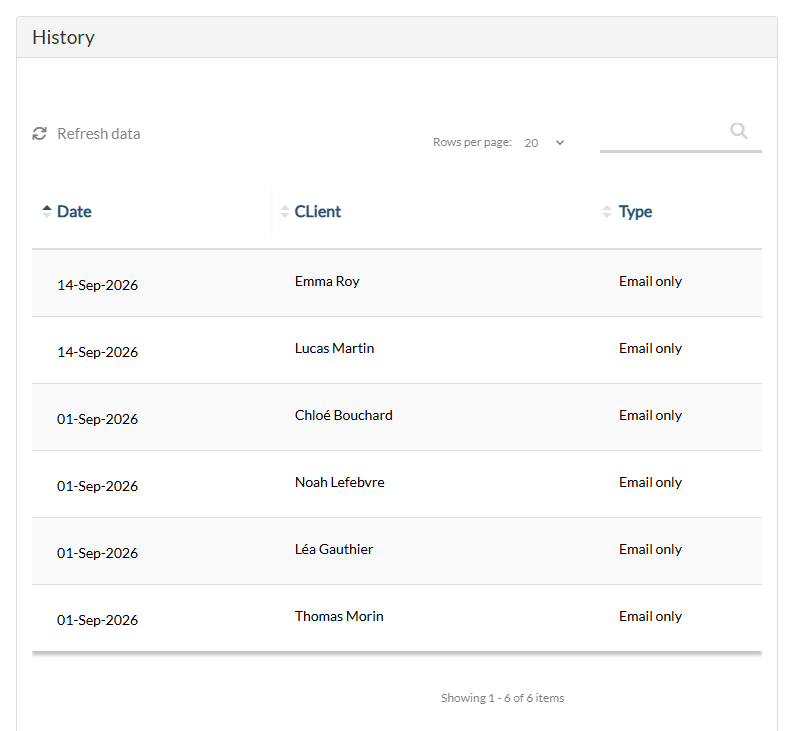
- Scroll down to the History section: it shows the date, the client and the type of message sent.
You can also see the messages sent to a client from their record: see How to view client communications (emails, SMS) delivery status.
Good to know
- Pause a recall — open it with the pencil icon, turn off Active and save. Its status becomes Disabled and nothing is sent until you turn it back on.
- Several recalls — you can create as many recalls as you need, for example one after 2 months for follow-up sessions and another one after a year for an annual check-up.
- Delete a recall — click the trash icon in the list. Its history is deleted too.
- Reminders before an appointment are a different feature: see How to get an email or SMS reminder before each appointment.
- Email address to confirm — if your own Colib email address is not confirmed yet, Colib asks you to confirm it before you can create a recall.
Still have a question?
Write to us at support@colib.io, we will be happy to help.
Was this article helpful?
That’s Great!
Thank you for your feedback
Sorry! We couldn't be helpful
Thank you for your feedback
Feedback sent
We appreciate your effort and will try to fix the article