Who is this article for?
You write your notes quickly, between two sessions, and you would like them to be clean and well organized without spending time on them. The AI Assistant of the note editor rewrites the text you have written in one click: it fixes grammar and typos, reorganizes the note in the SOAP format or makes it sound more polished. This feature is included in every plan and is totally free.
This article is for practitioners who write notes in Colib. It explains how to use the assistant, how to go back to your own text, and how your clinic can turn the assistant on or off.
Before you start: the assistant works on the text you have already written. It does not listen to your session and does not create a note from nothing. To have a note written automatically after an online session, see How does the artificial intelligence note generation work?
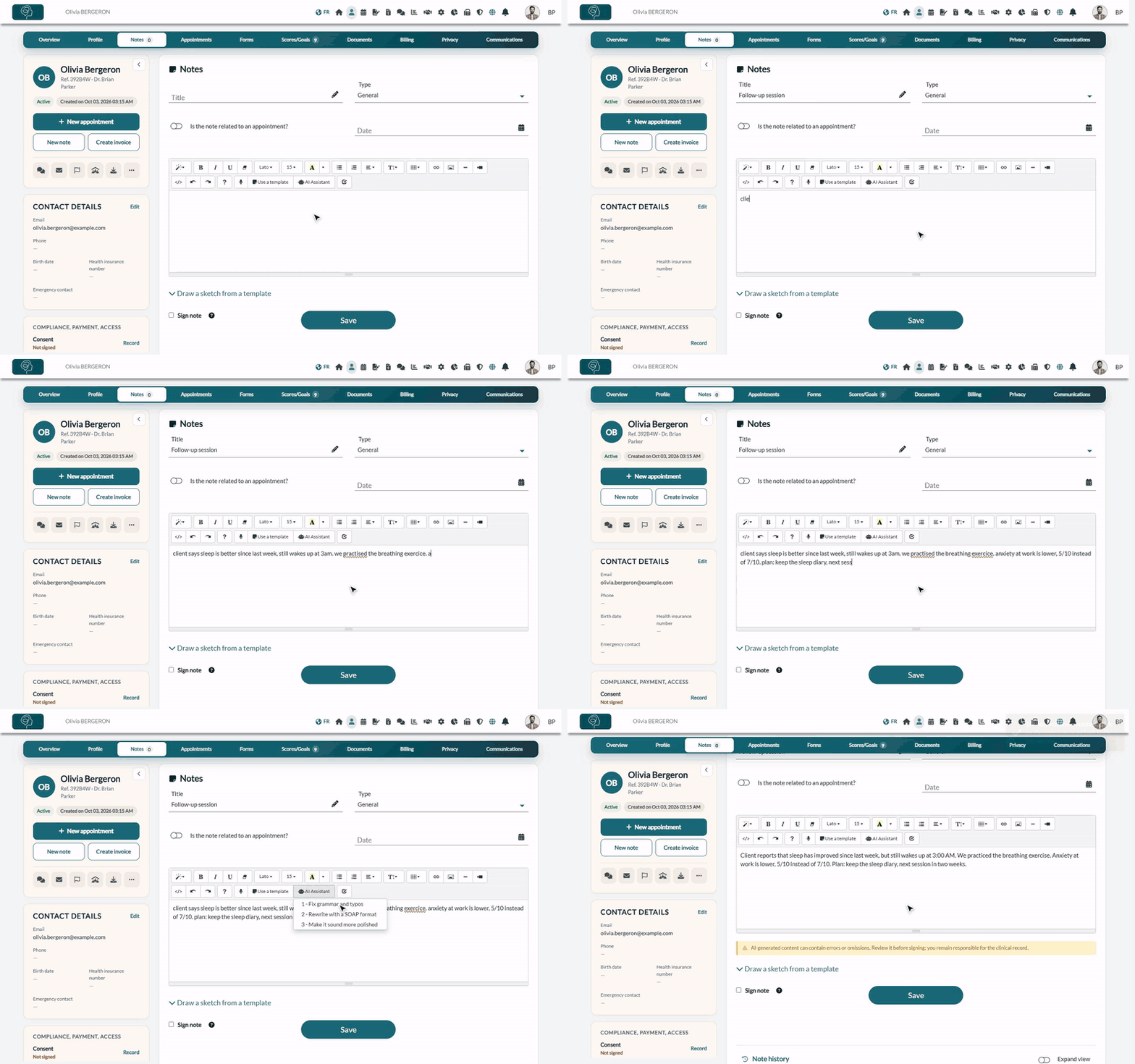
1Write your note
- Open the client's record from your client list (www.colib.io/clients) and click the Notes tab (or the New note button of the record).
- Enter the Title and choose the Type of note as usual.
- Type your note in the editor, the way it comes: short sentences, abbreviations or typos are fine. You can also start from a template (Use a template) or dictate it with the microphone.
To rework a note you have already saved and not signed yet, open it from the Note history: the assistant is available in its editor too.
2Choose what the assistant should do
- In the editor toolbar, click AI Assistant (robot icon).
- Choose one of the three options (see the table below).
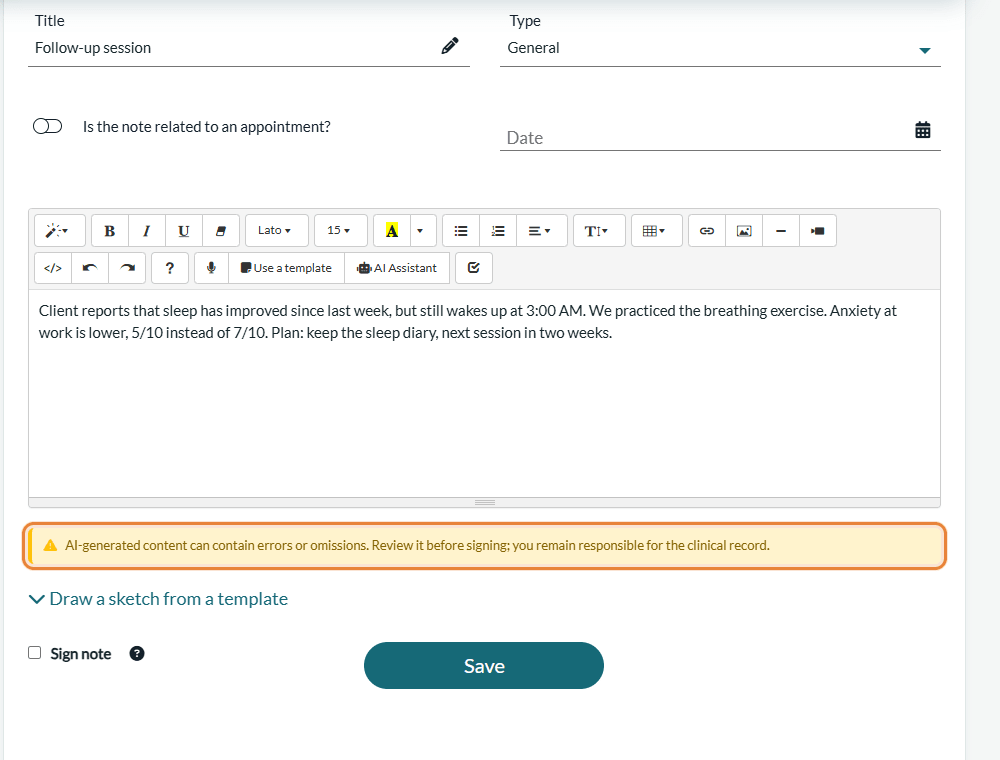
- Wait a few seconds: the text of the editor is replaced by the rewritten version, and the message The note has been modified. Click on the undo icon to go back to the last version. is displayed.
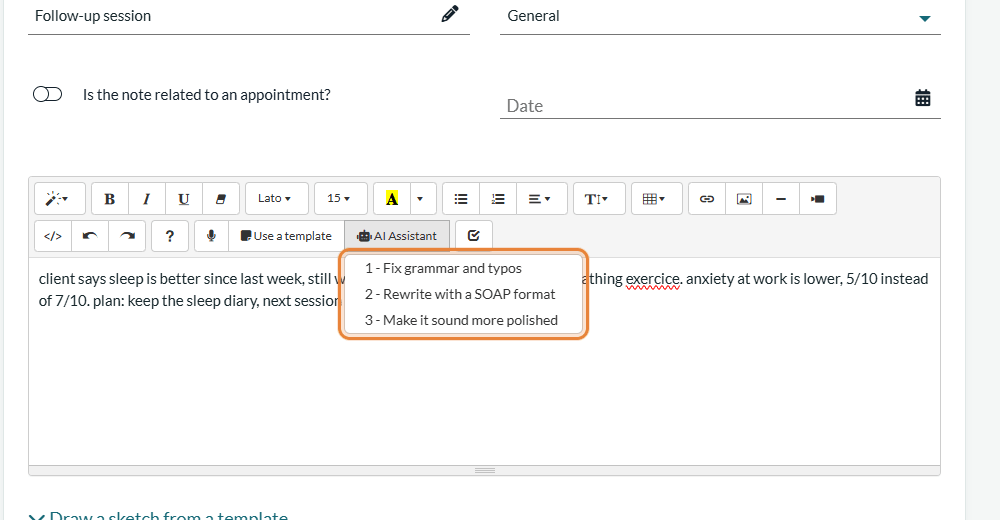
| Option | What it does |
|---|---|
| 1 - Fix grammar and typos | Corrects grammar, spelling and punctuation. The meaning, the clinical content and the layout of your note stay the same. |
| 2 - Rewrite with a SOAP, GRIP, DAP, BIRP format | Reorganizes your note with the correct format. |
| 3 - Make it sound more polished | Fixes the language and awkward phrasing to give a clear, professional and concise note. |
Whatever the option, the assistant is asked to keep the meaning of your note and not to add any medical information. A note written in French stays in French, a note written in English stays in English.
3Review the result, then save
- Read the rewritten note carefully. A yellow warning is displayed under the editor: AI-generated content can contain errors or omissions. Review it before signing; you remain responsible for the clinical record.
- Correct the text if needed, directly in the editor.
- If you prefer your own version, click the undo icon (curved arrow) of the toolbar: your text comes back as it was before the rewrite.
- When the note suits you, check Sign note if you want to sign it, then click Save.
A note saved after a rewrite by the assistant shows the AI-assisted badge in the note history and when you open it. Hover over the badge to read: This note was written by the practitioner, who used artificial intelligence to rework the text. This keeps a clear trace in the file of how the note was written.
Turn the assistant on or off for your clinic
The assistant is managed for the whole clinic, by a user who has access to the practice settings.
- Go to Settings > AI (www.colib.io/settings?show=artificialintelligence).
- In Other artificial intelligence features, turn Allow the AI note rewriting assistant on or off.
- Click Save.
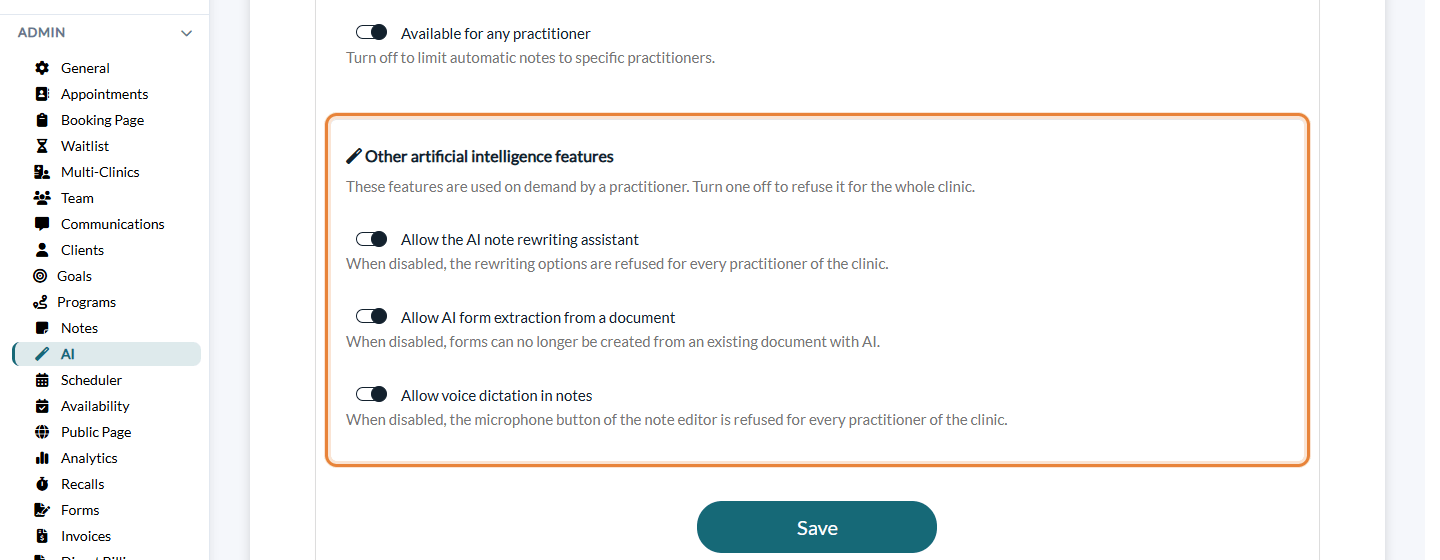
When the option is off, the rewriting options are refused for every practitioner of the clinic: choosing one shows This artificial intelligence feature is turned off in the clinic settings.
Good to know
- A client who refuses AI — if Allow AI-generated notes for this client is turned off in the client's record, the assistant is refused on their notes too, with the message This client has refused the use of artificial intelligence on their record. See How to disable AI-generated notes for a specific client?
- Empty note — the assistant needs text to work on: on an empty editor, it shows The note is empty.
- Only clinical notes — if the text does not look like a clinical note, the assistant leaves it as it is and shows This text does not appear to be a medical note.
- Nothing is saved without you — the rewritten text stays in the editor until you click Save. A signed note can no longer be rewritten.
- Related — How can I use the voice recognition tool to create a note? and How can I use template of notes to create new notes?
Still have a question?
Write to us at support@colib.io, we will be happy to help.
Was this article helpful?
That’s Great!
Thank you for your feedback
Sorry! We couldn't be helpful
Thank you for your feedback
Feedback sent
We appreciate your effort and will try to fix the article